Introduction
GoTo Connect is a cloud-based unified communications (UC) platform designed to simplify and centralize business communications for organizations of all sizes. It combines a robust cloud phone system (VoIP) with video meetings, team messaging, SMS, and contact center capabilities into a single, easy-to-manage solution. Accessible from desktop and mobile applications as well as IP desk phones, GoTo Connect enables users to place and receive calls, collaborate via chat, host or join video meetings, and manage communications from one intuitive platform.
Algo Communication Products offers a comprehensive portfolio of SIP-compliant audio and visual devices purpose-built to enhance workplace communication, safety, and emergency alerting across a wide range of environments. Algo’s product line includes IP speakers, paging adapters, intercoms, displays, and strobe lights that integrate seamlessly with modern IP-based unified communications platforms, including GoTo Connect.
Algo devices register as standard SIP endpoints, making them compatible with GoTo Connect’s cloud phone system. This integration allows organizations to deploy Algo IP endpoints as extensions within GoTo Connect, enabling solutions such as live voice paging, overhead announcements, audible and visual emergency alerting, night bell, loud ringer, and intercom functionality. Together, Algo and GoTo Connect provide a flexible, cloud-based approach to extending UC communications beyond the desktop and into physical spaces where clear audio and visual notification is critical.
Common Use Cases
Algo solutions provide essential capabilities for business continuity, safety, and efficient communication:
Voice Paging & Public Address: Broadcast live or pre-recorded announcements to specific zones or facility-wide, essential for warehouses, schools, and manufacturing floors.
Emergency Alerting: Instantly send critical safety notifications using audio, visual, or combined signals. Ideal for fire alarms, lockdowns, or severe weather situations.
Legacy System Bridging: Paging adapters connect analog audio systems (e.g., old PA speakers and amplifiers) to modern VoIP platforms, protecting prior hardware investments during digital transformation.
Door Entry & Security Intercom: Algo IP intercoms provide secure, SIP-enabled entry points for lobbies, gates, or loading docks, integrating with Unite for convenient two-way audio and door control.
Visual & Audible Alerting: Strobe lights and visual alerters deliver high-visibility notifications for ring alerts, safety events, or accessibility needs in noisy or quiet environments.
Bell Scheduling and Automated Events: Support for scheduled tones, bells, and music for K-12 schools and large organizations.
Prerequisites
If not already enabled, you will need to enable Registration in the GoTo Admin portal for manual adding of devices.
To enable registration:
Log in to GoTo Admin portal.
Edit network permission and enable REG.
.png)
Navigate to Phone System → Network Access to select the network and enable the feature.
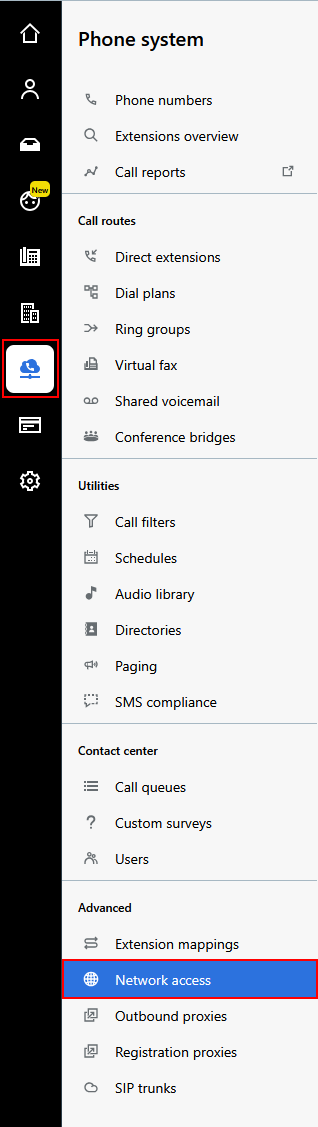
Step-by-Step Configuration
Follow these steps to configure SIP registration for your Algo devices.
Step 1:
In the GoTo Admin portal, on the sidebar, navigate to Phone System → Direct Extensions.
Select + Add direct extension.

Specify the extension.
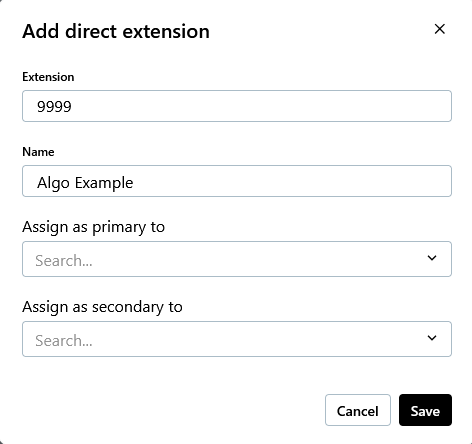
This is the extension the Algo endpoint will be using.
Note
Leave the Assign as primary to option blank.
Step 2
Navigate to Devices in the option bar on the side. Once in, create the Algo device by pressing +Add device in the top right-hand corner.

Enter the following information in the pop-up window:
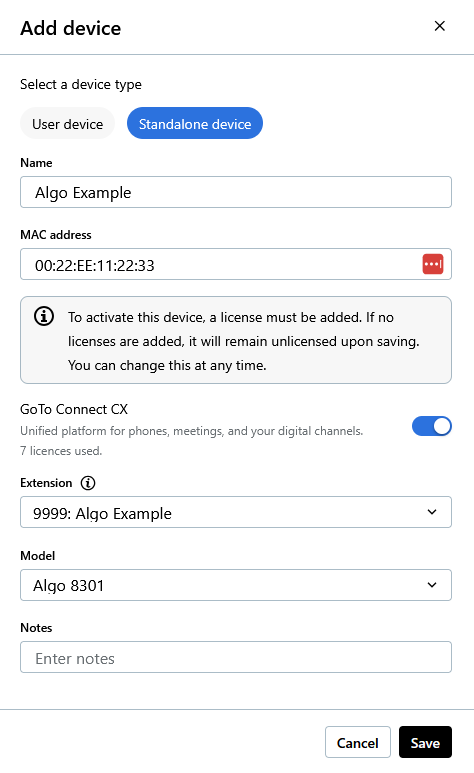
Device type = Standalone Device
Name = <Enter a name>
MAC address = <Enter the MAC address of the device>
GoTo Connect CX = Enable
Extension = <Select the Extension created in Step 1>
Model = < Select the corresponding Algo model>
Select Save.
Step 3
After the device is created, and it appears in the Devices listings, reach out to GoTo’s Support to get the SIP credentials for the Algo device.

Step 4
After receiving the SIP credentials from GoTo’s support, log in to the Algo’s device web interface.
Go to Basic Settings → SIP and enter the credentials into the following fields:
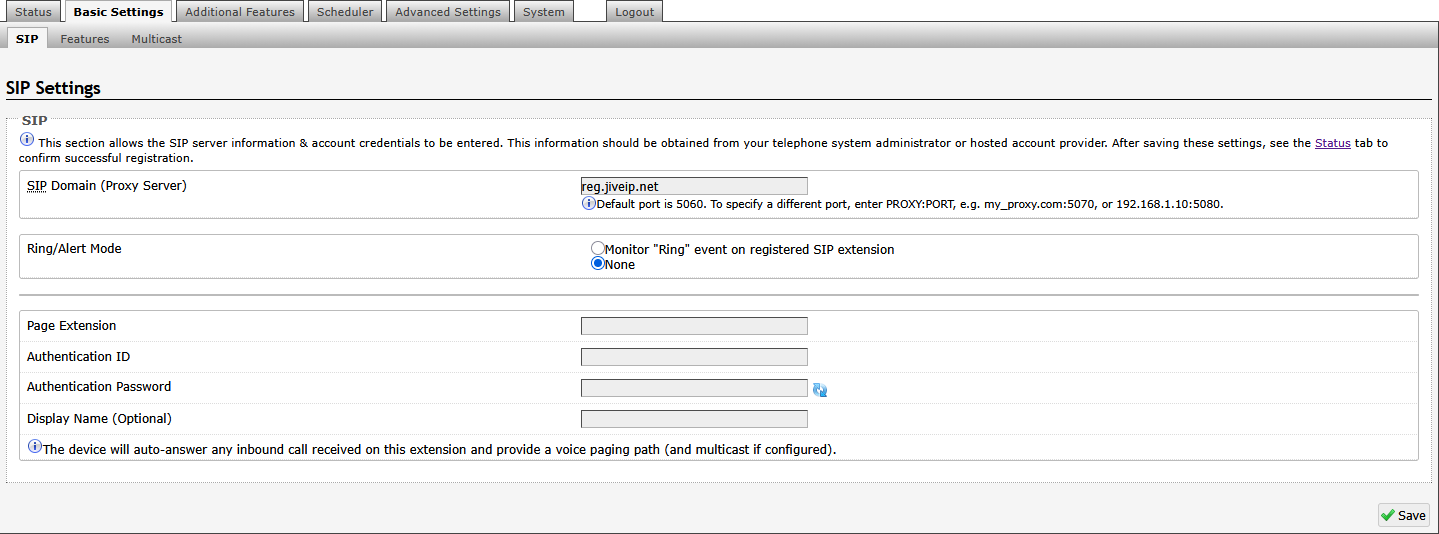
SIP Domain = reg.jiveip.net
Page Extension = <SIP username>
Authentication ID = <SIP username>
Authentication Password = <SIP password>
Note
While the SIP credentials are used for Page mode in this example, they may also be configured on the Algo device for Ring or Alert applications.
Additional extensions may be registered as needed for applications that require extension-based zoning, paging and alerting, as well as other supported use cases.
Select Save.
Step 5
Go to Advanced Settings → Advanced SIP tab.
Enter the Outbound Proxy is as <domain name>.jive.rtcfront.net.
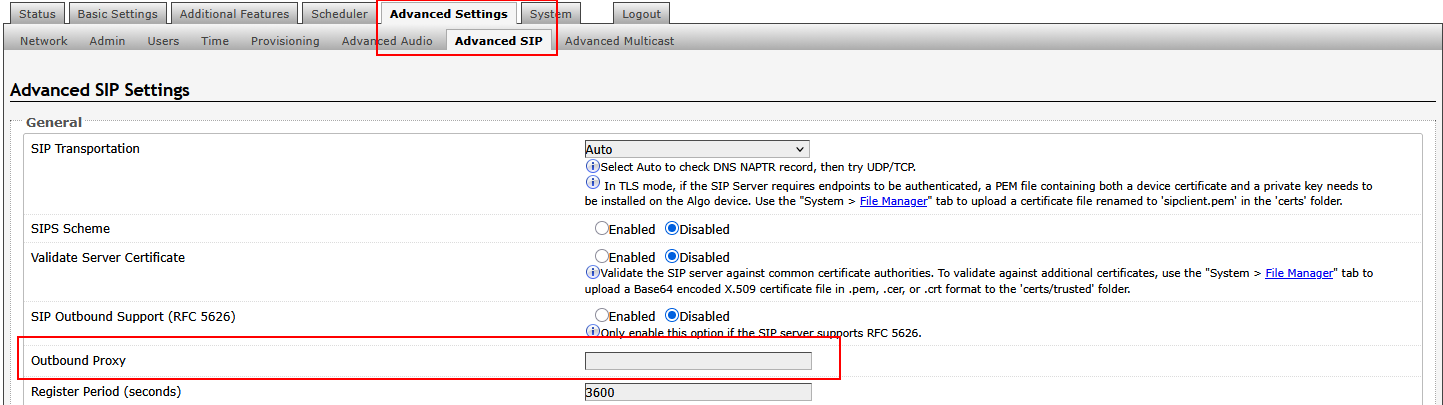
Select Save.
Step 6
Return to the Status tab. Make sure the SIP registration status shows Successful.

Troubleshooting
If your Algo endpoint fails to register, use the following steps to diagnose and resolve common issues:
1. Confirm Registration Status
Check the Status → Device tab in the Algo device web interface for SIP registration status.
Alternatively, verify status in the Elevate control panel under Quality → Current Device Status.
2. Common Causes & Solutions
Incorrect SIP Credentials
Double-check that the SIP server, user ID/extension, authentication ID, and password match what was provided by your service.
Re-enter credentials to eliminate typos.
Confirm the SIP port is set to 5060 or specify it as proxyaddress:port (if using a different port).
Network Connectivity Issues.
Ensure the Algo device has internet access and can reach the SIP server.
If using VLANs or firewalls, verify appropriate rules are in place for SIP traffic (default port 5060, unless otherwise configured).
Make sure firewalls or NAT devices are not blocking the required port(s).
Review Allowlisting and Firewall Configuration for GoTo Connect.
Account or Licensing Issues.
Confirm sufficient resource accounts, licenses, or plans are assigned, and that total charges (if any) were accepted during setup.
3. Additional Checks
Device Firmware.
Ensure your Algo device is running the latest firmware. The latest firmware image is available through Algo’s website.
If the issue persists after these checks, collect error messages or diagnostic logs and contact GoTo’s or Algo’s technical support with these details for further assistance.