Disclaimer
The information contained in this document is believed to be accurate in all respects but is not warranted by Algo. The information is subject to change without notice and should not be construed in any way as a commitment by Algo or any of its affiliates or subsidiaries. Algo and its affiliates and subsidiaries assume no responsibility for any errors or omissions in this document. Revisions of this document or new editions of it may be issued to incorporate such changes. Algo assumes no liability for damages or claims resulting from any use of this manual or such products, software, firmware, and/or hardware.
No part of this document can be reproduced or transmitted in any form or by any means – electronic or mechanical – for any purpose without written permission from Algo.
For additional information or technical assistance in North America, please contact Algo’s support team:
1-604-454-3792
support@algosolutions.com
Introduction
Integrating Algo IP endpoints with a Zultys MX system extends communications beyond phones and desktop applications to provide broader coverage throughout the workplace. By registering as SIP endpoints on the Zultys system, Algo devices expand the reach of existing Zultys infrastructure, helping deliver important notifications in areas where standard phones may not provide sufficient coverage.
This guide explains how to register an Algo IP endpoint with a Zultys MX system, using a SIP Page Extension as an example.
After completing the configuration, the Algo device operates as a SIP endpoint on the Zultys system. Depending on the Algo product and configuration, registered SIP extensions can support applications such as voice paging, ringing, alerting, or intercom calls.
Note
This document includes third-party configuration procedures that are subject to change. It is provided for reference purposes only, and Algo cannot guarantee that the screenshots or procedures will always be current or up to date.
Before You Begin
Make sure you have:
Access to the Zultys MX Administrator application with sufficient administrative privileges to configure devices and users.
The address or hostname of the Zultys MX server.
An available extension on the Zultys system.
Configuration Overview
Follow these steps to register an Algo IP endpoint with Zultys:
Registering an Algo IP Endpoint with Zultys
In MX Administrator, create a Generic SIP device profile and device, create a user and SIP extension, and then assign the device.
Configuring SIP Registration on the Algo Endpoint
In the Algo device web interface, configure the Page Extension using the Zultys SIP server information and credentials.
Verifying the SIP Registration
You can verify registration from either the Algo endpoint or Zultys.
Place a test call to the extension assigned to the Algo endpoint.
Registering an Algo IP Endpoint with Zultys
You need to create a Generic SIP device profile and device, create a user and SIP extension, and then assign the device.
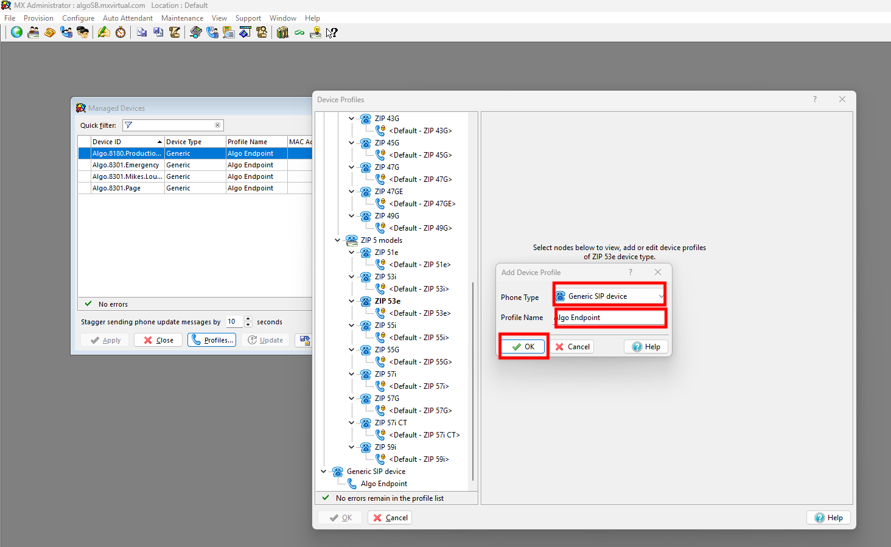
To register an Algo IP endpoint with Zultys:
Log in to MX Administrator.
Create a Generic SIP device profile:
Go to Configure → Devices → Profiles.
Right-click the profile list and select New.
Configure the following, then select OK:
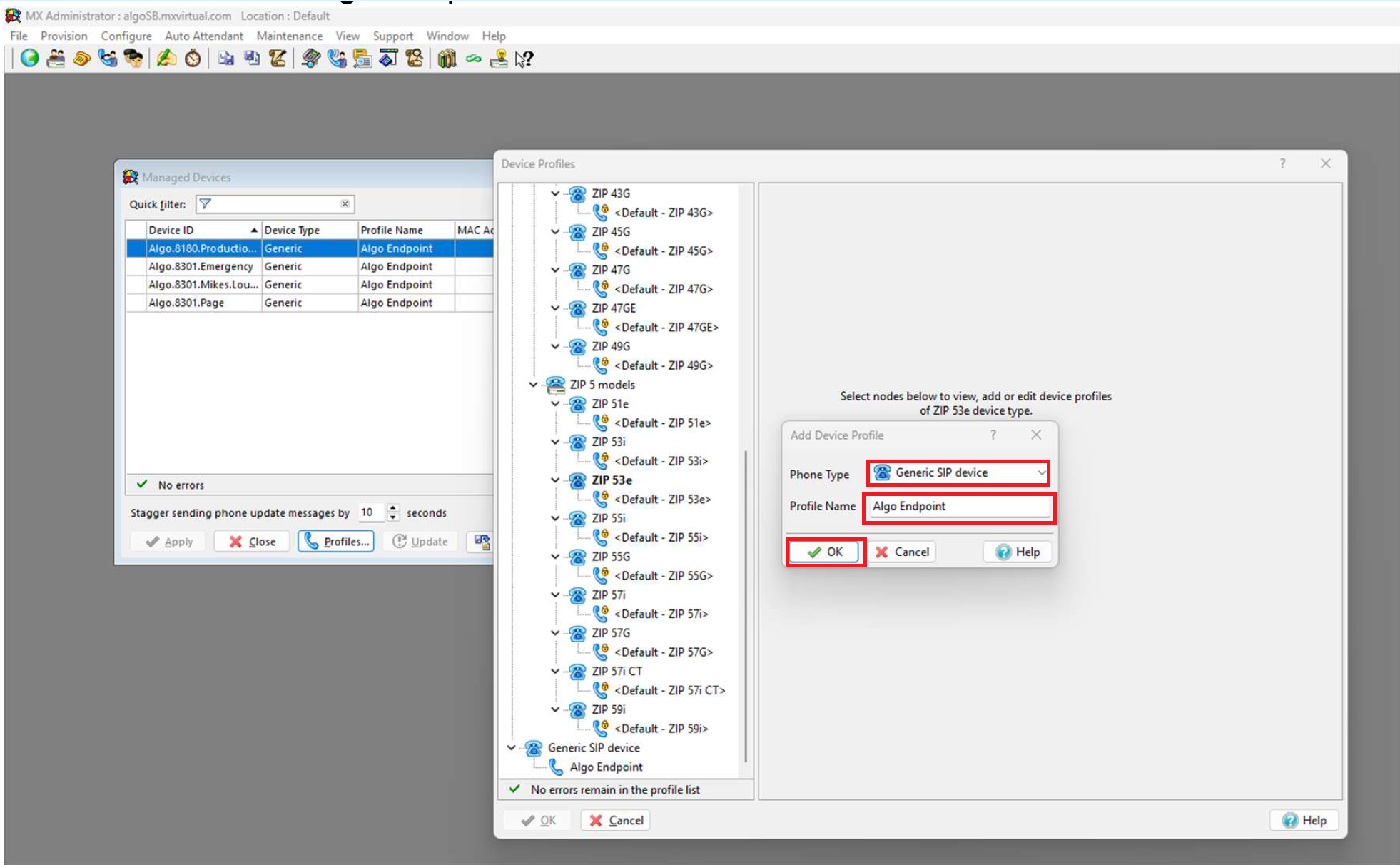
Profile Type: Select Generic SIP device.
Profile Name: Enter a name for your profile.
Configure the profile, then select OK:
.png)
Sends SIP Register: Enable this option.
Supported auto-answer type: Set to All calls.
Codecs: Select G711U and G711A.
Send unsolicited NOTIFY for Message Waiting Indication if device does not Subscribe to MWI service: Enable this option.
Create a generic SIP device:
Go to Configure → Devices.
Right-click the device list and select Insert.
Configure the following, then select Next:
.png)
Device Type: Set to Generic SIP device.
Add single device: Select this option.
Configure the generic device details, then select OK:
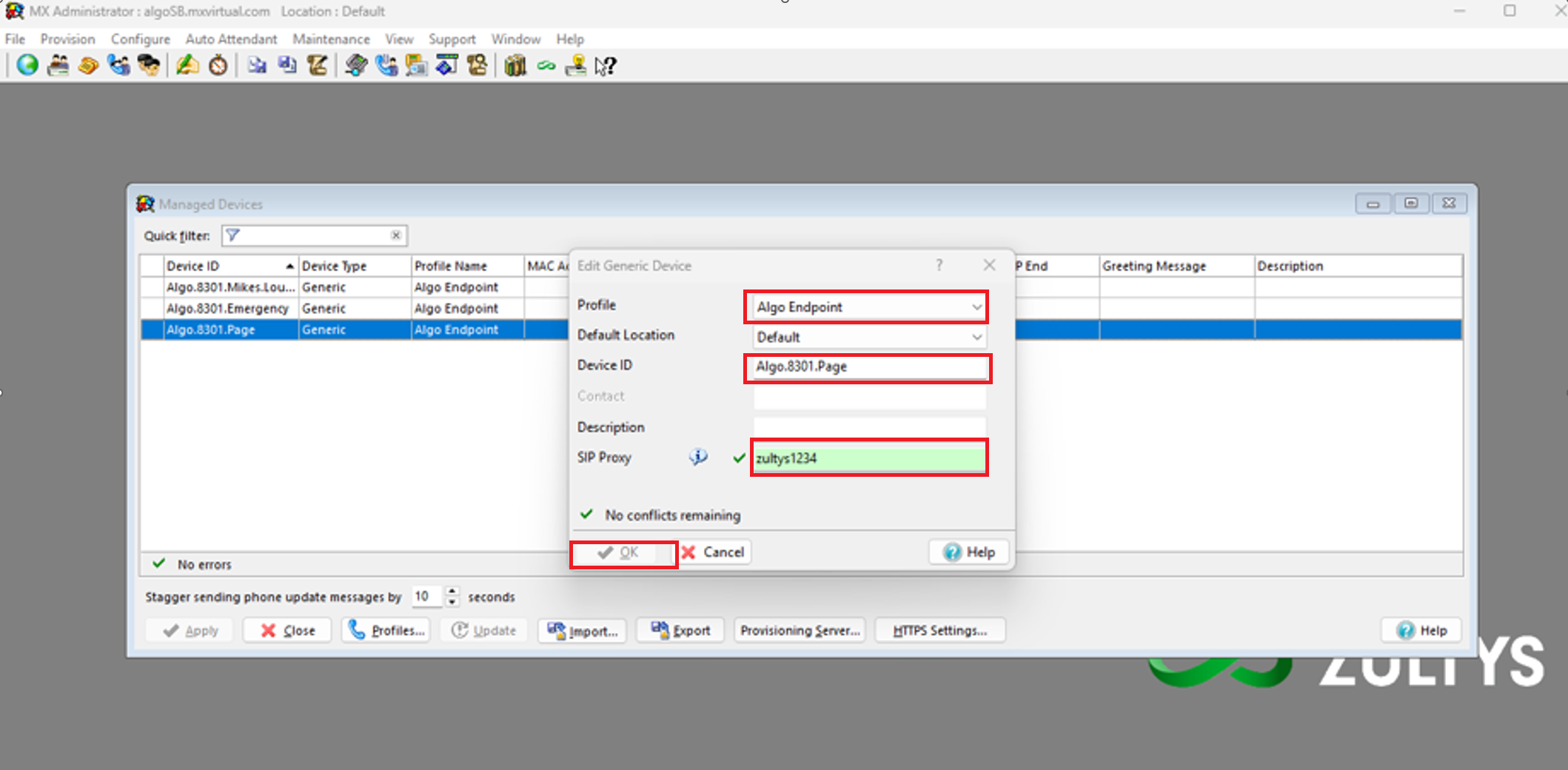
Profile: Select the Algo profile created previously.
Device ID: Enter a descriptive Device ID for the Algo endpoint. For example,
Algo.8301.Page.Record this value. You will use it as the SIP authentication ID when configuring the Algo device.
SIP Proxy: Enter a password.
Record this password. You will use it as the SIP authentication password on the Algo device.
Create a user profile:
Go to Configure → Users → Profiles.
Right-click the profile list and select New.
Enter a profile name.
Configure the profile as required for your deployment.
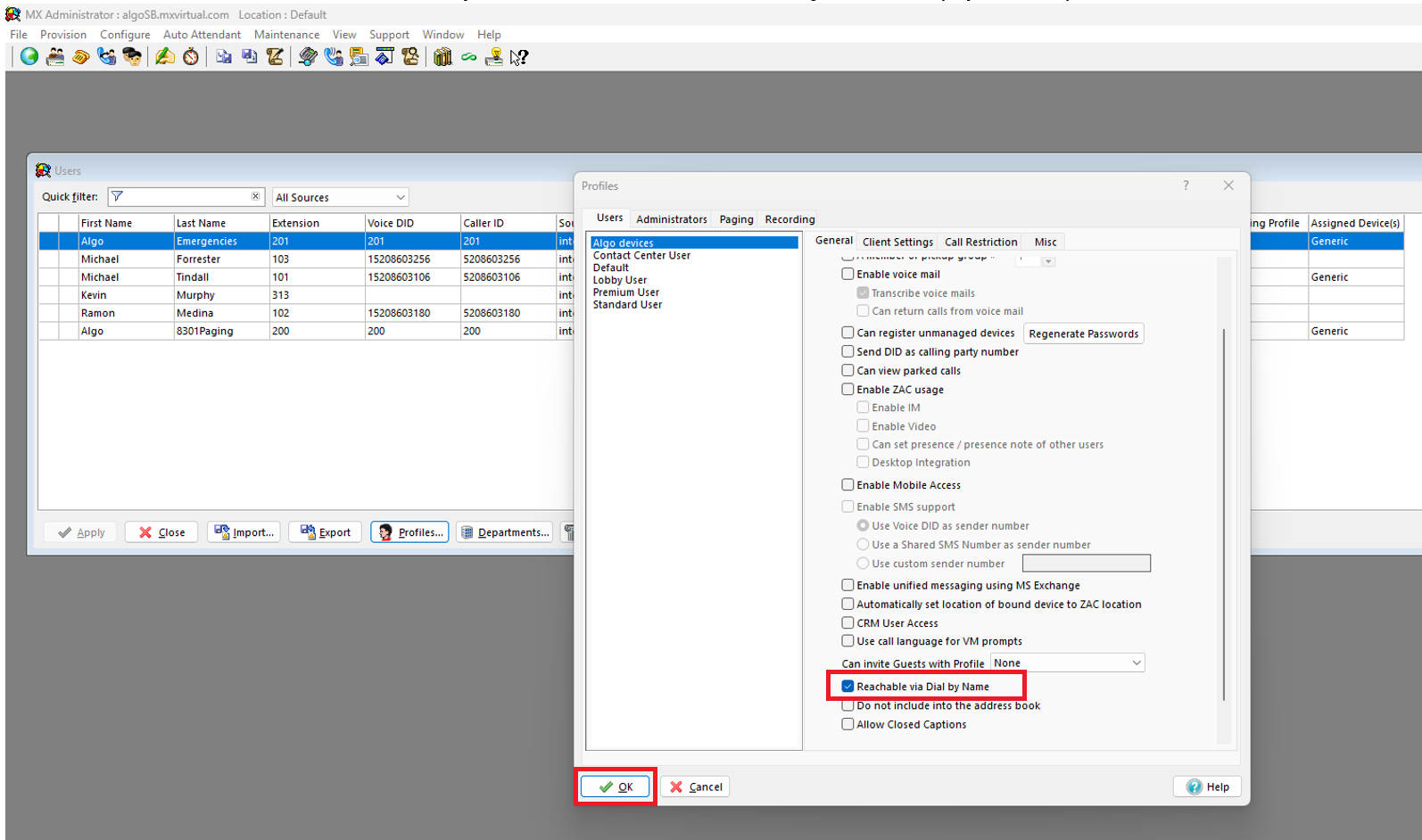
For an Algo endpoint that does not require normal user features, disable unnecessary user features. Reachable via Dial by Name may be enabled if you want the Algo extension to be available through Dial by Name.
Create and assign the user:
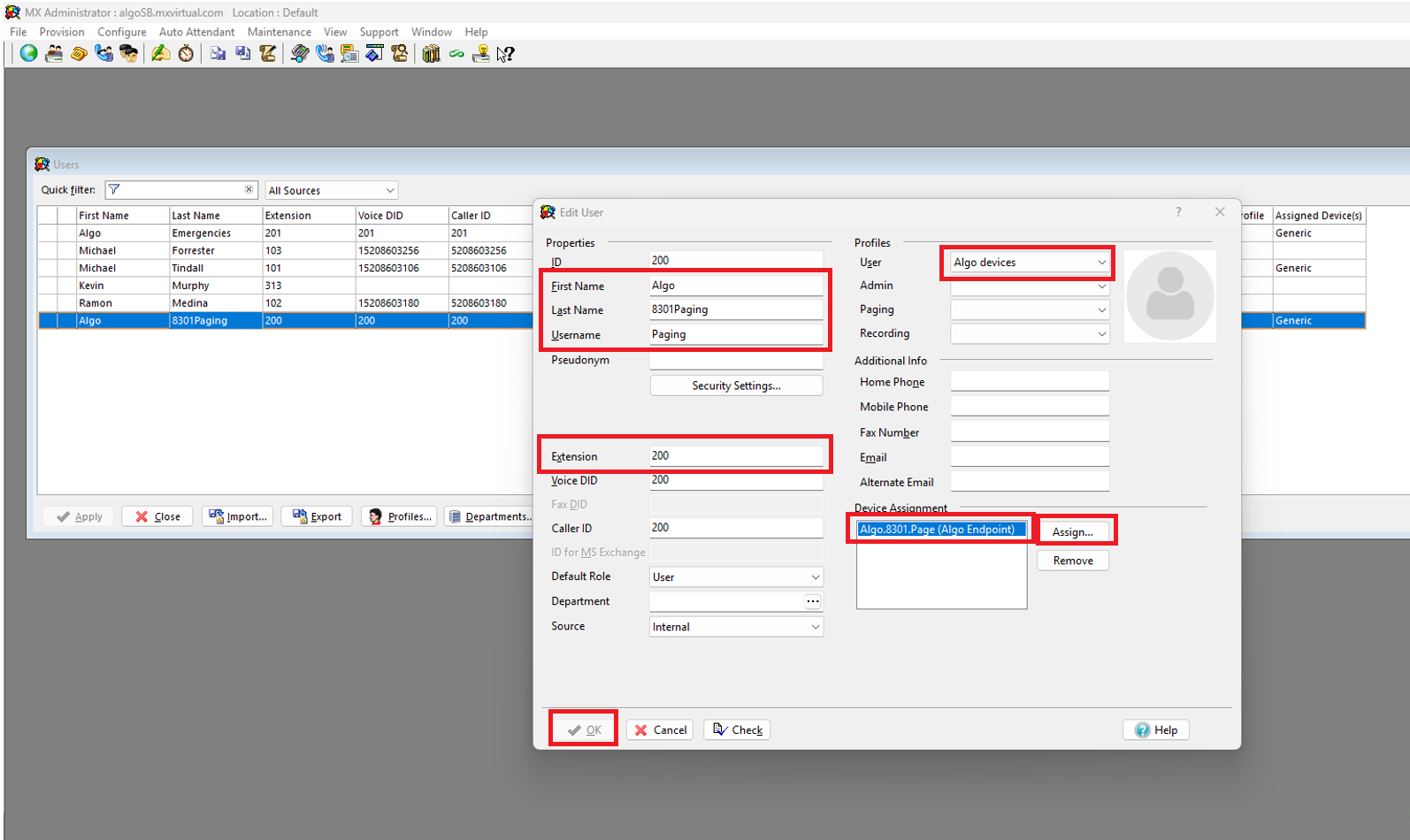
Go to Configure → Users.
Right-click the user list and select New User.
Configure the user details, then select OK:
First Name, Last Name, Username: Enter descriptive information for the Algo endpoint using these fields.
Assign: Select the Algo device created in the previous section, then select Assign.
Extension: Specify an extension that callers will use to reach the Algo endpoint.
Verify the assignment:
Go to Configure → Assignment.
Confirm that the correct user and extension are assigned to the Generic SIP device.
.png)
Configuring SIP Registration on the Algo Endpoint
In the Algo device web interface, you need to configure the Page Extension using the Zultys SIP server information and credentials.
You need the Zultys server information and SIP credentials configured in the previous section.
 (1).png)
To configure the Algo endpoint:
Log in to the Algo device web interface.
Go to Basic Settings → SIP.
Configure the Page Extension using the information from Zultys.
Settings
Value
SIP Domain (Proxy Server)
Enter Zultys MX server address or hostname using this format:
proxyaddress:portPage Extension
Enter Zultys Device ID.
Authentication ID
Enter Zultys Device ID.
Authentication Password
Enter Zultys SIP Proxy Password.
You set the Zultys Device ID and Proxy password while registering the Algo IP endpoint with Zultys.
Select Save.
Verifying the SIP Registration
You can verify registration from either the Algo endpoint or Zultys.
To verify the registration status from the Algo endpoint:
In the Algo device web interface, go to Status.
Check SIP Registration.
Confirm that the Page Extension shows as Successful.
.png)
To verify the registration from Zultys:
In MX Administrator, go to View → Device Status.
Locate the Generic SIP device created for the Algo endpoint.
Confirm that it appears as registered and active.
.png)
Testing the Algo Extension
After confirming registration, place a call to the extension assigned to the Algo endpoint.
For a Page Extension, the Algo device should answer the SIP call and play the caller's audio according to the device's paging configuration.
If you are configuring a different type of extension, verify the expected behavior for that extension. For example, a Ring Extension can trigger the device's configured ring behavior rather than answering as a page.
Using Additional Algo SIP Extensions
Many Algo IP endpoints support more than one SIP extension.
Depending on the product, these may include:
Page extensions
Ring extensions
Emergency Alert extensions
Additional extensions of the same type
This guide configures a Page Extension. If you require another registered extension, create the required Zultys SIP device/user configuration and enter its credentials in the corresponding extension settings on the Algo endpoint.
Do not assume that one Zultys extension can be used simultaneously for multiple independently registered Algo extensions. Configure each required registration according to your Zultys deployment and the capabilities of the Algo product.
Zultys Paging Groups and Hunt Groups
After the Algo endpoint is registered, you can optionally add its extension to Zultys call-routing or paging features.
These features are configured in the Zultys administrative interface, not on the Algo endpoint.
Paging Groups
Use a Zultys Paging Group when you want a caller to make a live page to multiple SIP endpoints.
For example, you can include multiple individually registered Algo speakers in a Zultys Paging Group so that calling the group initiates a page to the configured group members.
Hunt Groups
Use a Hunt Group when calls must be distributed to one or more extensions according to Zultys call-distribution rules.
For Algo deployments, a Hunt Group may be useful for applications such as loud ringing or night bell, where an incoming call must also reach an Algo Ring Extension.
Refer to the Zultys documentation for instructions on creating and managing Paging Groups and Hunt Groups.
Related Links:
Troubleshooting
If the Algo endpoint does not register, check the registration status on the Algo device first.
1. Confirm Registration Status
In the Algo device web interface, go to Status and check the SIP registration status.
Alternatively, in the MX Administrator control panel, go to View → Device Status and verify the device status.
2. Check Common Causes
Incorrect SIP credentials
Confirm that the SIP server, Device ID/extension, authentication ID, and SIP password match the values configured in Zultys.
Re-enter the credentials to rule out typographical errors.
Confirm that the configured SIP port matches the Zultys system. The default SIP port is 5060.
Network connectivity issues
Confirm that the Algo device has network connectivity and can reach the SIP server.
If VLANs, firewalls, or NAT devices are used, confirm that they allow the required SIP traffic. The default SIP port is 5060 unless otherwise configured.
Refer to the Zultys Administrator’s Manual for additional network and firewall requirements.
DNS Resolution issues
Verify that the Algo device can resolve the SIP server domain name. Misconfigured DNS settings are a common cause of registration issues. If the device uses a static IP address, ensure that a DNS server is also configured under Advanced Settings → Network.
Account or licensing issues
Confirm that the required Zultys resources or licenses are available and assigned to the endpoint.
Outdated Algo firmware
Confirm that the Algo device is running the latest firmware. The latest firmware is available from the Algo Firmware Download page.
If the issue persists, collect relevant error messages and diagnostic logs, and contact Zultys or Algo technical support for further assistance.