Algo IP endpoints are certified for native compatibility with the Microsoft Teams SIP Gateway. Applications such as IP paging, emergency alerting, and hands-free visitor communication can be implemented using both Microsoft Teams and Algo IP endpoints.
Using ADMP, you can enable Microsoft Teams support on Algo devices with an intuitive view of all Teams-enabled devices, their associated Teams accounts, and account status. ADMP also provides centralized management of Teams account configurations, eliminating the need to log in to each device’s web interface individually.
Follow these steps to integrate your Algo devices into Microsoft Teams:
Related Links
For additional information on Microsoft SIP registration, see the Microsoft documentation Configure SIP Gateway.
For an alternative method to enable Microsoft Teams through the web interface of individual Algo devices, see Microsoft Teams Configuration with Algo IP Devices.
Considerations
Note the following when enabling Teams support for Algo devices:
In most cases, only one Algo IP endpoint requires SIP registration with Microsoft Teams. Multicast can be used to scale the integration across any number and combination of Algo IP endpoints.
Registering an Algo IP endpoint with Microsoft Teams requires an associated Microsoft account. This is typically a Shared Device License, but it may also be a full user license.
For applications requiring two-way communication (for example, an IP intercom used for visitor communication and secure door entry), each endpoint requires its own Microsoft Teams Shared Device License.
Note
When using a Teams extension for emergency alerts (Account Type set to Announcement), configure the Announcement Selection Mode (under Additional Features → Emergency Alerts in your product’s web interface) before enabling Teams.
After Teams is enabled, the Announcement Selection Mode can no longer be changed.
Requirements
The following items are required to register an Algo device with the Microsoft Teams SIP Gateway:
Algo device requirements:
Supported Algo devices:
IP Speakers
IP Visual Alerters
IP Console
IP Paging Adaptors
IP Intercoms
For a full list of supported Algo devices, see Teams Compatible Devices.
Algo device firmware must be 5.6 or higher.
Note
It’s recommended to upgrade your device to the latest firmware to use this feature.
Ensure the Manufacturer Certificate is installed on the Algo device. All Algo endpoints shipped in 2019 or later include this certificate from the factory.
You can verify its presence in the device web interface under System → About. If the certificate is not installed, contact Algo Support.
Algo devices must have ADMP Cloud Monitoring enabled and be connected to the network.
Enabling ADMP Cloud Monitoring allows you to configure devices directly in ADMP without logging in to each device’s web interface.
Microsoft environment requirements:
SIP Gateway must be enabled through the Teams Admin Center.
A valid Microsoft Teams license must be available in the Teams Admin Center.
Microsoft Teams production environment must support Algo devices.
The Microsoft Teams SIP Gateway is enabled.
Follow the instructions provided here.
Creating Microsoft Users for Algo Devices
You need to create a dedicated Microsoft user for each Algo device and Teams account type.
A Microsoft user allows Microsoft Teams to recognize your device, apply the required licenses, and assign a Teams extension (phone number) after your Algo device is paired to it. The Teams extension allows the Algo device to make and receive calls.
Note
A single Microsoft user provides only one Teams extension, regardless of how many devices are associated with it.
It’s recommended to pair only one Algo device (with one Teams account) to each Microsoft user, allowing Microsoft Teams to assign a single phone number per device. Otherwise, when the phone number is called, only the last paired device's account will answer.
To integrate multiple Algo devices, or to configure multiple Teams accounts on the same device, it’s recommended to use separate Microsoft users for each device and Teams account.
For example:
To integrate one 8180(G2) with one Teams account type, you need one Microsoft user account.
To integrate an Algo devices with two Teams account types (for example, one for paging and one for ringing), you need two Microsoft user accounts.
To add a user to the Microsoft 365 Admin Center:
Log in to the Microsoft 365 Admin Center using an account that has permission to view or manage users in the Microsoft 365 Admin center.
Go to Users → Active Users.
Select Add a user and enter the information required under the Basics section.
.png)
Under Product licenses, assign licenses as required.
Typically, only a Teams Shared Devices license is required.
.png)
Proceed through the following steps to finish adding the account.
Verify that the user has been created successfully.
.png)
Ensure that a Teams extension is associated with the recently created account. Further configuration cannot be completed without a valid Teams extension associated with the account.
Account Types
When integrating an Algo device with Microsoft Teams, select the account types you want to use.
The account type determines how the device handles calls associated with the Microsoft Teams account for different applications, such as loud ringing, voice paging, and emergency alerting.
The following account types are available:
Main Page Extension: Your primary paging extension. The device automatically answers incoming calls, plays the default pre-announcement tone, and allows voice paging until the call is disconnected.
Page Extension 2-10: Additional paging extensions. For multicast transmitters, these extensions provide an alternative way to select multiple multicast zones during paging.
Ring/Alert: Your primary ringing extension. The device detects incoming ring signals on this extension and plays an alert tone (and sends a multicast, if enabled) for as long as the call is ringing. The device does not answer the call.
Ring Extension 2-10: Additional ringing extensions. These extensions allow different ringtones to be assigned to each extension, making it easier to distinguish which extension is ringing.
Call-to-Cancel: An extension used to cancel an active emergency announcement.
Announcement 1-10: Extensions used to trigger emergency announcements.
For information on registering different types of extensions with Microsoft Teams, contact Algo support.
Enabling Microsoft Teams Support for Algo IP Endpoints
You can integrate multiple Algo devices with Microsoft Teams simultaneously.
To enable Microsoft Teams support for Algo IP endpoints:
Log in to your ADMP application.
Go to Compatibility → Microsoft Teams. Then select + to add new devices.
 (1).png) All devices that are connected to ADMP appear.
All devices that are connected to ADMP appear.Select the desired devices to add, then select Next.
.png)
Configure Microsoft Teams for each device, then select Save.
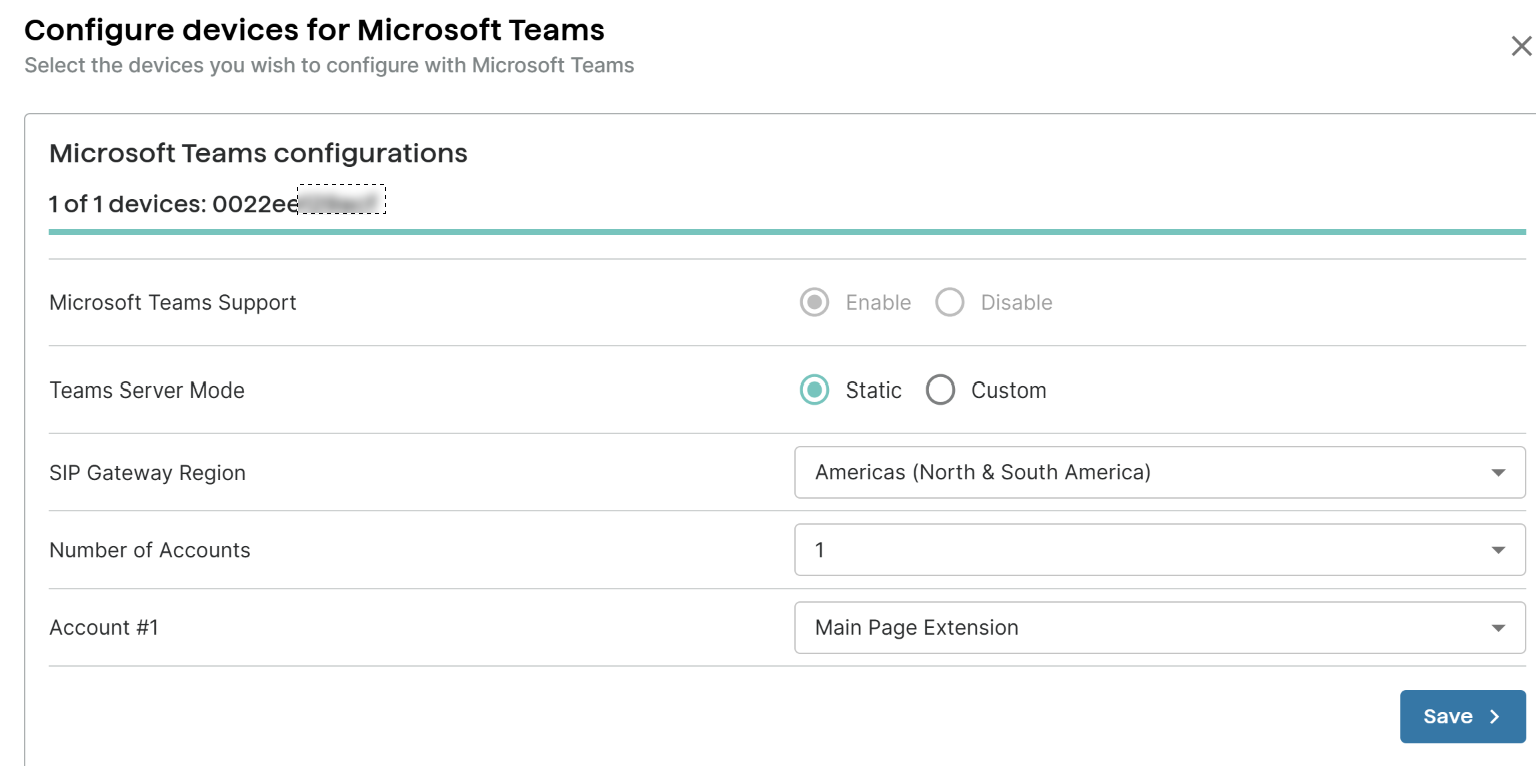
Teams Server Mode: Select an option:
Static: Select a pre-configured SIP Gateway Region.
Custom: Specify a Custom Teams URL.
Number of Accounts: Select how many Teams accounts you want to add.
Account #1 - 10: Select the account type for each account.
The configuration progress displays at the top of the screen.
.png)
This process takes approximately one minute per device configuration.
Once complete, the device appears in the device list on the Compatibility → Microsoft Teams page.
.png)
Select your desired device to expand its view. Then select Generate Code.
.png)
Select Copy Code and then SIGN IN.
.png)
This is the pairing code to integrate the device into your Microsoft account.
When prompted to sign in to a Microsoft user account or to select an existing account, sign in with the Microsoft 365 user account created specifically for the Algo device.
Do not use a personal or administrator email account.
.png)
Paste the pairing code into the Enter pair code to add a device field, and then select Pair.
.png)
If the pairing is not accepted, regenerate the code and enter it again.
The pairing code expires after a few minutes. If that happens, regenerate the code and retry.
Upon successful pairing, close the confirmation window.
.png)
Go back to ADMP and select Proceed to complete the Microsoft Teams configuration.
.png)
Repeat steps 6-11 to add additional Teams accounts, if desired.
Note
To add multiple Teams accounts for paging, sign in with a different Microsoft user account for each one to obtain a unique phone number.
To verify the pairing status, you can do one of the following:
In ADMP: Go to Compatibility → Microsoft Teams. The device is listed as Registered and Successful, with the assigned Teams extension.
.png)
Log in to the device’s web interface and go to the Status screen. A Microsoft Teams section appears, with the SIP Registration status showing Successful, along with the Teams extension.
.png)
Placing Calls to Your Device
To verify successful pairing with Microsoft Teams, call the extension (phone number) associated with the account.
The following examples show how Teams extension numbers can trigger live paging, loud ringing, and emergency announcements.
Example 1: Paging Using a Teams Extension
You can dial a Teams extension to initiate live paging to Algo IP endpoints.
In this example:
8305: Configured as the paging initiator, multicasting to Zone 1
8180 (G2)/8138: Configured as paging receivers, listening to Zone 1
To page using a Teams extension:
For 8305:
Enable Teams support and create a Teams account:
Log in to your ADMP application.
Go to Compatibility → Microsoft Teams.
Enable Microsoft Teams support and create a Teams account type for Main Page Extension.
This is the phone number for initiating paging.

Enable multicast to Zone 1:
Log in to the web interface of 8305.
Go to Basic Settings → Multicast.
Configure the following:
.png)
Multicast Mode: Set as Transmitter (Sender).
Multicast Type: Set as Regular (RTP).
Number of Zones: Set as Basic Zones Only.
Zone Selection Mode: Set as Single Zone.
Transmitter Single Zone: Set as Zone 1.
For 8180(G2)/8138:
Log in to the web interface of 8180(G2)/8138.
Go to Basic Settings → Multicast.
Configure the following:
.png)
Multicast Mode: Set as Receiver (Listener).
Multicast Type: Set as Regular (RTP).
Number of Zones: Set as Basic Zones Only.
Zone Selection Mode: Set as Single Zone.
Transmitter Single Zone: Set as Zone 1.
Dial the 8305 Main Page Extension number from Teams.
After the call connects, speak into your microphone. 8180(G2) broadcasts your audio live, and the 8138 strobe is activated.
To end the paging session, hang up the call.
Example 2: Starting a Loud Ringing Using a Teams Extension
You can dial a Teams extension to play a pre-recorded audio message.
In this example, an Algo 8180(G2) is configured with a Ring/Alert Teams extension for loud ringing.
To start a loud ringing using a Teams extension:
Enable Teams support and create a Teams account:
Log in to your ADMP application.
Go to Compatibility → Microsoft Teams.
Enable Microsoft Teams support and create a Teams account type Alert/Ring.
This is the phone number for playing a pre-recorded audio message.
 (1).png)
Configure inbound ring settings:
Log in to the web interface of 8180(G2).
Go to Basic Settings → Features.
Set the following Inbound Ring Settings:
.png)
Ring/Alert Tone: Select the audio message to play.
Ring/Alert Volume: Set the audio volume.
Ring Limit: Set how many times the audio message plays.
Dial the Ring/Alert extension number from Teams.
After the call connects, the 8180(G2) broadcasts the audio message.
To end the audio playing, hang up the call.
Related Links:
Example 3: Starting an Emergency Alert Using a Teams Extension
You can dial a Teams extension to multicast an emergency alert.
In this example, an Algo 8180(G2) is configured with two Teams extensions:
Announcement#1: For emergency alerts.
Call-to-Cancel: For stopping the emergency alert.
To start an emergency alert using a Teams extension:
Enable Teams support and create Teams accounts:
Log in to your ADMP application.
Go to Compatibility → Microsoft Teams.
Enable Microsoft Teams support and create two Teams accounts as Announcement#1 and Call-to-Cancel.
 (1).png)
Configure the emergency alert:
Log in to your 8180’s web interface.
Go to Additional Features → Emergency Alerts and configure Announcement 1:
 (2).png)
Announcement 1: Set as Enabled.
Announcement Duration: Select how many times the announcement plays.
Tone/Pre-recorded Announcement: Select the audio file to play.
Dial the Announcement extension from Teams.
After the call connects, 8180(G2) broadcasts the announcement.
To end the announcement, dial the Call-to-Cancel extension.
Related Links:
Example 4: Activating an 8450 Button Remotely
You can dial a Teams extension to activate an 8450 button remotely and trigger its associated actions.
In this example, 8450 is configured as the multicast initiator, multicasting to Zone 1.
Note
In this example, you stop the button actions by pressing the End button on the 8450. Alternatively, you can stop non-Emergency Alert actions remotely using another Teams extension. For more information, see Activating and Stopping 8450 Button Actions Using Teams Extensions.
To page using a Teams extension:
Enable Teams support and create a Teams account:
Log in to your ADMP application.
Go to Compatibility → Microsoft Teams.
Enable Microsoft Teams support and create a Teams account type for SIP Extension 1.
This is the phone number to use for initiating SIP calls.
Create a button in 8450’s web interface and configure it:
.png)
Log in to the 8450 web interface.
Go to the host screen for the intended button.
Configure the following:
Button Status: Set as Enabled.
Action: Set as Multicast with Tone.
Identifier: Enter a unique identifier for this button.
Copy this Identifier. You need to enter it while configuring the Inbound SIP Extension.
Tone/Pre-recorded Announcement: Select an audio file.
Alert Duration: Select an option.
Multicast Zone: Set as Zone 1.
Configure the Inbound SIP extension in 8450:
Go to Additional Features → Inbound SIP Extensions.
Configure the SIP Extension 1:
.png)
SIP Extension 1: Set as Enabled.
Identifier: Paste the Identifier configured for the button.
Dial the 8450 SIP Extension 1 number from Teams.
To end the multicast, press the End button on the 8450 screen.
Related Links:
Managing Devices Integrated into Microsoft Teams
You can view all devices integrated with Teams in ADMP, whether they were integrated through ADMP or directly via their web interfaces.
From ADMP, you can check their status, view associated Teams accounts, and modify Teams configurations.
Disabling Microsoft Teams Support for a Device
You can disable Microsoft Teams integration when your device no longer needs a Teams extension.
To disable Microsoft Teams Integration:
Log in to the ADMP application.
Go to Compatibility → Microsoft Teams.
Select the Settings
.png) icon of the desired device.
icon of the desired device..png)
Set Microsoft Teams Support to Disable. Then select Save.
.png)
Upon successful operation, the device disappears from the device list in the Compatibility → Microsoft Teams page.
In the device’s web interface, the Microsoft Teams section also disappears from the Status page.
Signing Out of a Teams Account
You can remove the associated Teams account from your device.
.png)
To sign out from a Teams account:
Log in to the ADMP application.
Go to Compatibility → Microsoft Teams.
Select Sign out on the right of your desired Teams account.
If your device has multiple Teams accounts, you can select the Expand icon
.png) to view the whole account list.
to view the whole account list.
Troubleshooting
The following sections highlight how to resolve common configuration challenges. Please go through the information carefully and ensure everything is configured according to this guide. If further assistance is required, please contact Algo support.
Problem: I see the error message “Config sharing is currently disabled. You can configure the device to use Teams, but only a limited set of extensions will be available. To see all extensions, please enable config sharing in the device settings” when I configure my device for Teams integration.
 (1).png)
Solution: Enable ADMP Configuration File Sync:
Log in to your device’s web interface.
Go to Advanced Settings → Admin → ADMP Cloud Monitoring.
Set Allow Configuration File Sync to Enabled.
Select Save.
Problem: I cannot add a device to Teams. The error message is “FW or product not supported”.
(1).png)
Solution: Try the following:
Make sure your device firmware is 5.6 or higher
Make sure your device model is supported by Teams. For a full list of supported Algo devices, see Teams Compatible Devices.
Problem: I see the error message “Cannot generate a pairing code”
Solution: Check your device’s DNS settings:
Log in to your device’s web interface.
If you configured static network settings under Advanced Settings → Network, make sure a valid DNS server is provided.
.png)
Problem: My device does not reboot after entering the pairing code.
Solution: An Algo device failing to reboot may be caused by a missing Teams extension associated with the Teams account. Please ensure a Teams extension is associated and try again.
Problem: Failure to reboot after entering the pairing code in the Microsoft Portal
Solution: Check the items below for potential causes:
The Microsoft SIP Gateway has not been enabled in your Teams Admin Center. For more information, see https://learn.microsoft.com/en-us/microsoftteams/sip-gateway-configure
The Teams user account has no Teams extension assigned. To use the SIP Gateway, Teams users must have a phone number that has PSTN calling enabled.
Microsoft 365 conditional access policies block the registration request. Please refer to the link above for more information.
Firewall rules are blocking traffic. Ensure all ports and addresses listed in Microsoft’s documentation are open.