The Algo REST API provides flexibility and scalability when integrating Algo IP endpoints with other paging and alerting systems. By using the Algo REST API, devices can trigger or be triggered by unique actions or events.
This guide outlines how to begin using the Algo REST API for an Algo IP endpoint and what calls can be used for device management.
Prerequisites
Make sure the following requirements are met.
The Algo endpoint must be using firmware version 3.3 or higher.
The time difference between the requestor and the Algo devices should be less than 30 seconds to use standard authentication.
Ensure NTP (Network Time Protocol) is enabled on the device. The addresses of custom NTP servers may be configured in the Advanced Settings → Time tab.
The target endpoint must have RESTful API access enabled.
Check whether the target endpoint requires a password for API access. If yes, include the password information in your API commands.
Example Use Cases
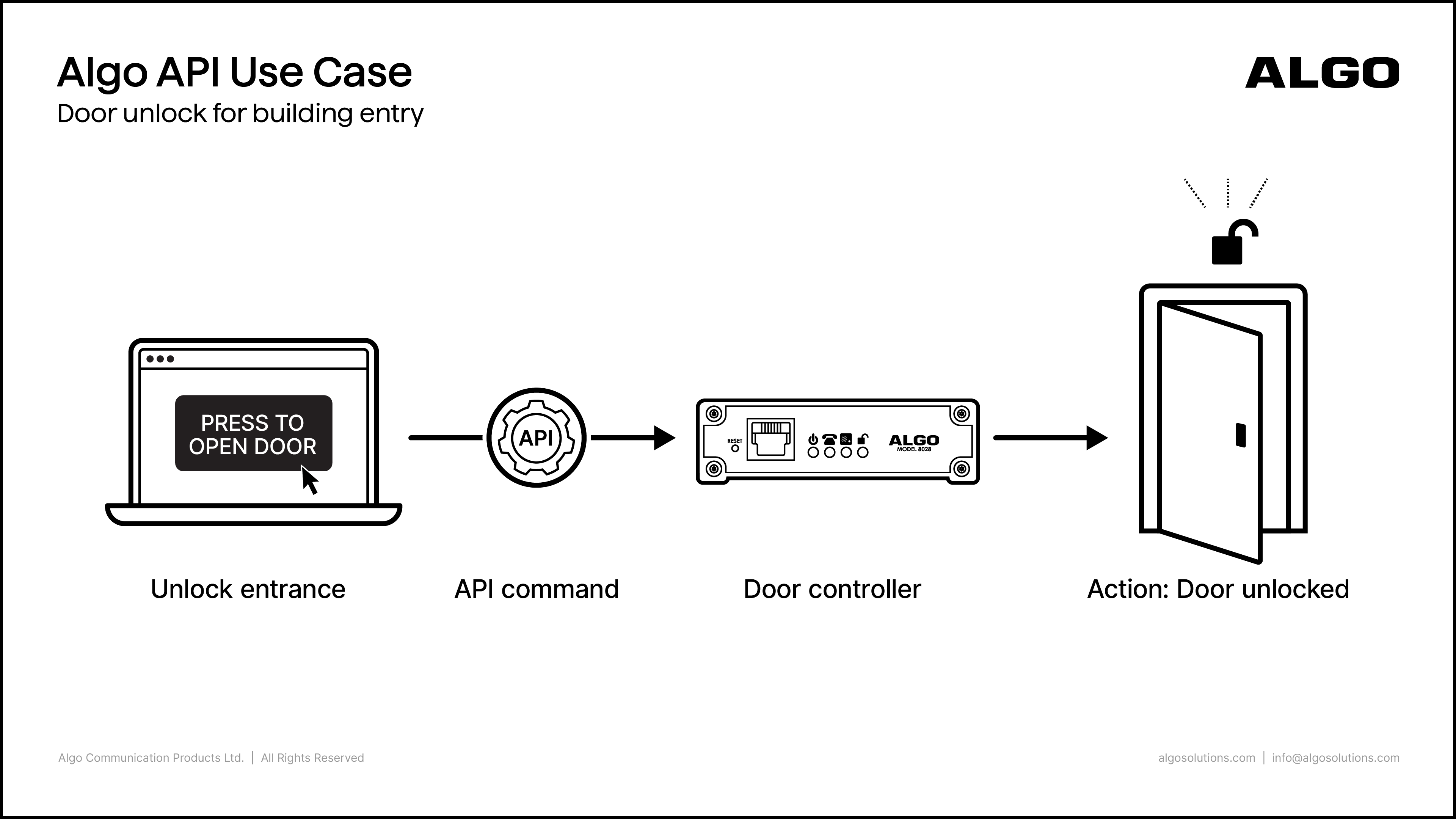
Door Unlock for Building Entry
The REST API can be used to allow a user to unlock a door with the 8063 from a computer program.
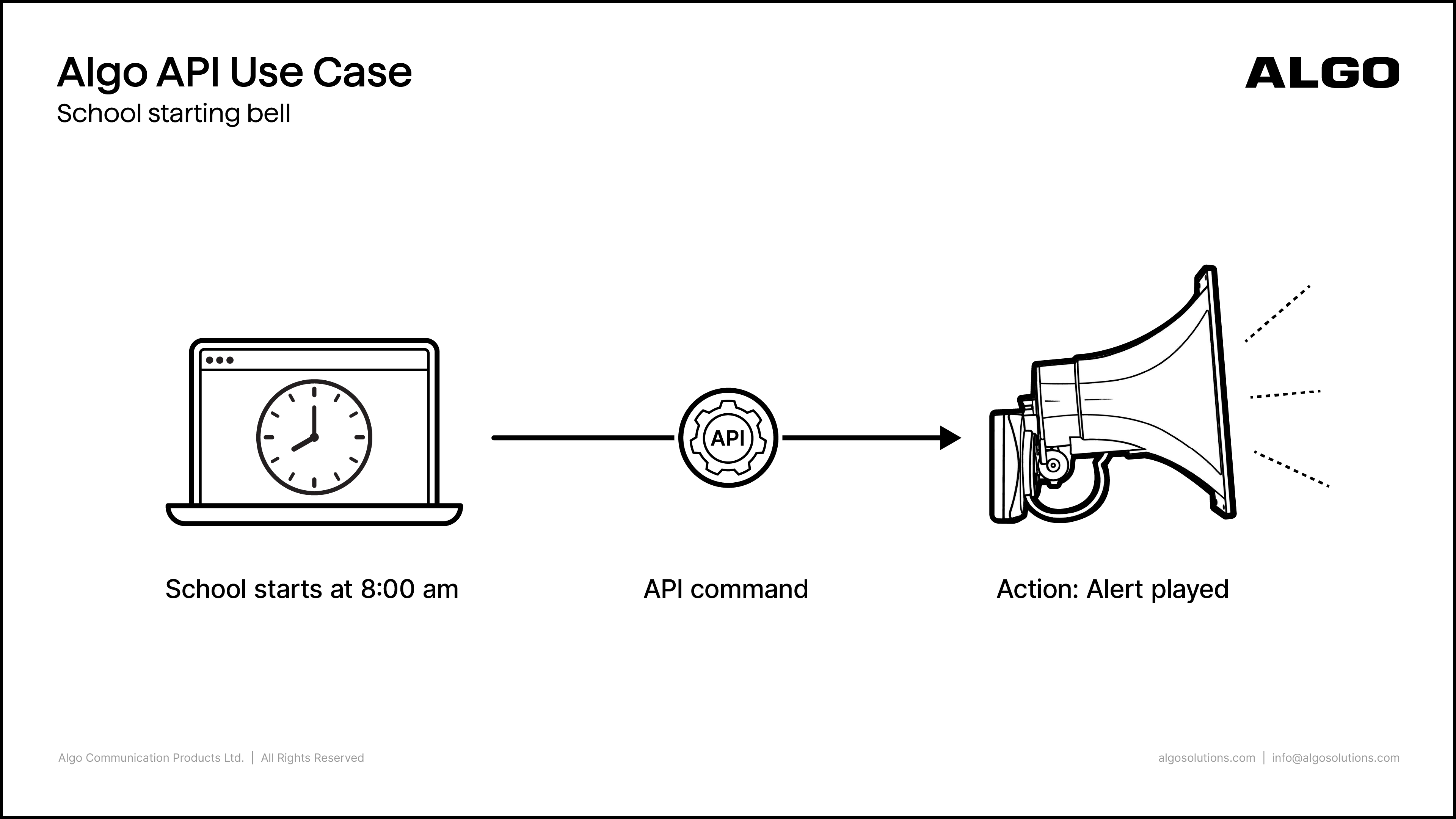
School Bell
The REST API can be used to play a bell tone over Algo speakers when classes begin.
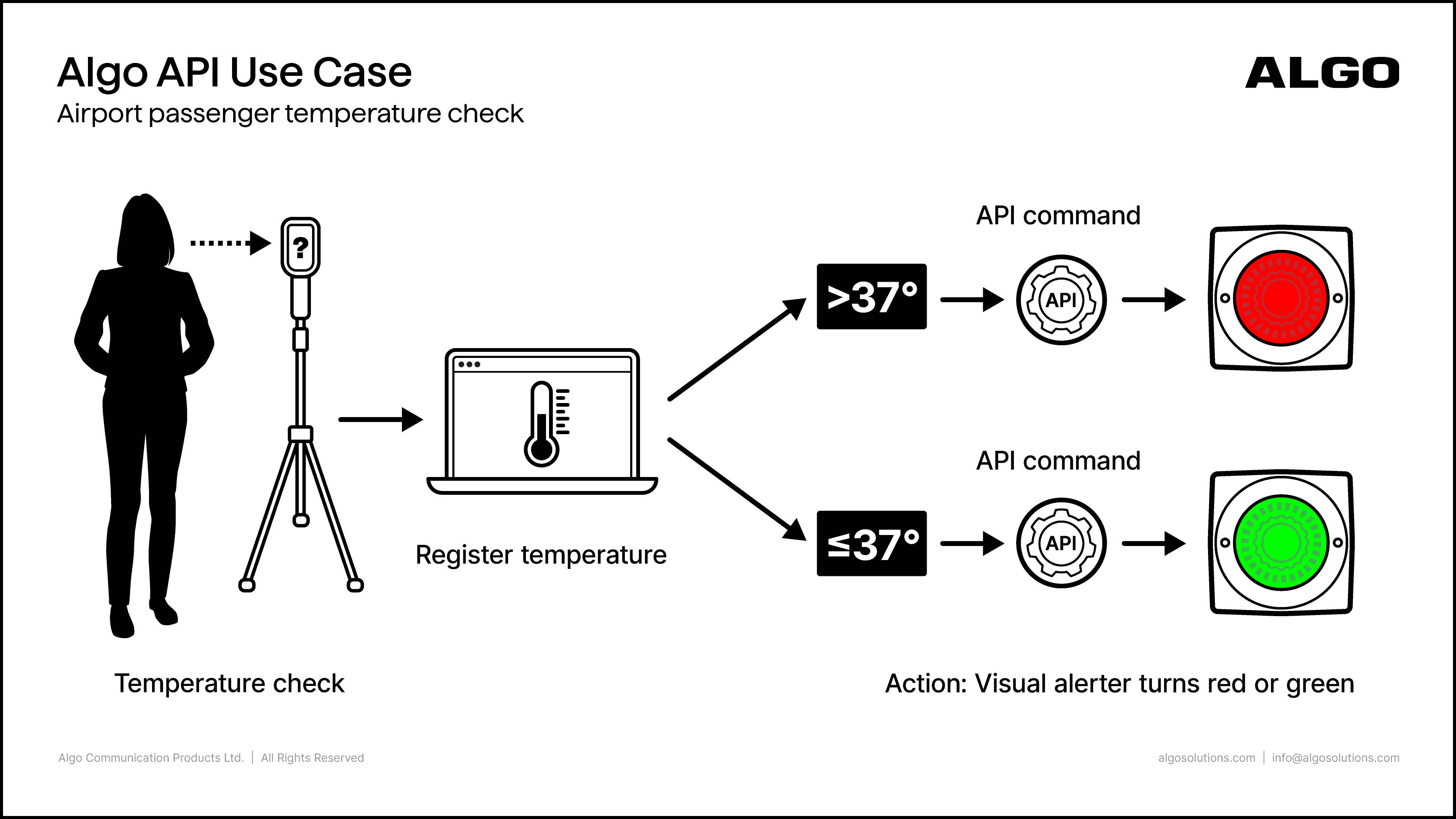
Temperature Check
The REST API can be used to trigger Algo visual alerters to flash a color based on a specific event.
Remote Button Activation
The REST API can be used to control Algo 8450 buttons to play pre-recorded announcements for urgent situations, such as lockdowns or medical alerts.
.png)
Initial Configuration
To allow API control on an Algo device, you must first enable REST API.
You can also set a passcode for REST API to ensure only authorized access is allowed.
Note
If you enable the REST API password, you must include this password in any API command sent to the device.
For example, to access the About page of a device with the default REST API password set to algo, use the following command:
curl -u admin:algo -X GET "https://10.12.123.12/api/info/about"
Enable RESTful API under the Advanced Settings → Admin tab.
Select an Authentication Method. There are three types of authentication:
Standard (recommended)
Uses a Hash-based Message Authentication Code (HMAC) with an SHA-256 encoded digest.
Basic
Uses Base64 encoding and should only be used over HTTPS.
None (not recommended)
It should only be used with extreme care as it provides no authentication.
Enter a RESTful API Password. The default password is algo.
.png)
Select Save.
Authentication Requirements
If you have set the Authentication Method to Standard, you must authenticate with the API before making any requests.
Authentication requires generating a valid HMAC signature using the provided RESTful API Password. The device verifies this signature before processing your API command.
Standard Authentication Request with a JSON Payload
A standard authentication payload will require generating an HMAC digest. This is generated by the REST API password (secret key) and the HMAC input. Generate HMAC with password and HMAC input string as digest using SHA-256.
The HMAC digest must be lowercase hex-encoded.
The HMAC input is formatted as: [request_method]:[request_uri]:[content_md5]:[content_type]:[timestamp]:[nonce]
Element | Notes | Example |
|---|---|---|
Request method | GET, POST, PUT, or DELETE | POST |
Request URI | Must start with a forward slash | /api/controls/tone/start |
Content-MD5 | Generated separately. Also required for the payload request. | 6e43c05d82f71e77c586e29edb93b129 |
Content-Type | Set as application/json | application/json |
Timestamp | Seconds (Unix epoch) | 1601312252 |
Nonce | Random string that is also required for the payload request. | 49936 |
Example HMAC Input (using algo as the secret key)
POST:/api/controls/tone/start:6e43c05d82f71e77c586e29edb93b129:application/json:1601312252:49936
Example HMAC Digest
2e109d7aeed54a1cb04c6b72b1d854f442cf1ca15eb0af32f2512dd77ab6b330
Headers
Header Name | Required | Values |
|---|---|---|
Content-Type | Required | application/json |
Content-MD5 | Required | Same as HMAC input |
Authorization | Required | hmac admin:{nonce from HMAC input}:{HMAC key} |
Date | Required | Day, DD Mon YYYY HH:MM:SS GMT |
Example Payload Request
Hypertext Transfer Protocol
 POST /api/controls/tone/start HTTP/1.1\r\n
 Host: 10.0.0.161\r\n
 Accept: */*\r\n
 Transfer-Encoding: chunked\r\n
 Content-Type: application/json\r\n
 Content-Md5: 6e43c05d82f71e77c586e29edb93b129\r\n
 Authorization: hmac admin:1028014788:c450024af4493f9cdf582499456bf58d7e134b161566e764e61bd52d24f759dc\r\n
 Date: Mon, 28 Sep 2020 17:07:18 GMT\r\n
 \r\n
 [Full request URI: https://10.0.0.161/api/controls/tone/start]
 [HTTP request 1/1]
 File data 39 bytes
JavaScript Object Notation: application/json
 Object
  Member Key: path
   String value: page-notif.wav
   Key: path
  Member Key: loop
   False value
   Key: loop
Standard Authentication Request without a JSON Payload
A standard authentication payload will require generating an HMAC digest. This is generated by the REST API password (secret key) and the HMAC input. Generate HMAC with password and HMAC input string as digest using SHA-256.
The HMAC digest must be lowercase hex-encoded.
The HMAC input is formatted as: [request_method]:[request_uri]:[timestamp]:[nonce]
Element | Notes | Example |
|---|---|---|
Request method | GET, POST, PUT, or DELETE | POST |
Request URI | Must start with a forward slash | /api/settings/audio.page.vol |
Timestamp | Seconds (Unix epoch) | 1601312252 |
Nonce | Random string that is also required for the payload request. | 49936 |
Example HMAC Input (using algo as the secret key)
GET:/api/settings/audio.page.vol:1601312252:49936
Example HMAC Digest
c5b349415bce0b9e1b8122829d32fbe0a078791b311c4cf40369c7ab4eb165a8
Headers
Header Name | Required | Values |
|---|---|---|
Authorization | Required | hmac admin:{nonce from HMAC input}:{HMAC key} |
Date | Required | day, date month year HH:MM:SS GMT |
Example Payload Request
Hypertext Transfer Protocol
 GET /api/settings/audio.page.vol HTTP/1.1\r\n
 Host: 10.0.0.161\r\n
 Accept: */*\r\n
 Authorization: hmac admin:881767496:c5b349415bce0b9e1b8122829d32fbe0a078791b311c4cf40369c7ab4eb165a8\r\n
 Date: Mon, 28 Sep 2020 17:07:18 GMT\r\n
 \r\n
 [Full request URI: https://10.0.0.161/api/settings/audio.page.vol]
 [HTTP request 1/1]
 [Response in frame: 304]
Hypertext Transfer Protocol
 HTTP/1.1 200 OK\r\n
 Server: nginx/1.10.3\r\n
 Date: Mon, 28 Sep 2020 17:07:05 GMT\r\n
 Content-Type: application/json\r\n
 Transfer-Encoding: chunked\r\n
 Connection: keep-alive\r\n
 Cache-Control: no-cache, no-store, must-revalidate\r\n
 Pragma: no-cache\r\n
 Expires: 0\r\n
 X-Frame-Options: DENY\r\n
 \r\n
 [HTTP request 1/1]
 [Time since request: 0.242859963 seconds]
 [Request in frame: 297]
 [Request URI: https://10.0.0.161/api/settings/audio.page.vol]
 HTTP chunked response
 File Date: 26 bytes
JavaScript Object Notation: application/json
 Object
  Member Key: audio.page.vol
   String value: -42dB
   Key: audio.page.vol
Basic Authentication Request
A basic authentication payload requires encoding the username and password using Base64. This encoded string is then included in the Authorization header of the HTTP request.
Basic authentication should only be used over secure HTTPS connections, as it transmits credentials in a reversible format.
Headers
Header Name | Required | Values |
|---|---|---|
Authorization | Required | Basic [base64] |
Example Payload Request
Hypertext Transfer Protocol
 POST /api/controls/tone/start HTTP/1.1\r\n
 Host: 10.0.0.161\r\n
 Accept: */*\r\n
 Content-Type: application/json\r\n
 Content-Md5: 6e43c05d82f71e77c586e29edb93b129\r\n
 Content-Length: 39\r\n
 Authorization: Basic YWRtaW46YWxnbw==\r\n
 User-Agent: curl/7.58.0\r\n
 \r\n
 [Full request URI: https://10.0.0.161/api/controls/tone/start]
 [HTTP request 1/1]
 [Response in frame: 760]
 File data 39 bytes
JavaScript Object Notation: application/json
 Object
  Member Key: path
   String value: page-notif.wav
   Key: path
  Member Key: loop
   False value
   Key: loop
REST API Calls
The details below describe how the Algo REST API can access, manipulate, and trigger actions on Algo IP endpoints on your network through HTTP/HTTPS requests. Requesting systems can interact with Algo devices through a uniform and predefined set of stateless operations.
HTTP/HTTPS requests to “{device IP address}/URI” with a JSON payload will provide a JSON response. The payload format of all the requests and responses is JSON, except for file operations.
A PUT request changes or creates a permanent resource that survives a reboot, while a POST request only controls a device for the current session.
Note
If a configuration parameter value in an API command differs from the value set in the device’s web interface, the API setting takes precedence.
For example, if the web interface configures the device as a multicast receiver, but the API command sets it as a multicast transmitter, the device will operate as a multicast transmitter when processing the API request.
Device Information
Use the following API commands to retrieve or configure specific device parameters.
Retrieve the value of a specific parameter
Get the value of a specific configuration parameter on the device. Any parameter name listed in the Provisioning Parameter Guide applicable to the device can be used.
Applicable Products: All
Minimum Firmware Version: 3.3
URI
GET /api/settings/{parameter name}
Parameters
Element | Description | Type | Required | Notes |
|---|---|---|---|---|
{parameter name} | Refers to the parameter name for the configuration setting of interest. | String | Required | All values will be retrieved as strings, no matter the parameter or setting. For the parameter names, see the Parameter column in the following Guides: |
Sample Request
GET https://10.12.123.12/api/settings/audio.page.vol
Sample Response
{
    "audio.page.vol": "0dB"
}
Related Links:
Set the value of a specific parameter
Change the value of a specific configuration parameter.
Applicable Products: All
Minimum Firmware Version: 3.3
URI
PUT /api/settings
Parameters
Element | Description | Type | Required | Notes |
|---|---|---|---|---|
{parameter name} | Refers to the parameter name for the configuration setting of interest. | String | Required | All values will be retrieved as strings, no matter the parameter or setting. For the parameter names, see the Parameter column in the following guides: |
Sample Request
PUT https://10.12.123.12/api/settings
{
    "audio.page.vol": "0dB"
}
Related Links:
Retrieve a list of all tone files installed on the device
Get the full list of tones available on the device, including both pre-loaded tones and custom tones that were uploaded manually.
Applicable Products: All
Minimum Firmware Version: 5.0
URI
GET /api/info/tonelist
Note
The parameter
tonelistrefers to the tone files uploaded to the device. All devices are pre-loaded with 10+ tone files.
Response
Element | Description | |
|---|---|---|
tonelist | array of tone files | |
tone file names | The file name of the tone uploaded to the device. | |
Sample Request
GET https://10.12.123.12/api/info/tonelist
Sample Response
{
    "tonelist": [
        "bell-na.wav",
        "bell-uk.wav",
        "buzzer.wav",
        "chime.wav",
        "dogs.wav",
        "gong.wav",
        "page-notif.wav",
        "speech-test.wav",
        "tone-1kHz-max.wav",
        "warble1-low.wav",
        "warble2-med.wav",
        "warble3-high.wav",
        "warble4-trill.wav"
    ]
}
Retrieve the device information from the Status page of the device web interface
Get a list of the device information that is also available on the Status page of the device web interface.
Note
Available status may vary depending on your device model.
Applicable Products: All
Minimum Firmware Version: 5.4
URI
GET /api/info/status
Response
The response content may vary depending on the device type.
Element | Description | Type | Response |
|---|---|---|---|
Device Name | The assigned name of the device. | String | {device name} |
SIP Registration | The status of SIP registration for the device. | String |
|
Call Status | The status of calling. | String |
|
Next Scheduled Action | The next scheduled action. | String |
|
Next Scheduled Event | The next scheduled event. | String |
|
Proxy Status | The configured SIP proxy server status. | String |
|
Provisioning Status | The current status of provisioning. | String |
|
MAC | The MAC address of the device. | String | The device’s MAC address |
IPv4 | If available, the IPv4 address of the device and the default gateway. | String | The device’s IPv4 address |
IPv6 | If available, the IPv6 address of the device and the default gateway. | String | The device's IPv6 address |
Switch Port ID | The ID of the port on the switch the device is plugged into. | String | {Port ID} |
Date / Time | The date and time currently used by the device. | String | Day Mon Date HH:MM:SS GMT Year |
Current Action | Used for scheduler events (tone, audio stream, or SIP call with tone). | String |
|
Multicast Mode | The multicast mode the device is set to. If the device is in receiver or transmitter mode, the zone it is in will also be displayed when active. | String |
|
OAuth Profile Status | The status of OAuth profiles | String |
|
Volume | The volume set on the device, including dB. | String | Page Volume: ## (##dB) |
Relay Input Status | The status of relay input. | String |
|
Temperature | The temperature of the device. | String | {Temperature} |
Stand (Docking Station) | The connection status of the 8450 stand. | String |
|
Panic Button Status | The status of each configured panic button, including its location, description, and current state. | String |
|
Virtual Panic Button Status | The status of each configured virtual panic button, including its location, description, and current state. | String |
|
Action Button | The status of the Action Button | String |
|
Console | The status of the 8450 console. | String |
|
Weather Status | The status of the configured weather service and the weather location | String |
|
Last Weather Update | The date and time of the most recent weather update. | String | {Date time} |
Sample Request
GET https://10.12.123.12/api/info/status
Sample Response
{
    "Device Name": "pagingadapter-12345",
    "SIP Registration": "Page, No Account;",
    "Call Status": "Idle",
    "Provisioning Status": "None Found",
    "MAC": "00:22:ee:11:11:11",
    "IPv4": "10.10.101.10/1, Gateway: 10.0.1.1",
    "IPv6": "Not Available",
    "Switch Port ID": "name eth0",
    "Date / Time": "Thu Feb  6 17:13:44 GMT 2025",
    "Current Action": "None",
    "Multicast Mode": "Disabled, RTP: 0, PPA: 0, Spk: 0",
    "Volume": "Page Volume: 10 (0dB)",
    "Relay Input Status": "Disabled"
}
Retrieve the device information from the About page of the device web interface
Get a list of the device information that is also available on the About page of the device web interface.
Applicable Products: All
Minimum Firmware Version: 5.4
URI
GET /api/info/about
Response
Element | Description | Type |
|---|---|---|
Product Name | The full name of the product. | String |
Firmware Version | The firmware currently installed on the device. | String |
MAC Address | The MAC address of the device. | String |
Hardware Info | The version of the hardware. | String |
Manufacturer Certificate | States whether or not the manufacturer’s certificate has been installed. | String |
Sample Request
GET https://10.12.123.12/api/info/about
Sample Response
{
    "Product Name": "Algo 8301 IP Paging Adapter & Scheduler",
    "Firmware Version": "5.5_beta11",
    "MAC Address": "00:22:ee:11:11:11",
    "Manufacturer Certificate": "Installed"
}
Read Relay Input Status
Retrieve the current status of the relay input.
Applicable Products: All except 8450
Minimum Firmware Version: 3.3
URI
GET /api/info/input.relay.status
Parameters
Element | Description | Type | Required | Notes |
|---|---|---|---|---|
input.relay.status | Refers to the overall relay input status. | String | Required | Returns |
input.relay1.status | Refers to relay input 1 status (8063 only). | String | Optional | Use when reading relay 1 state on 8063. |
input.relay2.status | Refers to relay input 2 status (8063 only). | String | Optional | Use when reading relay 2 state on 8063. |
Sample Request
GET https://10.12.123.12/api/info/input.relay.status
Sample Response
{
    "input.relay.status": "Idle"
}
Device Management
You can manage your device using API commands, such as restoring its factory default settings and checking for the latest firmware.
Restore the device to factory default
Restore the device to the factory default settings.
Applicable Products: All
Minimum Firmware Version: 5.4
URI
POST /api/settings/action/restore
Sample Request
POST https://10.12.123.12/api/settings/action/restore
Sample Response
{"Restore":"Restoring to default"}Reboot the device
Reboot the device.
Applicable Products: All
Minimum Firmware Version: 3.3
URI
POST /api/controls/reboot
Sample Request
POST https://10.12.123.12/api/controls/reboot
Sample Response
None. The observable outcome is whether the device performs the requested action or not.
Restart Main Application Process
Restart the main application process on the device.
Applicable Products: All
Minimum Firmware Version: 3.3
URI
POST /api/controls/reload
Sample Request
POST https://10.12.123.12/api/controls/reload
Check for the latest firmware available for the device
Check for the latest firmware available for the device.
Applicable Products: All
Minimum Firmware Version: 4.1
URI
POST /api/controls/upgrade/check
Response
Element | Responses | Type |
|---|---|---|
version |
| String |
Sample Request
POST https://10.30.238.37/api/controls/upgrade/check
Sample Response
{
    "version": "updated"
}
Upgrade the device with the most recently available firmware
Check the Algo provisioning server for the latest firmware version and upgrade to that version.
Applicable Products: All
Minimum Firmware Version: 4.1
URI
POST /api/controls/upgrade/start
Response
Element | Description | Type |
|---|---|---|
status |
| String |
url | The URL for the firmware download file. | String |
Sample Request
POST https://10.30.238.37/api/controls/upgrade/start
Sample Response
{
     "status":"updated"
}
Set the multicast mode
Applicable to multicast streams controlled by the /api/controls/tone/start command. Use this call to update stream parameters, but not change the configurations directly on the device.
Applicable Products: All except 8450
Minimum Firmware Version: 5.0
URI
POST /api/state/mcast/update/
Parameters
Element | Description | Type | Required | Notes |
|---|---|---|---|---|
mode | The multicast mode of the device. | String | Required | Valid values:
|
address | Use the IP address used for the command: /api/controls/tone/start/ | String | Required | |
port | Use the port number used for the command: /api/controls/tone/start/ | String | Required | |
type | The multicast transfer type. | String | Required | Valid values:
|
group | The Poly group being used. | Integer | Optional | Valid values: numbers 1 through 25. Applicable only when “type” = “poly” |
Sample Request
POST https://10.12.123.12/api/state/mcast/update/
{
    "mode": "sender",
    "address": “224.0.2.60",
    "port": "50002",
    "type": "rtp",
    "group": "1"
}
File Management
You can manage files in the system File Manager using API commands, such as listing, uploading new files, or deleting existing files.
List the file folder contents or download a file
You can use GET /api/files/{filepath} or POST /api/files/download to do the following:
Retrieve a list of files available in a specified folder within the device's System → File Manager.
You must specify the target file folder name in the request.
Download a file that is available in the device's System → File Manager.
You must specify the target file name in the request.
Note
With a GET command, the payload is included in the URI. With a POST command, the payload is included in the JSON body.
Applicable Products: All except 8039
Minimum Firmware Version: 5.5
URI
GET /api/files/{filepath or filename}POST /api/files/download
Parameters
Element | Description | Type | Required | Valid Values |
|---|---|---|---|---|
{filepath} | The name of the folder from which to list the file contents. | string | Required if you want to get the file directory content. | Valid values: The name of any file that exists in your device's File Manager. |
{filename} | The name of the file to be downloaded. | string | Required if you want to download a file. | Valid values: The name of any file that exists in your device's File Manager. |
GET Sample Request for Listing a File Folder Contents
GET https://10.30.238.37/api/files/tones
GET Sample Response for Listing a File Folder Contents
{
  "filelist": [
    "bell-na.wav",
    "bell-uk.wav",
    "buzzer.wav",
    "chime.wav",
    "dogs.wav",
    "gong.wav",
    "page-notif.wav",
    "speech-test.wav",
    "tone-1kHz-max.wav",
    "warble1-low.wav",
    "warble2-med.wav",
    "warble3-high.wav",
    "warble4-trill.wav"
  ]
}
POST Sample Request for Listing a File Folder Contents
POST https://10.12.123.12/api/files/download
{
   "path": "/tones"
}
POST Sample Response for Listing a File Folder Contents
{
    "filelist": [
        "netcap-20250110t194944re4.pcap",
        "netcap-20250110t195031r55.pcap",
        "netcap-20250122t221635rc9.pcap",
        "netcap-20250130t222903r12.pcap",
        "netcap-20250130t231453ra0.pcap",
        "netcap-20250203t194006rf0.pcap",
        "netcap-20250203t194559red.pcap"
    ]
}
GET Sample Request for Downloading a File
GET https://10.30.238.37/api/files/tones/chime.wav
POST Sample Request for Downloading a File
POST https://10.12.123.12/api/files/download
{
   "path": "/tones/chime.wav"
}
Add a new file or replace an existing one
When this call is used, a new file with the designated file path and file name will be added to the device. If the file path and file name already exist, the existing file will be replaced by the one used in the call.
Applicable Products: All except 8039
Minimum Firmware Version: 5.5
URI
PUT /api/files/{filepath}/{filename}
Parameters
Element | Description | Required | Type |
|---|---|---|---|
{filepath} | The folder structure to be directed to within the device's File Manager. | Required | String |
{filename} | The file name. | Required | String |
Sample Request
Here is an example using Postman to send this command:
Item | Configuration |
|---|---|
Method | PUT |
URL | |
Auth | Basic Auth Username: admin Password: algo
|
Headers | Key: Content-Type Value: Application/octet-stream |
Body | Binary Select the target audio file from your local drive. |
.png)
Sample Response
None. Go to your device's web interface System → File Manager to check whether the file has been uploaded successfully.
Delete a file
Select a file to delete by specifying the file path.
Applicable Products: All except 8039
Minimum Firmware Version: 5.5
When this call is used, the specified file will be deleted from the device.
URI
DELETE /api/files/
Parameters
Element | Description |
|---|---|
{filepath} | The folder structure to be directed to within the device's File Manager. |
{filename} | The file name. |
Sample Request
DELETE https://10.12.123.12/api/files/
{
   "path": "/tones/chime.wav"
}
Sample Response
None. Go to your device’s web interface System → File Manager to check whether the file has been deleted successfully.
MD5 Checksum Query API
Retrieves the MD5 checksum for a specified file in the File Manager to support file integrity and version validation.
Applicable Products: All
Minimum Firmware Version: 5.7
URI
GET /api/file-md5sum/<filepath>/<filename>
Parameters
Element | Description | Format / Type | Required |
|---|---|---|---|
| The target file folder in System → File Manager. | String | Required |
| The target file name, including the file extension. | String | Required |
Sample Request: Query the MD5 checksum of a file.
curl -X GET \
        -H "Authorization: hmac <user>:<nonce>:<digest>" \
        https://10.11.12.123/api/file-md5sum/tones/chime.wav
Example Response:
{"md5sum":"6267f951c9b28c83ca55972823f3d50e"}Door Control
You can lock or unlock a door using API commands.
Lock a door
Control whether the device being called or a secondary connected device locks a door.
Applicable Products: 8039, 8028(G2), 8201, 8063
Minimum Firmware Version: 3.3
URI
POST /api/controls/door/lock
Parameters
Element | Description | Type | Required | Notes |
|---|---|---|---|---|
doorid | Used to indicate whether lock control is to be triggered directly by the device or indirectly by a connected secondary device. | String | Required | Valid values:
|
Note
netdc1: Control the remote network door controller (8063)
local: Control the local relay.
Sample Request
POST https://10.12.123.12/api/controls/door/lock
{
   "doorid": "local"
}
Sample Response
None. The observable outcome is whether the device performs the requested action or not.
Unlock a door
Control whether the device being called or a secondary connected device unlocks a door.
Applicable Products: 8039, 8028(G2), 8201, 8063
Minimum Firmware Version: 3.3
URI
POST /api/controls/door/unlock
Parameters
Element | Description | Type | Required | Notes |
|---|---|---|---|---|
doorid | Used to indicate whether lock control is to be triggered directly by the device or indirectly by a connected secondary device. | String | Required | Valid values:
|
Note
netdc1: Control the remote network door controller (8063)
local: Control the local relay
Sample Request
POST https://10.12.123.12/api/controls/door/unlock
{
   "doorid": "local"
}
Sample Response
None. The observable outcome is whether the device performs the requested action or not.
Momentarily unlock a door
Control whether the device being called or a secondary connected device unlocks a door for a specified duration.
Applicable Products: 8039, 8028(G2), 8201, 8063
Minimum Firmware Version: 5.5
URI
POST /api/controls/door/munlock
Parameters
Element | Description | Type | Required | Notes |
|---|---|---|---|---|
doorid | Used to indicate whether lock control is to be triggered directly by the device or indirectly by a connected secondary device. | String | Required | Valid values:
|
duration | The time in seconds that the door should be unlocked for. | String | Required |
Note
netdc1: Control the remote network door controller (8063)
local: Control the local relay
Sample Request
POST https://10.12.123.12/api/controls/door/munlock
{
   "doorid": "netdc1",
   "duration": "10"
}
Sample Response
None. The observable outcome is whether the device performs the requested action or not.
Audio Control
You can use API commands to control device audio, such as retrieving ambient noise or playing and stopping an audio file.
Retrieve the ambient noise
Get the dB measurement of the ambient noise of the environment the device is in.
Applicable Products: All speakers, 8450
Minimum Firmware Version: 3.3
URI
GET /api/info/audio.noise.level
Response
Element | Description | Type | Required | Notes |
|---|---|---|---|---|
audio.noise.level | The measured level of ambient noise in dB. | String | Required | Will only collect this data if ambient noise compensation is enabled. |
Sample Request
GET https://10.12.123.12/api/info/audio.noise.levelSample Response
{
    "audio.noise.level": "54"
}
Change the ambient noise level
Manually update the ambient noise level. This is intended for devices controlling volumes, but may not be directly in the environment where the noise is. For example, a securely located 8301 set as a multicast transmitter controlling the audio of multiple speakers set as multicast receivers in a warehouse.
Applicable Products: 8190, 8190S, 8516, 8410, 8420, 8186, 8450, 8188, 8189, 8196, 8197, 8198, 8199, 8180g2, 8301, 8305, 8312, 8507
Minimum Firmware Version: 5.4
URI
POST /api/controls/noise/update
Parameters
Element | Description | Type | Required |
|---|---|---|---|
level | The measured level of ambient noise in dB. | String | Required |
Sample Request
POST https://10.12.123.12/api/controls/noise/update
{
   "level": "50"
}
Sample Response
None. You can use an API command to get the ambient noise level to see whether the change has been made.
Play the default test tone or turn on a strobe light
Trigger a test tone on supported audio devices and activate a strobe light on visual alert devices.
Applicable Products:
8190, 8190S, 8300, 8039, 8028 (G2), 8186, 8373, 8375, 8188, 8189, 8196, 8197, 8198, 8199, 8180(G2), 8301, 8305, 8312, 8201, 8203: Play the default test tone.
8128 (G2), 8138: Start a steady strobe light for five seconds.
8410, 8420: Start a steady strobe light for five seconds and play the test tone once.
Minimum Firmware Version: 5.4
URI
POST /api/controls/test/start
Sample Request
POST https://10.12.123.12/api/controls/test/startSample Response
None. The observable outcome is whether the device performs the requested action or not.
Loop the default test tone or turn on a strobe light
Trigger a test tone loop on supported audio devices and activate a steady strobe light on visual alert devices.
Applicable Products:
8190, 8190S, 8516, 8300, 8039, 8410, 8420, 8028 (G2), 8186, 8373, 8375, 8188, 8189, 8196, 8197, 8198, 8199, 8180 (G2), 8301, 8305, 8312, 8201, 8203, 8507
: Loop playing the default test tone.
8128 (G2), 8138: Start a steady strobe light.
8410, 8420: Start a steady strobe light and loop playing the test tone.
Minimum Firmware Version: 5.4
URI
POST /api/controls/test/loop
Sample Request
POST https://10.12.123.12/api/controls/test/loopSample Response
None. The observable outcome is whether the device performs the requested action or not.
Stop the default tone or strobe light
Stop the default test tone on supported Algo audio devices and turn off the test strobe light on visual alert devices.
Applicable Products:
8190, 8190S, 8300, 8039, 8028 (G2), 8186, 8373, 8375, 8188, 8189, 8196, 8197, 8198, 8199, 8180 (G2), 8301, 8305, 8312, 8201, 8203: Stop default test tone.
8128 (G2), 8138: Stop the test strobe light.
8410, 8420: Stop the strobe light and test tone.
Minimum Firmware Version: 5.4
URI
POST /api/controls/test/stop
Sample Request
POST https://10.12.123.12/api/controls/test/stopSample Response
None. The observable outcome is whether the device performs the requested action or not.
Play or loop a selected tone
Play a selected tone uploaded to the device once or on a loop.
Applicable Products: All speakers, paging adapters, 8028(G2), 8201, 8203, 8039
Minimum Firmware Version: 5.4
URI
POST /api/controls/tone/start
Parameters
Element | Description | Type | Required | Notes |
|---|---|---|---|---|
duration | How long the audio plays (in seconds). | Integer | Optional | This parameter is available only on firmware version 5.7 and later. |
path | The file name of the tone to be played | string | Required | Default valid values:
Note: The file name of any file stored under the System → File Manager → tones folder is a valid value. |
interval | When audio file looping is enabled ( | Integer | Optional | |
loop | Set the tone file to loop | boolean | Required | Valid values:
|
mcast | Configure the device to multicast transmit and play a tone or loop a tone on a receiving device. | boolean | Optional | Valid values:
Multicast must be on to use. If multicast is turned on via Note: For firmware version 5.5 and earlier, this parameter is available only on 8301 devices. |
playback | Whether the receiving endpoint plays the multicast message | string | Optional | Valid values:
Note: For firmware version 5.5 and earlier, this parameter is available only on 8301 devices. |
state | The multicast parameters. | string | Optional | Note: For firmware version 5.5 and earlier, this parameter is available only on 8301 devices. |
mode | The multicast mode of the device | string | Optional | Valid values:
Applicable only when “mcast” is set as “true” |
address | The IP address of the multicast zone. | string | Optional | Applicable only when “mcast” is set as “true” |
port | The port of the multicast zone. | string | Optional | Applicable only when “mcast” is set as “true” |
type | The multicast transfer type. | string | Optional | Valid values:
Applicable only when “mcast” is set as “true” |
group | The Poly group being used. | integer | Optional | Valid values: numbers 1 through 25. Applicable only when:
|
Sample Request: Play an audio file for 10 seconds, and multicast it to a Poly Group
Sample Response
None. The observable outcome is whether the device performs the requested action or not.
Stop looping tone on firmware 5.5 and later
Stop the looping tone.
Applicable Products: All speakers, paging adapters, 8028(G2), 8201, 8203, 8039
URI
POST /api/controls/tone/stop
Parameters
No parameters required for firmware 5.5 and later.
Note
For firmware 5.4 or earlier, you must use the parameter
pathto specify the ongoing tone. For example:POST https://10.12.123.12/api/controls/tone/stop { "path": "chime.wav" }
Sample Request
POST https://10.12.123.12/api/controls/tone/stopSample Response
None. The observable outcome is whether the device performs the requested action or not.
Start listening to a direct audio stream
Open the path to an audio stream to listen to.
Applicable Products: All except 8450, 8211, 8212
Minimum Firmware Version: 5.3.4
URI
POST /api/controls/rx/start
Parameters
Element | Description | Type | Required |
|---|---|---|---|
port | Port to listen. | string | Required |
Sample Request
POST https://10.12.123.12/api/controls/rx/start
{
	"port": "5001"
}
Upload, Play, and Delete an Audio File API
This API supports the following combined actions:
Upload a WAV (recommended) or MP3 audio file.
Play or multicast the audio.
Delete the file after playback completes.
Notes About This API
Playback latency varies depending on the target device’s status and the audio file size. When the device is idle, the typical latency is:
15-second audio file: approximately 60 seconds
60-second audio file: approximately 90 seconds
The
POST /api/controls/tone/upload-playAPI supports two upload methods. Each method uses a different request format and HMAC signature (if the standard authentication method is used).Upload Method
Description
Request Format
HMAC String
Required Headers
Raw file
Upload the binary data of an audio file directly
--data-binary "@<file_name>"
[request_method]:[request_uri]:[content_md5]:[content_type]:[timestamp]:[nonce]
Authorization
Content-Md5
Content-Type
Date
Multipart (File + JSON)
Upload an audio file with optional playback and multicast settings
-F "tone=@<file_name>"
-F "data={...}"
[request_method]:[request_uri]:[timestamp]:[nonce]
Authorization
Date
API Specifications
Applicable Products: All IP Speakers, Paging Adapters, IP Intercoms, IP Visual Alerters, IP Displays, IP Clocks, IP Buttons
Minimum Firmware Version: 5.7
URI
POST /api/controls/tone/upload-play
Multipart Payload
Element | Description | Type | Required | Notes |
|---|---|---|---|---|
data | Multipart payload to specify the audio file playback and multicast settings. | Optional | The multipart However, when provided, you must specify the Content-Type as “application/json”.
| |
duration | How long the audio plays (in seconds). | Integer | Optional | |
interval | When the audio file loop plays ( | Integer | Optional | |
loop | Set the audio file to loop. | Boolean | Optional | Valid values:
|
mcast | Configure the device as a multicast transmitter. | Boolean | Optional | Valid values:
If multicast is turned on via |
playback | Whether the device plays the uploaded audio file locally. | String | Optional | Valid values:
|
state | The multicast parameters. | String | Optional | |
mode | The multicast mode of the device | String | Optional | Valid values:
Applicable only when “mcast” is set as “true” |
address | The IP address of the multicast zone. | String | Optional | Applicable only when “mcast” is set as “true” |
port | The port of the multicast zone. | String | Optional | Applicable only when “mcast” is set as “true” |
type | The multicast transfer type. | String | Optional | Valid values:
Applicable only when “mcast” is set as “true” |
group | The Poly group being used. | Integer | Optional | Valid values: numbers 1 through 25. Applicable only when:
|
tone | The audio file to play back or multicast. | Required | Note:
| |
file | The binary data of the audio file. | Required | File format:
|
Sample Request 1: Upload a WAV audio file, play it, then delete it.
curl -X POST "http://10.11.12.123/api/controls/tone/upload-play" \
  -H "Authorization: hmac admin:<nonce>:<hex_digest>" \
  -H "Content-Md5: <hex_md5>" \
  -H "Content-Type: audio/wav" \
  -H "Date: <RFC1123_date>" \
  --data-binary "@alert-lockdown.wav"
Sample Request 2: Upload a WAV file to the device, continuously play the file locally for 60 seconds with a 2-second pause between playbacks, multicast the audio to a specified zone, and then delete the file after playback completes.
curl -X POST \
  -H "Authorization: hmac admin:<nonce>:<digest>" \
  -H "Date: <date>" \
  -F "tone=@alert-lockdown.wav;type=audio/wav" \
  -F 'data={"loop":true,"interval":2,"duration":60,"mcast":true,"playback":true,"state":{"mode":"sender","address":"20.21.22.234","port":"50000","type":"rtp"}};type=application/json' \
  http://10.11.12.123/api/controls/tone/upload-play
Sample Request 3: Upload an MP3 file, play locally, multicast to a specified zone, then delete it.
curl -X POST \
  -H "Authorization: hmac admin:<nonce>:<digest>" \
  -H "Date: <date>" \
  -F "tone=@alert-lockdown.mp3;type=audio/mpeg" \
  -F 'data={"loop":false,"mcast":true,"playback":true,"state":{"mode":"sender","address":"20.21.22.234","port":"50002","type":"rtp"}};type=application/json' \
  http://10.11.12.123/api/controls/tone/upload-play
Example Response
On success, the device plays the audio and (if configured) multicasts it.
Stop listening to a direct audio stream
Close the path to an audio stream to stop listening.
Applicable Products: All except 8450, 8211, 8212
Minimum Firmware Version: 5.3.4
URI
POST /api/controls/rx/stop
Sample Request
POST https://10.12.123.12/api/controls/rx/stopCall Control
You can use API commands to control calls, such as starting or stopping a SIP call.
Call a phone extension and play an audio file
Call an assigned phone extension and play an audio file. The extension can be used to broadcast the audio file via multicast for a set amount of time if multicast is configured.
Applicable Products: 8190, 8190S, 8410, 8420, 8186, 8188, 8189, 8196, 8197, 8198, 8199, 8063, 8180g2, 8301, 8305, 8312, 8211, 8212
Minimum Firmware Version: 3.3
URI
POST /api/controls/call/start
Parameters
Element | Description | Type | Required | Notes | |
|---|---|---|---|---|---|
extension | The phone extension to call. | String | Required | ||
tone | The file name of the tone to play. | String | Required | Used to call and play a tone. | |
interval | Specify how long to wait (in seconds) before the tone plays again after it ends. | String | Optional | ||
maxdur | The total time (in seconds) to play the tone on a repeated loop. | String | Optional | ||
dtmf | Enable to play DTMF tones during the call to allow interoperability with DTMF-controlled multi-zone legacy communication systems. | String | Optional |
|
Sample Request: The device calls extension 123. After the call connects, it dials DTMF tone 1. The device plays chime.wav repeatedly for up to 60 seconds, with a 3-second interval between playbacks.
End a call to a phone extension
End a call to a phone extension.
Applicable Products: All speakers, 8301, 8305, 8312, 8211, 8212
Minimum Firmware Version: 3.3
URI
POST /api/controls/call/stop
Sample Request
Initiate a one-way page call to receive an audio stream from a specified extension
Open an extension to be able to receive an audio stream. The audio stream must be configured separately.
Applicable Products: All Speakers
Minimum Firmware Version: 5.3.4
URI
POST /api/controls/call/page
Parameters
Element | Description | Type | Notes |
|---|---|---|---|
extension | The phone extension to call | String |
Sample Request
POST https://10.12.123.12/api/controls/call/page
{
	"extension": "123"
}
Sample Response
None. The observable outcome is whether the device performs the requested action or not.
Relay Control
You can use API commands to control relay input and output. For example, you can check the status of a relay input terminal or activate a relay output.
Retrieve the status of the relay input terminal
Get the status of a relay input terminal to see if it is in use on the device.
Applicable Products: 8301, 8305, 8312, 8186, 8188, 8189, 8180, 8190, 8190S, 8410, 8420, 8138, 8128
Minimum Firmware Version: 3.3
URI
GET /api/info/input.relay.status
Response
Element | Description | Type | Notes |
|---|---|---|---|
input.relay.status | States whether or not the relay is connected and actively in use. | String | Responses include:
If active, will also describe the activity. |
Sample Request
GET https://10.12.123.12/api/info/input.relay.statusSample Response
{
    "input.relay.status": "Disabled"
}
Retrieve the status of an 8063 input terminal
Get the status of an input terminal to see if it is in use on the device.
Applicable Products: 8063
Minimum Firmware Version: 4.1
URI
GET /api/info/input.relay1.status
or
GET /api/info/input.relay2.status
Response
Element | Description | Type | Notes |
|---|---|---|---|
input.relay{number}.status | States whether or not the relay is connected and actively in use. | String | Responses include:
If active, will also describe the activity. |
Sample Request
GET https://10.12.123.12/api/info/input.relay1.statusSample Response
{
    "input.relay1.status": "Idle"
}
Enable the 8063 24V AUX Out Relay
Enable the 24V AUX out relay on the 8063.
Applicable Products: 8063
Minimum Firmware Version: 5.0
URI
POST /api/controls/24v/enable
Sample Request
POST https://10.12.123.12/api/controls/24v/enableDisable the 8063 24V AUX Out Relay
Disable the 24V AUX out relay on the 8063.
Applicable Products: 8063
Minimum Firmware Version: 5.0
URI
POST /api/controls/24v/disable
Sample Request
POST https://10.12.123.12/api/controls/24v/disableEnable the 8063 Output Relay
Enable the output relay on the 8063.
Applicable Products: 8063
Minimum Firmware Version: 5.0
URI
POST /api/controls/relay/enable
Sample Request
POST https://10.12.123.12/api/controls/relay/enableEnable the 8063 Output Relay Momentarily
Enable the output relay on the 8063 for a specified duration.
Applicable Products: 8063
Minimum Firmware Version: 5.6
URI
POST /api/controls/relay/menable
Parameters
Element | Description | Type | Required |
|---|---|---|---|
duration | The time (in seconds) the relay should stay enabled | Int | Required |
Sample Request
POST https://10.12.123.12/api/controls/relay/menable
{
	"duration": 15
}
Disable the 8063 Output Relay
Disable the output relay on the 8063.
Applicable Products: 8063
Minimum Firmware Version: 5.0
URI
POST /api/controls/relay/disable
Sample Request
POST https://10.12.123.12/api/controls/relay/disableScreen Control
You can use API commands to control content displayed on the IP Display, such as displaying an image or turning on a strobe light.
Display a single image on the device screen
Display one static image on the device screen.
Applicable Products: 8410, 8420
Minimum Firmware Version: 5.3.4
URI
POST /api/controls/screen/start
Parameter
Element | Description | Type | Required | Notes |
|---|---|---|---|---|
stopAfter | How long the image stays (in seconds). | Integer | Optional | This parameter is available only on firmware v5.7 and later. |
type | The type of background to display | String | Required | Set as “image” |
image1 | The file name of the image | String | Required |
Sample Request
Sample Response
None. The observable outcome is whether the device performs the requested action or not.
Display a slide or slideshow on the device screen
Display a pre-defined slide or slideshow on the device screen.
Applicable Products: 8410, 8420
Minimum Firmware Version: 5.3.4
URI
POST /api/controls/screen/start
Parameter
Element | Description | Type | Required | Notes |
|---|---|---|---|---|
screenName | The name of the slide or slideshow. | String | Required | If both a slide and a slideshow have the specified name, the device will display the slide. |
stopAfter | How long the slide or slideshow stays (in seconds). | Integer | Optional | This parameter is available only on firmware v5.7 and later. |
Sample Request
Sample Response
None. The observable outcome is whether the device performs the requested action or not.
Display text along with an image on the device screen
Display scrolling text on top of a static image on the device screen.
Applicable Products: 8410, 8420
Minimum Firmware Version: 5.3.4
URI
POST /api/controls/screen/start
Parameter
Element | Description | Type | Required | Notes |
|---|---|---|---|---|
stopAfter | How long the scrolling text stays (in seconds). | Integer | Optional | This parameter is available only on firmware v5.7 and later. |
type | Specifies the type of background to display. | String | Required | Set as “image” |
image1 | Specifies the file name of the image. | String | Required | |
text1 | Specifies the text to be displayed on the device. | String | Required | |
textBg | Whether to display the text background rectangle | Boolean | Optional | Valid values include:
Default= “false” |
textBgColor | Specifies the fill color of the text background rectangle | Valid values:
| ||
textColor | Specifies the color of the text. | String | Optional | Valid values:
For example, use either of the following to set the text color as black: For more information, see HTML Color Names. Default= “black” |
textFont | Specifies the font of the text. | String | Optional | Valid values include:
Default= “inter” |
textPosition | Specifies where the text should be displayed on the screen. | String | Optional | Valid values include:
Default= “bottom” |
textScroll | Specifies whether to scroll the text. | String | Optional | Valid values include:
Default=”true” |
textScrollSpeed | Specifies the speed at which the text scrolls. | String | Optional | Valid values include (in increasing speed):
Default= “1” |
textSize | Specifies the size of the text. | String | Optional | Valid string values include:
Valid integer values: 50 - 300 Default=”large” (in v5.6 and earlier) |
Sample Request
Sample Response
None. The observable outcome is whether the device performs the requested action or not.
Display a clock on the device screen
Display a digital or analog clock on the device screen.
Applicable Products: 8410, 8420
Minimum Firmware Version: 5.3.4
URI
POST /api/controls/screen/start
Parameter
Element | Description | Type | Required | Notes |
|---|---|---|---|---|
stopAfter | How long the clock stays (in seconds). | Integer | Optional | This parameter is available only on firmware v5.7 and later. |
type | The type of clock to display. | String | Required | Valid values:
|
clockFormat | Display the time in a 12h or 24h format. | String | Optional | Use if type=digitalClock Valid values:
Default= “24h” |
clockSeconds | Specifies whether to display the second hand on the digital clock. | Boolean | Optional | Use if type=digitalClock Default= “false” |
clockSecondsAnalog | Specifies whether to display the second hand on the analog clock. | Boolean | Optional | Use if type= analogClock Default= “true” |
clockSize | Specifies the size of the clock. | String | Optional | Valid values:
|
clockPosition | Specifies the position of the clock. | String | Optional | Valid values:
Default= “center” |
clockBgColor | Specifies the background color of the clock. | String | Optional | Use if type=digitalClock Valid values:
|
clockFgColor | Specifies the foreground color of the clock. | String | Optional | Use if type=digitalClock Valid values:
Default= “white” |
date | Specifies whether to display the date. | Boolean | Optional | Valid values:
|
datePosition | Specifies the position of the date information. | String | Optional | Valid values:
Default= “bottom-center” |
dateSize | Specifies the text size of the date information. | Integer | Valid values: 50 - 300 (default: 140) | |
dateColor | Specifies the text color of the date information. | Valid values:
Default= “black” | ||
analogBgColor | Specifies the background color of the clock. | String | Optional | Use if type=analogClock Valid values:
|
analogFgColor | Specifies the foreground color of the clock. | String | Optional | Use if type=analogClock Valid values:
Default= “black” |
analogSecondsColor | Specifies the color of the seconds hand on the analog clock. | String | Optional | Use if type=analogClock Valid values:
|
clockFont | Specifies the font of the clock text. | String | Optional | Use if type=digitalClock Valid values include:
Default= “inter” |
clockBgImage | Specifies the file name of the background image to use behind the clock. | String | Optional |
Sample Request for Digital Clock
Sample Request for Analog Clock
Sample Response
None. The observable outcome is whether the device performs the requested action or not.
Display flashing images on the device screen
Display two images one after another on the device screen.
Applicable Products: 8410, 8420
Minimum Firmware Version: 5.3.4
URI
POST /api/controls/screen/start
Parameter
Element | Description | Type | Required | Notes |
|---|---|---|---|---|
stopAfter | How long the flashing image stays (in seconds). | Integer | Optional | This parameter is available only on firmware v5.7 and later. |
type | The type of background to display. | String | Required | Set as “blitz” |
image1 | The image file name to use. | String | Required | |
image2 | The image file name to use. | String | Required |
Sample Request
Sample Response
None. The observable outcome is whether the device performs the requested action or not.
Display a slideshow on the device screen using slide names
Select pre-configured slides to display on the screen by specifying the slide names.
Applicable Products: 8410, 8420
Minimum Firmware Version: 5.3.4
URI
POST /api/controls/screen/start
Parameter
Element | Description | Type | Required | Notes |
|---|---|---|---|---|
stopAfter | How long the slideshow stays (in seconds). | Integer | Optional | This parameter is available only on firmware v5.7 and later. |
duration | Duration of each slide in seconds | Integer | Required | |
slideNames | The file names of the slides to display in the slideshow | Comma-separated values as a string | Required | Format is: “slide1, slide2, slide3, …” |
overrideStrobe | Use specified strobe parameters for the slideshow instead of the strobe parameters of each individual slide. | Boolean | Required | Valid values include:
|
Sample Request
POST https://10.12.123.12/api/controls/screen/start
{
	"duration": 10,
	"slideNames": "slide1, slide2, slide3",
	"overrideStrobe": true
}
Sample Response
None. The observable outcome is whether the device performs the requested action or not.
Display a slide on the device screen using slide templates
Create a slide using a template and display it on the screen.
Applicable Products: 8410, 8420
Minimum Firmware Version: 5.3.
Note: The complete list of templates is available in firmware version 5.7 and later.
URI
POST /api/controls/screen/start
Parameter
Element | Description | Type | Required | Notes | |
|---|---|---|---|---|---|
type | Specifies the slide content type. | String | Required | Set as “template” | |
template | Specifies the slide template type. | String | Required | Valid values:
These values correspond to the templates available in the device's web interface under Display → Slides → Template. | |
showWeather | Specifies whether to show the weather widget (if configured). | Boolean | Optional | Valid values:
Default= “true” | |
stopAfter | Specifies how long the slide stays (in seconds). | Integer | Optional | This parameter is available only on firmware v5.7 and later. | |
strobeFlash | Specifies the flashing pattern of the strobe light. | Integer | Optional | Valid values:
| |
strobeColor | Specifies the color to display on the strobe. | String | Required if “strobeFlash” is set to 0 - 14 | Valid values:
| |
strobeColor2 | Specifies the alternate color displayed by the strobe. | String | Optional | Valid values:
| |
strobeLedlvl | Specifies the brightness of the strobe light. | String | Required if “strobeFlash” is set to 0 - 14 |
| |
Template-specific parameters: “template”="school_time" or "school_date_time" | |||||
icon1 | Specifies the icon that displays in the top-left section of the slide header. | String | Optional | Note: Icons larger than 1200px x 130px will be scaled to fit. | |
icon2 | Specifies the icon that displays in the top-right section of the slide header. | String | Optional | Note: Icons larger than 400px x 130px will be scaled to fit. | |
clockFormat | Specifies how the time is displayed on the clock (12-hour or 24-hour format). | String | Optional | Valid values:
| |
clockSeconds | Specifies whether to display the seconds on the clock. | Boolean | Optional | Valid values:
| |
colorScheme | Specifies the overall color theme used for the slide. | String | Optional | Valid values:
| |
layout | Specifies whether the date information displays on the left or right of the screen. | Integer | Optional | This parameter is available only when “template”="school_date_time". Valid values:
| |
Template-specific parameters: “template”="hospital_scrolling_text" or "hospital_text" | |||||
icon1 | Specifies the icon that displays in the top-left section of the slide header. | String | Optional | Note: Icons larger than 1200px x 130px will be scaled to fit. | |
text1 | Specifies the text that scrolls across the bottom of the screen. | String | Optional | ||
scrollSpeed | Specifies how fast text scrolls. | String | Optional | This parameter is available only when “template”="hospital_scrolling_text". Valid values include (in increasing speed):
Default= “1” | |
Template-specific parameters: “template”="hospital_time" | |||||
icon1 | Specifies the icon that displays in the top-left section of the slide header. | String | Optional | ||
clockFormat | Set how the time is displayed on the clock (12-hour or 24-hour format). | String | Optional | Valid values:
| |
clockSeconds | Specifies whether to display the seconds on the clock. | Boolean | Optional | Valid values:
| |
Template-specific parameters: “template”="announcement" | |||||
text1 | Specifies the white static text that displays at the top of the screen. | String | Optional | ||
text2 | Specifies the yellow static text that displays at the bottom of the screen. | String | Optional | ||
Template-specific parameters: “template”="dont_forget" | |||||
text1 | Specifies the static black text that displays at the top of the text frame. | String | Optional | ||
text2 | Specifies the static white text that displays in the center of the text frame on a red background. | String | Optional | ||
text3 | Specifies the static black text that displays at the bottom of the text frame. | String | Optional | ||
Template-specific parameters: “template”="reminder" | |||||
text1 | Specifies the static red text that displays at the top of the text frame. | String | Optional | ||
text2 | Specifies the static red text that displays in the center of the text frame. | String | Optional | ||
text3 | Specifies the static white text that displays at the bottom of the text frame, on a red background. | String | Optional | ||
Template-specific parameters: “template”="today_is" | |||||
text1 | Specifies the static black text that displays on the screen. | String | Optional | ||
image1 | Specifies the background image. | String | Optional | ||
Template-specific parameters: “template”="time_date_bg" or "time_date_bg2" | |||||
image1 | Specifies the background image. | String | Optional | ||
font | Specifies the font used for the text. | String | Optional | Valid values include:
| |
textColor | Specifies the color of the date information. | String | Optional | Valid values:
For example, use either of the following to set the text color as black: For more information, see HTML Color Names. Default= “black” | |
clockFgColor | Specifies the color of the time information. | String | Optional | ||
clockFormat | Set how the time is displayed on the clock (12-hour or 24-hour format). | String | Optional | Valid values:
| |
clockFont | Specifies the font used for the time and date information. | String | Optional | ||
clockSeconds | Enable or disable the display of seconds on the clock. | Boolean | Optional | Valid values:
| |
Template-specific parameters: “template”="dualclock1", "dualclock1_nocorner", "dualclock2", or "dualclock3" | |||||
image1 | Specifies the background image. | String | Optional | ||
icon1 | Specifies the icon that displays on the upper-right of the screen. | String | Optional | ||
clockSeconds | Enable or disable the display of seconds on the digital clock. | Boolean | Optional | Valid values:
| |
clockSecondsAnalog | Enable or disable the display of seconds on the analog clock. | Boolean | Optional | Valid values:
| |
analogSecondsColor | Specifies the color of the clock second hand. | String | Optional | These parameters are available only when “template”="dualclock1", or or "dualclock3" “dualclock1_nocorner” Valid values:
For example, use either of the following to set the text color as black: For more information, see HTML Color Names. Default= “black” | |
dualClock1Color | Specifies the color of the clock and graphical elements. | String | Optional | ||
Template-specific parameters: “template”="calendar_time_date", "calendar_analog_clock", or "calendar_time_image" | |||||
icon1 | Specifies the icon that displays on the lower-left of the screen. | String | Optional | ||
colorScheme | Sets the overall color theme used for the slide. | String | Optional | Valid values:
| |
image1 | Specifies the background image. | String | Optional | This parameter is available only when “template”="calendar_time_image". | |
Template-specific parameters: “template”="weather_current", "weather_hourly", or "weather_weekly" | |||||
clockFormat | Set how the time is displayed on the clock (12-hour or 24-hour format). | String | Optional | Valid values:
| |
clockSeconds | Enable or disable the display of seconds on the digital clock. | Boolean | Optional | Valid values:
| |
headline | Specifies whether to show a headline. | String | Optional | Valid values:
| |
showExtra | Specifies whether to show “Feels Like” data. | String | Optional | Valid values:
| |
Sample Request: Display a slide created using the template, with a strobe light on, and display the slide for 10 seconds
POST https://10.12.123.12/api/controls/screen/start
{
"type": "template",
"template": "hospital_time",
"stopAfter": 10,
"strobeFlash": 2,
"strobeColor": "amber",
"strobeLedlvl": 255
}
Sample Response
None. The observable outcome is whether the device performs the requested action or not.
Stop a screen pattern and return the screen to default
Return a screen to its default setting.
Applicable Products: 8410, 8420
Minimum Firmware Version: 5.3.4
URI
POST /api/controls/screen/stop
Sample Request
POST https://10.12.123.12/api/controls/screen/stopSample Response
None. The observable outcome is whether the device performs the requested action or not.
Display text over the existing device screen
Display text on the device screen. If a slide, slideshow, or image display is ongoing, the text is added on top of the content.
Applicable Products: 8410, 8420
Minimum Firmware Version: 5.7
URI
POST /api/controls/screen-text/start
Parameter
Element | Description | Type | Required | Notes |
|---|---|---|---|---|
duration | How long the text displays (in seconds). | Integer | Optional | If not specified, the text displays indefinitely. |
persistent | Whether the text continues to display when the screen content changes. | Boolean | Optional | Valid values include:
Default=”false” |
textContent | The text to be displayed on the device. | String | Required | |
textBg | The text background. | Boolean | Optional | Valid values:
|
textBgColor | The text background color. | String | Optional | Valid values:
|
textColor | The color of the text. | String | Optional | Valid values:
For example, use either of the following to set the text color to black: For more information, see HTML Color Names. Default= “black” |
textFont | The font of the text. | String | Optional | Valid values include:
Default= “inter” |
textPosition | Where the text should be displayed on the screen. | String | Optional | Valid values include:
Default= “bottom” |
textScroll | Whether text scroll is enabled. | Boolean | Optional | Valid values include:
Default=”true” |
textScrollSpeed | The speed at which the text scrolls. | String | Optional | Valid values include (in increasing speed)
Default= “1” |
textSize | The size of the text. | String or Integer | Optional | Valid string values include:
Valid integer values: 50 - 300 Default=”large” (in v5.6 and earlier) Default=”small” (in v5.7 and later) |
Sample Request
curl -X POST \
    -H "Content-Type: application/json" \
    -H "Authorization: hmac <user>:<nonce>:<digest>" \
    -d '{
        "textContent": "Emergency Notice: Stand by for instructions",
        "textColor": "#FFFFFF",
        "textFont": "Roboto",
        "textSize": "large",
        "textPosition": "bottom",
        "textScroll": true,
        "textScrollSpeed": 3,
        "textBg": true,
        "textBgColor": "#000000",
        "duration": 10
    }' \
    https://10.12.123.12/api/controls/screen-text/start
Sample Response
None. The observable outcome is whether the text is displayed on the screen.
Stop displaying text over the existing device screen
Stop the text displaying on the device screen.
Applicable Products: 8410, 8420
Minimum Firmware Version: 5.7
URI
POST /api/controls/screen-text/stop
Sample Request
curl -X POST \
    -H "Content-Type: application/json" \
    -H "Authorization: hmac <user>:<nonce>:<digest>" \
    https://10.12.123.12/api/controls/screen-text/stop
Sample Response
None. The observable outcome is whether the text display stops.
Turn on the strobe light
You can use the parameters below to enable a strobe light on the 8410/8420. These parameters work with the following commands:
Element | Description | Type | Required | Notes |
|---|---|---|---|---|
strobeFlash | The strobe flash pattern to use | Integer | Required | Valid values: See Algo Strobe Light Pattern Reference Guide |
strobeColor | The color to display on the strobe | String | Required | Valid values:
|
strobeColor2 | The second color to display on the strobe if desired | String | Required | Valid values:
|
strobeLedlvl | The brightness of the strobe light. | String | Required | Valid values:
|
Related Links
Strobe Lights
You can control strobe lights using API commands, such as starting or stopping a light.
Start a strobe light
Turn on a strobe light.
Applicable Products: 8128(G2), 8138, 8190S, 8410, 8420
Minimum Firmware Version: 3.3
URI
POST /api/controls/strobe/start
Parameters
Element | Description | Type | Required | Notes |
|---|---|---|---|---|
duration | How long the strobe light is on (in seconds). | Integer | Optional | This parameter is available only on firmware v5.7 and later. |
pattern | The number of the pattern set. | Integer | Required | Valid values: See Algo Strobe Light Pattern Reference Guide |
color1 | The color to set the strobe | String | Required | Valid values:
|
color2 | The second color for the strobe to use if the pattern uses two colors. | String | Optional | Only applicable to 8138/8410/8420. Valid values:
|
ledlvl | The brightness of the strobe light. | String | Required | For 8190S:
For 8128(G2)/8138/8410/8420:
|
Related Links
Sample Request
Sample Response
None. The observable outcome is whether the device performs the requested action or not.
Stop a strobe light
Turn off a strobe light.
Applicable Products: 8128(G2), 8138, 8190S, 8410, 8420
Minimum Firmware Version: 3.3
URI
POST /api/controls/strobe/stop
Sample Request
POST https://10.12.123.12/api/controls/strobe/stopSample Response
None. The observable outcome is whether the device performs the requested action or not.
8450 Button Control
You can use API commands to activate or deactivate 8450 buttons. This lets you trigger or stop the actions linked to those buttons.
Activate an 8450 Button
Activate a button on an 8450 screen. This triggers the action associated with that button.
Applicable Products: 8450
Minimum Firmware Version: 5.6
URI
POST /api/controls/console/button/activate
Parameters
Element | Description | Type | Required | Notes |
|---|---|---|---|---|
id | The button identifier. | string | Required | Make sure it matches the Identifier you configured for the button on its configuration screen. To find your button ID:
|
.png)
Sample Request
POST https://10.12.123.12/api/controls/console/button/activate
{
"id":"weather-incident"
}
Sample Response
None. The observable outcome is whether the device performs the requested action or not.
About duplicated button identifiers
In case of duplicated button identifiers, the action priority is determined by its hosting button or screen, in the following order:
Action button (single press)
Action button (double press)
Home screen
Emergency screen
Emergency Paging screen
Paging screen
Custom screens 1 → 20 (The custom screen with the lower number takes priority)
Stop Ongoing Actions on 8450
Stop active events, such as paging, SIP calls, or tone playback.
Applicable Products: 8450
Minimum Firmware Version: 5.6
URI
POST /api/controls/console/event/stop
Parameters
Element | Description | Type | Required | Notes |
|---|---|---|---|---|
type | The event type. | string | Required | Valid values:
|
Sample Request
POST https://10.12.123.12/api/controls/console/event/stop
{
"type":"all"
}
Sample Response:
Stopped 1 event(s).
List active events on 8450
List active events on the 8450, such as ongoing paging, SIP calls, or tone playback.
Applicable Products: 8450
Minimum Firmware Version: 5.6
URI
GET /api/console/event/status
Sample Request
GET https://10.12.123.12/api/console/event/status Sample Response:
{"active":[

               {"type":"emergency"},

               {"type":"pageMic"}

]}
Emergency Alerts
You can use API commands to start or stop an emergency alert.
Start an Emergency Alert
Start an emergency alert.
Applicable Products: All IP Speakers, Paging Adapters, IP Visual Alerters, IP Displays
Minimum Firmware Version: 5.7
URI
POST /api/controls/emergency-alert/start
Payload
Element | Description | Type | Required | Notes |
|---|---|---|---|---|
announcement | The ID number of the emergency alert. In the device web interface, this corresponds to the Announcement number under Additional Features → Emergency Alerts. For example, for Announcement 2, the ID is | integer | Required | Valid values: 1-10 |
Sample Request 1: Start emergency 1.
curl -X POST \
  -H "Authorization: hmac <user>:<nonce>:<digest>" \
  -H "Content-Md5: <hex_md5>" \
  -H "Content-Type: application/json" \
  -H "Date: <RFC1123_date>" \
  -d '{"announcement":"1"}' \
  http://10.11.12.123/api/controls/emergency-alert/start
Example Response
On success, the device plays the emergency alert.
Stop an Emergency Alert
Stop an ongoing emergency alert.
Applicable Products: All IP Speakers, Paging Adapters, IP Visual Alerters, IP Displays, IP Buttons
Minimum Firmware Version: 5.7
URI
POST /api/controls/emergency-alert/stop
Sample Request 1: Stop the ongoing emergency.
curl -X POST \
  -H "Authorization: hmac <user>:<nonce>:<digest>" \
  -H "Content-Md5: <hex_md5>" \
  -H "Content-Type: application/json" \
  -H "Date: <RFC1123_date>" \
  http://10.11.12.123/api/controls/emergency-alert/stop
Example Response
On success, the device stops the emergency alert.
Scheduler
You can use API commands to query, create, delete, update, skip, or restore events and groups.
You can also apply tags to identify events and batch-process them later.
Note
You can combine multiple API requests into a single command. For example, you can create one event and delete another in the same request.
If any operation in a request fails, the entire transaction is rolled back and no changes are committed.
Use HTTPS with the Standard or Basic authentication method.
Prerequisites
All examples in this section use the Standard authentication method, which requires:
Setting Authentication Method to Standard (under Advanced Settings → Admin).
Setting a RESTful API Password (under Advanced Settings → Admin).
Ensuring your computer’s time zone matches the device’s time zone.
The HMAC timestamp validation required by Standard API authentication must fall within the timestamp tolerance, which is controlled by
api.auth.tsvar(30 seconds by default).
Note
If you want to use the Basic authentication in API calls, include an authentication payload by encoding the RESTFUL API username (admin) and password in Base64.
Retrieve All Schedules
Retrieve the full Scheduler database, including events, groups, and events inside each group.
Applicable Products: 8301, 8305, 8312
Minimum Firmware Version: 5.7
URI
GET /api/schedules
Parameters
None.
Sample Request Format
curl -X GET \
        -H "Authorization: hmac <user>:<nonce>:<digest>" \
        https://10.12.123.12/api/schedules
Response Format
{
  "format": "v2.0",
  "groups": [
    <Group>
  ],
  "events": [
    <Event>
  ]
}
Example Response
{
  "format": "v2.0",
  "events": [
    {
      "enabled": 1,
      "api_call": [],
      "greyed_out_date": "",
      "tag": "",
      "start_time": "12:00",
      "duration": "",
      "exdate": "",
      "evid": 1,
      "extension": "",
      "mgroup": "NULL",
      "audio": "bell-na.wav",
      "event_type": "play_tone",
      "dtmf": "2",
      "name": "Lunch Break",
      "auto_remove": 0,
      "rrule": "FREQ=WEEKLY;INTERVAL=1;BYDAY=MO,TU,WE,TH,FR",
      "start_date": "2026-09-01",
      "color": "#ff8800",
      "zone": 1,
      "rdate": ""
    }
  ],
  "groups": [
    {
      "color": "#dd036d",
      "rdate": "",
      "groupid": 1,
      "start_date": "2026-02-25",
      "rrule": "FREQ=WEEKLY;INTERVAL=1;BYDAY=MO,TU,WE,TH,FR",
      "name": "School Day",
      "events": [
        {
          "enabled": 1,
          "api_call": [],
          "greyed_out_date": "",
          "tag": "",
          "start_time": "08:00:00",
          "duration": "",
          "exdate": "",
          "evid": 2,
          "extension": "",
          "audio": "bell-na.wav",
          "event_type": "play_tone",
          "rdate": "",
          "name": "Morning Bell",
          "auto_remove": 0,
          "rrule": "",
          "start_date": "",
          "color": "#dd036d",
          "zone": 1,
          "dtmf": ""
        }
      ]
    }
  ]
}
Retrieve Scheduled Event Instances Within a Date Range
Retrieve scheduled event instances within a specified date range.
Applicable Products: 8301, 8305, 8312
Minimum Firmware Version: 5.7
URI
GET /api/schedules?events=<date>&days=<number>
Parameters
Element | Description | Format / Type | Required | Note |
|---|---|---|---|---|
| Start date. | String (YYYY-MM-DD) | Required | |
| Number of days to return. | Integer | Required | Default value: 1 |
Sample Request: Query 7-day schedules starting from today
curl -X GET `
        -H "Authorization: hmac <user>:<nonce>:<digest>" `
        https://10.12.123.12/api/schedules?events=&days=7
Sample Request: Query 7-day schedules starting from a specified date
curl -X GET \
        -H "Authorization: hmac <user>:<nonce>:<digest>" \
        https://10.12.123.12/api/schedules?events=2026-02-15&days=7
Example Response:
{
  "format": "v2.0",
  "events": {
    "2026-02-15": [],
    "2026-02-16": [],
    "2026-02-17": [],
    "2026-02-18": [],
    "2026-02-19": [
      {
        "evid": 9,
        "color": "#88fc0b",
        "name": "Emergency Alert",
        "start_time": "13:13:00",
        "skipped": 0
      }
    ],
    "2026-02-20": [
      {
        "evid": 9,
        "color": "#88fc0b",
        "name": "Emergency Alert",
        "start_time": "13:13:00",
        "skipped": 0
      }
    ],
    "2026-02-21": [
      {
        "evid": 9,
        "color": "#88fc0b",
        "name": "Emergency Alert",
        "start_time": "13:13:00",
        "skipped": 0
      }
    ]
  }
}
Create Stand-Alone Events
Create standalone events.
Note
Don’t specify
evidwhen creating new events. Otherwise, if an event with the specifiedevidalready exists, the existing event is updated instead, regardless where is its location.
The event type is decided by event_type :
play_tone: Creates a Play Tone event. An event IDevidis automatically created.stream_audio: Creates a Stream Audio event. An event IDevidis automatically created.sip_call: Creates a SIP Call with Tone event. An event IDevidis automatically created.api_call: Creates an API Call event. An event IDevidand API Call IDsactidare automatically created. You can add up to 5 API calls in one API Call event.
Applicable Products: 8301, 8305, 8312
Minimum Firmware Version: 5.7
URI
POST /api/schedules
Parameters
Refer to the following links for the event structure and parameters required by each event type:
Sample Request: Create a standalone Play Tone event
curl -X POST \
        -H "Content-Type: application/json" \
        -H "Authorization: hmac <user>:<nonce>:<digest>" \
        -d '{
        "events": [
        {
        "event_type": "play_tone",
        "name": "Lunch Bell",
        "start_time": "12:00",
        "zone": 1,
        "audio": "bell-na.wav",
        "start_date": "2026-09-01",
        "rrule": "FREQ=WEEKLY;BYDAY=MO,TU,WE,TH,FR",
        "rdate": "",
        "exdate": "",
        "color": "#ff8800"
        }
        ]
        }' \
        https://10.12.123.12/api/schedules
Sample Response
{
  "rdate": "",
  "duration": "",
  "greyed_out_date": "",
  "evid": 13,
  "exdate": "",
  "auto_remove": 0,
  "extension": "",
  "start_date": "2026-09-01",
  "start_time": "12:00",
  "zone": 1,
  "color": "#ff8800",
  "enabled": 1,
  "tag": "",
  "api_call": [],
  "name": "test",
  "audio": "bell-na.wav",
  "event_type": "play_tone",
  "dtmf": "",
  "rrule": "FREQ=WEEKLY;BYDAY=MO,TU,WE,TH,FR"
}
Update Events
Update specified events. The target events are identified by the provided evid.
Note
If no
evidoractidare provided, or if the IDs are invalid, new events are created based on the specifiedevent_type.Include only the parameters you want to modify. All other parameters remain unchanged.
To update an API Call event, provide at least two IDs:
evid: The ID of its host event.
actid: The ID for the API calls.
Applicable Products: 8301, 8305, 8312
Minimum Firmware Version: 5.7
URI
POST /api/schedules
Parameters
Element | Description | Type | Required | Notes |
|---|---|---|---|---|
| Create or update events | Array of events | Required | You must specify a valid |
Sample Request: Update an API Call event payload
curl -X POST \
        -H "Content-Type: application/json" \
        -H "Authorization: hmac <user>:<nonce>:<digest>" \
        -d '{
        "events": [
        {
        "evid": 1,
        "api_call": [
        {
        "actid": 1,
        "payload": "{\"path\":\"chime.wav\",\"loop\":false}"
        }
        ]
        }
        ]
        }' \
        https://10.12.123.12/api/schedules
Sample Response
{
  "events": [
    {
      "evid": 1,
      "api_call": [
        {
          "actid": 1,
          "payload": "{\"path\":\"chime.wav\",\"loop\":false}"
        }
      ]
    }
  ]
}
Create a Group
Create a group of events.
Note
Don’t specify
groupidwhen creating a new group. Otherwise, if a group with the specifiedgroupidalready exists, the existing group is updated instead.Don’t specify
evidwhen adding new events to the group. Otherwise, if an event with the specifiedevidalready exists, the existing event is updated instead, regardless where is its location.
Applicable Products: 8301, 8305, 8312
Minimum Firmware Version: 5.7
URI
POST /api/schedules
Parameters
Element | Description | Type | Required | Notes |
|---|---|---|---|---|
| Create groups with nested events | Array of groups | Required |
To add events to a group, refer to the following links for the event structure and parameters required by each event type:
Request Format
curl -X POST \
        -H "Content-Type: application/json" \
        -H "Authorization: hmac <user>:<nonce>:<digest>" \
        -d '{
        "groups": [
        {
        ...
        "events": [
        {
        "event_type": "play_tone",
        ...
        },
        {
        "event_type": "sip_call",
        ...
        }
        ]
        }
        ]
        }' \
        "https://10.12.123.12/api/schedules"
Sample Body Request
{
  "groups": [
    {
      "name": "Morning Music",
      "color": "#3366ff",
      "start_date": "2026-02-21",
      "rrule": "FREQ=WEEKLY;BYDAY=MO,TU,WE,TH,FR",
      "rdate": "",
      "events": [
        {
          "event_type": "play_tone",
          "name": "Start of Day",
          "enabled": true,
          "start_time": "08:30",
          "duration": 30,
          "zone": 1,
          "audio": "bell-na.wav",
          "color": "#33cc99"
        },
        {
          "event_type": "api_call",
          "name": "Notify PA",
          "enabled": true,
          "start_time": "08:50",
          "color": "#33cc99",
          "api_call": [
            {
              "method": "POST",
              "target": "https://10.0.0.10",
              "path": "/api/controls/tone/start",
              "header": "Content-Type: application/json",
              "payload": "{\"path\":\"chime.wav\",\"loop\":false,\"mcast\":false}"
            }
          ]
        }
      ]
    }
  ]
}
Sample Response
{
  "groups": [
    {
      "name": "Morning Music",
      "groupid": 1,
      "rrule": "FREQ=WEEKLY;BYDAY=MO,TU,WE,TH,FR",
      "events": [
        {
          "audio": "bell-na.wav",
          "duration": 30,
          "start_time": "08:30",
          "name": "Start of Day",
          "evid": 2,
          "event_type": "play_tone",
          "enabled": true,
          "color": "#33cc99",
          "zone": 1
        },
        {
          "enabled": true,
          "evid": 3,
          "api_call": [
            {
              "actid": 2,
              "method": "POST",
              "payload": "{\"path\":\"chime.wav\",\"loop\":false,\"mcast\":false}",
              "header": "Content-Type: application/json",
              "target": "https://10.0.0.10",
              "path": "/api/controls/tone/start"
            }
          ],
          "event_type": "api_call",
          "start_time": "08:50",
          "color": "#33cc99",
          "name": "Notify PA"
        }
      ],
      "rdate": "",
      "start_date": "2026-02-21",
      "color": "#3366ff"
    }
  ]
}
Update Groups
Update an existing group or its nested events. The target groups and events are identified by the provided groupid and event IDs (evid or actid).
Note
If no IDs are provided, or if the IDs are invalid, new group or event instances are created.
Include only the parameters you want to modify. All other parameters remain unchanged.
To update an API Call event in a group, provide at least these IDs:
groupid: The ID of the host group.
evid: The ID of its host event.
actid: The ID for the API calls.
Applicable Products: 8301, 8305, 8312
Minimum Firmware Version: 5.7
URI
POST /api/schedules
Parameters
Element | Description | Type | Required | Notes |
|---|---|---|---|---|
| Create groups with nested events. | Array of groups. | Required | You must specify a valid |
Sample Request: Update a group by groupid
curl -X POST \
        -H "Content-Type: application/json" \
        -H "Authorization: hmac <user>:<nonce>:<digest>" \
        -d
        '{
        "groups": [
        {
        "groupid": 1,
        "rrule": "FREQ=WEEKLY;BYDAY=MO,FR"
        }
        ],
        "events": [
        {
        "name": "Open Day",
        "evid": 2
        }
        ]
        }' \
        https://10.12.123.12/api/schedules
Sample Response
{
  "events": [
    {
      "evid": 2,
      "name": "Open Day"
    }
  ],
  "groups": [
    {
      "rrule": "FREQ=WEEKLY;BYDAY=MO,FR",
      "groupid": 1
    }
  ]
}
Delete Events or Groups
Delete events or groups by specifying their IDs.
Note
When you delete a group, all events it contains are also deleted.
Applicable Products: 8301, 8305, 8312
Minimum Firmware Version: 5.7
URI
POST /api/schedules
Parameters
Element | Description | Format / Type | Required | Note |
|---|---|---|---|---|
| Delete events or groups. | Array of objects. | Required | Specify the target event or group IDs:
|
Sample Request: Delete a group and an API Call event
curl -X POST \
        -H "Content-Type: application/json" \
        -H "Authorization: hmac <user>:<nonce>:<digest>" \
        -d '
        {
        "delete": [
        {
        "groupid": 1
        },
        {
        "actid": 3
        }
        ]
        }' \
        https://10.12.123.12/api/schedules
Sample Response
{
  "delete": [
    {
      "groupid": 1
    },
    {
      "actid": 3
    }
  ]
}Exclude Event or Group Instances from a Specified Date
Remove instances of the specified event or group on a specified date.
Excluded events or group instances do not appear in the Calendar, but they can be restored if needed.
Note
This command does not modify the event definition itself.
Use
evid: -1to target all events (including both standalone events and events inside groups) that have an occurrence on the specified date.When using
evid: -1, the response includesaffected_eventswhich lists all available events.
Applicable Products: 8301, 8305, 8312
Minimum Firmware Version: 5.7
URI
POST /api/schedules
Parameters
Element | Description | Type | Required | Notes |
|---|---|---|---|---|
| Remove event instances on a specified date. | Array of objects. | Required |
|
Sample Request: Exclude event instances on a specified date
curl -X POST \
        -H "Content-Type: application/json" \
        -H "Authorization: hmac <user>:<nonce>:<digest>" \
        -d '{"exclude":[{"evid":4,"exdate":"2026-09-01"}]}' \
        https://10.12.123.12/api/schedules
Sample Response
{
  "exclude": [
    {
      "evid": 4,
      "exdate": "2026-09-01"
    }
  ]
}
Restore Excluded Event or Group Instances
Restore excluded event or group instances on a specified date.
Note
This command does not modify the event or group definition itself.
Use
evid: -1to target all events (including both standalone events and events inside groups) that have an occurrence on the specified date.When using
evid: -1, the response includesaffected_eventswhich lists all available events.
Applicable Products: 8301, 8305, 8312
Minimum Firmware Version: 5.7
URI
POST /api/schedules
Parameters
Element | Description | Type | Required | Notes |
|---|---|---|---|---|
| Restore event or group instances on a specified date. | Array of objects. | Required |
|
Sample Request: Restore event instances on a specified date
curl -X POST \
        -H "Content-Type: application/json" \
        -H "Authorization: hmac <user>:<nonce>:<digest>" \
        -d '{
        "remove_exclude": [
        {
        "evid": 4,
        "date": "2026-09-01"
        }
        ]
        }' \
        https://10.12.123.12/api/schedules
Sample Response
{
  "remove_exclude": [
    {
      "date": "2026-09-01",
      "evid": 4
    }
  ]
}
Skip Event or Group Instances
Remove event or group instances from a specified date.
Skipped events or groups still appear in the Calendar and can be restored if needed.
Note
This command does not modify the event definition itself.
Use
evid: -1to target all events (including both standalone events and events inside groups) that have an occurrence on the specified date.When using
evid: -1, the response includesaffected_eventswhich lists all available events.
Applicable Products: 8301, 8305, 8312
Minimum Firmware Version: 5.7
URI
POST /api/schedules
Parameters
Element | Description | Type | Required | Notes |
|---|---|---|---|---|
| Skip event or group instances on a specified date. | Array of objects. | Required |
|
Sample Request: Skip a group instance from a specified date
curl -X POST \
        -H "Content-Type: application/json" \
        -H "Authorization: hmac <user>:<nonce>:<digest>" \
        -d '{"skip":[{"groupid":101,"date":"2025-12-01"}]}' \
        https://10.12.123.12/api/schedules
Sample Response
{
  "skip": [
    {
      "groupid": 101,
      "date": "2025-12-01"
    }
  ]
}
Restore Skipped Event or Group Instances
Restore skipped event or group instances.
Note
This command does not modify the event or group definition itself.
Use
evid: -1to target all events (including both standalone events and events inside groups) that have an occurrence on the specified date.When using
evid: -1, the response includesaffected_eventswhich lists all available events.
Applicable Products: 8301, 8305, 8312
Minimum Firmware Version: 5.7
URI
POST /api/schedules
Parameters
Element | Description | Type | Required | Notes |
|---|---|---|---|---|
| Restore event or group instances on a specified date. | Array of objects | Required |
|
Sample Request: Restore all skipped events for the specified day
curl -X POST \
        -H "Content-Type: application/json" \
        -H "Authorization: hmac <user>:<nonce>:<digest>" \
        -d '{
        "remove_skip": [
        {
        "evid": -1,
        "date": "2026-03-09"
        }
        ]
        }' \
        https://10.12.123.12/api/schedules
Sample Response
Note
The response returns all events for the day with its latest state (regardless of whether they were skipped before the change).
{
  "remove_skip": [
    {
      "evid": -1,
      "date": "2026-03-09",
      "affected_events": [
        {
          "start_time": "00:00:00",
          "name": "Start a strobe",
          "evid": 1,
          "recurrent": 1,
          "skipped": 0,
          "color": "#cdebfa"
        },
        {
          "skipped": 0,
          "group": "Morning Music",
          "group_color": "#3366ff",
          "color": "#33cc99",
          "name": "Open Day",
          "recurrent": 1,
          "groupid": 1,
          "start_time": "08:30",
          "evid": 2
        },
        {
          "skipped": 0,
          "group": "Morning Music",
          "group_color": "#3366ff",
          "color": "#33cc99",
          "name": "Notify PA",
          "recurrent": 1,
          "groupid": 1,
          "start_time": "08:50",
          "evid": 3
        }
      ]
    }
  ]
}
Apply Tags to Events
You can use tags to identify events and batch manage them later.
Applicable Products: 8301, 8305, 8312
Minimum Firmware Version: 5.7
URI
POST /api/schedules
Parameters
Element | Description | Type | Required |
|---|---|---|---|
| Action to perform. | Array of objects | Required |
| Event tag. | String | Required |
Sample Request: Add the tag “Test” to an existing event
curl -X POST \
        -H "Content-Type: application/json" \
        -H "Authorization: hmac <user>:<nonce>:<digest>" \
        -d '{
        "events": [
        {
        "evid": 1,
        "tag": "Test"
        }
        ]
        }' \
        https://10.12.123.12/api/schedules
Sample Response
{
  "events": [
    {
      "evid": 1,
      "tag": "Test"
    }
  ]
}
Delay the Start of an Event
You can use delay to postpone the triggering of events after its creation time.
Note
If you specify
delay, don’t set thestart_dateandstart_time. Otherwise, the schedule fails.
Applicable Products: 8301, 8305, 8312
Minimum Firmware Version: 5.7
URI
POST /api/schedules
Parameters
Element | Description | Type | Required | Note |
|---|---|---|---|---|
| Action to perform. | Array of objects | Required | |
| Postpone the event triggering time in seconds. | Integer | Required | To ensure the event is entered into the Scheduler in time to be activated, set the delay time to at least 10 seconds. |
Sample Request: Trigger an event one minute after its creation
curl -X POST \
        -H "Content-Type: application/json" \
        -H "Authorization: hmac <user>:<nonce>:<digest>" \
        -d '{
         "events": [
        {
          "name": "DELAYED TIMER",
          "color": "#ffcc99",
          "event_type": "play_tone",
          "audio": "bell-na.wav",
          "delay": "20",
          "auto_remove": 1
        }
        ]
        }' \
        https://10.12.123.12/api/schedules
Sample Response
{
  "events": [
    {
      "start_date": "2026-02-03",
      "audio": "bell-na.wav",
      "name": "DELAYED TIMER",
      "event_type": "play_tone",
      "delay": "20",
      "color": "#ffcc99",
      "auto_remove": 1,
      "start_time": "10:29:09",
      "evid": 12
    }
  ]
}
Batch Manage Events Using Tags
You can use tags to batch manage events, including:
delete: Delete events.exclude: Exclude a date.remove_exclude: Re-add the excluded date.skip: Skip events.remove_skip: Restore skipped events.
Applicable Products: 8301, 8305, 8312
Minimum Firmware Version: 5.7
URI
POST /api/schedules
Parameters
Element | Description | Type | Required |
|---|---|---|---|
| Action to perform. | Array of objects | Required |
| Event tag. | String | Required |
Sample Request: Skip all events tagged as “Test” on a specified date
curl -X POST \
        -H "Content-Type: application/json" \
        -H "Authorization: hmac <user>:<nonce>:<digest>" \
        -d '{
        "skip": [
        {
        "tag":"Test",
        "date": "2026-12-01"
        }
        ]
        }' \
        https://10.12.123.12/api/schedules
Sample Response
{
  "skip": [
    {
      "date": "2026-12-01",
      "tag": "Test"
    }
  ]
}
Event Structure
Refer to the following section for the structure and available parameters for different event types.
Event Structure: Play Tone
This table shows parameters available to the event type Play Tone.
Element | Description | Type | Required | Note |
|---|---|---|---|---|
| Specifies the API call(s) to execute. | String | N/A | If an event includes |
| The audio file to play. | String | Required | Valid values:
|
| Deletes all instances of the event or group after it is triggered. | Boolean or | Optional | Default value: 0. This can be used to remove temporary schedules intended for testing purposes. |
| The color of the event to display on the Calendar. | String (Hex color value) | Required | If not specified, a unique color is assigned automatically for each new event. |
| Postpone the event triggering time in seconds. | Integer | Optional | if specified, the event starts after the specified
|
| The DTMF tone to play before the tone. | Integer | Optional | Used only when the following configuration is set: Advanced Settings → Advanced Audio → Play DTMF Tones Before Pages/Alerts and set Alert Specific for DTMF Tone(s). |
| The duration of this event in seconds. | Integer | N/A | Don’t specify. It’s generated automatically. |
| Whether this event is enabled. | Boolean or | Optional | Default value: 1 |
| The event type. | Enum | Required | Valid values:
|
| The unique ID of the event. | Integer | Optional | Leave it empty to create a new event. Specify the ID to update an existing event. |
| Specifies dates to exclude from the recurrence set generated by | String (YYYY-MM-DD) | Optional | |
| The target SIP extension. | Integer | N/A | |
| Days that have skipped events or groups. | String (YYYY-MM-DD) | N/A | Don’t specify. It’s generated automatically. |
| Poly page group ID. | Integer | N/A | Specify the target Poly page group ID when you have set Multicast Type to one of the following in Basic Settings → Multicast:
|
| The name of the event. | String | Required | |
| Specifies additional custom dates on which the event occurs, beyond those defined by | String (YYYY-MM-DD) | N/A | |
| Defines the recurrence pattern of a repeating event, including the frequency and optional rule components such as | String | Required | Must include Valid
No whitespace allowed. |
| The start date of the event. | String (YYYY-MM-DD) | Required | |
| The start time of the event. | String (HH-MM:SS) | Required | |
| An optional identifier for events. This identifier can be used to perform actions on multiple events at once. | String | Optional | You can use tags to batch manage events, including:
|
| The target multicast zone. | Integer | Optional | Specify the target multicast zone when you have set Multicast Type to one of the following in Basic Settings → Multicast:
|
Example:
{
  "zone": 1,
  "api_call": [],
  "event_type": "play_tone",
  "audio": "bell-na.wav",
  "name": "Lunch Break",
  "auto_remove": 0,
  "enabled": 1,
  "duration": "",
  "rdate": "",
  "tag": "",
  "color": "#ff8800",
  "exdate": "",
  "evid": 1,
  "start_date": "2026-09-01",
  "greyed_out_date": "",
  "rrule": "FREQ=WEEKLY;INTERVAL=1;BYDAY=MO,TU,WE,TH,FR",
  "extension": "",
  "start_time": "12:00",
  "dtmf": "2",
  "mgroup": "NULL"
}
Event Structure: Stream Audio
This table shows parameters available to the event type Stream Audio.
Note
The Stream Audio event type (
stream_audio) is available only to 8301.
Element | Description | Type | Required | Note |
|---|---|---|---|---|
| Specifies the API call(s) to execute. | String | N/A | If an event includes |
| The audio file to play. | String | N/A | Valid values:
|
| Deletes all instances of the event or group after it is triggered. | Boolean or | Optional | Default value: 0. This can be used to remove temporary schedules intended for testing purposes. |
| The color of the event to display on the Calendar. | String (Hex color value) | Required | If not specified, a unique color is assigned automatically for each new event. |
| Postpone the event triggering time in seconds. | Integer | Optional | if specified, the event starts after the specified
|
| The DTMF tone to play before the tone. | Integer | N/A | |
| The duration of this event in seconds. | Integer | N/A | Don’t specify. It’s generated automatically. |
| Whether this event is enabled. | Boolean or | Optional | Default value: 1 |
| The event type. | Enum | Required | Valid value:
|
| The unique ID of the event. | Integer | Optional | Leave it empty to create a new event. Specify the ID to update an existing event. |
| Specifies dates to exclude from the recurrence set generated by | String (YYYY-MM-DD) | Optional | |
| The target SIP extension. | Integer | N/A | |
| Days that have skipped events or groups. | String (YYYY-MM-DD) | N/A | Don’t specify. It’s generated automatically. |
| Poly page group ID. | Integer | N/A | Specify the target Poly page group ID when you have set Multicast Type to one of the following in Basic Settings → Multicast:
|
| The name of the event. | String | Required | |
| Specifies additional custom dates on which the event occurs, beyond those defined by | String (YYYY-MM-DD) | N/A | Use commas (,) to separate multiple dates. |
| Defines the recurrence pattern of a repeating event, including the frequency and optional rule components such as | String | Required | Must include Valid
No whitespace allowed. |
| The start date of the event. | String (YYYY-MM-DD) | Required | |
| The start time of the event. | String (HH-MM:SS) | Required | |
| An optional identifier for events. This identifier can be used to perform actions on multiple events at once. | String | Optional | You can use tags to batch manage events, including:
|
| The target multicast zone. | Integer | Optional | Specify the target multicast zone when you have set Multicast Type to one of the following in Basic Settings → Multicast:
|
Example:
{
  "evid": 1,
  "duration": 3600,
  "enabled": 1,
  "rdate": "",
  "dtmf": "",
  "zone": 1,
  "auto_remove": 0,
  "exdate": "",
  "extension": "",
  "audio": "",
  "tag": "",
  "color": "#ffd5de",
  "event_type": "stream_audio",
  "greyed_out_date": "",
  "start_date": "2026-02-26",
  "name": "Lunch Music",
  "rrule": "FREQ=MONTHLY;INTERVAL=2",
  "start_time": "00:00:00",
  "api_call": []
}
Event Structure: SIP Call with Tone
This table shows parameters available to the event type SIP Call with Tone.
Element | Description | Type | Required | Note |
|---|---|---|---|---|
| Specifies the API call(s) to execute. | String | N/A | If an event includes |
| The audio file to play. | String | Required | Valid values:
|
| Deletes all instances of the event or group after it is triggered. | Boolean or | Optional | Default value: 0. This can be used to remove temporary schedules intended for testing purposes. |
| The color of the event to display on the Calendar. | String (Hex color value) | Required | If not specified, a unique color is assigned automatically for each new event. |
| Postpone the event triggering time in seconds. | Integer | Optional | if specified, the event starts after the specified
|
| The DTMF tone to play before the tone. | Integer | Optional | Used only when the following configuration is set: Advanced Settings → Advanced Audio → Play DTMF Tones Before Pages/Alerts and set Alert Specific for DTMF Tone(s). |
| The duration of this event in seconds. | Integer | N/A | Don’t specify. It’s calculated automatically as per the start_time, stop_time. |
| Whether this event is enabled. | Boolean or | Optional | Default value: 1 |
| The event type. | Enum | Required | Valid values:
|
| The unique ID of the event. | Integer | Optional | Leave it empty to create a new event. Specify the ID to update an existing event. |
| Specifies dates to exclude from the recurrence set generated by | String (YYYY-MM-DD) | Optional | |
| The target SIP extension. | Integer | Required | |
| Days that have skipped events or groups. | String (YYYY-MM-DD) | N/A | Don’t specify. It’s generated automatically. |
| Poly page group ID. | Integer | N/A | Specify the target Poly page group ID when you have set Multicast Type to one of the following in Basic Settings → Multicast:
|
| The name of the event. | String | Required | |
| Specifies additional custom dates on which the event occurs, beyond those defined by | String (YYYY-MM-DD) | N/A | Use commas (,) to separate multiple dates. |
| Defines the recurrence pattern of a repeating event, including the frequency and optional rule components such as | String | Required | Must include Valid
No whitespace allowed. |
| The start date of the event. | String (YYYY-MM-DD) | Required | |
| The start time of the event. | String (HH-MM:SS) | Required | |
| An optional identifier for events. This identifier can be used to perform actions on multiple events at once. | String | Optional | You can use tags to batch manage events, including:
|
| The target multicast zone. | Integer | Optional | Specify the target multicast zone when you have set Multicast Type to one of the following in Basic Settings → Multicast:
|
Example:
{
  "duration": "",
  "event_type": "sip_call",
  "start_time": "00:00:00",
  "extension": "1234",
  "exdate": "",
  "evid": 1,
  "dtmf": "",
  "audio": "bell-na.wav",
  "tag": "",
  "api_call": [],
  "color": "#831f8f",
  "auto_remove": 0,
  "enabled": 1,
  "start_date": "2026-02-24",
  "rdate": "",
  "greyed_out_date": "",
  "rrule": "",
  "name": "SIP CALL"
}
Event Structure: API Call
This table shows parameters available to an API call.
Element | Description | Type | Required | Note |
|---|---|---|---|---|
| Specifies the API call(s) to execute. | String | Required | If an event includes |
| Unique ID for the API Call. | Integer | Required | Leave it empty to create a new event. Specify the ID to update an existing event. |
| HTTP header content included in the API request. | String | Required | May include authentication headers or predefined variables:
Here, the <Base64 Value> is the RESTful API username (admin) and password encoded in Base64. The default RESTful API Password is algo.
|
| HTTP method used for the API request. | String | Required | Common values: |
| User-defined name for the API call. | String | Optional | |
| API endpoint path on the target device. | String | Required | Should not include protocol or host (e.g., |
| Request body content sent with the API call. | String | Required | Required for methods such as |
| The audio file to play. | String | Required | Valid values:
|
| Deletes all instances of the event or group after it is triggered. | Boolean or | Optional | Default value: 0. This can be used to remove temporary schedules intended for testing purposes. |
| The color of the event to display on the Calendar. | String (Hex color value) | Optional | If not specified, a unique color is assigned automatically for each new event. |
| Postpone the event triggering time in seconds. | Integer | Optional | if specified, the event starts after the specified
|
| The DTMF tone to play before the tone. | Integer | Optional | Used only when the following configuration is set: Advanced Settings → Advanced Audio → Play DTMF Tones Before Pages/Alerts and set Alert Specific for DTMF Tone(s). |
| The duration of this event in seconds. | Optional | ||
| Whether this event is enabled. | Boolean or | Optional | Default value: 1 |
| The event type. | Enum | Required | Valid values:
|
| The unique ID of the event. | Integer | Optional | Leave it empty to create a new event. Specify the ID to update an existing event. |
| Specifies dates to exclude from the recurrence set generated by | String (YYYY-MM-DD) | Optional | |
| The target SIP extension. | Integer | Required | |
| Days that have skipped events or groups. | String (YYYY-MM-DD) | N/A | Don’t specify. It’s generated automatically. |
| Poly page group ID. | Integer | N/A | Specify the target Poly page group ID when you have set Multicast Type to one of the following in Basic Settings → Multicast:
|
| The name of the event. | String | Required | |
| Specifies additional custom dates on which the event occurs, beyond those defined by | String (YYYY-MM-DD) | N/A | Use commas (,) to separate multiple dates. |
| Defines the recurrence pattern of a repeating event, including the frequency and optional rule components such as | String | Required | Must include Valid
No whitespace allowed. |
| The start date of the event. | String (YYYY-MM-DD) | Required | |
| The start time of the event. | String (HH-MM:SS) | Required | |
| An optional identifier for events. This identifier can be used to perform actions on multiple events at once. | String | Optional | You can use tags to batch manage events, including:
|
Example:
{
  "api_call": [
    {
      "path": "api/controls/screen/start",
      "payload": "{\n \"type\": \"image\",\n \"image1\": \"alerts-severe-weather-A.png\"\n}",
      "target": "10.11.12.123",
      "method": "POST",
      "header": "%ALGO_HEADERS%",
      "name": "",
      "actid": 1
    }
  ],
  "mgroup": 0,
  "exdate": "",
  "zone": "NULL",
  "evid": 1,
  "rdate": "",
  "rrule": "",
  "auto_remove": 0,
  "start_date": "2026-02-27",
  "tag": "",
  "event_type": "api_call",
  "greyed_out_date": "",
  "audio": "bell-na.wav",
  "start_time": "00:00:00",
  "color": "#f4daf7",
  "duration": "",
  "dtmf": "",
  "extension": "",
  "enabled": 1,
  "name": "Start Screen"
}
Group Structure
This table shows parameters available to a group.
Element | Description | Type | Required | Note |
|---|---|---|---|---|
| The color of the event to display on the Calendar. | String (Hex color value) | Required | If not specified, a unique color is automatically assigned to each new group. |
| The unique ID of the group. | Integer | Optional | Leave it empty to create a new group. Specify the ID to update an existing group. |
| The list of events. | String | Required | Refer to the following links for the event structure and parameters required by each event type: |
| The name of the event. | String | Required | |
| Specifies additional custom dates on which the event occurs, beyond those defined by | String (YYYY-MM-DD) | N/A | Use commas (,) to separate multiple dates. |
| Defines the recurrence pattern of a repeating event, including the frequency and optional rule components such as | String | Required | Must include Valid
No whitespace allowed. |
| The start date of the event. | String (YYYY-MM-DD) | Required |
Example:
 "groups": [
  {
    "rrule": "FREQ=DAILY;INTERVAL=1;UNTIL=20261224T000000Z",
    "groupid": 1,
    "events": [
      {
        <Event1>,
        <Event2>
      }
    ],
    "rdate": "",
    "start_date": "2026-02-24",
    "color": "#f4daf7",
    "name": "Group 1"
  }
]
Related Links:
Refer to the following links for the event structure and parameters required by each event type:
Scheduler API FAQs
Can I put multiple commands into a single API command?
You can combine multiple POST commands into a single request. For example, you can add a group, remove a standalone event, and skip an instance of another event in one API request.
However, regardless of the order in which operations are written in the request, they are executed in the following order:
Any
excludeoperationAny
remove_excludeoperationAny
skipoperationAny
remove_skipoperationAny
deleteoperationAdd or update groups
Add or update standalone events
How can I quickly locate API request errors in the system log file?
Go to System → System Log → Download systlog.txt.
In the systlog.txt, search forsched2-load for GET API errors andsched2-savefor POST API request errors.