.png)
Algo 8410 IP Display Speaker and 8420 IP Dual-Sided Display Speaker are fully compliant with Singlewire InformaCast for telephone, security, and emergency alerting. They can display scrolling text and audible notifications for safety and security communication.
Configuring Your Device as an InformaCast IP Speaker
Enable your device as an InformaCast IP Speaker to allow it to register as an InformaCast SIP endpoint. This allows it to initiate and receive SIP calls and receive messages through InformaCast.
Note
This feature requires your device to be InformaCast-certified. That is, your device has “-IC” in the part number. For example, 8410-IC.
To configure your device as an InformaCast IP Speaker:
Log in to your device’s web interface.
Go to Advanced Settings → Admin → InformaCast IP Speaker and configure the following:
.png)
InformaCast IP Speaker Support: Select Enabled.
Configuration Mode: Select a configuration mode.
Auto: Find the location of the configuration file using DNS SRV, SLP, and/or via DHCP and TFTP.
Manual: Set the configuration file location manually.
Direct: Register the list of static server addresses directly, bypassing the Configuration File Server.
Configuration Retry Interval: Set the amount of time to wait before attempting to obtain configuration information after failure.
SIP Support: If Enabled, this allows the Algo device to register with InformaCast SIP Intercom.
Maximum Broadcast Duration: Set the maximum broadcast time.
Configure the screen settings during a scenario:

Sync Screen Duration with Audio: If enabled, the screen displays for the same duration as the audio. Otherwise, it follows the duration specified in the broadcast command.
Use Screen Settings Based on InformaCast Priority Field:
If Enabled, shows the matching screen in Algo IP Display according to the Priority field defined in InformaCast.
Use Strobe Settings Only: Disable this option to apply both the strobe and screen settings from the mapped Priority. Otherwise, apply only the strobe settings.
Display InformaCast Text in Screen: Enable this option to display text from the InformaCast scenario. Otherwise, display the mapped slide text.
Display InformaCast Image in Screen: Enable this option to display the image from InformaCast. Otherwise, the mapped slide image is displayed.
If Disabled, uses the screen settings from InformaCast scenario.
Keep Current Screen During Broadcast: If enabled, any image or text from the InformaCast broadcast displays on top of the current screen.
Screen #1–#10: Sets the slide to show for each screen.
Note
Ensure Screen #N matches the Priority value set in InformaCast under Notification Profile Settings (Optional) → On-premises Server → Audio Settings → Priority in your message template.
For example, if the Priority value is 5, configure Screen #5 on your device.
Configure the text settings:
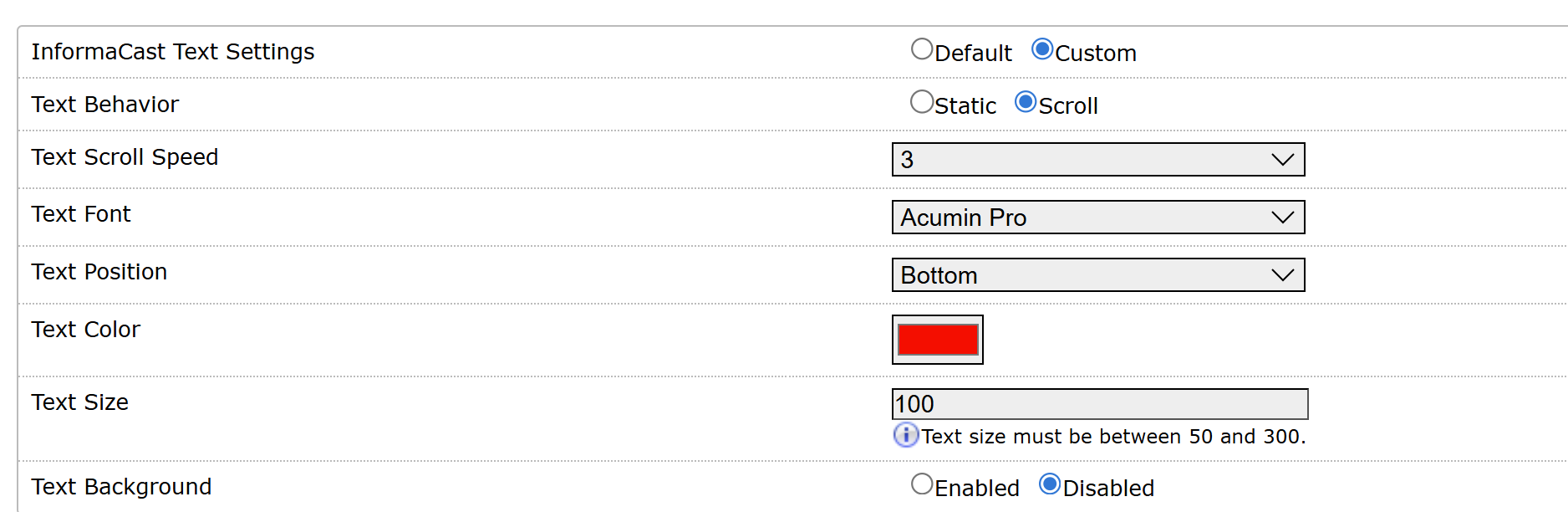
Default: Use text settings from InformaCast.
Custom: Customize the text display. Specify the following text settings:
Text Behavior: Select whether the text is static or scrolling.
Text Scroll Speed: Select the text scroll speed. The speed increases from 1 to 5.
Text Font: Select a text font.
Text Position: Select the text display position.
Text Color: Select a text color.
Text Size: Select a text font size. The text size must be between 50 and 300.
Text Background: Enable or disable the text background color.
Text Background Color: Select a text background color.
Select Save.
Enabling InformaCast Scenario API
You can enable InformaCast Scenario API to trigger scenarios using Relay Input.
You need to find your InformaCast Scenario’s Security Token. To include location information, specify the location IDs.
To enable InformaCast Scenario API:
Go to Advanced Settings → Admin →InformaCast Scenarios API.
Set InformaCast Scenarios API Support to Enabled.
Enter the Security Token of your scenario.
To include location information, set Include Location to Enabled.
Specify the Site ID, Building ID, Floor ID, and Zone ID.
Select Save.
Related Links: