.png)
Overview
Algo IP Endpoints are network-connected devices used for public announcing, alerting, and communication applications. These endpoints operate in a similar way to an IP phone in terms of power, network and connectivity. Algo IP Endpoints are PoE-powered, SIP compliant and support most standard network protocols.
Below, you will find an overview of the main items to consider before and during the deployment, including power usage, physical installation, network requirements, and more.
Note
While most of the information below applies to all Algo IP Endpoints, specific models may have their own specificities. We recommend pairing this document with the user guide for the Algo endpoint(s) you will be deploying.
Algo IP Endpoints
Physical Installation Requirements
Devices require a standard patch cable and PoE (Power Over Ethernet).
Most models require a standard PoE (IEEE 802.3af) compliant PoE switch or injector. Please note that certain models may require PoE+ or PoE++ for full performance.
See the Product Sheet for more details.
Provisioning Methods
Devices can be provisioned through the following methods:
Zero-Touch Provisioning (ZTP): Automatic provisioning upon initial boot-up through ADMP (Algo Device Management Platform).
See the ZTP Guide for more information.
Central Provisioning Server: Using DHCP Options 66, 160, 150, or static configuration to point devices to a provisioning server.
See the Provisioning Guide for more information.
Manual Configuration: Configuration via the device web interface.
IP Addressing and VLANs
DHCP is recommended for initial device addressing for ease of initial provisioning.
If DHCP is unavailable, devices default to a static IP address, 192.168.1.111.
If the voice VLAN is assigned, but the device is unable to contact the DHCP server, it will default to 192.168.2.222.
LLDP/CDP is supported on Algo IP endpoints. When enabled on the switch, Algo devices will automatically discover and use the voice VLAN advertised by the switch via LLDP/CDP. If no voice VLAN is advertised or available, the device will default to using the untagged (native/access) VLAN.
Once access to the web interface is available, additional network-related settings can be found under Advanced Settings → Network tab:
Static IP addressing configuration.
Manual VLAN tagging.
IEEE 802.1X configuration and more.
Network Ports and Addresses
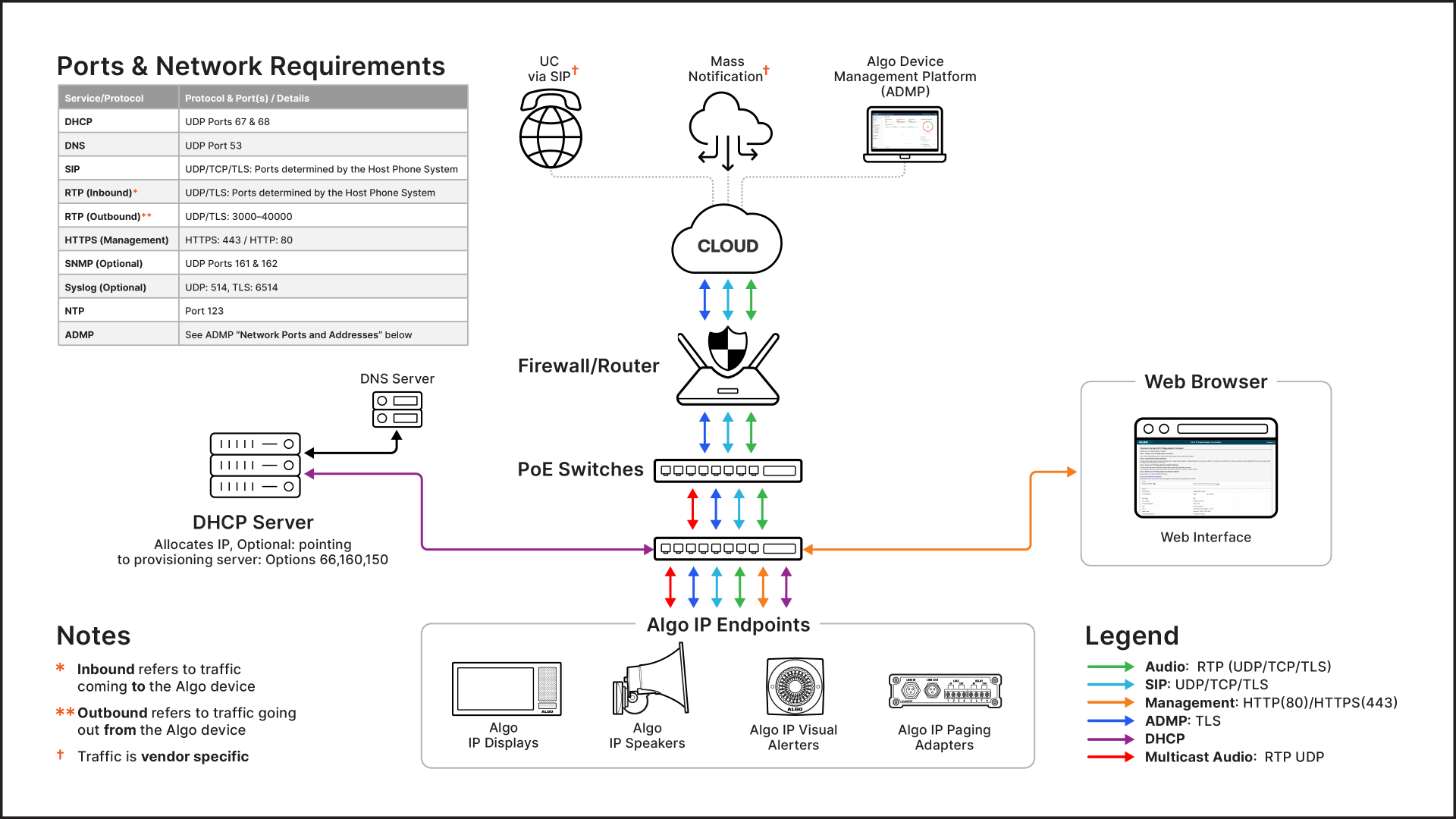
Ensure proper network and firewall configurations to enable seamless integration with the desired VoIP/UCaaS system (premise-based or hosted) and RTP multicast communication within the LAN. You should be aware of the essential ports, protocols, and firewall settings below.
SIP (Session Initiation Protocol)
Port
Inbound: 5060 is the default port for inbound SIP traffic to Algo IP Endpoints.
Outbound: 5060 is the standard port for SIP signaling traffic, typically over UDP, TCP, or TLS. Please confirm with your service provider.
Transport Protocols: Typically UDP.
RTP (Real-Time Transport Protocol)
Port Range
Inbound: Typically between 10000–20000 (UDP) for audio streams, though ranges can vary significantly depending on the VoIP provider. Please confirm with your service provider.
Outbound: Algo IP endpoints use a port range between 3000–4000.
Multicast
Protocol: RTP multicast over UDP multicast.
Port Range: Within the range of 224.0.0.0 to 239.255.255.255 multicast IP addresses, with ports typically varying by implementation. In default settings, Algo IP Endpoints use port range 50000-50008. Both the multicast IP addresses and port numbers can be customized in Advanced Settings → Advanced Multicast tab.
NTP (Network Time Protocol)
Allow inbound and outbound UDP traffic to port 123 on the internet (or to the specific NTP server IPs if you want to restrict access). Stateful firewalls can be configured for outbound traffic only. The firewall will automatically permit the corresponding inbound replies.
Essential Firewall Settings
Allow inbound and outbound UDP/TCP traffic on port 5060 for SIP signaling.
Allow inbound/outbound UDP traffic for RTP media streams on the appropriate port ranges (e.g., 10000–20000).
NAT and ALG Considerations
Disable SIP ALG (Application Layer Gateway): SIP ALG often interferes with VoIP traffic by modifying packets incorrectly.
Ensure persistent NAT connections by allowing NAT keep-alive requests every 30 seconds.
ADMP (Algo Device Management Platform)
The Algo Device Management Platform is a cloud-based management solution to remotely configure, monitor, and manage Algo IP endpoints across multiple locations.
Network Ports and Addresses
The following network ports and addresses must be open for full ADMP functionality:
Address | Type | Purpose | Protocols | Security | Port |
iot.cloud.algosolutions.com | TCP | Monitoring & Management | HTTPS, MQTT, TLS | TLS 1.2 | 443 |
files.cloud.algosolutions.com | TCP | File transfer | HTTPS, TLS | TLS 1.2 | 443 |
dinfo.cloud.algosolutions.com | TCP | Advanced device status and relay supervision | HTTPS, TLS | TLS 1.2 | 443 |
d1ma5gprn1j2rk.cloudfront.net/ | TCP | Pushing configurations | HTTPS, TLS | TLS 1.2 | 443 |
Firmware.algosolutions.com | TCP | Upgrade Firmware | HTTPS, TLS | TLS 1.2 | 443 |
Security Considerations
All communication between ADMP and Algo devices uses mutual authentication over TLS.
ADMP does not store unencrypted passwords; all data exchanges are encrypted.
Firmware Requirements
Devices must run firmware version 5.2 or higher for compatibility with ADMP. Regular firmware updates are recommended for security and feature enhancements.
Troubleshooting
Registration Drops Constantly
If the device registers successfully but the registration frequently drops, adjust the keep-alive settings:
Go to Advanced Settings → Advanced SIP.
Set Keep-Alive Method to Double CRLF.
Set Keep-Alive Interval to 30 seconds.
This configuration helps maintain the registration by sending periodic keep-alive messages to the server.
Additional Tips
Confirm Network Connectivity: Use tools like ping or traceroute to verify connectivity to the SIP server.
DNS Resolution: Confirm that the SIP server domain resolves correctly in DNS. If the device’s IP address was configured statically, ensure a DNS address has also been provided in Advanced Settings → Network tab.
Check for IP Conflicts: Ensure the device’s IP matches the IP in the SIP registration’s CONTACT header to avoid inbound call failures.
Review SIP REGISTER Packet: If possible, capture the SIP traffic (PCAP) to verify that REGISTER packets are sent correctly and responses are received.
Network Troubleshooting
If device configurations are correct but multicast paging still fails, investigate the network environment:
Subnet Consistency: Ensure all devices in the multicast zone have IP addresses within the same subnet, if applicable.
VLAN Configuration: Confirm all devices are on the same VLAN to allow multicast traffic to flow properly.
Multicast Support on Switches: Verify that network switches have multicast enabled and are configured to handle multicast traffic (e.g., IGMP snooping enabled).
If multiple multicast routers exist on a network, ensure that only one acts as a querier.
Firewall and Security: Ensure no firewall or network security settings are blocking multicast packets.
If multicast routing is configured, increase the multicast TTL (Time to Live) setting on the transmitter under Advanced Settings -> Advanced Multicast. The default TTL setting is 1.