This guide explains how to:
Integrate an Algo device with Microsoft Teams using OAuth
Verify the configuration by sending a test message to a Teams channel
Send a test message to a Teams channel from an Algo 8450 using OAuth profile
This configuration allows an Algo device to securely send API requests to Microsoft Teams using OAuth authentication. After the OAuth profile is authorized, the device can reuse the authorization to send requests without requiring the user to sign in each time. In this example configuration, after you configure an Algo 8450 button to send a message to a Teams channel using an authorized OAuth profile, you can press the button to send the message without signing in to Microsoft or reauthorizing the device each time.
Note
This document includes third-party configuration procedures that are subject to change. It is provided for reference purposes only, and Algo cannot guarantee that the screenshots or procedures will always be current or up to date.
Before you start
Ensure you have the following:
A Microsoft Teams account
A Teams channel where messages will be posted
Procedure Overview
This procedure includes the following steps:
Creating a Microsoft Entra App
Create a Microsoft Entra application and obtain the required credentials for OAuth.
Sign in to the Microsoft Entra admin center.
Go to App registrations and select + New registration.
 (1).png)
Configure the application details:
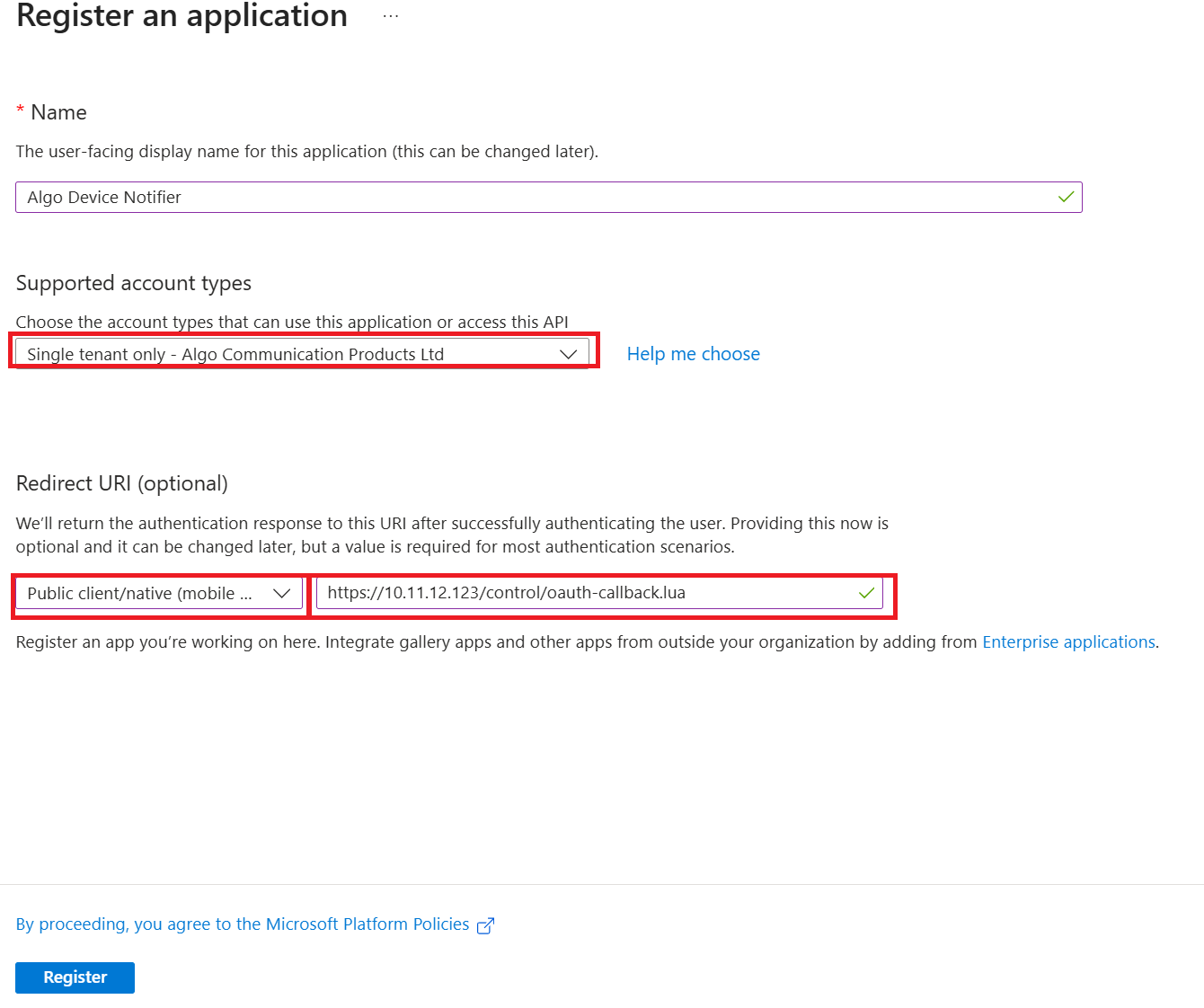
Name: Enter a name for your application. For example, Algo Device Notifier.
Supported account types: Choose the option that fits your deployment.
Enter the redirect URI: Select Public client/native (mobile & desktop) and enter your device’s callback URL using this format: https://<ALGO_DEVICE_IP>/control/oauth-callback.lua.
Note
The redirect URI must use HTTPS.
The redirect URI must match exactly in both Webex and your Algo device's configuration.
Select Register.
After registration, copy these values from the application’s Overview page:
Application (client) ID
Directory (tenant) ID
 (1).png)
You need this information to configure OAuth later.
Select Certificates & secrets → + New client secret.
 (1).png)
Enter the client secret details, then select Add.
.png)
Description: Enter a description.
Expires: Select an expiration option.
Copy the secret Value and save it securely. You will need it when creating the OAuth authorization profile later.
 (1) (1) (1) (1).png)
Go to API permissions → Add a permission.
 (1).png)
Select Microsoft Graph.
.png)
Select Delegated permissions.
.png)
Type to search and add each of the following permissions, then select Add Permissions.
.png)
openid: Allows users to sign in to the app with their work or school accounts and allows the app to see basic user profile information.profile: Allows the app to see your users' basic profile.offline_access: Allows the app to see and update the data you gave it access to, even when users are not currently using the app.User.Read: Allows users to sign-in to the app, and allows the app to read the profile of signed-in users.ChannelMessage.Send: Allows users to post messages to a channel.
Creating OAuth Authorization Profile
Create an OAuth profile to store your Teams authentication settings.
Ensure you have the following:
Directory (tenant) ID
Application (client) ID
Client Secret
To create Teams OAuth Profile:
Log in to your device’s web interface using HTTPS.
HTTPS is required by Teams OAuth process.
Go to the Advanced Settings → OAuth.
Set a Name for your OAuth profile.
Select MICROSOFT_TEAMS as the Provider Type.
Accept the following automatically populated values:
Grant Type: AUTH_CODE_PKCE
Client Auth Mode: NONE
Scope Mode: SCOPES_LIST
Scope:
openid profile offline_access User.Read ChannelMessage.SendPKCE Method: S256
Response Type: code
Configure the following:
Client ID: Enter your Application (client) ID.
Client Secret: Enter your Client Secret.
Token URL: Replace the {tenant} with your Directory (tenant) ID in this URL: https://login.microsoftonline.com/{tenant}/oauth2/v2.0/token
Auth URL: Replace the {tenant} with your Directory (tenant) ID in this URL: https://login.microsoftonline.com/{tenant}/oauth2/v2.0/authorize
PKCE Redirect URI: Set to
https://<ALGO_DEVICE_IP>/control/oauth-callback.luaNote
You must use HTTPS in the URI.
Replace <ALGO_DEVICE_IP> with your device IP.
Leave the following fields blank. These values are automatically populated during authorization.
PKCE Authorization Code
PKCE Code Verifier
PKCE Refresh Token
Note
Refresh tokens can expire or become invalid for several reasons, such as revoked app access, password changes, unused tokens, or admin policy restrictions. Refer to the OAuth provider’s documentation for more information. If a refresh token expires or becomes invalid, your automation stops working until OAuth access is reauthorized.
Set Extra Params (JSON) as below:
{
  "prompt": "select_account",
  "jwks_uri": "https://login.microsoftonline.com/{tenent}/discovery/v2.0/keys",
  "resource_hint": "graph",
  "tenant": "organizations"
}
Replace the {tenant} with your Directory (tenant) ID.
Select START AUTHORIZATION.
Select your Teams account.
.png)
Upon successful authorization, the PKCE Authorization Code and PKCE Code Verifier fields are populated.
.png)
Select Create Profile.
Your profile appears under the OAuth Profiles list.
Finding Your Teams ID and Channel ID
You must specify a Teams ID and Channel ID to send messages.
To find Your Teams ID and Channel ID:
Open Microsoft Teams.
Go to your Teams → Channels.
Select the More ••• icon next to the channel name.
Select Copy link.
.png)
You’ll get a URL like: https://teams.microsoft.com/l/channel/19%3Aabc123def4567890%40thread.tacv2/General?groupId=11111111-2222-3333-4444-555555555555&tenantId=aaaaaaaa-bbbb-cccc-dddd-eeeeeeeeeeee
Extract the Teams ID from the URL:
The Teams ID is the string between
groupIdand&tenantId.In the above URL, it’s
11111111-2222-3333-4444-555555555555.
Decode the Channel ID from the URL:
Extract the string between
channel/and/General.In the above URL, the string is:
19%3Aabc123def4567890%40thread.tacv2In the string, replace
%3Awith:and%40with@.In the above string, the Channel ID is:
19:abc123def4567890@thread.tacv2
Testing "HELLO" Message to Channel
You can test sending messages to the Teams channel.
Ensure you have the following:
Teams ID
Channel ID
To test sending messages to a Teams Channel:
Log in to your device’s web interface using HTTPS.
HTTPS is required by Teams OAuth process.
Go to the Advanced Settings → OAuth.
Select your MICROSOFT_TEAMS profile from the Test OAuth Profile dropdown list.
Select MICROSOFT_TEAMS as the Provider Type Template.
Enter Target URL and Path by entering the Teams ID and Channel ID in this URL:
https://graph.microsoft.com/v1.0/teams/<teams-id>/channels/<channel-id>/messages
In the Data Payload, enter your Channel ID.
{
  "body": {
    "content": "HELLO!"
  }
}
Select RUN OAuth Test.
Upon success:
The message is posted to the Teams channel.
A successful response is displayed.
.png)
Configuring an 8450 Button to Send Message to a Teams Channel
You can configure a button on the Algo 8450 to send messages to a Teams channel using an existing OAuth profile.
.png)
To configure a 8450 button to send messages to a Teams Channel:
Create a button on a 8450 screen.
Set the Button Status to Enabled.
Configure the following:
Text: Enter the button display text.
Action: Set to Send API Request.
Number of API Requests: Set to 1.
Request 1 - Command: Set to Other.
Request 1 - Method: Set to POST.
Request 1 - Custom Path: Set to
v1.0/teams/{teams-id}/channels/{channel-id}/messages.Fill in your Teams ID and Channel ID in this URL.
Request 1 - Targets: Set to
graph.microsoft.com.Request 1 - OAuth Profile: Select your Teams profile.
Request 1 - Headers: Set to Custom Headers.
Request 1 - Custom Headers: Set to
Content-Type: application/json; charset=utf-8.Request 1 - Data Payload: You can use the default payload.
{
  "body": {
    "content": "HELLO"
  }
}
Select Save.
Press the button and verify that the message is posted to the Teams channel.
Troubleshooting
I got a 502 error when I run the OAuth Test
You may be logged out of your Algo device’s web interface. Log in again and retry.
Why can’t I send messages to private channels?
Your user account must be invited to private channels first.
After I run the “Start Authorization” again, my OAuth Test fails
Each time you run Start Authorization again, select Update Profile to save the new credentials before running the test.
.png)
My OAuth profile stops working
An OAuth profile can stop working if the OAuth provider rejects or invalidates the access or refresh token. Refer to the OAuth provider’s documentation for more information. If this occurs, the OAuth profile must be reauthorized.