Disclaimer
The information contained in this document is believed to be accurate in all respects but is not warranted by Algo. The information is subject to change without notice and should not be construed in any way as a commitment by Algo or any of its affiliates or subsidiaries. Algo and its affiliates and subsidiaries assume no responsibility for any errors or omissions in this document. Revisions of this document or new editions of it may be issued to incorporate such changes. Algo assumes no liability for damages or claims resulting from any use of this manual or such products, software, firmware, and/or hardware.
No part of this document can be reproduced or transmitted in any form or by any means – electronic or mechanical – for any purpose without written permission from Algo.
For additional information or technical assistance in North America, please contact Algo’s support team:
1-604-454-3792
support@algosolutions.com
Important Warning and Safety Information
.png) Important Notice
Important Notice
This product is powered by a certified limited power source (LPS), Power over Ethernet (PoE); through CAT5 or CAT6 connection wiring to an IEEE 802.3af compliant network PoE switch. The product is intended for installation indoors. All wiring connections to the product must be in the same building. If the product is installed beyond the building perimeter or used in an inter-building application, the wiring connections must be protected against overvoltage/transient. Algo recommends that this product is installed by a qualified electrician.
If you are unable to understand the English language safety information, then please contact Algo by email for assistance before attempting an installation support@algosolutions.com.
Consignes de Sécurité Importantes
Ce produit est alimenté par une source d’alimentation limitée certifiée (alimentation par Ethernet); des câbles de catégorie 5 et 6 joignent un commutateur réseau à alimentation par Ethernet homologué IEEE 802.3at / 802.3bt Le produit est conçu pour être installé à l’intérieur. Tout le câblage rattaché au produit doit se trouver dans le même édifice. Si le produit est installé au-delà du périmètre de l’édifice ou utilisé pour plusieurs édifices, le câblage doit être protégé des surtensions transitoires. Algo recommande qu’un électricien qualifié se charge de l’installation de ce produit.
Si vous ne pouvez comprendre les consignes de sécurité en anglais, veuillez communiquer avec Algo par courriel avant d’entreprendre l’installation au support@algosolutions.com.
Información de Seguridad Importante
Este producto funciona con una fuente de alimentación limitada (Limited Power Source, LPS) certificada, Alimentación a través de Ethernet (Power over Ethernet, PoE); mediante un cable de conexión CAT5 o CAT6 a un conmutador de red con PoE en cumplimiento con IEEE 802.3af. El producto se debe instalar en lugares cerrados. Todas las conexiones cableadas al producto deben estar en el mismo edificio. Si el producto se instala fuera del perímetro del edificio o se utiliza en una aplicación en varios edificios, las conexiones cableadas se deben proteger contra sobretensión o corriente transitoria. Algo recomienda que la instalación de este producto la realice un electricista calificado.
Si usted no puede comprender la información de seguridad en inglés, comuníquese con Algo por correo electrónico para obtener asistencia antes de intentar instalarlo: support@algosolutions.com.
Wichtige Sicherheitsinformationen
Dieses Produkt wird durch eine zertifizierte Stromquelle mit begrenzter Leistung (LPS – Limited Power Source) betrieben. Die Stromversorgung erfolgt über Ethernet (PoE – Power over Ethernet). Dies geschieht durch eine Cat-5-Verbindung oder eine Cat-6- Verbindung zu einer IEEE 802.3af-konformen Ethernet-Netzwerkweiche. Das Produkt wurde konzipiert für die Installation innerhalb eines Gebäudes. Alle Kabelverbindungen zum Produkt müssen im selben Gebäude bestehen. Wenn das Produkt jenseits des Gebäudes oder für mehrere Gebäude genutzt wird, müssen die Kabelverbindungen vor Überspannung und Spannungssprüngen geschützt werden. Algo empfiehlt das Produkt von einem qualifizierten Elektriker installieren zu lassenv.
Sollten Sie die englischen Sicherheitsinformationen nicht verstehen, kontaktieren Sie bitte Algo per Email bevor Sie mit der Installation beginnen, um Unterstützung zu erhalten. Algo kann unter der folgenden E-Mail-Adresse erreicht werden: support@algosolutions.com.
安全须知
本产品由认证的受限电源(LPS),以太网供电(PoE),通过 CAT5 或 CAT6 线路联接至 IEEE 802.3af 兼容的 PoE 网络交换机供电。本产品适用于室内或建筑物周边安装。所有联 接本产品的线路必须源自同一建筑物。本产品如需用于超出建筑物周边范围或跨建筑物的安 装,线路联接部分必须有过压和瞬态保护。Algo 建议本产品由专业电工安装。
如果您对理解英文版安全须知有问题,安装前请通过电子邮件和 Algo 联 系. support@algosolutions.com.
EMERGENCY COMMUNICATION
If used in an emergency communication application, the 8301 IP Paging Adapter & Scheduler should be routinely tested. SNMP supervision is recommended for assurance of proper operation. Contact Algo for other methods of operational assurance.
DRY INDOOR LOCATION ONLY
The 8301 IP Paging Adapter & Scheduler is intended for dry indoor locations only. For outdoor locations Algo offers weatherproof speakers and strobe lights.
CAT5 or CAT6 connection wiring to an IEEE 802.3af (PoE) compliant network PoE switch must not leave the building perimeter without adequate lightning protection.
No wiring connected to the 8301 IP Paging Adapter & Scheduler may leave the building perimeter without adequate lightning protection.
General
Introduction
Algo’s 8301 IP Paging Adapter & Scheduler is a SIP-compliant, multicast-capable endpoint device for integrating consumer, commercial, and professional audio amplifiers into an IP-based Unified Communication (UC) environment for voice paging and notification. Emulating a page port similar to what is found on legacy PBX or key systems, the 8301 connects directly to traditional analog amplifiers, offering a simple and easy interface to a VoIP phone system. The 8301 uses a balanced and isolated line level output that reduces hum and which can connect with any amplifier with an input impedance between 600 Ohm to 10 kOhm.
The 8301 also includes a scheduler, synchronized to NTP, to provide scheduled bells, tones, and customer service or emergency announcements for schools, retail shops, manufacturing facilities, and healthcare institutions. 1 GB of memory is available in the device to store audio files, which can be played via the 8301 Line Out and, if desired, as a multicast to other Algo speakers, paging adapters, and display speakers.
As a 3rd-party, SIP-compliant device, the 8301 is designed to seamlessly integrate into most leading IP-based UC and Mass Notification platforms. The 8301 is easily configured using central provisioning features or by accessing the web interface via a web browser.
The 8301 supports three types of extensions, page, ring, and emergency alerts. The different types of extensions are assigned by entering the SIP credentials on the correct section in the configuration portal. Page extensions by nature auto-answer and open a voice path, allowing for live announcements. Ring extensions don't answer the incoming call, instead they play a configurable pre-recorded announcement. This is traditionally used as a loud ringer/night bell. Lastly, emergency alert extensions are used to communicate critical situations. They use customizable pre-recorded announcements and are generally configured to loop over the announcement until it is cancelled. These extensions can be registered simultaneously but note that some systems limit devices to a single registration.
Setup and Installation
What is Included The following items are included with the purchase of this device:
| What is Not Included The following items are not included with the purchase of this device:
|
Getting Started – Quick Install and Setup
Note
This guide provides important safety information which should be read thoroughly before permanently installing the product.
Connect the 8301 Paging Adapter & Scheduler to an IEEE 802.3af compliant PoE network switch or PoE Injector. The blue lights on the front will remain on until boot up is completed – about 60 seconds.
After the blue lights turn off, press the reset switch (RST) to hear the IP address over the analog outputs (e.g., headset can be connected to the green Aux output port). The IP address may also be discovered by downloading the Algo Device Locator or a third-party network scanner to find Algo devices on your network. Algo device's MAC address starts with 00:22:ee.
Connect the adapter Line Out to an amplifier using the mini-XLR connector or pluggable terminal block.
Access the 8301 Paging Adapter & Scheduler web page by entering the IP address into a browser (e.g., Chrome, Firefox, or Edge) and logging in using the default password algo.
Enter the IP address or the domain name for the SIP server into the SIP Domain field under the Basic Settings → SIP tab.
Enter the credentials (SIP Extension, Authentication ID, and Password) for the Page and/ or Ring extension. Leave the credentials blank for either extension if there is no intended use to have both registered.
Note
The Authentication ID may also be called Username for some SIP servers, and in some cases may be the same as the SIP extension.
Verify the extension is properly registered with the SIP server in the Status tab. Ensure the SIP Registration is “Successful”.
Make a call to the adapter by dialing the registered SIP extension of the adapter from a telephone.
Installation
The 8301 is wall-mountable in a horizontal orientation using the supplied bracket.
| Example installation on 1/2” drywall: Use appropriate drywall anchors for #8 screws, and pre- drill per anchor manufacturer’s instructions. Insert 4 anchors into the wall, and then attach bracket to wall anchors using #8 screws. Snap the 8301 into the bracket. |

Programming and Configuration
The 8301 is configurable using the web interface or provisioning features.
After booting up, the blue lights on the front will turn off and the adapter will have obtained an IP address. If there is no DHCP server, the 8301 will default to the static IP address 192.168.1.111.
Press the reset switch (RST) to hear the IP address over the analog outputs (e.g., headset can be connected to the green output port). The IP address may also be discovered by downloading the Algo Device Locator to find Algo devices on your network.
Enter the IP address (e.g., 192.168.1.111) into a browser such as Chrome, Firefox, or Edge. The web interface should be visible, and the default password will be algo in lower case letters.
Applications
Connecting Paging Amplifier to UC Environment
The 8301 Paging Adapter & Scheduler is typically used to connect an existing paging amplifier to a UC environment either as a SIP extension or multicast endpoint for voice paging, emergency alerting, night bell / loud ringing, bell scheduling and playing music. It provides a hybrid voice paging solution to integrate analog speaker infrastructure and multicast to Algo IP speakers, strobe lights and paging adapters, in addition to multicast supported IP telephones.
The Line output of the 8301 is connected directly to the dry audio input on an amplifier with an input impedance between 600 Ohm and 10 kOhm.
For amplifiers connected directly to the dry page port of an existing telephone system, the 8301 will provide a very similar interface providing both dry page audio and dry contact closure to activate the amplifier (if required).
For amplifiers connected to a FXS port of ATA through a “telephone answering device”, the 8301 will replace the answering device and eliminate the need for a FXS port or ATA. Please note the 8301 does not provide a FXS port interface.
The 8301 may also be configured as a multicast transmitter to a set of IP endpoints, such as other Algo IP endpoints and certain multicast-capable IP phones.
Notification
The 8301 is often used for notification alerting for emergency (e.g., lockdown, evacuation, reverse evacuation), safety (e.g., medical, workplace accident), security events (e.g., OSHA or similar workplace regulations).
Scheduling
The 8301 includes a calendaring functionality synchronized to NTP and can be used to schedule school bells, play automated announcements for retail and healthcare, and notify workplace shift changes and breaks.
Multicasting
The 8301 can be used as the central multicasting device in Algo endpoint deployments where it is desired to keep the central multicasting device placed in a secure closet or location away from traffic areas.
Features
SIP Paging: Registering an 8301 Device
The 8301 Paging Adapter & Scheduler can be registered as a 3rd-party SIP extension with a hosted or enterprise Communications Server supporting 3rd-party SIP endpoints.
To register the adapter with the SIP server, use the Basic Settings → SIP tab in the web interface to enter the Communication Server IP address/domain name, extension, username, and password. This information will be available from the IT Administrator.
If VLANs are used, navigate to the Advanced Settings → Network tab to set VLAN options.
Note
Once the adapter is using VLAN you will need to be on the same VLAN to access the web interface.
The adapter may now be accessed by dialing its assigned extension from a telephone, device, or client. The adapter will auto-answer, play the default pre-announce tone, and allow voice paging until disconnected.
There are several configurable adapter options, such as:
Increase or Decrease Volume
Enable AGC (automatic gain control)
Ambient noise compensation
Customize pre-announce tone file
Passcode protection
The best voice paging quality and intelligibility will be obtained using the G.722 wideband audio codec. Most current IP telephones support G.722, which is sometimes referred to as “HD” voice or audio.
SIP Paging: Multiple Algo SIP Endpoints (Using Multicast)
Multicast features in the 8301 Paging Adapter & Scheduler require that only the first adapter be registered as a SIP extension. Additional Algo IP endpoints, including any combination of paging adapters, speakers, and visual alerters, may be added as multicast Receivers receiving a stream from the SIP-registered Transmitter adapter, provided that only a single audio stream will be active at any given time across any or all of the devices. If multiple unique audio streams are needed simultaneously, more than one Transmitter device will be required.
The adapter configured as the transmitter will simultaneously stream audio to the Receiver adapters. The Receiver adapters do not require SIP extensions and do not need to register with the SIP Communication Server.
To enable multicast streaming from the Transmitter adapter:
Go to the web interface and navigate to the Basic Settings → Multicast tab.
Choose multicast mode ‘Transmitter (Sender)’ and pick ‘All Call’ for the Transmitter single zone.
To enable multicast monitoring in the Receiver endpoints:
Go to the web interface for each endpoint and navigate to the Basic Settings → Multicast tab.
Choose multicast mode ‘Receiver (Listener)’.
There is no need to select a zone as the endpoint will monitor the ‘All Call’ zone IP address by default.
The page pre-announce tone is generated from the Transmitter. The speaker volume can be increased or decreased for each multicast Receiver individually.
SIP Paging: Multiple Algo SIP Endpoints (Using Multicast)
In some cases, it may be desirable for every adapter to have a SIP extension. Multicast may still be used to page multiple Algo IP endpoints, but each endpoint can also be called individually or generate a call when appropriately configured. An Algo IP endpoint configured as a Multicast Receiver will give the highest priority to the SIP extension(s) registered.
Communication servers capable of dialing multiple SIP extensions simultaneously for paging may create zones by calling “paging groups” to page telephone speakers in conjunction with speaker endpoints. Certain IP phones are also multicast-capable. These can be configured similarly to Algo IP endpoints in receiver mode to participate in the desired zones.
Background Music Streaming
The 8301 Paging Adapter & Scheduler, set as a Multicast transmitter, can stream background music to other Algo receiving devices on the network from a music source connected to the 8301’s AUX Input. Note music may simultaneously be streamed through the local outputs.
When multicasting music, ensure that Automatic Gain Control (AGC) is ‘Disabled’ in Basic Settings → Features tab on all the receiving devices. Meanwhile, on the Multicast sending device, select ‘G.722’ or 'Opus' for the Sender Output Codec setting in Advanced Settings → Advanced Multicast tab.
Multicast Page Zones
The 8301 IP Paging Adapter & Scheduler supports nine ‘basic’ multicast zones. These zones are defined by the multicast IP addresses.
These zones are defined below but may be used in other ways. The important consideration is that there is a priority hierarchy – streaming activity on a zone higher on the list will be treated as a higher priority than a zone lower down on the list – with music being the lowest priority (multicast receiver side). The multicast transmitter side treats event priority based on the event itself, not the zone. Contact Algo support for more details.
Priority
All Call
Zone 1
Zone 2
Zone 3
Zone 4
Zone 5
Zone 6
Music
There are two options for Paging to multiple zones: DTMF Selectable Mode or via multiple page extensions.
The DTMF Selectable Mode offers a dynamic page zone selection and requires only the sending device to have a registered SIP Extension. To page, dial the SIP extension of the sending device and then dial the desired DTMF page zone (e.g., 1, 2, etc.) on the keypad. DTMF digits and their corresponding zone numbers are available in the Advanced Settings → Advanced Multicast tab.
Note
DTMF codes for zones 10 and higher start with an “*”.
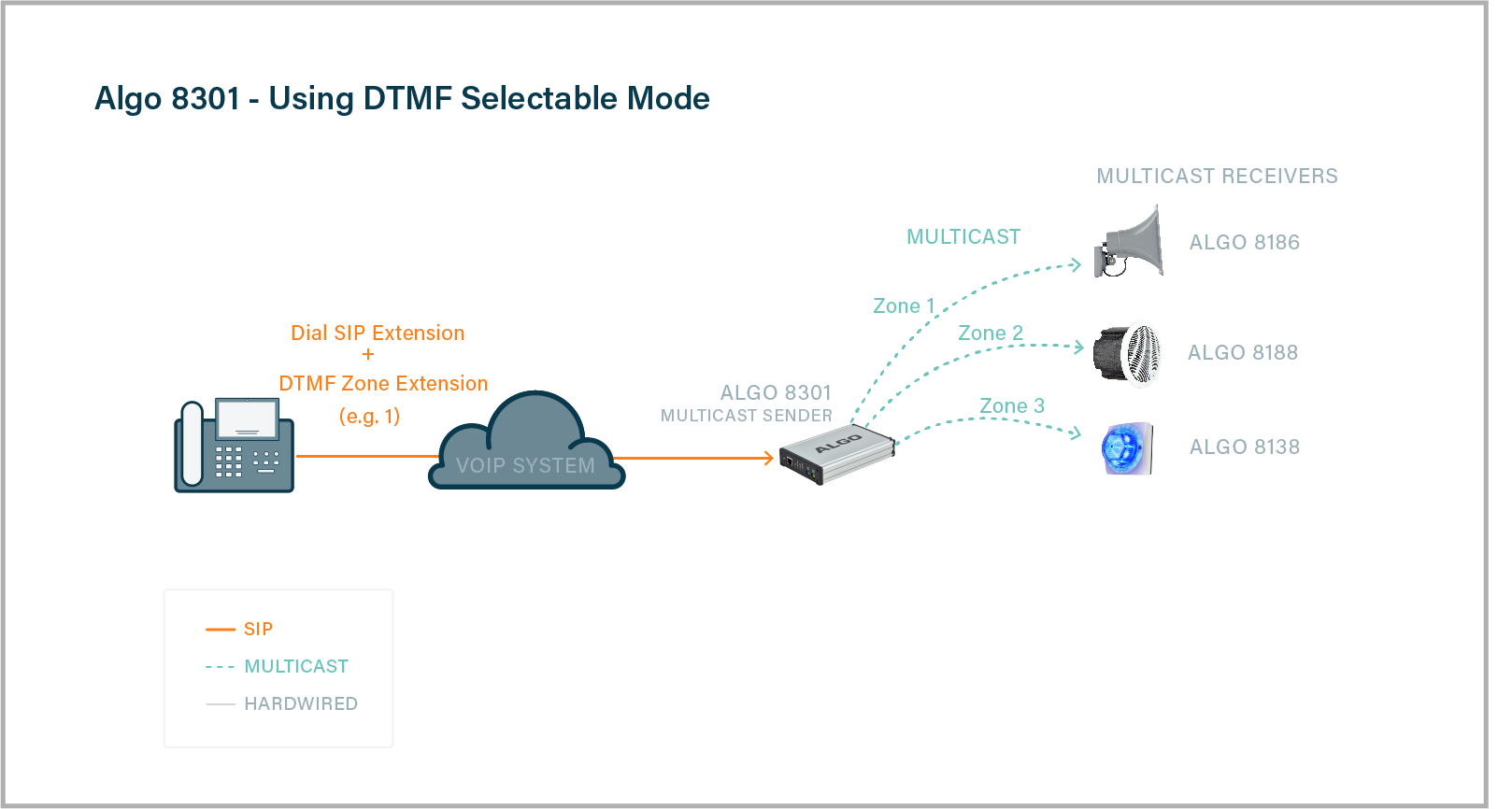
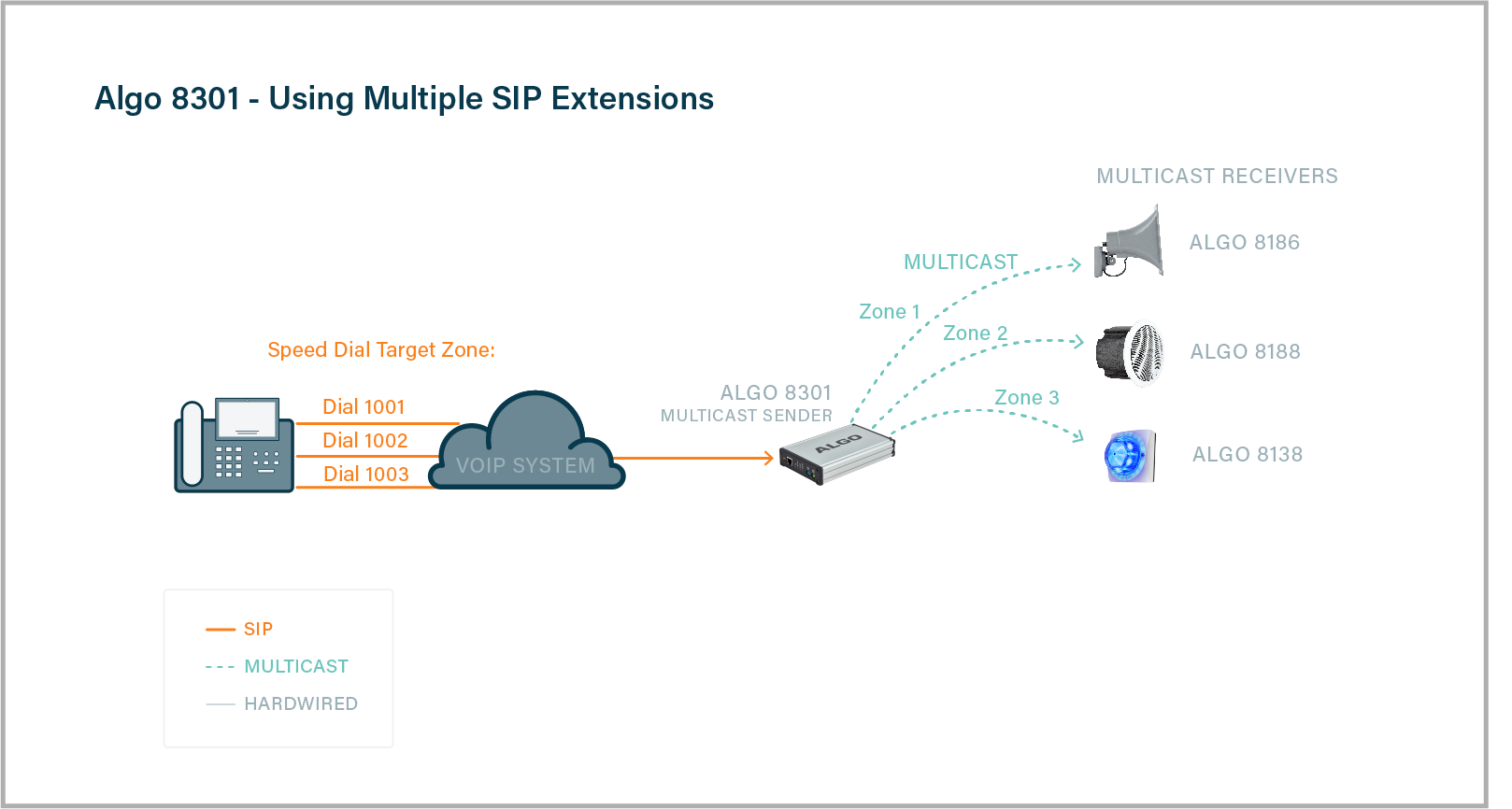
Alternatively, multiple SIP extensions can be registered on the sending device. Each extension is mapped to a unique zone, allowing zones to be called directly (for instance, from speed-dial keys) without the use of DTMF. See Additional Features → More Page Extensions tab.
‘Expanded’ zones can also be enabled, allowing up to 50 zones in total. These have the same behaviours as the basic zones but are hidden by default to simplify the interface.
SIP Ring Event
Set Monitoring Mode to ‘Monitor "Ring" event on registered SIP extension’ on the Basic Settings → SIP tab. When a call is made to the SIP extension the 8301 IP Paging Adapter & Scheduler will play the selected audio file from memory (it will not answer the call). Often, the 8301 will be part of a hunt group or ring group to ring in conjunction with a telephone.
SIP Activated Notification Alerts
In addition to voice paging, the 8301 IP Paging Adapter & Scheduler can play audio files for emergency, safety, and security announcements, customer service, shift changes, etc.
Audio files can be stored in the device’s memory and played over a speaker in response to an event such as an inbound call, relay input, or automated schedule, as well as multicast to other Algo SIP endpoints on the network. See Additional Features → Emergency Alerts and Additional Features → Input / Output tabs for more details.
TLS for SIP Signaling and Provisioning
Algo devices that support firmware 1.6.4 or later support Transport Layer Security (TLS). This feature adds security by ensuring that Algo products can trust the hosted SIP server. This is useful for when third-party devices or attackers may try to intercept, replicate, or alter Algo products and try to connect to the server. TLS protocol will ensure that third parties cannot read/modify any actual data. Previously, security was less of a concern because phone systems were on isolated networks, but hosted services are becoming increasingly more common. Using a hosted SIP service requires traffic to be sent over the public internet and thus much more susceptible to attacks. Signed certificates are important pieces in the operation of Algo devices to ensure the security, integrity, and privacy of device communication. Algo components that use TLS are Provisioning and SIP Signaling.
Algo devices come pre-loaded with certificates from a list of trusted certificate authorities (CA), which are installed in the hardware at the time of manufacture.
Note
These pre-installed trusted certificates are not visible to users and are separate from the ‘certs’ folder.
The TLS handshake happens to make sure that the client and server can trust each other, and once that trust is established, the two parties can freely send encrypted data and decrypt any data that they receive. After the TLS handshake process is complete, a TLS session is established, and the server and client can then exchange messages that are symmetrically encrypted with a shared (pre-sender) secret key.
For further details reference the Algo TLS guide for SIP Signalling and HTTPS Provisioning.
Uploading Public CA Certificates to Algo SIP Endpoints
If the particular CA Certificate is not installed by factory, you can easily upload your own.
To install the public CA certificate on the Algo 8301:
Obtain a public certificate from your Certificate Authority (Base64 encoded X.509 .pem, .cer, or .crt).
In the web interface of the Algo device, navigate to the System → File Manager tab.
Upload the certificate files into the certs/trusted directory.
Click the Upload button in the top left corner of the file manager and browse to the certificate.
Reach out to support@algosolutions.com to get the complete list of trusted certificate authorities loaded from factory.
For SIP TLS, if the Validate Server Certificate option is enabled in Advanced Settings → Advanced SIP tab, then the device will validate the SIP server against common certificate authorities. To validate against additional certificates, use the System → File Manager tab to upload a Base64 encoded X.509 certificate file in .pem, .cer, or .crt format to the 'certs/trusted' folder.
For Provisioning, if HTTPS is selected and the 'Validate Server Certificate' option is enabled in the Advanced Settings → Provisioning tab, then the device will validate the server against common certificate authorities. To validate against additional certificates, use the System → File Manager tab to upload a Base64 encoded X.509 certificate file in .pem, .cer, or .crt format to the 'certs/trusted' folder.
HTTPS Provisioning
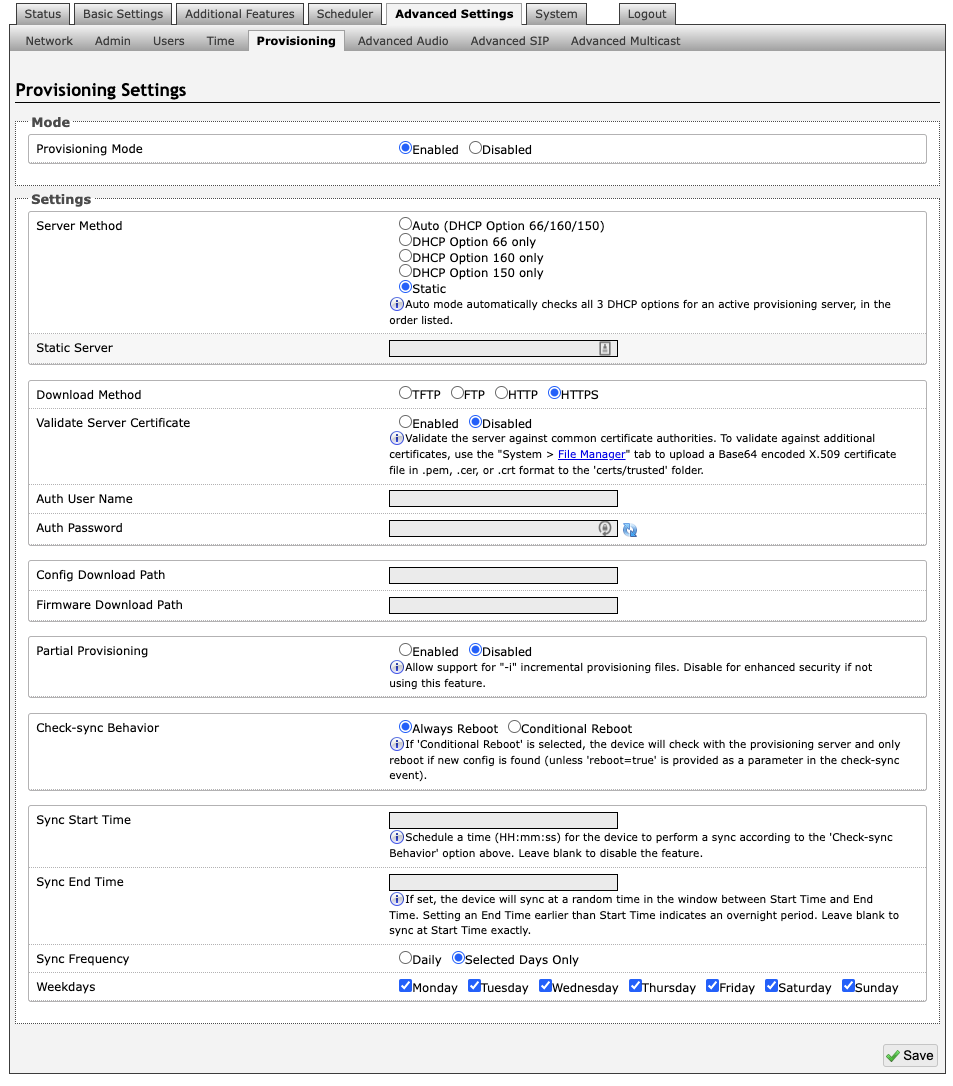
Provisioning can be secured by setting the ‘Download Method’ to ‘HTTPS’ (under the Advanced Settings → Provisioning tab). This prevents configuration files from being read by an unwanted third-party. This resolves the potential risk of having sensitive data stolen, such as admin passwords and SIP credentials.
Note
To verify the server ‘Enable’ the ‘Validate Server Certificate’ option. This then checks if the certificate that is provided by the server is signed by any of the CAs included in the list of trusted CAs (used by the Debian infrastructure and Mozilla browsers). If we receive a certificate signed by any of these CAs, then that server will be trusted.
The ‘Validate Server Certificate’ parameter can also be enabled through provisioning:
Prov.download.cert = 1Securing SIP Signaling (and RTP Audio)
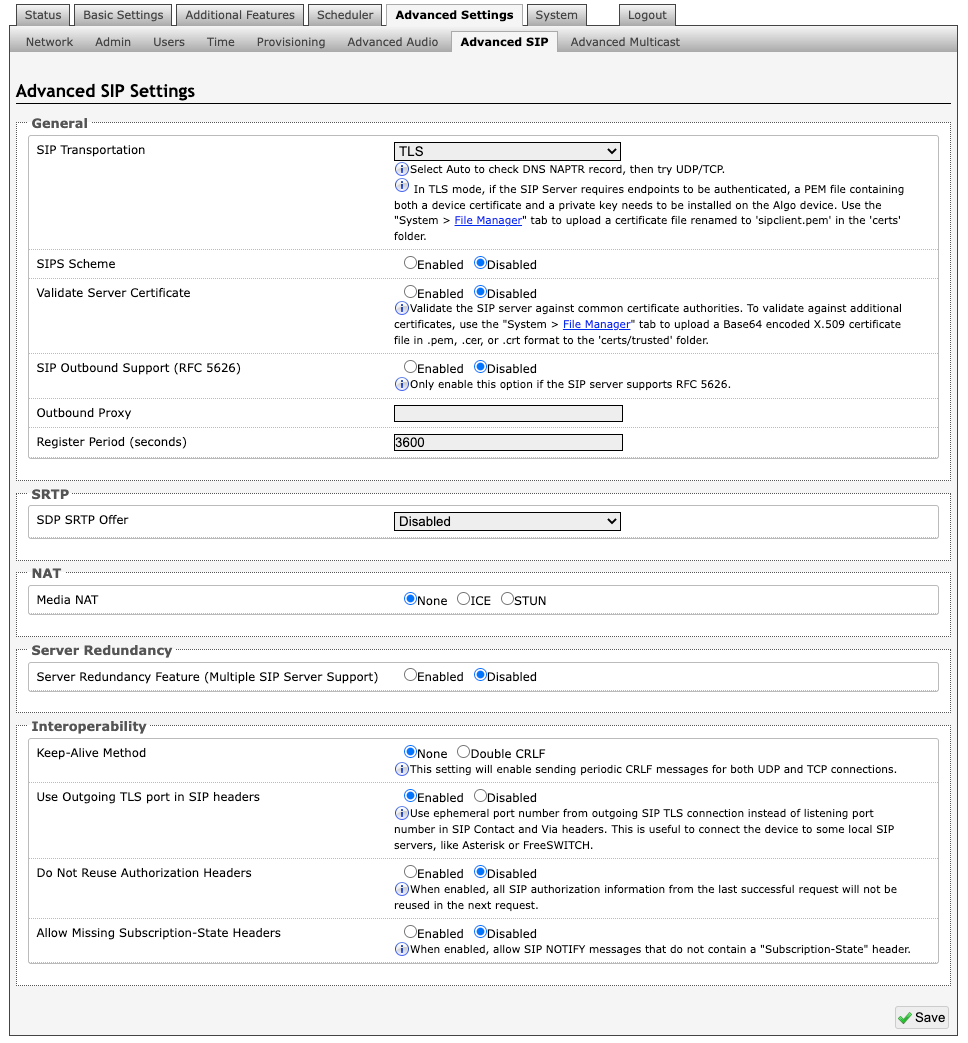
SIP signalling is secured by setting ‘SIP Transportation’ to ‘TLS’ (under the Advanced Settings → Advanced SIP tab). SIP transportation refers to the underlying protocol used for transmitting SIP messages between different entities in a network. Setting it to ‘TLS’ ensures that the SIP traffic will be encrypted. SIP signalling is responsible for establishing the call (the control signals to start and end the call with the other party), but it does not contain the audio.
For the audio (voice) path, use the setting ‘SDP SRTP Offer’. Setting this to ‘Optional’ means the SIP call’s RTP audio data will be encrypted (using SRTP) if the other party also supports audio encryption. If the other party does not support SRTP, then the call will still proceed, but with unencrypted audio. To make audio encryption mandatory for all calls, set ‘SDP SRTP Offer’ to ‘Standard’. In this case, if the other party does not support audio encryption, then the call attempt will be rejected.
Wiring Connections
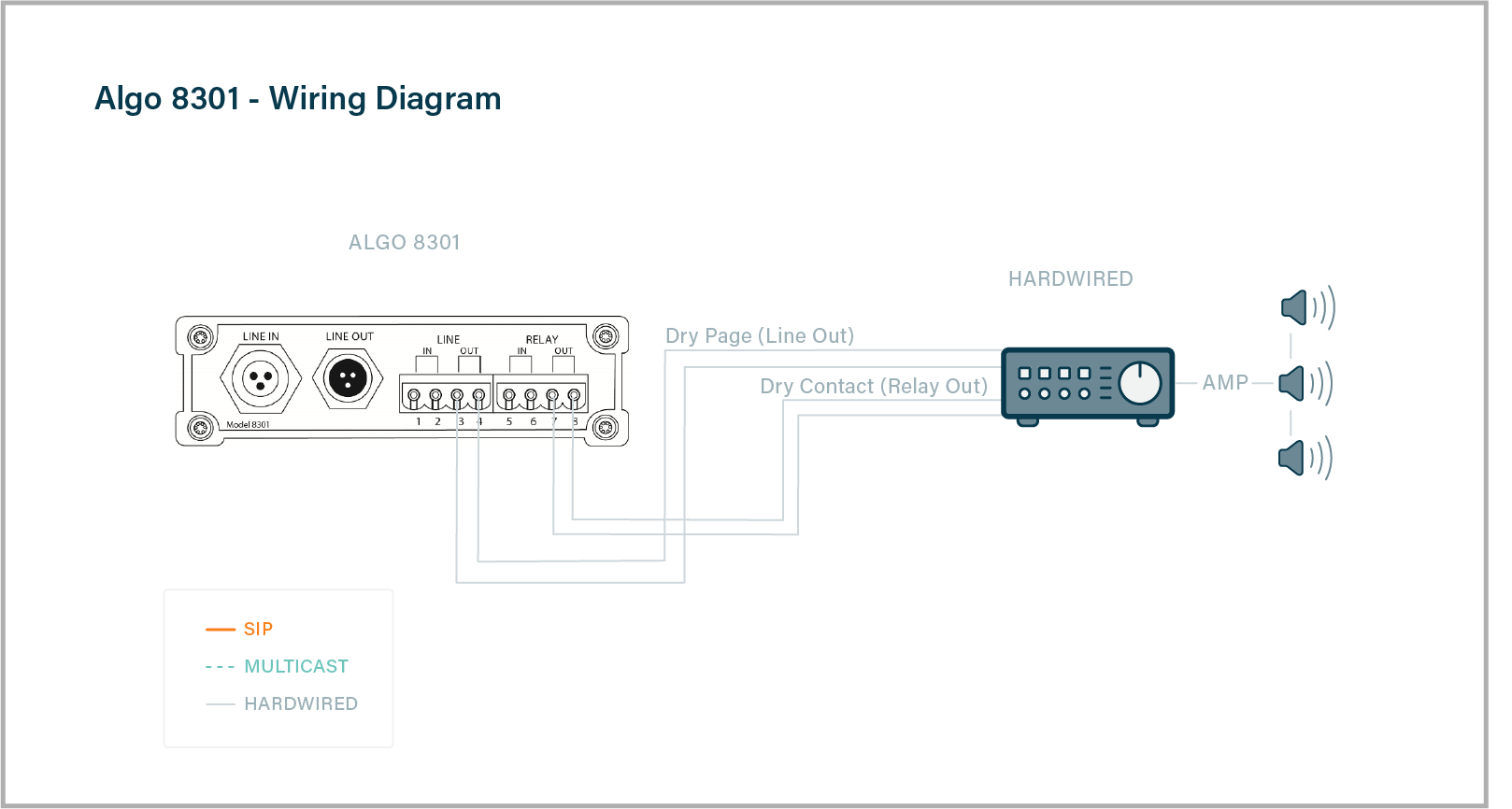
The wiring diagram below illustrates one of the most common use cases, where the Line Output of the 8301 is connected directly to the dry audio input on an amplifier with an input impedance between 600 Ohm and 10 kOhm. The output level of the 8301 can be adjusted to match the amplifier’s input specification. Check the Basic Settings → Features section for more details. The optional dry contact closure can be used to activate the amplifier (if required).
Connecting Input Devices to 8301
Note
The 8301 does not support the direct connection of microphones. To connect a dynamic microphone (e.g., Sennheiser E835), which does not require phantom power, an Algo 1205 Audio Interface is required. The 1205 provides the necessary preamplification, impedance matching, and interface to ensure proper audio input. Direct connection of a microphone to the 8301 is not supported and may result in no audio or improper operation.
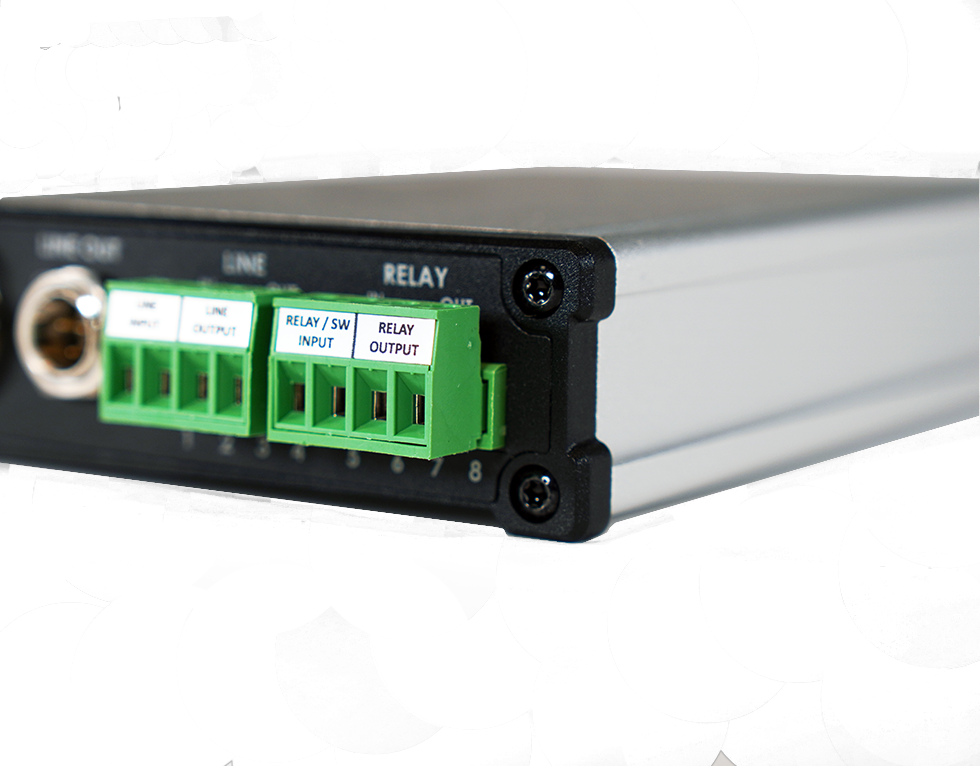
The relay input of the Algo 8301 IP Paging Adapter & Scheduler can be activated by any normally open or normally closed switch, or one of several Algo input buttons/interfaces (e.g. ,1202 Call Button, 1203 Call Switch, 1204 Volume Control Switch or 1205 Audio Interface). The input switches can be connected to the back of the 8301 via the included Terminal Block on the ‘Relay Input’ pair. To configure the Relay Input Mode, check the Additional Features → Input/Output section. |
|
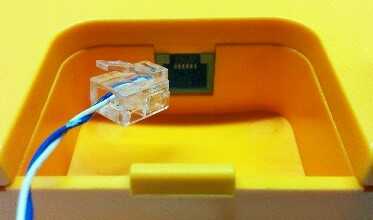
1202 Call Button A pair of wires from the terminal block Relay Input on the back of the 8301 can connect to the center pair of the modular connector at the back of the Call Button. For more details check the Algo 1202 Installation Sheet. |
|
1203 Call Switch A pair of wires can be run from the back of the device via a screw output connector to the 8301 via the Relay Input. For more details check the Algo 1203 Getting Started Sheet. |
|
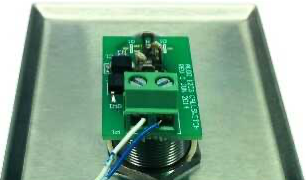
1204 Volume Control Switch
Install the 1204 by connecting a single twisted pair wire to its terminal block (not polarity sensitive) and wire it to the Relay Input on the 8301. For more details check the Algo 1204 Getting Started Sheet.
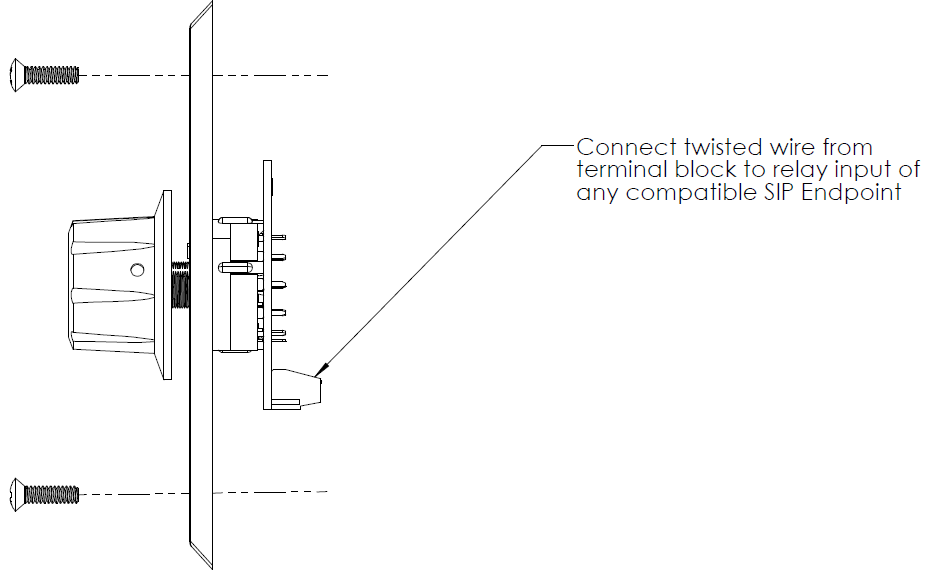
1205 Audio Interface
Two pairs of wires connect the 1205 Audio Interface to the 8301. One pair is for balanced audio and one pair is for communicating the rotary switch position.
Connect the Relay Input switch terminals of the 1205 Audio Interface to the “RELAY IN” of the 8301. Next, connect the Line In audio terminals of the 1205 Audio Interface to the Line In of the 8301. Neither of the pair is polarity sensitive. For more details check the Algo 1205 Getting Started Sheet.
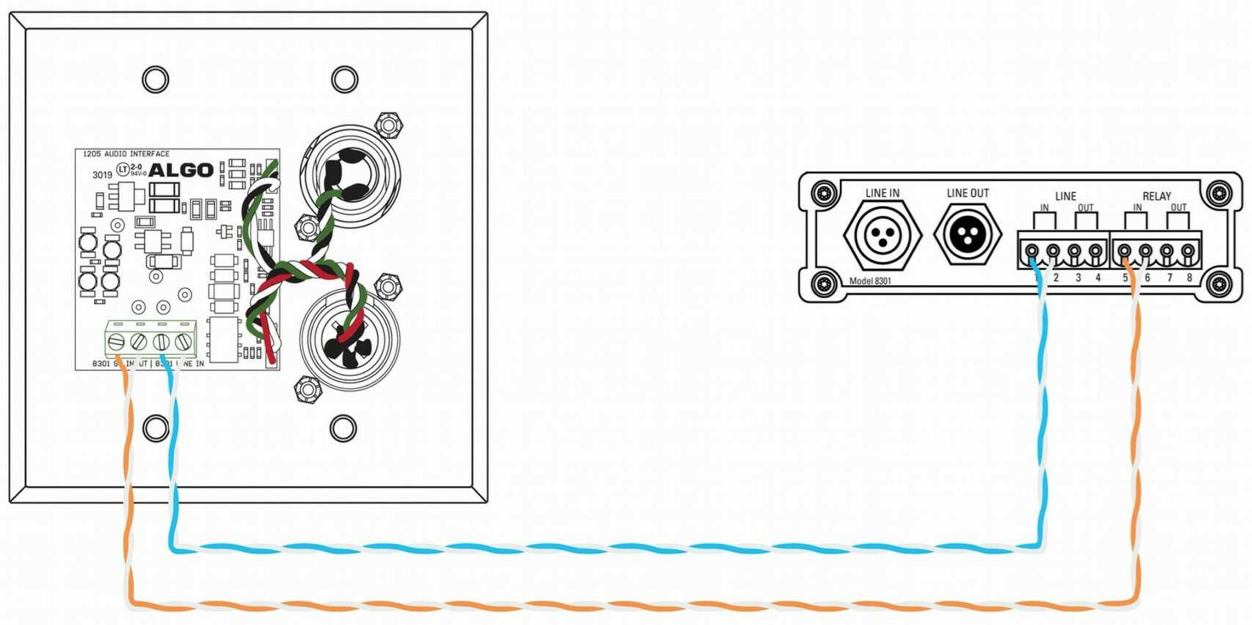
1205 Audio Interface Wiring
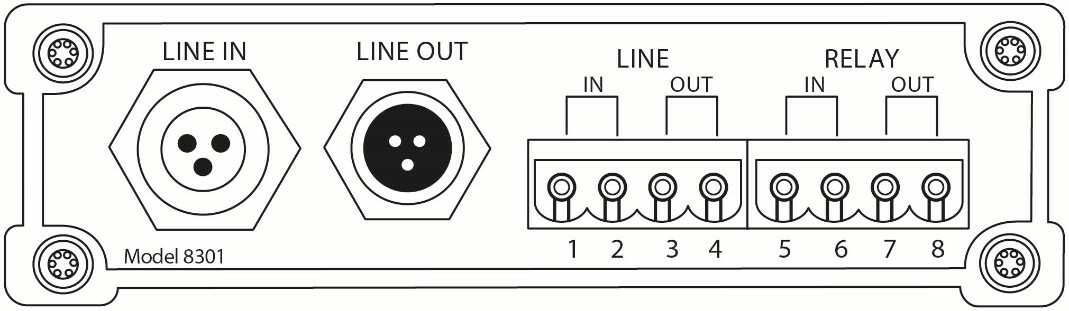
8301 Paging Adapter & Scheduler Front View
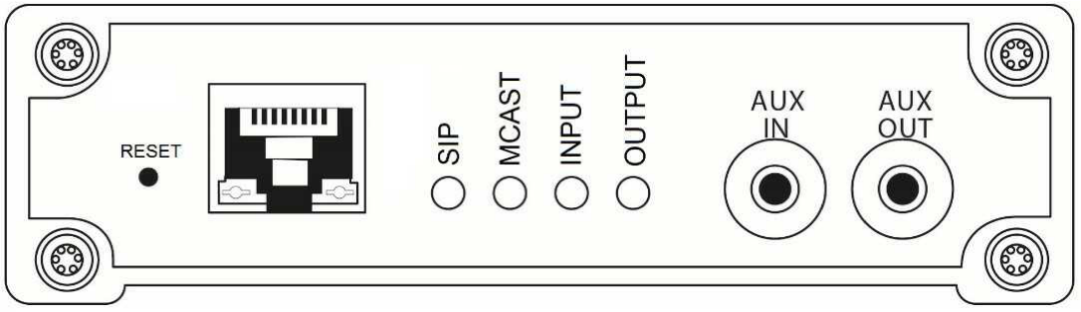
8301 Paging Adapter & Scheduler Back View
Network Connection
The 8301 provides a RJ45 jack for network connection. A cable run from the switch can be terminated to a modular jack with connection by patch cord or terminated with a RJ45 plug.
PoE (Power over Ethernet) must be 48 V 350 mA IEEE 802.3af compliant whether provided by the network switch or injector.
There are two lights on the Ethernet jack:
Green light: On when Ethernet is working, flickers off to indicate activity on the port.
Amber light: Off when successful 100Mbps link is established. Typically, on only briefly at power up. (Exception: the amber LED behaviour will be reversed on “Rls 1” hardware)
Under normal conditions, the Amber light will turn on immediately after the Ethernet cable is first connected. This indicates that PoE power has been successfully applied. Once the device connects to the network, it will switch to the Green light instead, which will typically flicker indicating traffic on the network.
AUX IN 3.5 mm Jack (Front)
Analog line level input from a smartphone or similar device for music input. Non-isolated.
AUX OUT 3.5 mm Jack (Front)
Analog line level output for compatible PC speakers or headset. Non-isolated.
LINE IN XLR-MINI (Back)
Balanced and isolated audio (Page or music) input can be configured for pass-through to Line Out (when paging is idle), and/or for broadcast via multicast.
Line OUT XLR-MINI (Back)
Balanced and isolated audio output to external amplifier. Locking mini-XLR female to standard XLR male cable available. Output level defined using web interface.
Terminal Block Line In
Balanced and isolated wire pair input parallel to XLR-MINI LINE IN (polarity independent).
Terminal Block Line Out
Balanced and isolated wire pair output parallel to XLR-MINI LINE OUT (polarity independent).
Terminal Block Relay In
By default, these terminals are inactive. Connection options are a normally closed switch, normally open switch, 1202 Call Button, 1203 Call Switch, 1204 Volume Control Switch, 1205 Audio Interface or EOL resistor termination.
Terminal Block Relay Out
By default, these terminals provide a contact closure when the 8301 IP Paging Adapter is active. Please note this is a normally open relay only.
Blue LED Indicators
All four (4) blue lights will be on during power up and boot process.
SIP
A steady light will appear when a SIP extension is registered. The light will blink when the device is engaged in a SIP call.
MCAST
A steady light will appear when the 8301 receives multicast messages as a Receiver. The light will blink when the 8301 sends output to Receivers as a Transmitter.
INPUT
The input light will be ‘on’ when the device is actively using an analog input port based on the configuration set in the web interface and the active state (it does not detect a physical connection to the audio jack by default).
OUTPUT
The output light will be on when analog output is enabled.
Reset
A recessed reset button (RST) next to the Ethernet Jack can only be used to reset the 8301 IP Paging Adapter & Scheduler at the time of power up. To return all the settings in the 8301 to the factory default, reboot, or power cycle the 8301. Wait until the SIP LED flashes and then press and hold the reset button until the SIP LED begins a double flash pattern. Release the reset button and allow the unit to complete its boot process.
Note
Do not press the reset button until the SIP LED begins flashing.
A reset will set all configuration options to factory default including the login password.
Once booting has completed, press the reset button to cause the device to speak its IP address over the analog output ports.
Web Interface
Status
Device Status
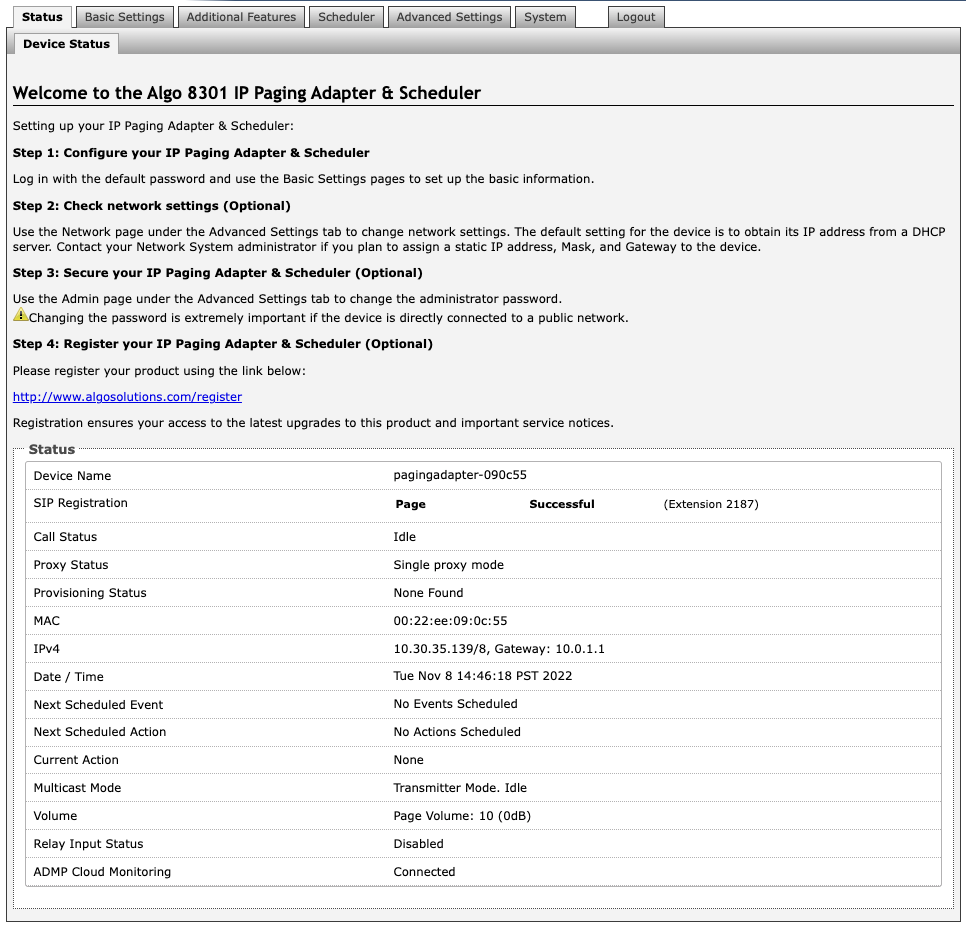
Web Interface Login
The web interface of the 8301 requires a password to login to see the device settings. The default password is ‘algo’. This password can be changed in Advanced Settings → Admin tab after logging in the first time.
Note
Web Interface is accessed by entering the 8301 IP Address into a web browser.
It is highly recommended to change the default password if the device is directly connected to a public network.
Status
By default, the Status page of the 8301 will be available before and after logging on. This section can be used to check the status of the 8301 for the following:
Device Name
SIP Registration
Call Status
Proxy Status
Provisioning Status
MAC
IPv4
Date/Time
Next Scheduled Event
Multicast Mode
Volume
Relay Input Status
InformaCast License
ADMP Cloud Monitoring
Note
For security purposes, the Status page can be hidden when logged out through the settings under the Advanced Settings → Admin tab.
These options may change depending on how the device is configured.
Basic Settings
SIP
The SIP tab under Basic Settings allows for the SIP server information and account credentials to be entered. This information can be obtained from your telephone system administrator or hosted account provider. After entering the information and saving the settings, go to the Status tab to confirm the registration was successful.
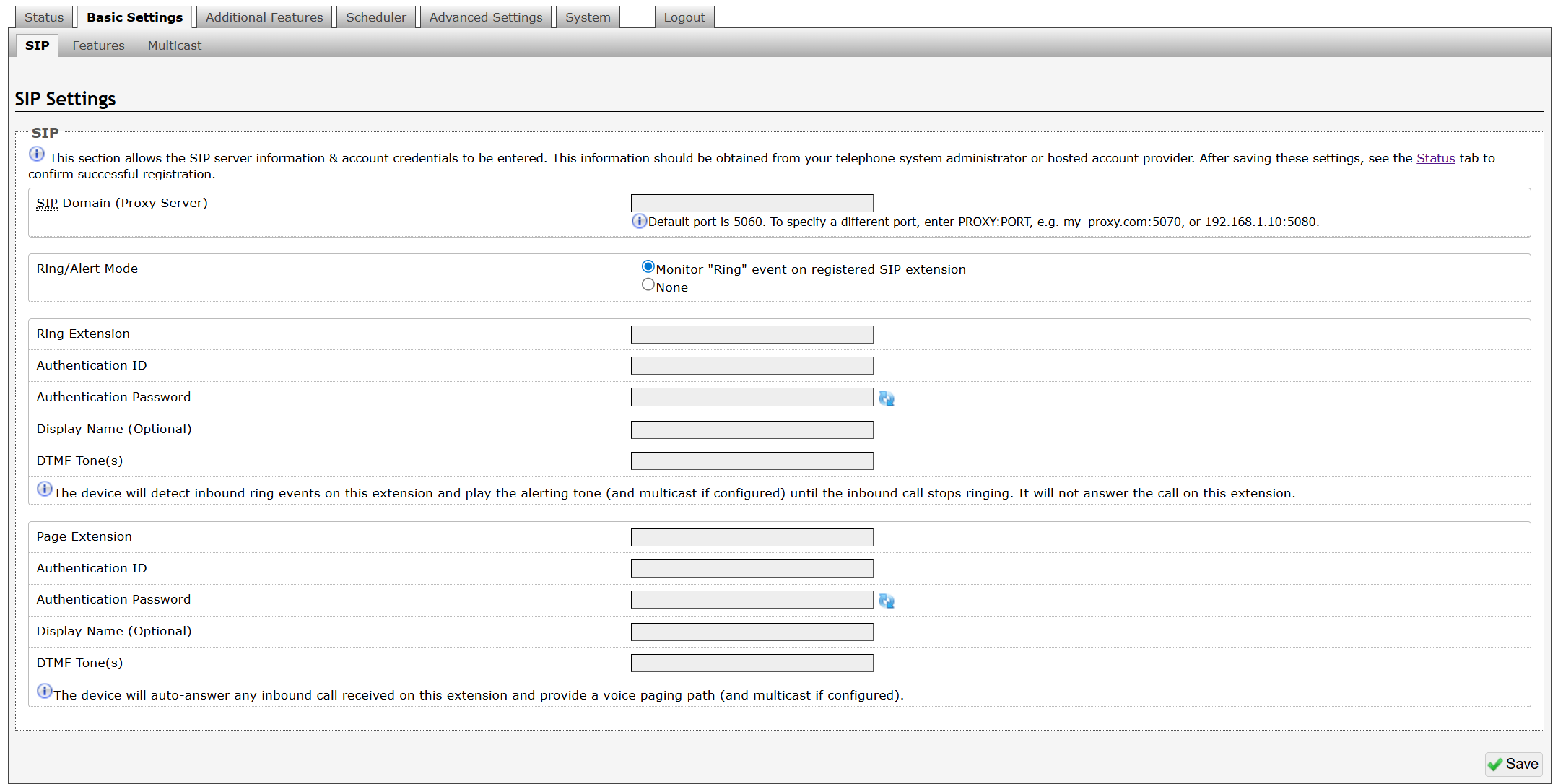
Note
Anytime changes are made to settings in the web interface the ‘Save’ button must be clicked to save the changes.
SIP Domain (Proxy Server)
The IP address (e.g., 192.168.1.111) or domain name (e.g., myserver.com) of the SIP Server.
Ring / Alert Mode
This is the option for adding a second SIP extension for a Ring event. If activated (“Monitor” is selected), the screen expands to show blocks for SIP extension parameters for a Ring/Alert Extension to be entered.
The device will detect inbound ring events on this extension and play the alerting tone (and multicast if configured) until the inbound call stops ringing. It will not answer the call on this extension. The alert tone may be configured in Basic Settings → Features.
Ring Extension
This is the SIP extension for the Ring parameter of the 8301.
Page Extension
This is the SIP extension for the Page parameter of the 8301. The device will auto-answer any inbound call received on this extension and provide a voice paging path (and multicast if configured).
Authentication ID
Also referred to as Username for some SIP servers. This, in some cases, may be the same as the Ring and/or Page extension. The authentication is a name you choose to represent the page extension.
Authentication Password
This is the SIP password provided by the system administrator for the registered SIP account. Up to eight (8) characters can be implemented. The password can be used to authenticate SIP users.
Display Name
The Display Name is shown on a receiving phone to which a SIP call is made. For the display name to be shown, the PBX and phone(s) need to be configured to display this message as the Caller ID.
DTMF Tone(s)
Configure a DTMF tone for this paging number.
For more information, see Playing DTMF Tones Before Paging or Alerts.
Features
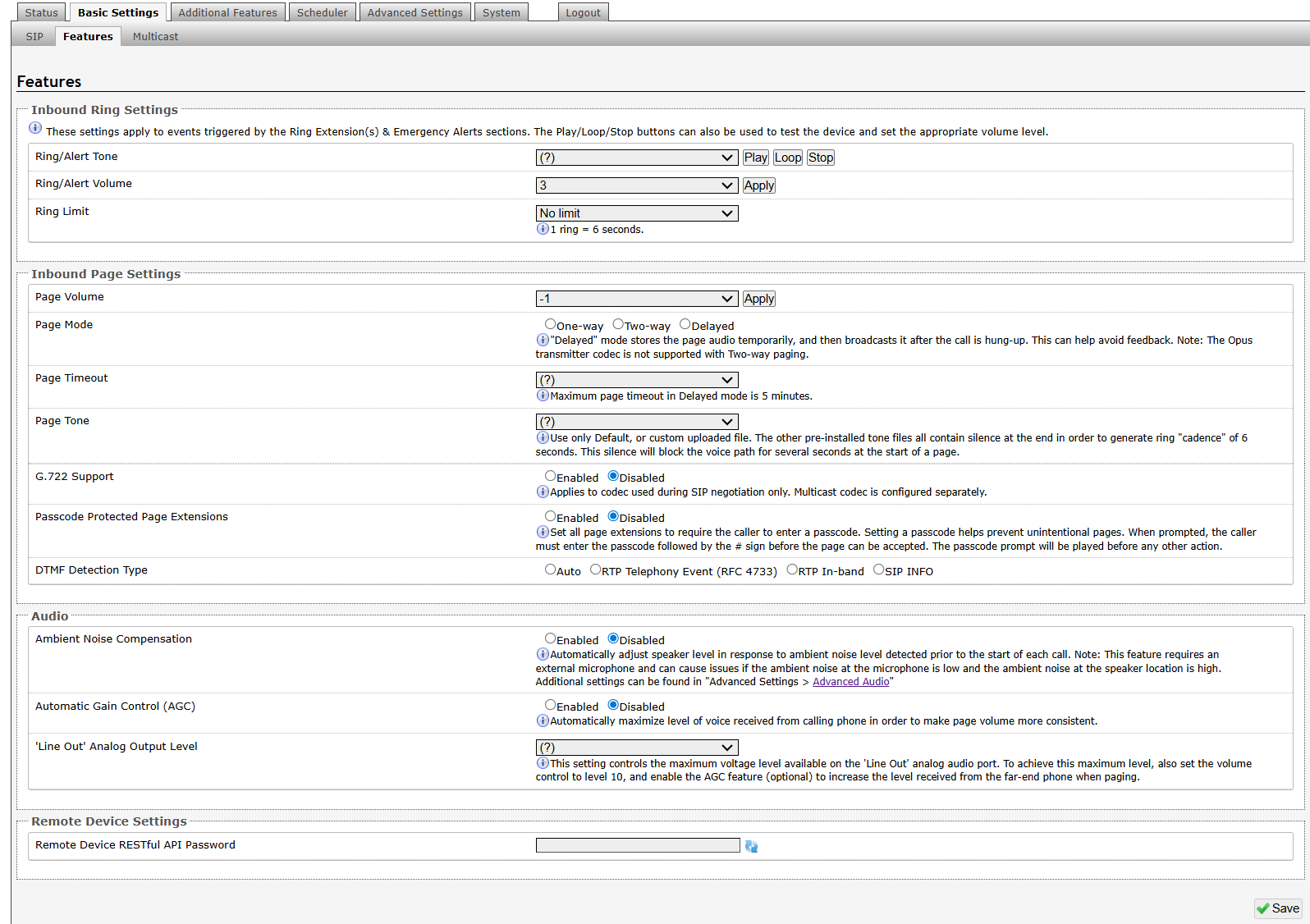
Ring settings apply to events triggered by Ring Extensions and Emergency Alerts.
Ring/Alert Tone
Select an audio file to play when a ring event is detected on the SIP Ring Extension. The audio file may be played immediately to an associated speaker from the web interface for test purposes using the Play, Loop, and Stop buttons. During multicast, the device will broadcast an audio stream using the Senders selected ring tone.
Note
This is the “Default” tone that will be played if selected for Multicast, Additional Ring Extension settings.
Ring/Alert Volume
Set the speaker volume for a SIP Ring event. This setting is an amplifier gain control, and the output level will depend on the levels recorded into the source audio file played from memory. This setting is only used for local tones, and not when receiving multicast (see Page Speaker Volume below).
Starting from 10 (0 dB), each step reduces the volume by 3 dB, down to -5 (-45 dB).
Ring Limit
Typically set to no limit, this feature can be used to set a limit on how long the speaker will ring before timing out. A new ring event is required before the speaker will play the audio file again.
Inbound Page Settings
Page Speaker Volume
This is the Page Speaker Volume control for SIP or multicast paging. This is an amplifier gain control and the output level will depend on streaming level. This setting will apply to all inbound multicast streams (for Receiver mode only), regardless of content.
Starting from 10 (0 dB), each step reduces the volume by 3 dB, down to -5 (-45 dB).
Page Mode
A call to the SIP page extension can be one-way, two-way (using an external microphone), or delayed. In delay mode, the speaker will store the page into memory and then play after disconnecting.
Delayed Page
Delayed Page allows for a user to record a message before it is played over the speakers. To cancel a page while in delay mode, press “*” to while the recording state is in process to prevent it from being sent after hanging up.
Page Timeout
Page Timeout is the maximum duration for a page. The call will be terminated when the timeout occurs whether anyone is speaking or not. This is useful for situations when someone accidentally forgets to hang up, preventing the paging system from getting stuck in the active state. A time limit may be set for an active page.
Page Tone
Select a pre-announce tone for paging. This tone will play to announce a Page is starting. Use only the Default or custom uploaded files. Other pre-installed tone files contain silence at the end to generate ring "cadence" of 6 seconds. This silence will block the voice path for several seconds at the start of a page. The “Default” tone will play the page-notif.wav file.
Note
The “Default Page Tone”, in Advanced Multicast, will play the tone set here.
G.722 Support
G.722 enables wideband audio for optimum speech intelligibility. Enable or disable the G.722 codec.
Passcode Protected Page Extensions
When enabled, the caller must enter the passcode followed by the # sign before the page can be accepted. Setting a passcode helps prevent unintentional pages. Passcodes can be up to 15 digits and must be numbers only.
Apply to All Page Extensions
Choose to apply a passcode to all page extensions.
Passcode
Only visible when Passcode Protected Page Extensions is set to Enabled. Enter the desired numerical passcode (maximum length of 15 digits).
Passcode Prompt Tone
Only visible when Passcode Protected Page Extensions is set to Enabled. Select the tone to be played to notify the user to enter the passcode before paging.
DTMF Detection Type
Select the preferred dual-tone multi-frequency (DTMF) detection method. DTMF is a technology used with touch tone phones, best known to users as the sound made when pressing a number key. In the 8301, this is used for multi-zone selection, passcode, etc.
Audio Processing
Ambient Noise Compensation
Ambient Noise Compensation will allow the speaker level to adjust automatically in response to ambient noise levels detected at the device prior to the start of each call.
Ambient Noise Compensation No Loss
Configure the Ambient Noise Compensation algorithm to only use levels at or above the current volume. The current volume is the minimum speaker volume when this setting is enabled.
Ambient Noise Compensation Max Volume
Based on ambient noise levels, a maximum volume can be set for the speaker.
Starting from 10 (0 dB), each step reduces the volume by 3 dB, down to -5 (-45 dB).
Automatic Gain Control (AGC)
AGC normalizes the audio level. This ensures the audio level heard near the speaker is always at a consistent level, independent of the phone that is used to answer the call.
‘Line Out’ Analog Output Level
The following output levels are available, allowing the 8301 to interface with a wide variety of amplifiers:
+4dBu 10k (1.23 Vrms)
0dBu 10k (0.775 Vrms)
0dBV 10k (1.0 Vrms)
-10dBV 10k (0.316 Vrms)
0dBm 600 ohm (0.755 Vrms)
-10dBm 600 ohm (0.245 Vrms)
-20dBm 600 ohm (0.077 Vrms)
Remote Device Settings
Remote Device RESTful API Password
When your device sends an API request to a device that requires authentication, enter the API password here. The password must match the RESTful API password configured on the target device.
Multicast
Multicast IP Addresses
Each 8301 has its own IP address and shares a common multicast IP and port number (multicast zone) for multicast packets. The Sender transmits to a configurable multicast zone, and the Receiver units listen to all the multicast zones assigned to them.
The network switches and router see the packet and deliver it to all the members of the group. The multicast IP and port number must be the same on all the Transmitter and Receiver units of one group. The user may define multiple zones by picking different multicast IP addresses and/or port numbers.
Multicast IP addresses range: 224.0.0.0/4 (from 224.0.0.0 to 239.255.255.255)
Port numbers range: 1 to 65535
By default, the 8301 is set to use the multicast IP address 224.0.2.60 and the port numbers 50000-50008
Make sure that the multicast IP address and port number do not conflict with other services and devices on the same network.
Multicast Page Zones
The 8301 supports nine basic multicast zones. These zones are defined by the multicast IP addresses.
Somewhat arbitrarily, these zones are defined below but may be used in other ways. The important consideration is that there is a priority hierarchy – streaming activity on a zone higher on the list, will be treated as a higher priority than a zone lower down on the list – with music being the lowest priority.
Priority
All Call
Zone 1
Zone 2
Zone 3
Zone 4
Zone 5
Zone 6
Music
“Expanded” zones can also be enabled, in Basic Settings → Multicast, allowing up to 50 zones in total. These have the same behaviors as the basic zones but are hidden by default to simplify the interface.
Multicast (Transmitter/Sender Settings)
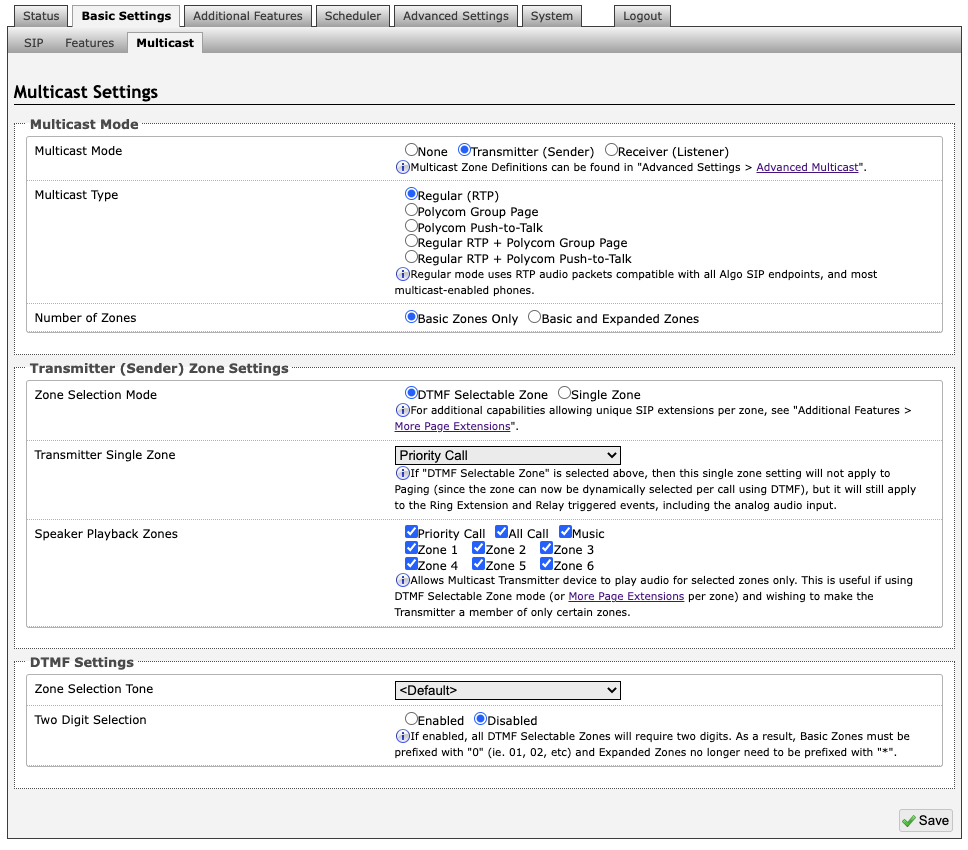
Note
See Advanced Settings → Advanced Multicast for more information on populated IP values.
Multicast Mode
Multicast Mode (Transmitter/Sender Selected)
If Transmitter mode is enabled the 8301 will broadcast an IP stream when activated in addition to playing the audio.
Note
The 8301 cannot be both a multicast Transmitter and Receiver simultaneously.
Multicast Type
The 8301 may broadcast multicast paging, compatible with Polycom “on premise group paging” protocol and most multicast-enabled phones that use RTP audio packets.
Select Regular if solely multicasting to Algo SIP endpoints and/or multicast-enabled phones.
To multicast page announcements solely to Polycom phones, select Polycom Group Page or Push-to-Talk. Then, configure the 8301 with the Polycom Zone (IP Address and Port) and Polycom Default Channel.
Note
Always ensure that the multicast settings on all receiving devices match those of the Transmitter
Select Regular RTP + Polycom Group Page/Push-to-Talk to multicast page audio to both Polycom phones, Algo SIP endpoints, and multicast-enabled phones.
Number of Zones
Select Basic Zones Only if configuring nine or fewer multicast zones (shown beside Speaker Playback Zones) or select Basic and Expanded Zones to configure up to 50 zones. The expanded zones have the same behavior as the basic Receiver zones but are hidden by default to simplify the interface.
Transmitter (Sender) Zone Settings
Zone Selection Mode
“Single Zone” mode always broadcasts on one IP address.
Note
Multiple SIP extensions can be registered on the Transmitter device. Each extension is mapped to a unique zone, allowing zones to be called directly (e.g., from speed-dial keys). See Additional Features → More Page Extensions.
DTMF Selectable Zone mode, offers dynamic zone selection and requires only the Transmitter device to have a registered SIP Extension. The zone definitions can be found in the Advanced Settings → Advanced Multicast tab.
In DTMF Selectable Mode, to page, dial the SIP extension of the Transmitter device: ####, then dial the desired DTMF page zone (e.g., 1, 2, etc.) on the keypad when prompted.
Press DTMF Extension 9 for Priority Call
Press DTMF Extension 0 (or 8) for All Call
Press DTMF Extension 1 for Zone 1
Press DTMF Extension *10 for Zone 10
Press DTMF Extension *11 for Zone 11
Note
DTMF codes for zones 10 and higher start with an “*”
All DTMF codes and respective zones are available in Advanced Settings → Advanced Multicast.
Zone Selection Tone
Only visible when Zone Selection Mode is set to DTMF Selectable Zone. The tone played over the phone to prompt the user to select a zone to multicast to.
Transmitter Single Zone
The zone that multicast stream will be sent to by default. If DTMF Selectable Zone is chosen above, this setting will not apply to Paging, since the zone now must be dynamically selected per call via DTMF. However, the specified Transmitter Single Zone setting is still used for any multicast events triggered by the Ring, analog input, or the relay input.
Note
The Transmitter Single Zone is the default zone used for any multicast actions unless an option is created for a custom zone with specific parameters.
Speaker Playback Zones
The Speaker Playback Zones allows the Transmitter device to play audio for selected zones only. This is useful if using the DTMF Selectable Zone mode (or More Page Extensions per zone) with the intention of making the Transmitter unit a member of only certain zones. In this case, the Transmitter does not participate in the Zone, but it transmits certain traffic.
Expanded Speaker Playback Zones
Up to 50 zones can be shown and are only visible when Basic and Expanded Zones is selected.
DTMF Settings
Zone Selection Tone
This is the prompt to select a zone. This may be used as an interactive voice response (IVR) menu by uploading a custom audio file through System → File Manager in the Tones folder. Each zone may use a different tone. This can be configured in Advanced Settings → Advanced Multicast.
Two Digit Selection
When enabled, all DTMF Selectable Zones will require two digits. As a result, Basic Zones must be prefixed with 0 and Expanded Zones will no longer need to be prefixed with *.
Multicast (Receiver Settings)
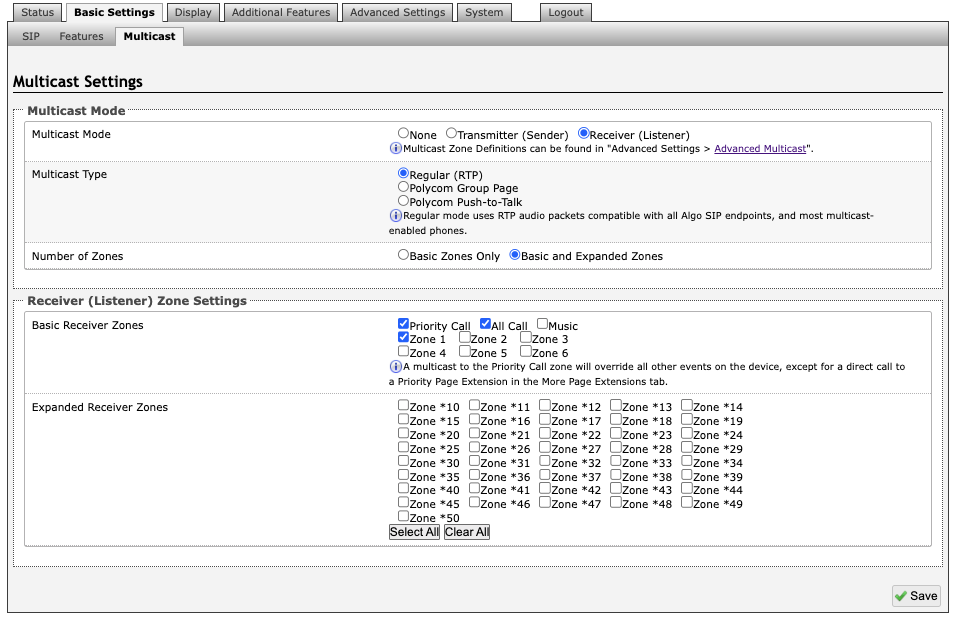
Multicast Mode
Multicast Mode (Receiver Selected)
If Receiver mode is enabled the 8301 will activate when receiving a multicast message. It will mimic the audio stream but use local volume settings (Page Speaker Volume in Basic Settings → Features).
Multicast Type - Regular
Select “Regular” if receiving multicast from other Algo SIP endpoint(s) and/or multicast- enabled phone(s) that use RTP audio packets.
Number of Zones
Select basic zones if configuring nine or fewer multicast zones or expanded to configure up to 50 zones. The expanded zones have the same behaviour as the basic Receiver zones but are hidden by default to simplify the interface.
Multicast Type – Polycom Group Paging/Push-to-Talk
The 8301 may receive multicast paging compatible with Polycom “on premise group paging” protocol.
To configure the 8301 as a Receiver to play Polycom page announcements, select ‘Group Page’ or ‘Push-to-Talk’. Then enter the Polycom Zone (IP Address and Port) that matches the configuration of the Polycom phones and Channels. The ‘Default Channel’ is the target group in a Polycom paging environment.
The 8301 may receive multicast paging compatible with Polycom “on premise group paging” protocol.
To configure the 8301 as a Receiver to play Polycom page announcements:
Select Group Page or Push-to-Talk.
Enter the Polycom Zone (IP Address and Port) that matches the configuration of the Polycom phones and Channels.
The Default Channel is the target group in a Polycom paging environment.
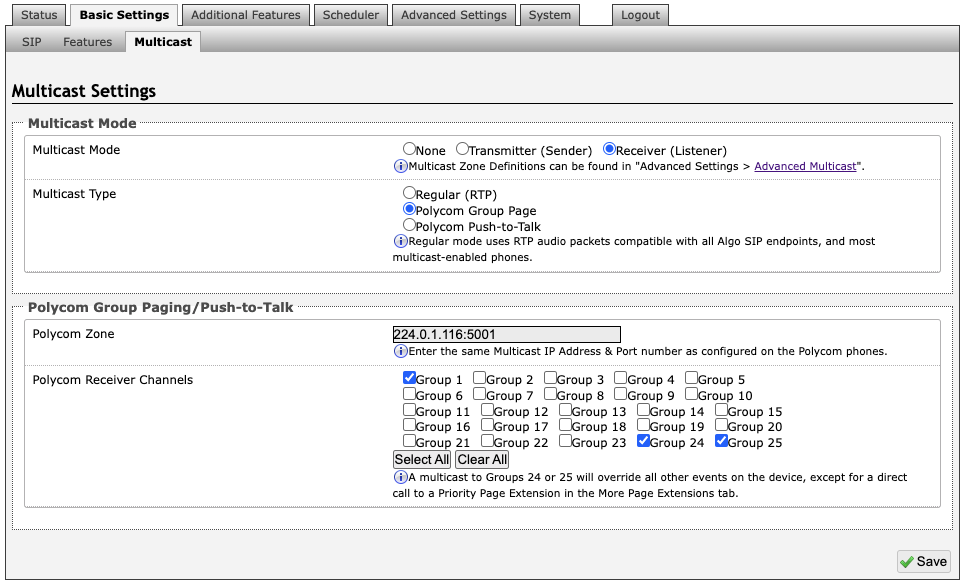
The Polycom phone used as page audio source for the 8301 must be configured to use either the G.711 or G.722 audio codec. The Polycom phone(s) must also be configured with the “Compatibility” setting (“ptt.compatibilityMode”) disabled in order for this codec setting to be applied.
If using a Polycom phone as the Multicast Transmitter, a tone may be set for any of the 25 Polycom Groups configured on the Algo device. If an Algo device is used as a Multicast Transmitter, a tone does not have to be set as the Algo Transmitter will provide its own tone. Polycom Group Tones can be set in Advanced Settings → Advanced Multicast.
Receiver (Listener) Zone Settings
Basic Receiver Zones
Select one or more multicast zones for the 8301 to subscribe to.
Note
Multicast zone priority is based on the zone definition list order (from top to bottom) in Advanced Settings → Advanced Multicast.
Expanded Receiver Zones
Up to 50 zones can be shown, however, they are only visible when Basic and Expanded Zones is selected.
Additional Features
Input/Output
The Input tab allows external accessories to be connected to the 8301. This is a dry contact input which can be configured as normally open or normally closed mode. Algo offers accessories, such as the 1202, 1203, 1204, and 2507. Third-party accessories/systems may also be used provided they have a dry contact output.
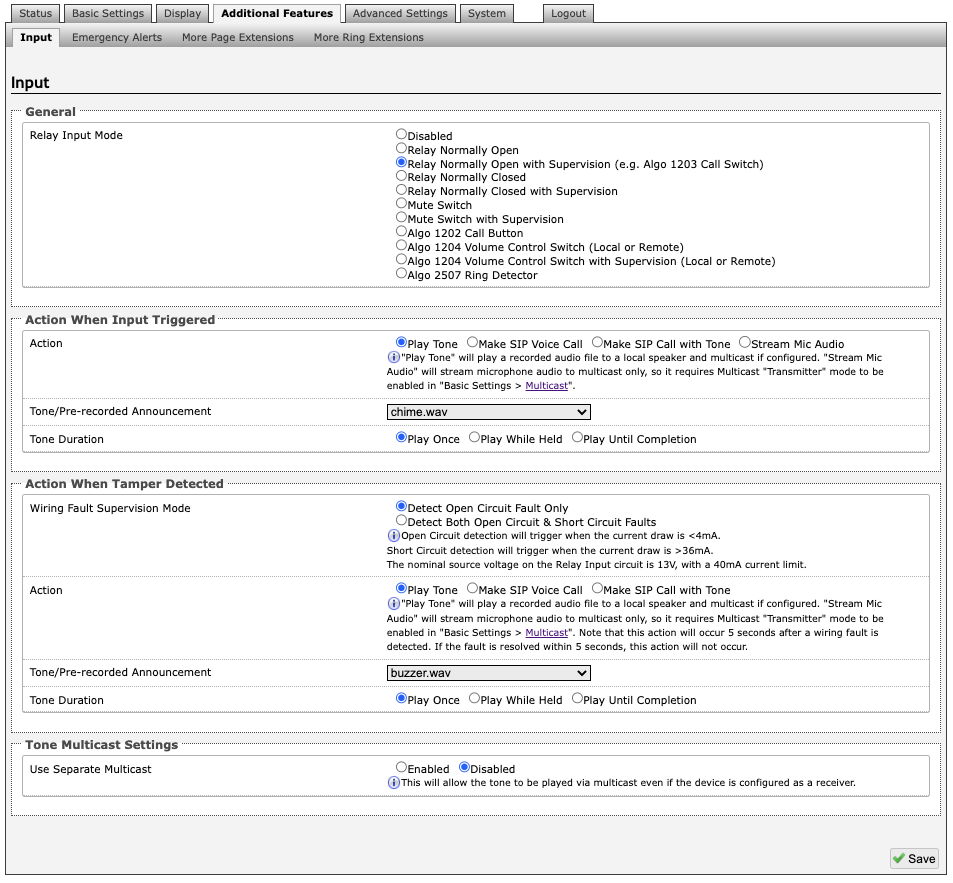
General
Relay Input Mode
The input relay to the 8301 can be activated by any normally open or normally closed switch. Algo offers the 1202 Call Button, the 1203 Call Switch, or 1204 Volume Control Switch. Via supervision settings, notification actions can also be triggered if the input switch is disconnected.
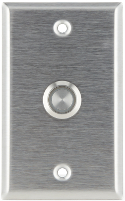
1203 Call Switch The 1203 Call Switch is a simple contact closure switch with an illuminated button and supervision capabilities. When used in conjunction with the 8301, the 1203 can prompt a single action with one-touch, or a continuous action if the button is held. |
1203 Call Switch |
Mute Switch
Apply an external switch (short-circuit) across the Relay Input terminals in order to mute the 8301. This allows a temporary "disable" switch to control the device if desired, for example in a boardroom to block paging during important meetings.
Leave the Relay Input terminals open (no-connect) for regular full-volume operation when in this mode.
Multicast Override
Allow selected multicast zones to override the Mute Switch settings for the selected zones.
1202 Call Button The 1202 Call Button is a one-touch button for event notification and response. It can be used with the 8301 for improved customer service, emergency notification, and non-emergency alerting. The Call Buttons one-touch button can trigger a single or continuous action, which can be halted via the small cancel/reset button located below the main call button. |
1202 Call Button – the insert card is interchangeable |
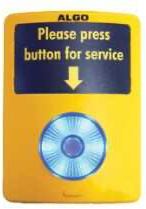
While the 8301 can be configured to play the audio file only once, it can also be enabled to play it continuously with just a press of the 1202 Call Button. The action can then be stopped via the smaller oval cancel button located below the main call button on the 1202 Call Button.
1204 Volume Control The 1204 Volume Control Switch is a simple two terminal potentiometer that will allow attenuation below the maximum volume level (configured under Basic Settings → Features). |
|
.png)
Mute On Lowest Setting
Enabling Mute On Lowest Setting allows audio to be completely muted when volume control switch is turned all the way down.
Wire Length
This allows you to calibrate impedance for 24 AWG.
Multicast Override
Multicast Override allows selected multicast zones to override the 1204 Volume Control settings for the selected zones.
Remote Volume Settings
Configure the device to subscribe to remote 1204 volume input or to notify remote devices of 1204 volume input.
Note
RESTful API must be enabled in the Advanced Settings → Admin tab.
Notify (Local 1204) → remote device RESTful API password
Subscribe (Remote 1204)
IP address
Remote device RESTful API password
1205 Audio Interface Switch
The 1205 Audio Interface provides a method for connecting a music source and live microphone to the 8301 Paging Adapter for multicast broadcast over the network to IP speakers or IP enabled legacy paging systems.
.png)
The Algo 1205 rotary control knob has three positions (music, microphone and off). The 8301 will automatically detect the control knob position to start multicast for either the microphone or music input as selected or stop multicast in the off state.
The music input uses a 3.5 mm stereo input jack compatible with AppleTM iPodTM and other sources. Left and right stereo channels are combined into a balanced mono signal compatible with public address infrastructure. The music volume is adjusted by both the Audio Input Volume setting in the web interface of the 8301 and manual adjustment of the source level.
The microphone input uses an XLR connector compatible with dynamic microphones such as the SennheiserTM E835 and similar microphones that do not require phantom power.
Audio Streaming
You can stream and multicast audio from the device’s analog input ports.
Stream Audio from Analog Input Port
Always Active
Primarily used to play background music, this feature will play sound on the Line Out and Aux Out ports as well as multicast if configured. The input port and volume can be configured below in the "Audio Input Settings" section.
Note
Always Active cannot be used when the Relay Input Mode is set to 1205 Audio Interface Switch or when the relay trigger action Stream Mic Audio. To enable Always Active, set Relay Input Mode to ‘Disabled’, or set Action When Input Triggered to ‘Play Tone’, ‘Make SIP Voice Call’, or ‘Make SIP Call with Tone’.
Radio Streaming
You can stream and multicast online radio or loop a preconfigured audio file to multiple devices simultaneously.
This allows centralized audio distribution without requiring individual playback control on each device.
You can stream radio in one of the following ways:
Use the Scheduler to stream radio at a specific time, with or without recurrence.
For more information, see Using 8301 Scheduler.
Enable continuous streaming under Advanced Settings → Advanced Audio → Radio Streaming.
Note
Make sure Additional Features → Input/Output → Always Active is set as Disabled before using Radio Streaming.
Otherwise, you cannot enable Radio Streaming.
Supported Radio or Audio Format
Make sure your audio meets the following requirements:
Radio streams: The stream must be an HTTP or HTTPS audio stream encoded in MP3, AAC, AAC+, Ogg Vorbis, Opus, or FLAC. HLS (.m3u8) audio streams are also supported.
Offline audio files: Each file must be in MP3 format, smaller than 200 MB or shorter than 3 hours at 128 kbps.
Otherwise, the file is not available in the Offline Music File drop-down list for Radio Streaming.
Uploading Offline Audio Files
To play offline audio files, you must upload them to the radio folder of the File Manager before you can use them in radio streaming.
Note
The file must be in MP3 format, smaller than 200 MB or shorter than 3 hours at 128 kbps.
Otherwise, the file is not available in the Offline Music File drop-down list for Radio Streaming.
To upload offline audio files:
Go to System → File Manager.
Select the radio folder.
Do one of the following:
Drag and drop audio files from your local computer into this folder.
Select Upload and follow the on-screen instructions to upload files from your computer or mobile device.
When prompted, select Reboot.
After the reboot completes, the uploaded audio files are available in the Offline Music File drop-down list for Radio Streaming.
Configuring Radio Streaming
You can stream either online radio or a local audio file. If your device is a Multicast Transmitter, you can also configure the target multicast zone to stream the audio to multiple devices simultaneously.
Once configured, the device continuously streams the radio station or local audio file until you disable the feature.
.png)
Note
When both the Offline Music File and Radio URL are specified, the Radio URL takes precedence if an Internet connection is available.
To configure radio streaming:
Go to Advanced Settings → Advanced Audio.
Go to the Radio Streaming section and configure the following:
Radio Streaming: Set as Enabled.
Radio Volume: Set the audio output volume for the device’s AUX OUT port.
This volume doesn’t impact the multicast volume of the receiving devices.
Radio URL: Enter the stream URL.
Offline Music File: Select an audio file to stream.
Multicast Zone: Select a zone to multicast the audio to.
Your device must be configured as a multicast transmitter first. The multicast output is RTP-only, using the L16 codec with a fixed packet size.
Select Save.
The radio stream starts.
Stopping Radio Streaming
You can disable Radio Streaming to stop an ongoing stream.
This doesn’t change your Radio Stream settings.
To stop radio streaming:
Go to Advanced Settings → Advanced Audio.
Go to the Radio Streaming section and set Radio Streaming as Disabled.
Select Save.
Radio Streaming FAQs
Why can’t I enable Radio Streaming for my 8301?
Make sure Additional Features → Input/Output → Always Active is set to Disabled before using Radio Streaming.
Why can’t I find my audio file in the Offline Music File drop-down list? It’s in the File Manager → radio folder.
The audio files must meet the following requirements to be available in the Offline Music File drop-down list for Radio Streaming:
MP3 format
Smaller than 200 MB or shorter than 3 hours at 128 kbps
Action When Input Triggered
Action
Play Tone
When the 8301 input is triggered, a tone or a pre-recorded audio file will play over the speaker or multicast if enabled. This function can be used to request support/assistance in service or retail environments, notify about an emergency at a specific location in medical or educational facilities, or sound an alarm during an intrusion.
Action When Input Triggered:
Tone/Pre-recorded Announcement
Tone Duration
Make SIP Voice Call
When the 8301 input is triggered, a voice path will open for an intercom-like call via an external microphone to a pre-configured phone extension. This option can be used when a call needs to be made from a public place where a phone would not be practical to use.
Action When Input Triggered:
Extension to Dial
Call Mode
Allow 2nd Button Press
Outbound SIP Call Settings:
Outbound Ring Limit
Ringback Tone
Maximum Call Duration
Make SIP Call with Tone
When the 8301 input is triggered, a private call can be generated to a pre-configured phone extension with a pre-recorded message. For instance, a call to a supervisors phone notifying about an emergency or intrusion at some location.
Action When Input Triggered:
Extension to Dial
Allow 2nd Button Press
Tone/Pre-recorded Announcement
Interval Between Tones (seconds)
Maximum Tone Duration
Outbound SIP Call Settings:
Outbound Ring Limit
Allow 2nd Button Press
If enabled, the 2nd button press will either simply End Call or End and Restart Call. Therefore, if an input is triggered for the second time the SIP call will either simply be terminated or terminated and immediately called again.
Action When Tamper Detected (Supervision)
In addition to the main events, the device can be configured with supervision to also execute one of the above three actions (Play Tone, Make Two-Way SIP Voice Call, Make SIP Call with Tone) in case the device goes offline due to wiring failure or after being tampered with. For example, a tone could sound over the speaker(s), or a private pre-recorded message could be sent to a specified phone extension. The supervision configuration options will appear once a relay option with supervision is selected. See the Electrical Specification section for details on supervision detection circuit.
Wiring Fault Supervision Mode
Short circuit detection will be triggered when the current draw is <4 mA. Short circuit detection will trigger when the current draw is >36 mA. The nominal source voltage on the Relay Input circuit is 13 V, with 40 mA current limit.
Action
“Play Tone” will play a recorded audio file to a local speaker and multicast if configured. “Stream Mic Audio” will stream microphone audio to multicast only, so it requires multicast “Transmitter” mode to be enabled in Basic Settings → Multicast.
Note
This action will occur 5 seconds after a wiring fault is detected. If the fault is resolved within 5 seconds, this action will not occur.
Play Tone
Make SIP Voice Call
Make SIP Call with Tone
Tone/Pre-recorded Announcement (Action – Play Tone / Make SIP call with Tone)
Select a recording or tone to use. Custom audio files may be used and uploaded though System → File Manager.
Extension to Dial (Action – Make SIP Voice Call)
SIP account required in Page Extension fields in order to make a call. Can be configured if Make SIP Voice Call or Make SIP Call with Tone actions are enabled under Call Button Settings.
Interval Between Tones (Action –Make SIP call with Tone)
Specify the time delay (seconds) between tones. Can be configured if Play Tone or Make SIP Call with Tone actions are enabled under Call Button Settings.
Maximum Tone Duration (Action – Play Tone / Make SIP call with Tone)
Select the maximum tone duration. The tone will be terminated once the maximum time is reached. Can be configured if Play Tone or Make SIP Call with Tone actions are enabled.
Tone Multicast Settings
Use Separate Multicast
This allows the tone to be played via multicast even if the 8301 is configured as a receiver. See additional options when enabled.
Multicast Mode
IP Address
Port
Outbound SIP Call Settings
Outbound Ring Limit
Typically set to ensure that a call will not reach voicemail. This feature, under Outbound SIP Call Settings, can be used to set a limit on how long the speaker will ring before timing out.
Ringback Tone
If enabled, under Outbound SIP Call Settings, a ringback tone will play over the speaker during an outbound SIP call, while waiting for the far-end party to answer.
Emergency Alerts
Your device can be used for alerting in the case of emergency (e.g., lockdown, evacuation, reverse evacuation), safety (e.g., medical, workplace accident), and security events (e.g., OSHA or similar workplace regulations).
Emergency alerts notify others of an emergency quickly and efficiently.
Configuring an Emergency Alert
You can dial a pre-configured extension number to trigger and loop an emergency alert or announcement. Up to 10 extensions can be registered, allowing up to 10 different announcements.
A single Call-to-Cancel extension also needs to be registered. Calling this number will cancel an active announcement. Alternatively, DTMF can be used to cancel if the phone system being used does not support multiple extensions on the same device or if paying for multiple extensions is not within budget.
To set emergency alerts:
Go to Additional Features → Emergency Alerts.
Configure general Settings.
Configure how to trigger each announcement:
Direct Extensions: Register a separate extension for each announcement.
DTMF Selectable: Register a single extension that accepts DTMF input to select which announcement to play.
Configure a Call-to-Cancel extension.
To configure an emergency alert extension, select Enabled beside the target announcement and configure it.
Select Save.
Related Links:
Triggering an Emergency Alert
You trigger emergency alerts using the configured extensions.
To trigger an emergency alert
A user dials an announcement extension.
The device answers or detects the call.
The configured announcement plays locally and/or via multicast.
You can also send up to 5 API calls along with the announcement.
The announcement continues until:
The playback completes
Timeout occurs
Call-to-Cancel extension is dialed.
You can also send up to 5 API calls upon the completion of the announcement.
Emergency Alerts Settings
Refer to the following table for general emergency alerts, call-to-cancel, and emergency announcements settings.
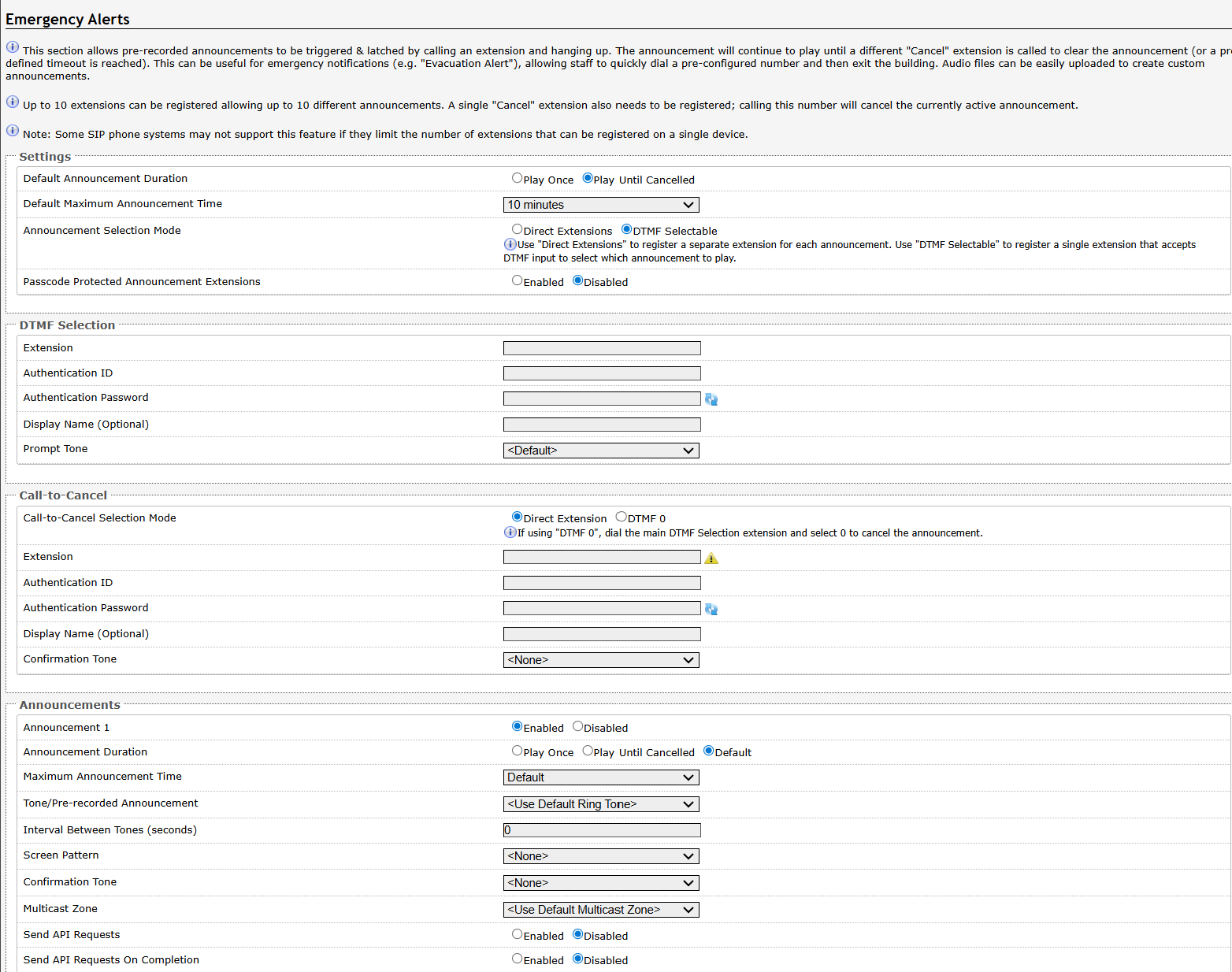
General Settings
General Settings controls how the announcement plays and how to trigger it.
Settings | Description |
Default Announcement Duration | An announcement can be played once or continuously until canceled.
|
Default Maximum Announcement Time | Select the maximum time an announcement will play for. |
Announcement Selection Mode | Select how to trigger the announcement:
|
Answer Inbound Call | This option selects how the Announcement calls are handled. In both cases, the Emergency Announcement is started when the appropriate extension is called and continues until the Cancel Extension is called.
|
Passcode Protected Announcement Extensions | Select Enabled to require the caller to enter a passcode after dialing an announcement or Call-to-Cancel extension. Setting a passcode helps prevent unintentional announcements. |
Announcement Passcode | Enter a passcode that a caller must enter to play or cancel an announcement. When prompted, the caller must enter the passcode followed by the # sign before the announcement will be played or canceled. The passcode prompt will be played before any other action. If the passcode is not correctly entered within 15 seconds, the call will end, and there will be no change to the current announcement state. |
Passcode Prompt Tone | Select a tone to play when the passcode is ready to be entered. |
DTMF Selection
DTMF extension will be used to activate and optionally cancel emergency alerts when Announcement Selection Mode is set to DTMF Selectable. Use the configurations below to register a single extension that will accept DTMF input to play selected announcements.
Settings | Description |
Extension | Enter the SIP extension for the DTMF Selection parameter. The device will auto-answer any inbound call received on this extension and provide a voice paging path (and multicast if configured). |
Authentication ID | Enter the Authentication ID. The Authentication ID may also be called Username for some SIP servers and in some cases may be the same as the ring and/or page extension. |
Authentication Password | Enter the SIP password provided by the system administrator for the SIP account. |
Display Name (Optional) | Enter a Display Name that will be sent when the SIP call is made. The PBX and phone(s) must be configured to display this message as the Caller ID. |
Prompt Tone | Select a tone to play when the passcode is ready to be entered. |
Call-to-Cancel
When your Algo device uses SIP for emergency alerts, both a start trigger (Announcement) and stop trigger (Call-to-Cancel) must be configured.
Settings | Description |
Call-to-Cancel Selection Mode | If using “DTMF 0”, the user should dial the main DTMF Selection extension and select ‘0’ to cancel the announcement. Using DTMF 0 allows emergency alerts to work with only a single SIP registration rather than requiring multiple accounts. |
Extension | Enter the SIP extension for the Call-to-Cancel Selection parameter. The device will auto-answer any inbound call received on this extension and provide a voice paging path (and multicast if configured). |
Authentication ID | Enter the Authentication ID provided by the system administrator. For some SIP servers, it may also be called the Username or the same as the extension. |
Authentication Password | Enter the SIP password provided by the system administrator for the SIP account. |
Display Name (Optional) | Enter a Display Name that will be sent when the SIP call is made. The PBX and phone(s) must be configured to display this message as the Caller ID. |
Confirmation Tone | Select a tone to play to confirm that an alert has been canceled. |
Announcements
Up to 10 extensions can be registered, allowing up to 10 different announcements. Audio files can also be easily uploaded to create custom announcements. Only one Call-to-Cancel extension is needed, despite the number of the alert extensions.
Note
Some SIP phone systems may not support this feature if they limit the number of extensions that can be registered on a single device.
Settings | Description |
Announcement # | To configure an Emergency Alert extension, select Enabled for an announcement number. Up to 10 extensions can be registered, allowing up to 10 different announcements. Audio files can be easily uploaded to create custom announcements. Only one Call-to-Cancel extension is needed. Alternatively, DTMF Selectable Mode can be used if the SIP telephone system limits the number of extensions that can be registered on a single device. |
Announcement Duration | Choose the duration of an announcement:
|
Maximum Announcement Time | Select the maximum announcement time. |
Tone/Pre-recorded Announcement | Select a file to use as the announcement. |
Interval Between Tones (seconds) | Specify the interval between tone playbacks, in seconds. |
Confirmation Tone | Select a file to use as a confirmation tone. This option is available when Answer Inbound Call is enabled. |
Multicast Zone | Set the RTP multicast zone where announcements will be played. |
Multicast Poly Group | Set the Poly Group where announcements will be played. This option is available only when your Multicast Type is set to one of the following:
|
Send API Requests | When the announcement starts, send up to five REST API requests to external devices or systems to trigger specific functions or behaviors. |
Send API Requests On Completion | When the announcement ends, send up to five REST API requests to external devices or systems to trigger specific functions or behaviors. |
Related Links:
More Page Extensions
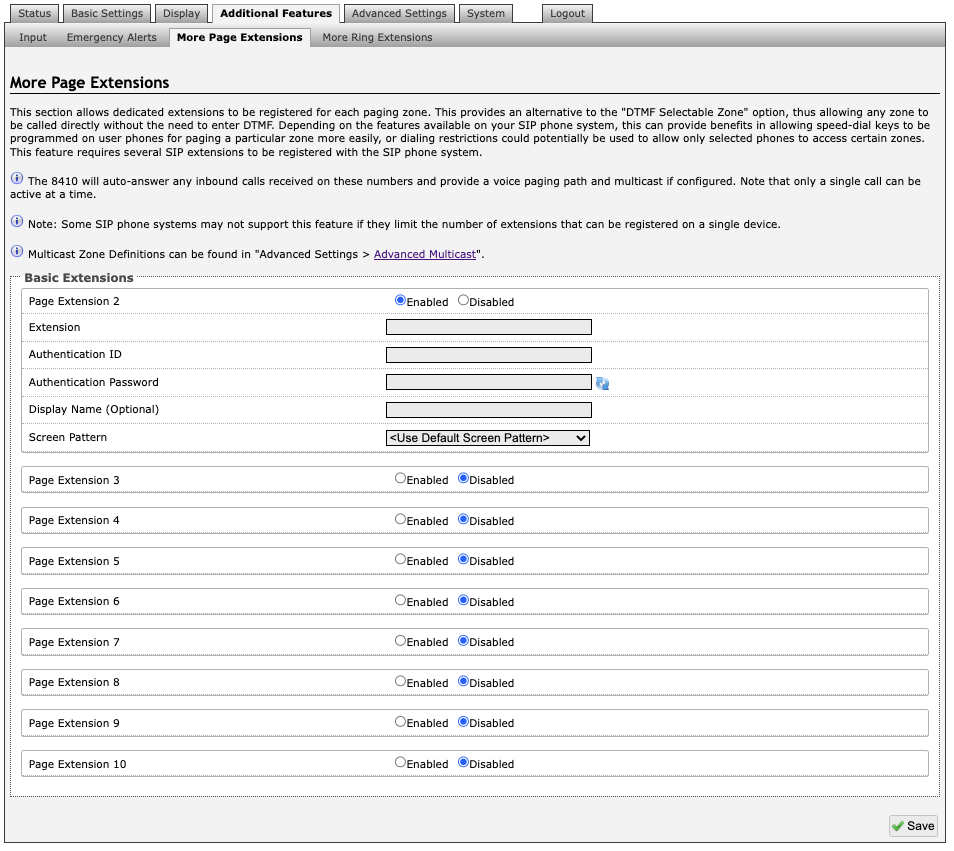
Additional SIP extensions can be registered for each multicast zone that will be used. This allows the advantage of dialing directly to a zone without needing to enter DTMF Codes (e.g., speed-dial keys can be used), but this may require additional SIP licenses depending on the SIP provider.
To configure additional page extensions (up to 50), select Enable beside the target extension and enter the Extension, Authentication ID, and Authentication password.
The 8301 will auto-answer any inbound calls received on these numbers and provide a voice paging path and multicast if configured. Only a single call can be active at a time.
Note
Some SIP phone systems may not support this feature if they limit the number of extensions that can be registered on a single device.
More Ring Extensions
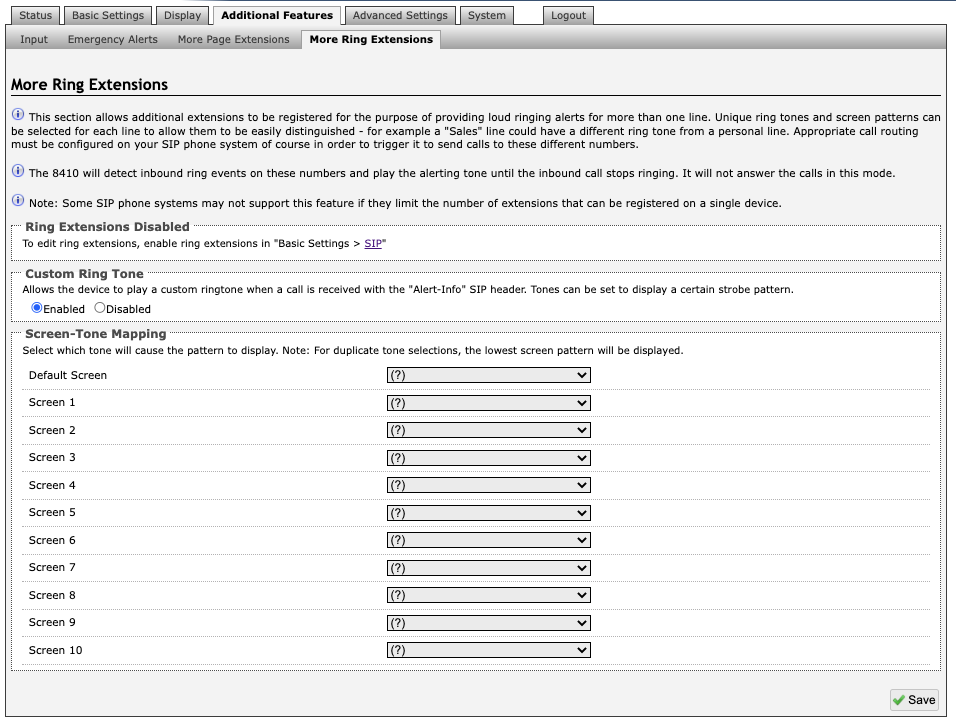
Up to 10 SIP Ring extensions can be registered. To configure additional ring extensions, select Enable beside the target extension and enter the Extension, Authentication ID, and Authentication Password. A unique Ring Tone and Multicast Zone can be assigned to each extension if desired.
Scheduler
Your device includes calendaring functionality synchronized with Network Time Protocol (NTP). You can schedule events on the local device or other IP endpoints, including:
Play a pre-configured tone or alert to a multicast zone
Ideal for education or manufacturing environments where certain areas require regular bell schedules or announcements, while others do not.
Start a SIP call to trigger a pre-configured tone or alert on specific devices
Useful when triggering tones or announcements through the PBX for selected endpoints, such as targeted alerts, shift bells, or department-specific notifications.
Stream live audio to a multicast zone
Suitable for facility-wide announcements, background music, or emergency notifications that need to play simultaneously across all subscribed devices.
Schedule API calls from the device web interface to trigger actions on other devices
For example:
Activating a strobe light
Displaying a slide or slideshow on an IP display
Triggering an emergency alert
Triggering an InformaCast scenario
You can include up to 5 API calls in an API Call event.
For a complete list of API commands, see RESTful API Guide.
You can organize related events into a group so they can be scheduled and managed together.
You can create standalone and recurrent events, skip event or group instances in recurrent schedules, or restore skipped instances.
Note
You can schedule and manage events in two ways:
Using the device’s web interface
Using API calls.
For more information on how to use API calls to schedule and manage events or groups, see RESTful API Guide.
Feature Overview
.png)
Item | Description |
|---|---|
1 | The Data tab allows you to:
|
2 | The Groups tab allows you to:
|
3 | The Events tab allows you to:
|
4 | The Calendar tab allows you to:
|
For more information see Using 8301 Scheduler.
Advanced Settings
Network
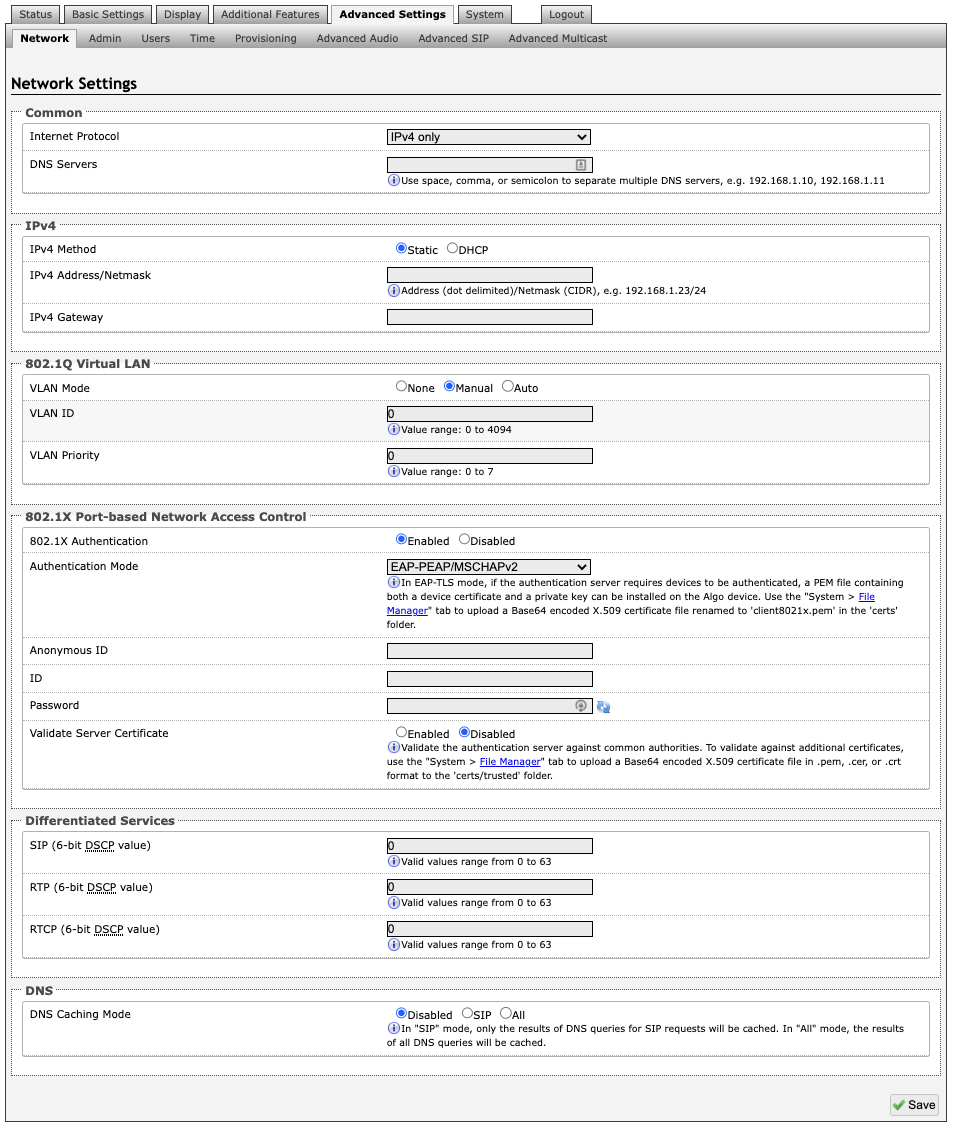
Common
Internet Protocol
DHCP is an IP standard designed to make the administration of IP addresses simpler. When selected, DHCP will automatically configure IP addresses for each 8301 on the network. Alternatively, the 8301 can be set to a static IP address.
Select IPv4 Only or IPv4 and IPv6. If IPv6 is also configured it will have to be set up via DHCP or statically, similarly to the IPv4.
Supersede DNS provided by DHCP
Only available when DHCP is enabled. Use this option to enter a custom DNS server address and supersede the one sent via DHCP.
DNS Servers
Add one or multiple DNS servers. Separate each server by a space, comma, or semicolon.
IPv4
IPv4 Method
The 8301 can be set to a DHCP or a static IP address. When DHCP is selected, the DHCP will automatically configure IP addresses for the 8301 on the network.
IPv4 Address/Netmask
Enter the static IP address and netmask (CIDR format) for the 8301 (e.g., 192.168.1.23/24).
IPv4 Gateway
Enter the gateway address.
IPv6
IPv6 Method
The 8301 can be set to a DHCP or a static IP address. When DHCP is selected, the DHCP will automatically configure IP addresses for the 8301 on the network.
IPv6 Address/Netmask
Enter the static IP address and netmask (CIDR format) for the 8301 (e.g., 2001:123::abcd:1234/64).
IPv6 Gateway
Enter the gateway address.
802.1Q Virtual LAN
VLAN Mode
Enables or Disables VLAN Tagging. VLAN Tagging is the networking standard that supports Virtual LANs (VLANs) on an Ethernet network. The standard defines a system of VLAN tagging for Ethernet frames and the accompanying procedures to be used by bridges and switches in handling such frames. The standard also provides provisions for a quality-of-service prioritization scheme commonly known as IEEE 802.1p and defines the Generic Attribute Registration Protocol.
VLAN ID
Specifies the VLAN to which the Ethernet frame belongs. A 12-bit field specifying the VLAN to which the Ethernet frame belongs. The hexadecimal values of 0x000 and 0xFFF are reserved. All other values may be used as VLAN identifiers, allowing up to 4094 VLANs. The reserved value 0x000 indicates that the frame does not belong to any VLAN; in this case, the 802.1Q tag specifies only a priority and is referred to as a priority tag.
VLAN Priority
Sets the frame priority level. Otherwise known as Priority Code Point (PCP), VLAN Priority is a 3-bit field which refers to the IEEE 802.1p priority. It indicates the frame priority level. Values are from 0 (lowest) to 7 (highest).
802.1X Port-based Network Access Control
802.1x Authentication
Credentials to access LAN or WLAN that have 802.1X network access control (NAC) enabled. This information will be available from the IT Administrator.
Authentication Mode
Select the desired authentication mode.
Anonymous ID
If configured, the 8301 will send the anonymous ID to the authenticator instead of the 802.1X client username.
ID
The ID should contain a string identifying the IEEE 802.1X authenticator originating the request.
Password
Enter the password.
Validate Server Certificate
Validate the authentication server against common authorities. To validate against additional certificates, go to the System → File Manger to upload a Base64 encoded X.509 certificate file in .pem, .cer, or .crt format to the certs/trusted folder.
Differentiated Services
This provides quality of service if the DSCP protocol is supported on your network. The Differentiated Services can be specified independently for SIP control packets versus RTP and RTCP audio packets.
SIP (6-bit DSCP value)
Enter the DSCP value for SIP packets.
RTP (6-bit DSCP value)
Enter the DSCP value for RTP packets.
RTCP (6-bit DSCP value)
Enter the DSCP value for RTCP packets.
DNS
DNS Caching Mode
In "SIP" mode, only the results of DNS queries for SIP requests will be cached. In "All" mode, the results of all DNS queries will be cached.
Admin
Admin settings allow you to configure device access, security, management, monitoring, and integration features.
From this page, you can change administrator credentials, manage logging and network management settings, enable APIs and external services, and configure device maintenance options.
Note
Available settings may vary depending on your product model and firmware version.
To configure Admin settings:
Go to Advanced Settings → Admin.
Configure the settings.
Refer to the following tables for the setting description.
Admin Settings
This section contains settings for administrator credentials, logging and network management, APIs and external services, and device maintenance.
Admin Password | |
Old Password | Enter the old admin password. The default password when you first get the device is algo. |
Password | Enter a new admin password to log into the device web interface. Make sure the new password is stored safely. If the password is forgotten, you must reset the device entirely with the Reset Button to restore the default password. All other settings will be reset to the original default settings as well. |
Confirmation | Re-enter your new admin password. |
General | |
Device Name (Hostname) | Add a name to identify the device. |
Introduction Section on Status Page | Select On to show the introduction text on the login screen. |
Show Status Section on Status Page when Logged Out | Select On to allow others to view the status page without logging in. Select Off to hide the settings and configurations on the status page unless a user is logged in to ensure only trusted users can view device information. |
Display Switch Port ID on Status Page | Select On to display the Switch Port ID on the Status Page. This option is only possible if the device is connected to a switch that supports LLDP or CDP. |
Web Interface Session Timeout | Set the maximum duration of inactivity to log a user out of the web interface automatically. |
Play Tone at Startup | The device can play a beep tone at startup. This option is available only to Algo IP Speakers, IP Displays, Paging Adapters, and IP Consoles. |
Log Settings | |
Log Level | Select the types of information you want to include in the system log files.
|
Log Method | Select a log method: Local: The log file is saved in RAM on the device. Network: Send the log file to an external SysLog server so settings are not lost if the device is rebooted, or for ease of central access. Both: Use both methods. |
Log Server | Enter the Syslog server address provided by your IT administrator. |
Log Additional Log Events | To be used by support@algosolutions.com if necessary. |
Management | |
Web Interface Protocol | HTTPS is always enabled on the device. HTTP is enabled by default but may be disabled. To do so, select HTTPS Only mode so requests are automatically redirected to HTTPS.
|
Force Strong Password | When Enabled, you can enforce a secure password for the device web interface for additional protection. The password requirements for a strong password are:
|
Allow Secure SIP Passwords | When Enabled, SIP passwords are stored in the configuration file in an encrypted format to prevent viewing and recovery. If enabled, navigate to Basic Settings → SIP and fill out the Realm field. To obtain your SIP Realm information, contact your SIP Server administrator or check the SIP log file for a registration attempt. The Realms may be the same or different for all the extensions used. All the configured Authentication Password(s) must be re-entered here as well as any other locations where SIP extensions have been configured to save the encrypted password(s). If the Realm is changed later, all passwords must be re-entered to save the passwords with the new encryption. |
Simple Network Management Protocol | |
SNMP Support | Disabled by default. The existing setting will respond to a simple status query for automated supervision. |
SNMP Community String | Speak to your IT Administrator for more information. |
SNMPv3 Security | Speak to your IT Administrator for more information. |
API Support | |
RESTful API | Disabled by default. Enable a secure API for remote access and device control via HTTP. For more information, see the Algo RESTful API Guide. |
Authentication Method | Speak to your IT Administrator for more information. |
RESTful API Password | Speak to your IT Administrator for more information. |
SCI Support | |
SCI | Disabled by default. Simple Control Interface (SCI) is a separate control interface for certain applications. Its primary purpose is to support phones that may have programmable keys that can only send out HTTP GET requests and allow them to initiate events remotely on an Algo device. |
SCI Password | Enter your SCI password. |
System Integrity | |
System Integrity Checking | Enable this feature to verify that installed system packages have not been tampered with by running a check. Enabling this feature may cause reboots and upgrades to take 30 seconds longer. Verification results can be found on the Status tab. |
Power over Ethernet | |
PoE Power Detection | Use Force PoE+ only when connected to a PoE+ power injector capable of providing 600mA that does not automatically negotiate its power capabilities. Incorrect use of this setting may cause the device to reboot if the power source is not capable of delivering the selected power. |
Note
The Power over Ethernet configuration section is available only on devices that require a PoE+ power source.
LLDP Settings | |
Link Layer Discovery Protocol (LLDP) | Enables LLDP to exchange network configuration information with the connected network switch. |
Use LLDP for Power Negotiation | Determines whether the device uses LLDP to communicate its PoE power requirements to the connected network switch. This setting is available only on devices that require a PoE+ power source. |
Note
Disabling Link Layer Discovery Protocol (LLDP) prevents your device from exchanging network configuration information with the connected network switch. If you are using a VLAN, make sure Link Layer Discovery Protocol (LLDP) is enabled, or that the VLAN Mode (under Advanced Settings → Network Settings) is set to Manual so you can configure VLAN settings manually.
Intrado Revolution (formerly Syn-Apps) | |||
Revolution Support | Enable the device to register with an Intrado Revolution Server and receive audio events from the system. | ||
Revolution Server | Enter the Revolution Server to use the Revolution paging feature. Leave the field blank to use the server provided by the DHCP Option 72 | ||
Local Management Port | Enter the local management port for the Revolution Server. | ||
Note
The Intrado Revolution feature is available only to Algo IP Speakers, IP Paging Adapters, IP Displays, and IP Visual Alerters.
InformaCast IP Speaker Enable your device to register as an InformaCast SIP endpoint. This allows it to initiate and receive SIP calls and receive messages through InformaCast. | |
InformaCast IP Speaker Support | This feature requires a valid InformaCast license to be activated. Please contact sales@algosolutions.com for assistance. |
Configuration Mode | Auto: The device will attempt to configure Informacast using DNS SRV, SLP, and/or via DHCP and TFTP Manual: The device will allow the configuration file location to be manually configured. Direct: The device will register to the list of static server addresses directly, bypassing the Configuration File Server |
Configuration Retry Interval | Set the amount of time to wait before attempting to obtain configuration information after failure. |
SIP Support | Enter the SIP credentials provided by InformaCast during configuration. |
Maximum Broadcast Duration | The maximum length of broadcast. |
Note
The InformaCast IP Speaker feature is available only to Algo IP Speakers, IP Visual Alerters, IP Paging Adapters, IP Displays, and IP Consoles.
For more information, see Singlewire InformaCast Integration Guide.
InformaCast Scenarios API | |
InformaCast Scenario API Support | Enable the device to start an InformaCast Scenario via relay input. This feature can work without an InformaCast license, as only the output device requires a license. |
Security Token | Enter the Security Token used for authenticating API requests with the InformaCast system. |
Include Location | Enable this option to include the device’s location in the scenario trigger request. |
Microsoft | |
Microsoft Teams Support | Enable to allow the device to register with a Microsoft Teams account. The device reboot will take up to 5 minutes to complete, as the device will communicate several times with the Microsoft server. This feature requires a compatible release from Microsoft. After enabling this setting, please return to the Status page to sign into your Teams accounts. This feature requires a compatible release from Microsoft. For more details, please see the Microsoft Teams Configuration Guide. |
ADMP Cloud Monitoring | |
Enable ADMP Cloud Monitoring | The Algo Device Management Platform (ADMP) simplifies the process of managing, monitoring, and maintaining Algo devices from any location. This feature requires a valid Account ID. To learn more about ADMP and how to purchase a license, visit the ADMP webpage. |
Account ID | Enter the account ID listed on the Settings page of your ADMP account. |
Allow Configuration File Sync | Enable ADMP to query and display settings stored on the device. |
Heartbeat Interval | Select how often ADMP should check the status of your device. |
Enable Panic Button Monitoring | Enable to monitor Panic Button status in ADMP, including:
|
Screenshot | |
Take Screenshot | Take a screenshot of your 8450 display. Screenshots are saved in the File Manager in the screenshots folder. |
Note
This feature is available only to IP Displays and IP Consoles.
Users
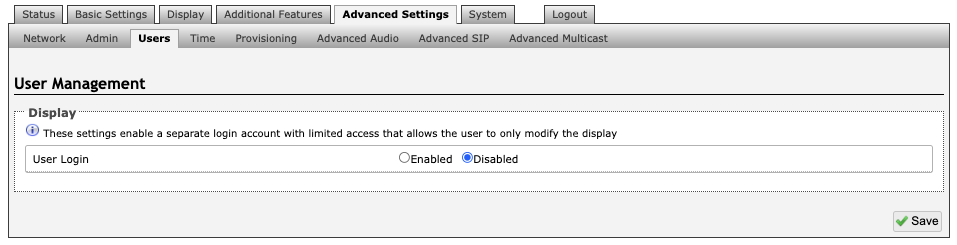
A separate login account with limited access can be set up. The user will only be able to modify the device scheduler.
Time Settings
Time configures the device's date, time, time zone, and Network Time Protocol (NTP) settings to ensure accurate timekeeping and proper scheduling of time-based features.
Network time is used for logging events into memory for troubleshooting.
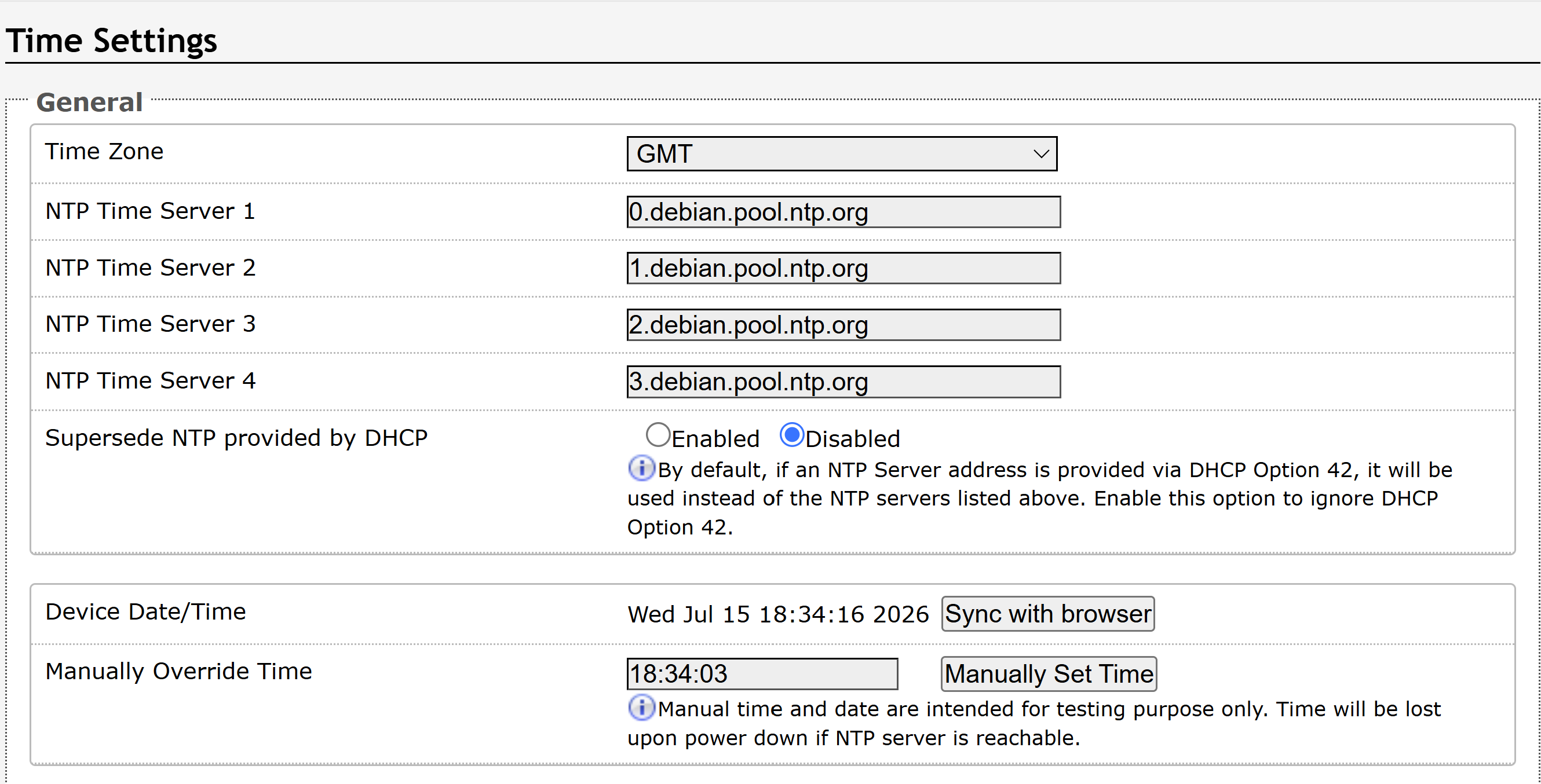
Time Settings | |
Time Zone | Use the dropdown to select the time zone required for your device. |
NTP Time Server | The interface will attempt to use Time Server 1 and work down the list if one or more of the time servers become unresponsive. These settings are pre-populated with public NTP servers hosted on the internet. To use these, the device requires an internet connection. Alternatively, this can be customized to point the device to any other NTP server hosted or premise-based. |
Supersede NTP provided by DHCP | By default, if an NTP Server address is provided via DHCP Option 42, it will be used instead of the NTP servers listed above. Enable this option to ignore DHCP Option 42. |
NTP Symmetric Key Authentication | To enable, create a new folder in the tab System → File Manager and create a folder named ntp. Upload the symmetric key file and rename the file to ntp.keys. |
Device Date/Time | This field shows the current time and date set on the device. If you are testing the device on a lab network that does not have access to an external NTP server, click Sync with browser to temporarily set the time on the device. This time value will be lost at power down or overwritten if a connection to the NTP server is available. Time and date are used for logging purposes. |
Manually Override Time | Manual time and date are intended for testing purposes only. Time will be lost upon power down if the NTP server is reachable. |
Provisioning
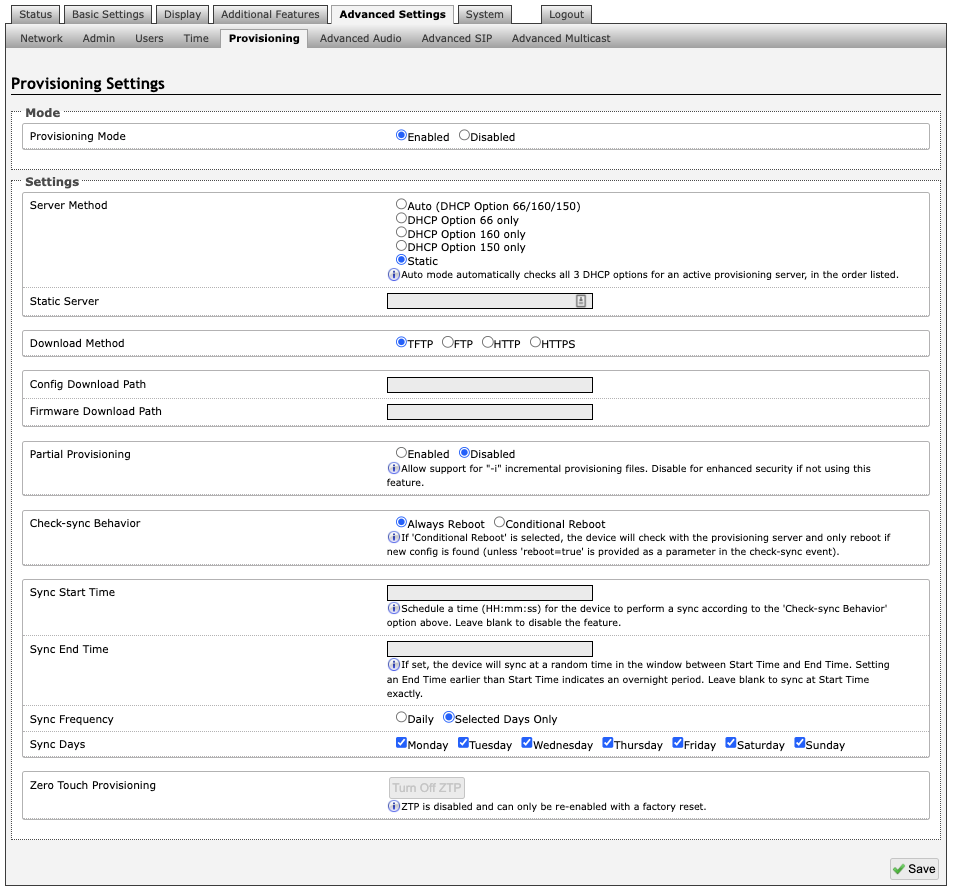
Note
It is recommended that Provisioning Mode be set to Disabled if this feature is not in use. This will prevent unauthorized re-configuration of the device if DHCP is used.
Mode
Provisioning Mode
Provisioning allows installers to pre-configure the 8301 units prior to installation on a network. It is typically used for large deployments to save time and ensure consistent setups.
Settings
Server Method
The device can be provisioned via the Auto mode (where all three DHCP options (Option 66/160/150) will be automatically checked for an active provisioning server), just one of the three specified DHCP options, or a Static Server. In addition, there are four different ways to download provisioning files from a “Provisioning Server”: TFTP (Trivial File Transfer Protocol), FTP, HTTP, or HTTPS.
Static Server
Enter the server address or domain.
Download Method
The 8301 configuration files can be automatically downloaded from a TFTP server using DHCP Option 66. This option code (when set) supplies a TFTP boot server address to the DHCP client to boot from.
Note
DHCP must be enabled if using DHCP Option 66/160/150, in order for Provisioning to work.
One of two files can be uploaded on the Provisioning Server (for access via TFTP, FTP, HTTP, or HTTPS):
Generic (for all Algo 8301 IP Display Speaker) algop8301.conf
Specific (for a specific MAC address) algom[MAC].conf
Both protocol and path are supported for Option 66, allowing for http://myserver.com/config-path to be used.
Config Download Path
Enter the path where the configuration file is located within the provisioning server (e.g., algo/config/8301).
Firmware Download Path
Enter the path where the firmware file is located within the provisioning server (e.g., algo/firmware/8301).
Partial Provisioning
Allow support for “-i” incremental provisioning files. Disable for enhanced security if not using this feature.
Check-sync Behavior
If Conditional Reboot is selected, the device will check with the provisioning server and only reboot if a new config is found (unless “reboot=true” is provided as a parameter in the check-sync event).
Sync Start Time
Schedule a time (HH:mm:ss) for the device to perform a sync according to the Check-sync Behavior option above. Leave blank to disable the feature.
Sync End Time
If set, the device will sync at a random time in the window between Start Time and End Time. Setting an End Time earlier than the Start Time indicates an overnight period. Leave blank to sync at Start Time exactly.
Sync Frequency
Choose the frequency for which this setting should occur. Select between daily or go to Sync Days to choose specific days of the week.
Sync Days
Select the days of the week to apply this setting for.
MD5 Checksum
In addition to the .conf file, an .md5 checksum file must also be uploaded to the Provisioning server (for TFTP mode only). This checksum file is used to verify that the .conf file is transferred correctly without error.
A tool such as can be found at the website address below and may be used to generate this file: http://www.fourmilab.ch/md5
The application doesn’t need an installation. To use the tool, simply unzip and run the application (md5) from a command prompt. The proper .md5 file will be generated in the same directory.
If using the above tool, be sure to use the “-l” parameter to generate lower-case letters.
Generating a generic configuration file
If using a generic configuration file, extensions and credentials have to be entered manually once the 8301 has automatically downloaded the configuration file.
To see Algo’s SIP endpoint provisioning guide, visit: www.algosolutions.com/provision
Generating a Specific Configuration File
The specific configuration file will only be downloaded by the 8301 with the MAC address specified in the configuration file name. Since all the necessary settings can be included in this file, the 8301 will be ready to work immediately after the configuration file is downloaded. The MAC address of each 8301 can be found on the back label of the unit.
To see Algo’s SIP endpoint provisioning guide, visit: www.algosolutions.com/provision
Using OAuth for Authentication
OAuth (Open Authorization) is an industry-standard protocol that enables secure, delegated access to resources without requiring users to share credentials such as usernames and passwords.
Instead of storing static credentials on a device or application, OAuth allows a trusted third-party service (such as Google, Microsoft, or Slack) to issue time-limited access tokens. These tokens allow an Algo device to interact with the service on behalf of a user or system, without exposing sensitive login information.
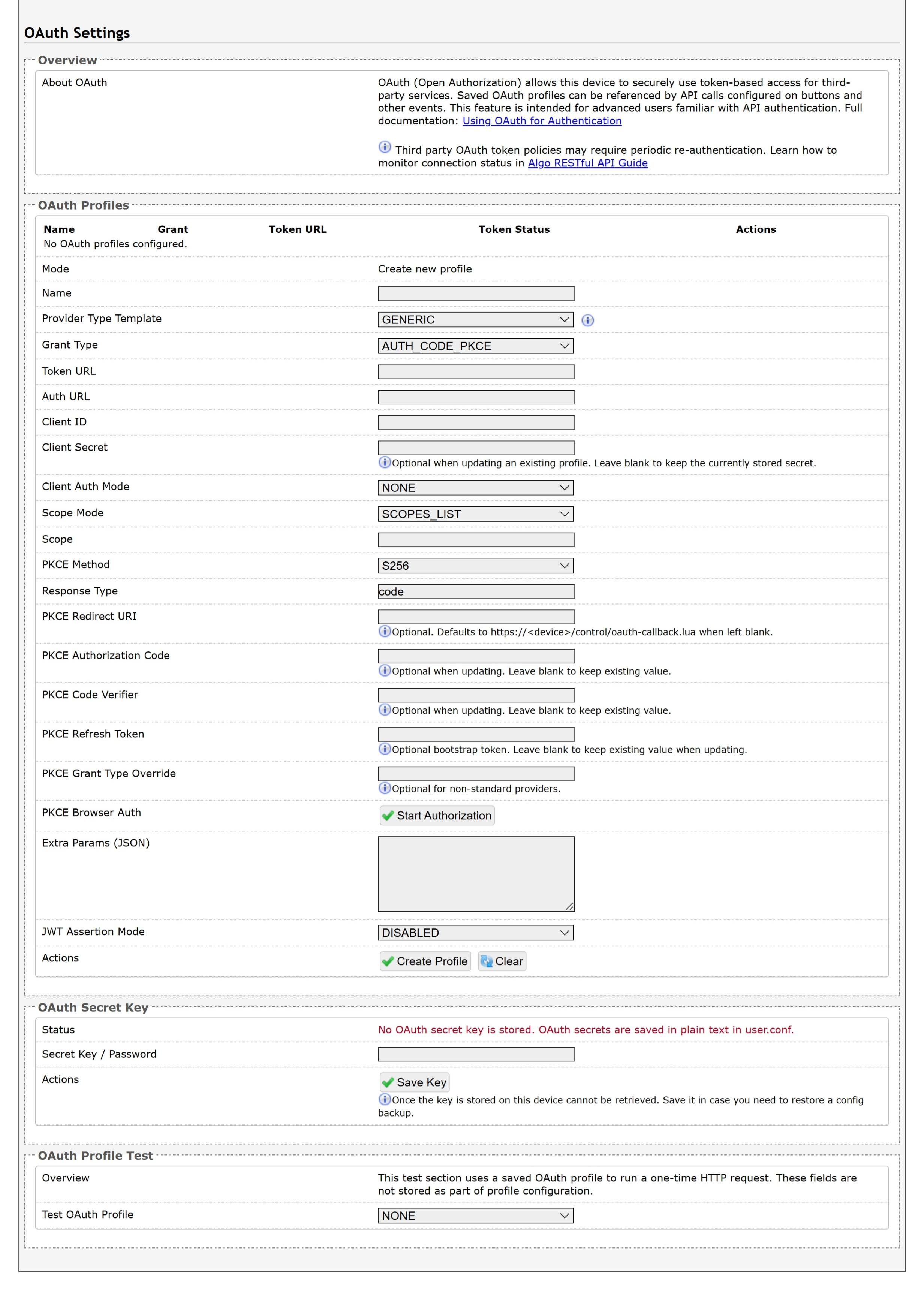
For more information, see Using OAuth for Authentication.
Advanced Audio
.png)
Functions
Dynamic Range Compression (DRC)
If enabled, compresses the dynamic range of page audio to increase loudness.
Dynamic Range Compression Gain
Higher compression gain increases distortion.
Jitter Buffer Range
The jitter buffer removes the jitter in arriving network packets by temporarily storing them. This process corrects the inconsistent delays on the network. It is recommended to use the lowest value.
Always Send RTP Media
If enabled, audio packets will be sent at all times, even during one-way paging mode. This option is needed in cases when the server expects to see audio packets at all times.
DTMF
Generate DTMF tones before a SIP call, or before playing an alert.
Audio Filters
Speaker Filter
Applies a high-pass filter to the speaker output. Used to reduce audio artifacts like humming or buzzing by filtering out unwanted frequencies.
Speaker Noise Filter
Enables heavy filtering below 145 Hz to reduce mains induced noise (fans).
Microphone Filter
Applies a high-pass filter to the microphone input. Used to reduce audio artifacts like humming or buzzing by filtering out unwanted frequencies.
Microphone Noise Filter
Enables heavy filtering below 145 Hz to reduce mains induced noise (fans).
Microphone
Global Microphone Mute
Enabling this will disable the microphone entirely.
Microphone Volume
Select a volume for the microphone.
Advanced SIP
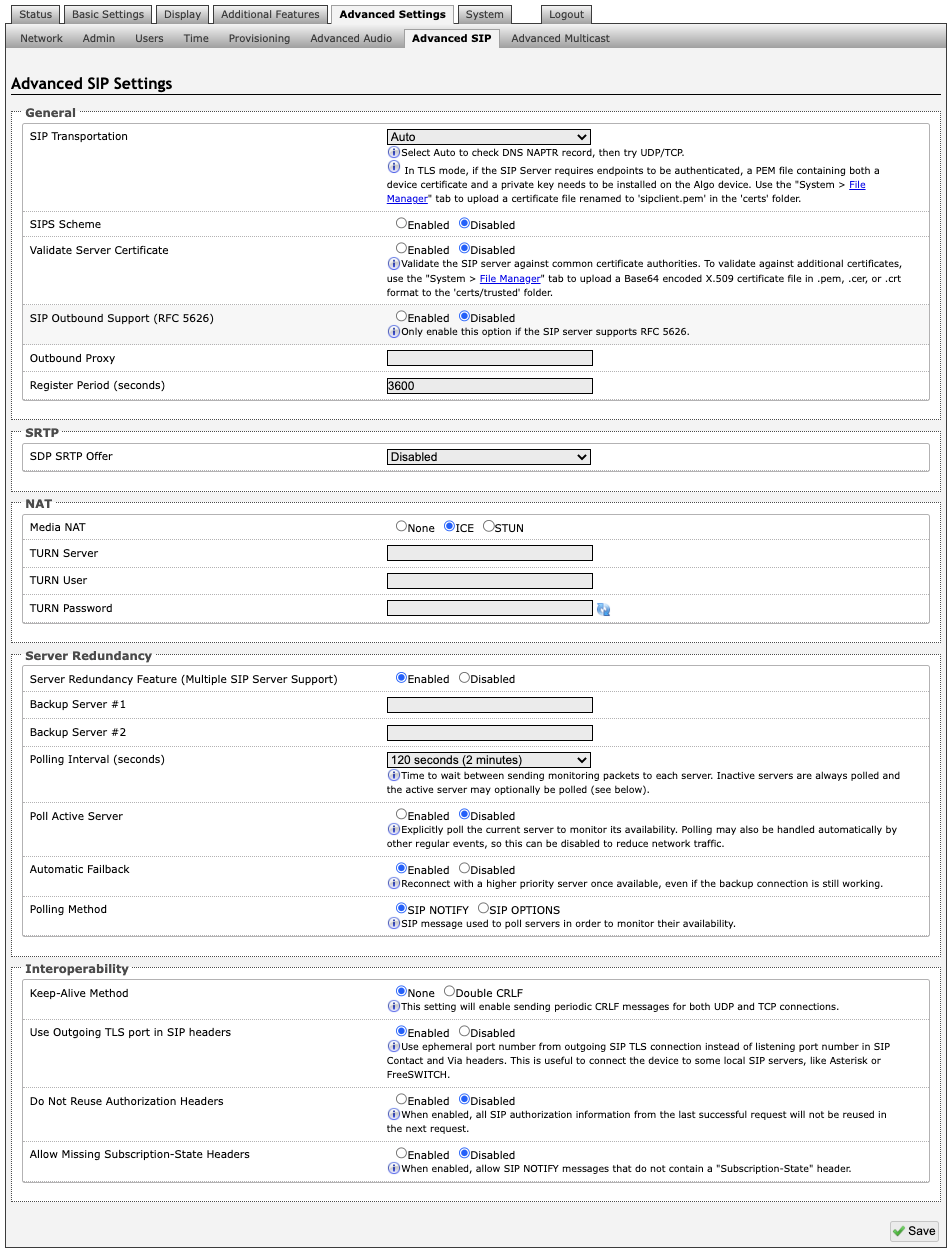
General
SIP Transportation
Which transport layer protocol to use for SIP messages. Setting SIP Transportation to TLS, ensures the encryption of SIP traffic.
SIPS Scheme
Only visible when SIP Transportation set to TLS. Enabling SIPS Scheme requires the SIP connection from endpoint to endpoint to be secure.
Validate Server Certificate
Validate the SIP server against common certificate authorities.
SIP Outbound Support (RFC 5626)
Enable this option to support best networking practices according to RFC 5626. This option should generally be enabled if the Algo device is being registered with a hosted server or if TLS is being used for SIP Transportation.
Outbound Proxy
IP address for outbound proxy. A proxy (server) stands between a private network and the internet.
Register Period (seconds)
Maximum requested period of time where the 8301 will re-register with the SIP server. Default setting is 3600 seconds (1 hour). Only change if instructed otherwise.
SRTP
SDP SRTP Offer
Setting SDP SRTP Offer to Optional, means the SIP calls RTP data will be left unencrypted if the other party does not support SRTP. Setting SDP SRTP Offer to Standard, encrypts RTP voice data, meaning the normal audio RTP packets will now be secure (SRTP). This means SIP calls will be rejected if other party does not support SRTP. The Standard option secures the audio data between parties, by making sure that its not left out in the open for third parties to later reconstruct and listen to.
NAT
Media NAT
IP address for STUN server if present or IP address/credentials for a TURN server.
ICE – TURN Server
Enter the IP address or domain of the ICE server.
ICE – TURN User
Enter the username.
ICE – TURN Password
Enter the password.
STUN - Server
Enter the IP address or domain of the STUN server.
Server Redundancy
Server Redundancy Feature
Two secondary SIP servers may be configured. The 8301 will attempt to register with the primary server but switch to a secondary server when necessary. The configuration allows re-registration to the primary server upon availability or to stay with a server until unresponsive.
If Server Redundancy is selected the web page will expand as shown below.
Backup Server #1
If the primary server is unreachable, the 8301will attempt to register with the backup servers. If enabled, the 8301 will always attempt to register with the highest priority server.
Backup Server #2
If backup server #1 is unreachable, the 8301will attempt to register with the 2nd backup server. If enabled, the 8301 will always attempt to register with the highest priority server.
Polling Intervals (seconds)
The time period between sending monitoring packets to each server. Non-active servers are always polled, and active server may optionally be polled (see below).
Poll Active Server
Explicitly poll current server to monitor availability. This may also be handled automatically by other regular events and can be disabled to reduce network traffic.
Automatic Fallback
This enables device to reconnect with a higher priority server once available, even if the backup connection is still fine.
Polling Method
A SIP message used to poll servers to monitor availability.
Interoperability
Keep-Alive Method
If Double CRLF is selected, the 8301 will send a packet every 30 seconds (recommended value) to maintain connection with the SIP Server if behind NAT.
Keep-Alive Interval
This is the interval in seconds that the CRLF message should be sent.
Use Outgoing TLS port in SIP Headers
Use ephemeral port number from outgoing SIP TLS connection instead of the listening port number in SIP Contact and Via headers. This is useful to connect the device to some local SIP servers, like Asterisk or FreeSWITCH.
Do Not Reuse Authorization Headers
When enabled, all SIP authorization information from the last successful request will not be reused in the next request.
Allow Missing Subscription-State Headers
When enabled, this allows SIP NOTIFY messages that do not contain a Subscription-State header.
Advanced Multicast
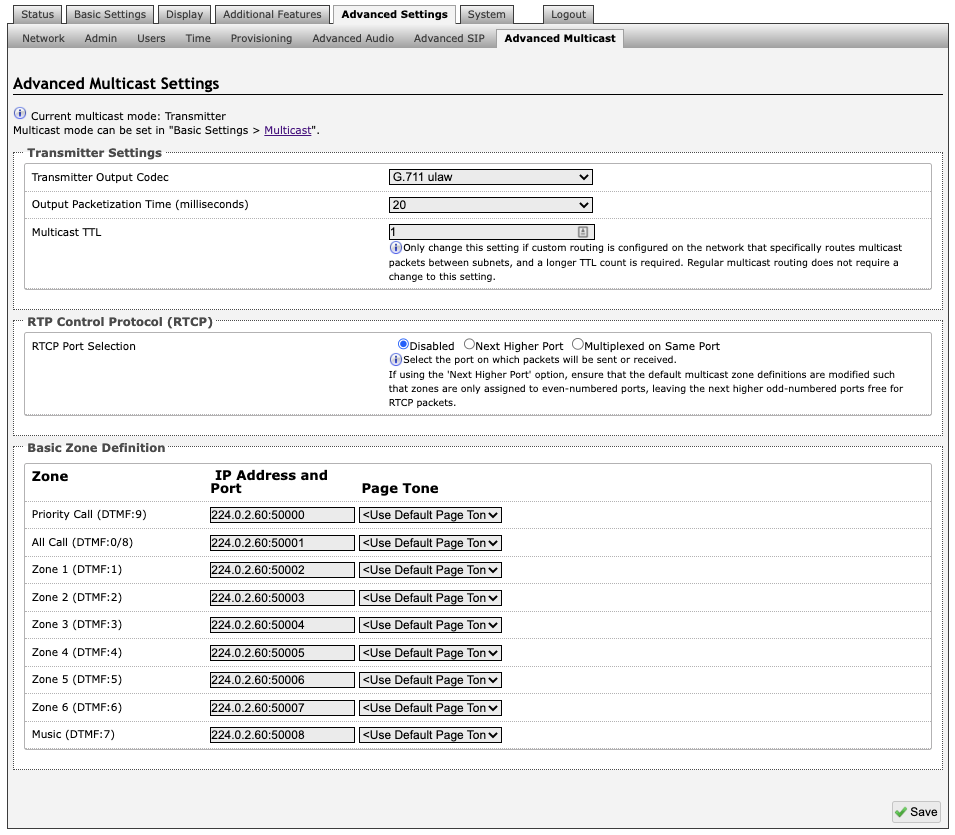
Note
The settings on this tab are only visible when in Sender or Receiver multicast mode.
The default pre-populated multicast addresses above will work in most cases and should only be altered for rare cases.
Transmitter Settings
Transmitter Output Codec
This is the audio encoding format used by the Transmitter device when sending output to the Receivers.
Output Packetization Time (milliseconds)
The size of the audio packets sent by the Transmitter to the Receivers. The default of 20 ms is recommended unless a different value is specifically required for compatibility with other devices.
Multicast TTL
The multicast time to live (TTL) setting should only be changed if custom routing is configured on the network that specifically routes multicast packets between subnets and a longer TTL count is required. This ensures packets are not bounced back and forth in a network identity. When the TTL is reached, the router drops the packet.
Receiver Settings
RTCP Port Selection
Select the port on which RTCP packets will be sent or received. If using the 'Next Higher Port' option, ensure that the default multicast zone definitions are modified such that zones are only assigned to even-numbered ports, leaving the next higher odd-numbered ports free for RTCP packets.
Polycom Receiver Tones
Available if Multicast Receiver and Polycom Group Page or Polycom Push-to-Talk are selected in the Basic Settings → Multicast tab. A tone may be set for any of the 25 Polycom Groups. If using an Algo device as a Multicast Sender, it is recommended to set the Receiver tones to None to avoid conflicts, as the Algo devices already multicast a tone by default.
Basic Zone Definitions
Zones
The Expanded Receiver zones can be enabled/disabled in Basic Settings → Multicast. Default IP addresses and ports may be revised for any given zone in the table.
Note
Ensure that the Address and Port settings are the same for all Sender and receiving devices.
Page Tone and Page Volume
Sender Mode: By default, the same tone can be set for all Receiver zones in the Basic Settings → Features tab. Unique paging tones may be revised for any given zone in the table above.
Receiver Mode: When an Algo device is the multicast Sender, a page tone will play on the receiving device, so it is recommended to set the Receiver tone to None. If a page is received from a non-Algo device that doesn’t send a tone, a tone can be inserted on the Receivers (above) each time they detect page audio starting, allowing them to play a tone.
By default, the same page volume can be set for all Receiver zones in the Basic Settings → Features tab. Unique page volumes may be revised on a per-zone basis in the table above. For instance, emergency pages can be louder on certain Receiver speakers.
System
Maintenance
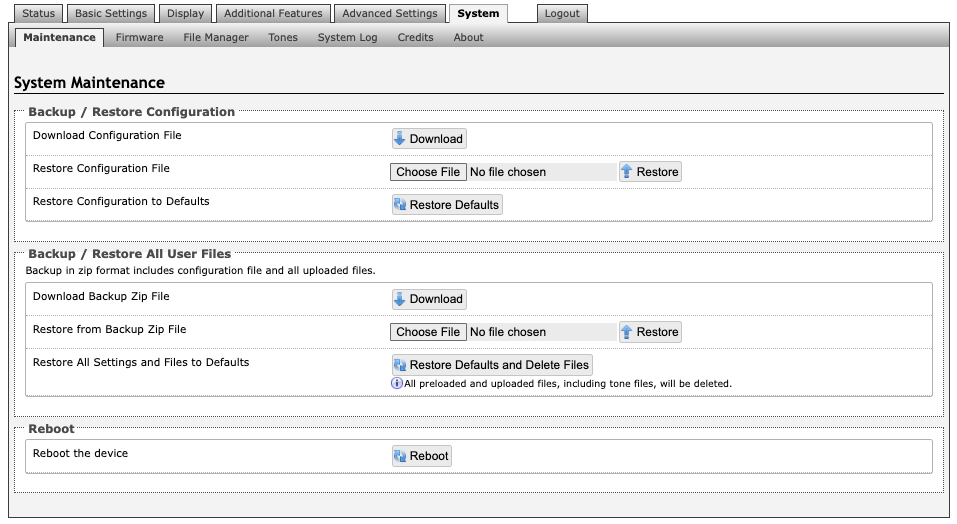
Backup / Restore Configuration
Download Configuration File
Save the device settings to a text file for backup or to set up a provisioning configuration file.
Restore Configuration File
Restore settings from a backup file.
Restore Configuration to Defaults
Resets all 8301 IP Display Speaker settings to factory default values.
Backup / Restore All User Files
Download Backup Zip File
Saves the device settings (configuration) and all the files in File Manager: certificates, licenses, and tones to a backup zip file.
Restore from Backup Zip File
Restores the device settings (configuration) and all the files in File Manager: certificates, licenses, and tones from a backup zip file.
Restore All Settings and Files to Defaults
Resets the device settings (configuration) and all the files in File Manager: certificates, licenses, and tones to factory default values.
Reboot
Reboot the Device
Reboots the device.
Firmware
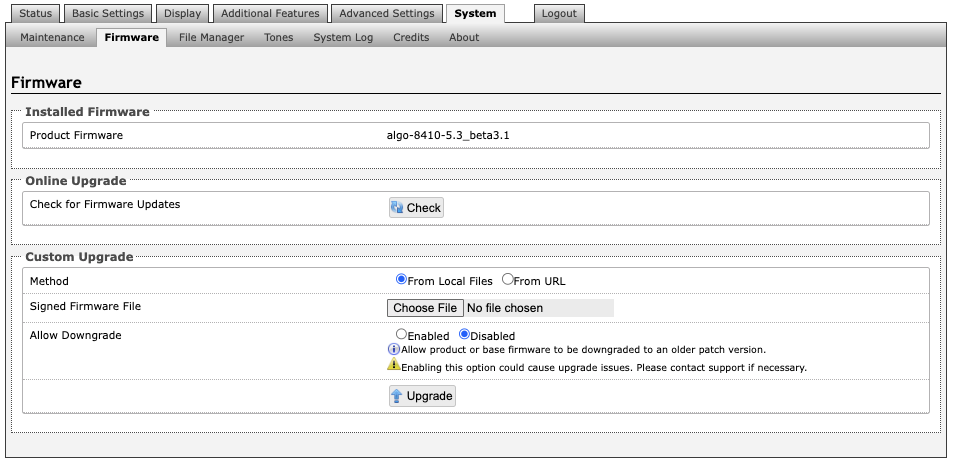
Installed Firmware
Product Firmware
Shows the current firmware on the device.
Online Upgrade
Check for Firmware Updates
Check for the latest firmware. If firmware is current, Latest Firmware will show as Firmware up to date. If firmware needs to be upgraded, the new firmware availability will be listed.
Custom Upgrade
Method
For firmware upgrades. Specify whether the firmware files will be downloaded from the local computer or a remote URL.
Signed Firmware File
To upgrade Firmware:
From the top menu, go to System → Firmware.
In the Upgrade section, press Choose File and select the 8301 firmware file to upload. Note that both FW firmware and MD5 checksum files must be loaded.
Press Upgrade.
After the upgrade is complete, confirm that the firmware version has changed (refer to top right of Control Panel).
Allow Downgrade
Allow product or base firmware to be downgraded to an older patch version. Enabling this option could cause upgrade issues.
File Manager
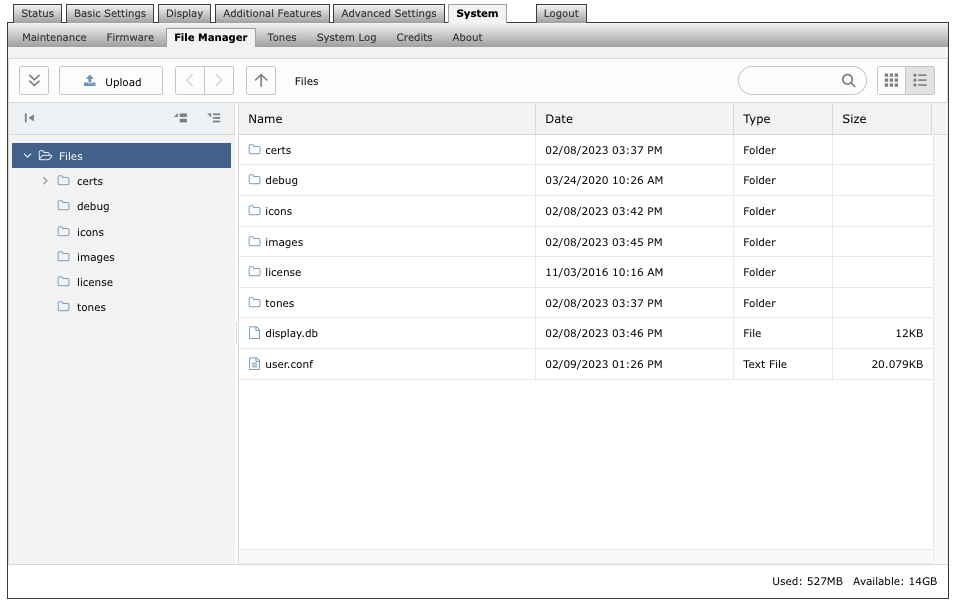
File Formats
When uploading files to the File Manager, refer to this table for supported file formats and requirements.
Folder | Supported Format | Requirements |
|---|---|---|
License | LIC | |
Radio | MP3 | Audio files must be smaller than 200 MB or shorter than 3 hours at 128 kbps. |
Tones | 8SVX, AIF, AIFC, AIFF, AIFFC, AL, AMB, AMR-NB, AMR-WB, ANB, AU, AVR, AWB, CAF, CDDA, CDR, CVS, CVSD, CVU, DAT, DVMS, F32, F4, F64, F8, FAP, FLAC, FSSD, GSM, GSRT, HCOM, HTK, IMA, IRCAM, LA, LPC, LPC10, LU, MAT, MAT4, MAT5, MAUD, MP2, MP3, NIST, OGG, PAF, PRC, PVF, RAW, S1, S16, S2, S24, S3, S32, S4, S8, SB, SD2, SDS, SF, SL, SLN, SMP, SND, SNDFILE, SNDR, SNDT, SOU, SOX, SPH, SW, TXW, U1, U16, U2, U24, U3, U32, U4, U8, UB, UL, UW, VMS, VOC, VORBIS, VOX, W64, WAV, WAVPCM, WV, WVE, XA, XI | Audio files must be in the following format:
|
Certs Folder
If you have enabled Validate Server Certificate under Advanced Settings → Advanced SIP or Advanced Settings → Provisioning and would like to validate against additional certificates, you can upload them here.
To install a public CA certificate:
Obtain a public certificate from your Certificate Authority (Base64 encoded X.509 .pem, .cer, or .crt).
Open the certs folder in the web interface by going to System → File Manager.
Upload the certificate files into the certs folder by clicking Upload in the top left corner of the file manager and select the certificate.
Reach out to support@algosolutions.com to get the complete list of pre-loaded trusted certificates.
Debug Folder
If you have any challenges with the device and work with the Algo support team to overcome or fix them, the debug folder will be used. The device will generate files containing information about the device and put them in the debug folder. You do not need to use this folder unless directed to by the Algo support team.
License Folder
If you would like to use InformaCast on a device that hasn't been bundled with an InformaCast license, you will need to purchase a license and put it into the license folder in the file manager.
Radio Folder
You can upload custom audio files for offline radio streaming.
Tones Folder
Custom audio files may be uploaded to play notifications. Audio files should be stored in the tones directory.
Uploading Custom Audio Files
Custom audio files may be uploaded into memory (1 GB) to play for notification applications. Place your audio files into the tones directory.
An existing file may also be modified. Download the original file, right-click the tone and select Download, make the desired changes, and then upload the new version with a different name.
File names must be limited to 32 characters, with no spaces.
Related Links:
Tones
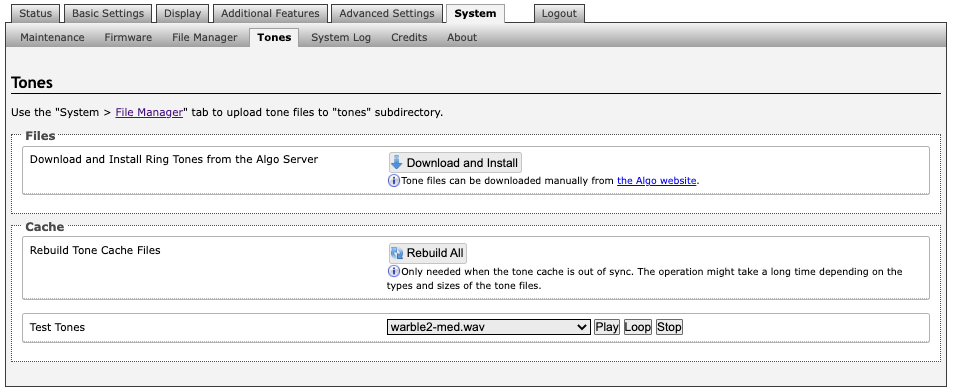
Tone Files Included in Memory
Your device includes several pre-loaded audio files that can be selected to play for various events. The web interface allows selection of the file and the ability to play it immediately over the speaker for testing (available in Basic Settings → Features). Files may also be deleted or renamed.
System Log
System log files are automatically created and assist with troubleshooting in the event the device does not behave as expected.
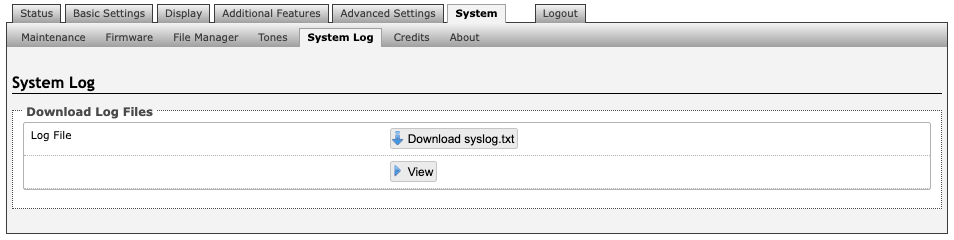
Logout
Log out of the 8301 web interface.
FCC Compliance Statement
This equipment has been tested and found to comply with the limits for a Class A digital device, pursuant to Part 15 of the FCC Rules. These limits are designed to provide reasonable protection against harmful interference when the equipment is operated in a commercial environment. This equipment generates, uses, and can radiate radio frequency energy, and if it is not installed and used in accordance with the instruction manual, it may cause harmful interference to radio communications. Operation of this equipment in a residential area is likely to cause harmful interference, in which case the user will be required to correct the interference at their own expense.