.png)
Displaying Weather Information
You can display weather information on the 8410/8420 for locations in the United States or Canada.
After configuring Weather Settings, you can display weather information using one of the following methods:
Display a full-screen weather forecast slide.
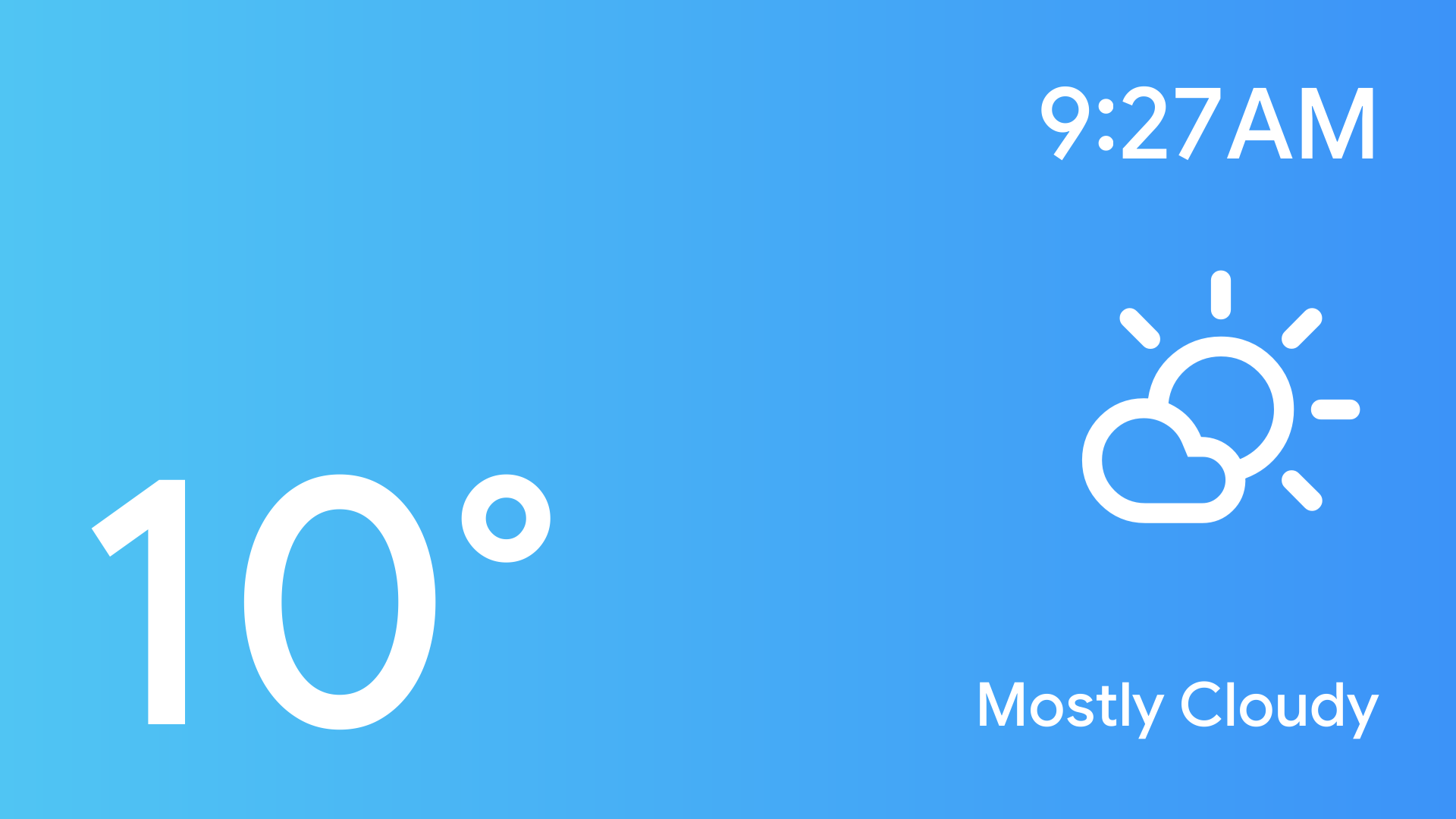
Weather - Current Conditions
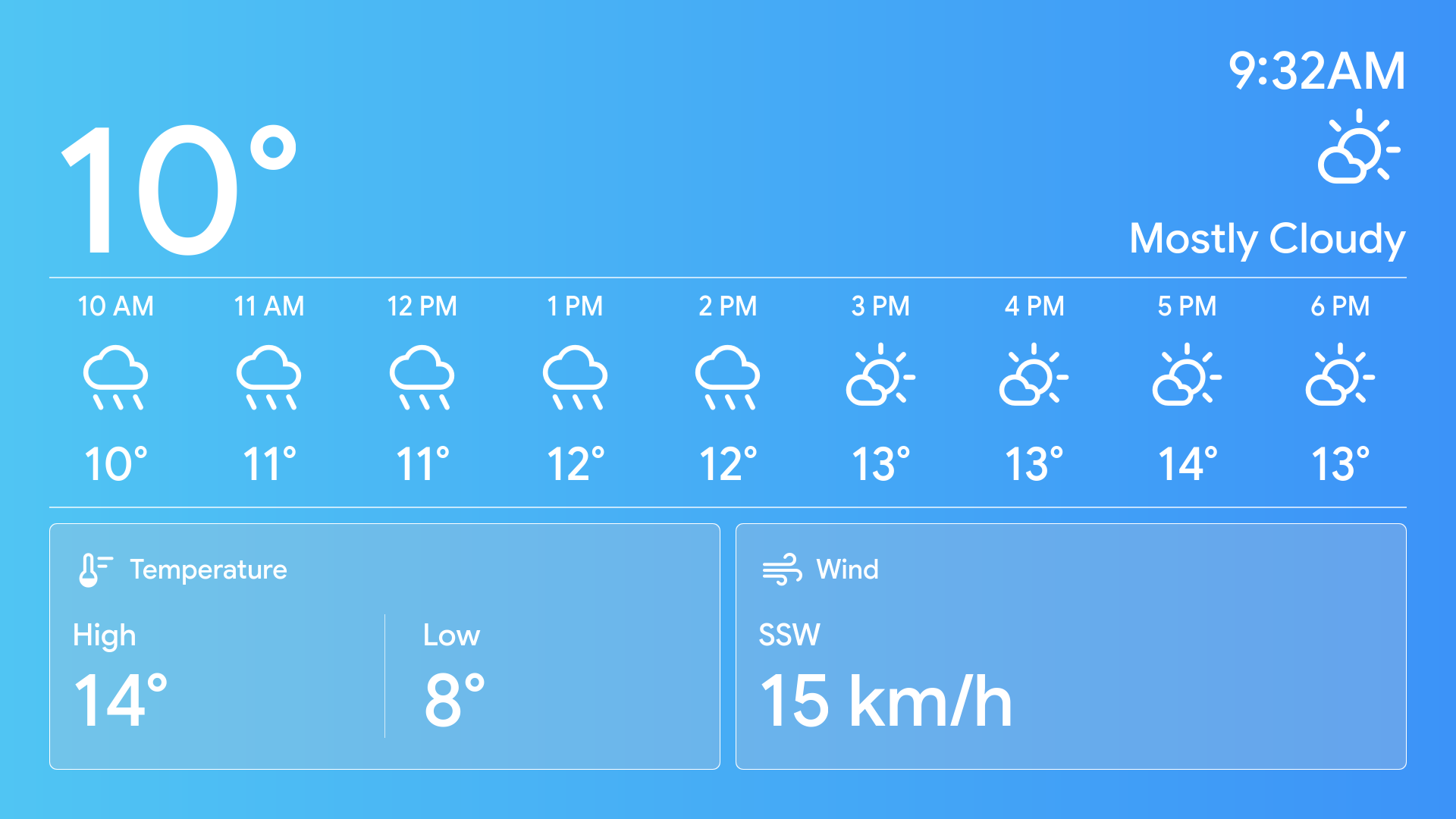
Weather - Hourly Forecast
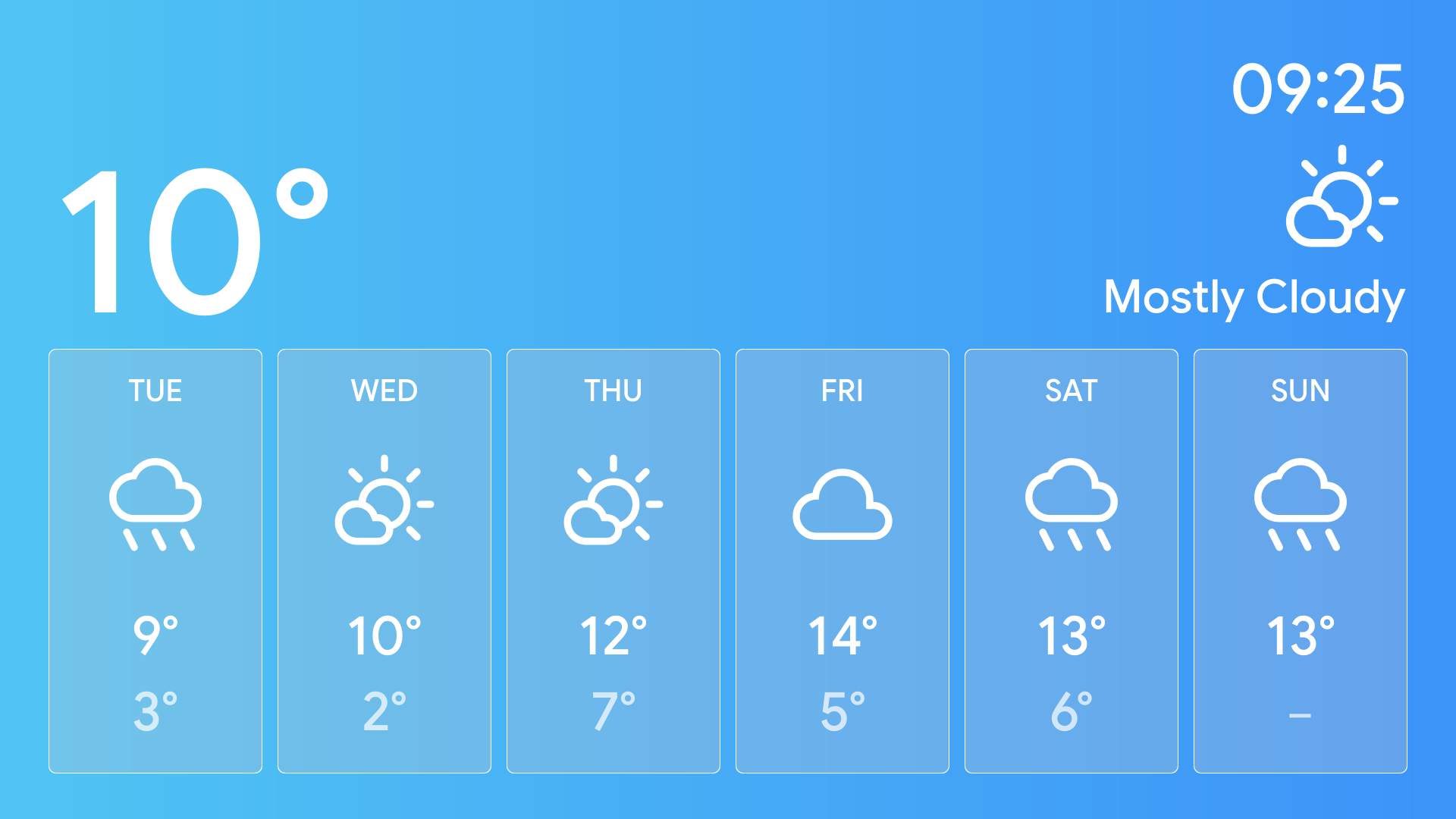
Weather - Weekly Forecast
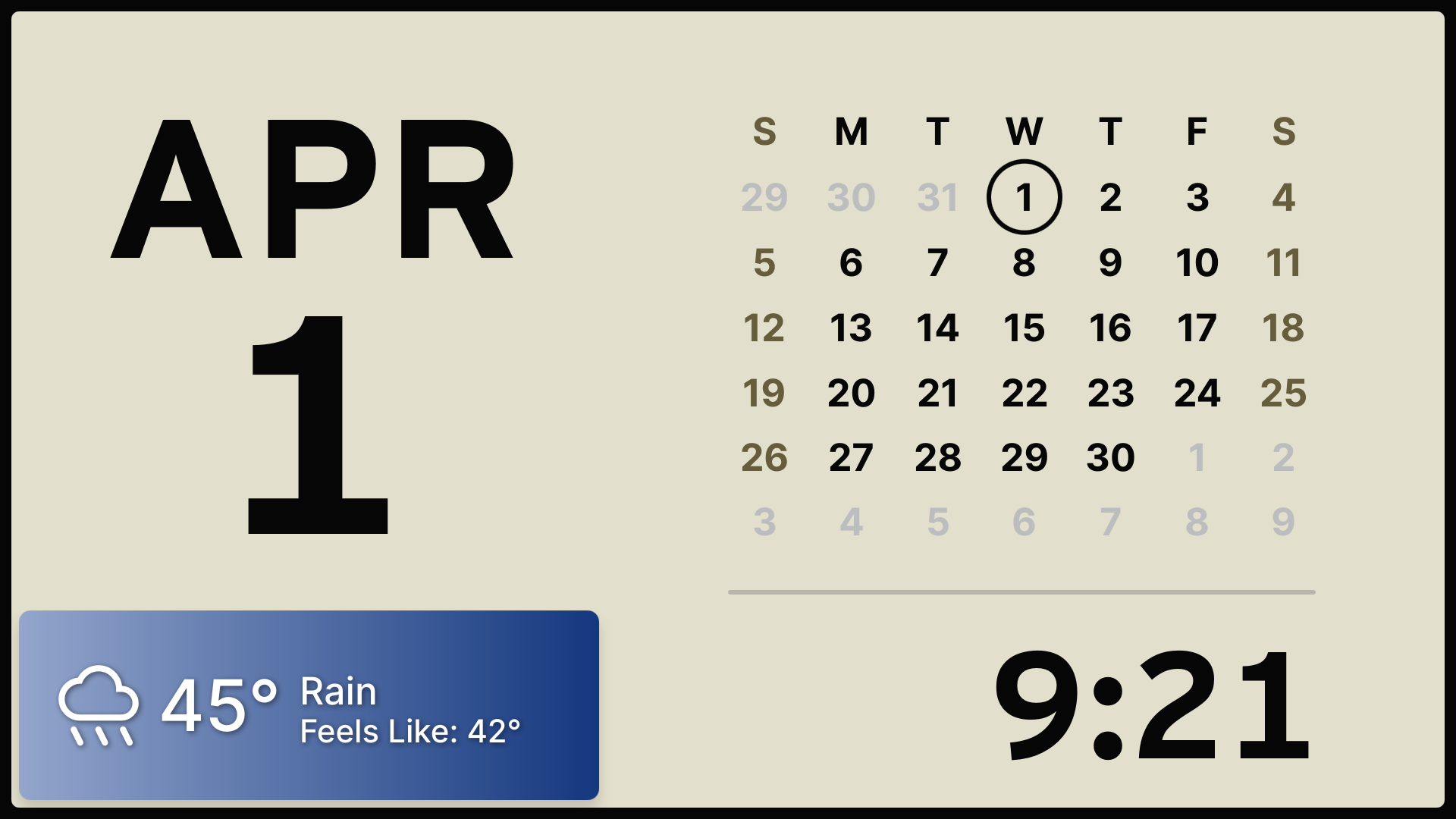
Display a Weather Widget on top of a slide or within a slideshow.
Configuring Weather Settings
You must configure Weather Settings before you can use them in slide templates or widgets.
Once Show Weather is enabled, you can also view the Weather Status and Last Weather Update on the Status page.
To configure Weather Settings:
Go to Additional Features → Weather.
Configure Weather Settings:
Set Show Weather to Enabled.
Configure the following:
Weather Position: Set where the Weather Widget appears.
Color: Set the color of the Weather Widget.
Country: Select United States or Canada.
Specify the location:
United States: Specify the location’s Latitude and Longitude.
Enter the Latitude and Longitude (up to four decimal places, separated by a comma). For example: 38.8894,-77.0352.
You can obtain the coordinates from Google Maps by right-clicking the desired location. Round the coordinates to no more than four decimal places.
Canada: Select the desired Province and Region.
Select Save.
The resolved city name appears on the screen.
Displaying Full-Screen Weather Forecast
You can use slide templates to display weather information in full-screen mode.
Note
You must enable Weather and configure Weather Settings in Additional Features → Weather before using weather slide templates.
To display a full-screen weather forecast:
Go to Display → Slides → Add Slide.
Set Screen Type to Template.
(1).png)
Select an option for the Template:
Weather - Current Conditions: Displays current weather.
Weather - Hourly Forecast: Displays hourly forecast for the day.
Weather - Weekly Forecast: Displays forecast for the upcoming week.
Configure additional settings:
Time Format: Select 12 Hour or 24 Hour.
Show Clock Seconds: Enable or disable seconds display.
Headline: Show the Date, City, or None in the header.
The City option is available only for weather in the United States.
Show Feels Like: Display the “feels like” temperature.
Strobe Flash Pattern: Enable strobe light during display (if applicable).
Select Save.
Using Weather Widget
You can display current weather information as a widget overlay on slides.
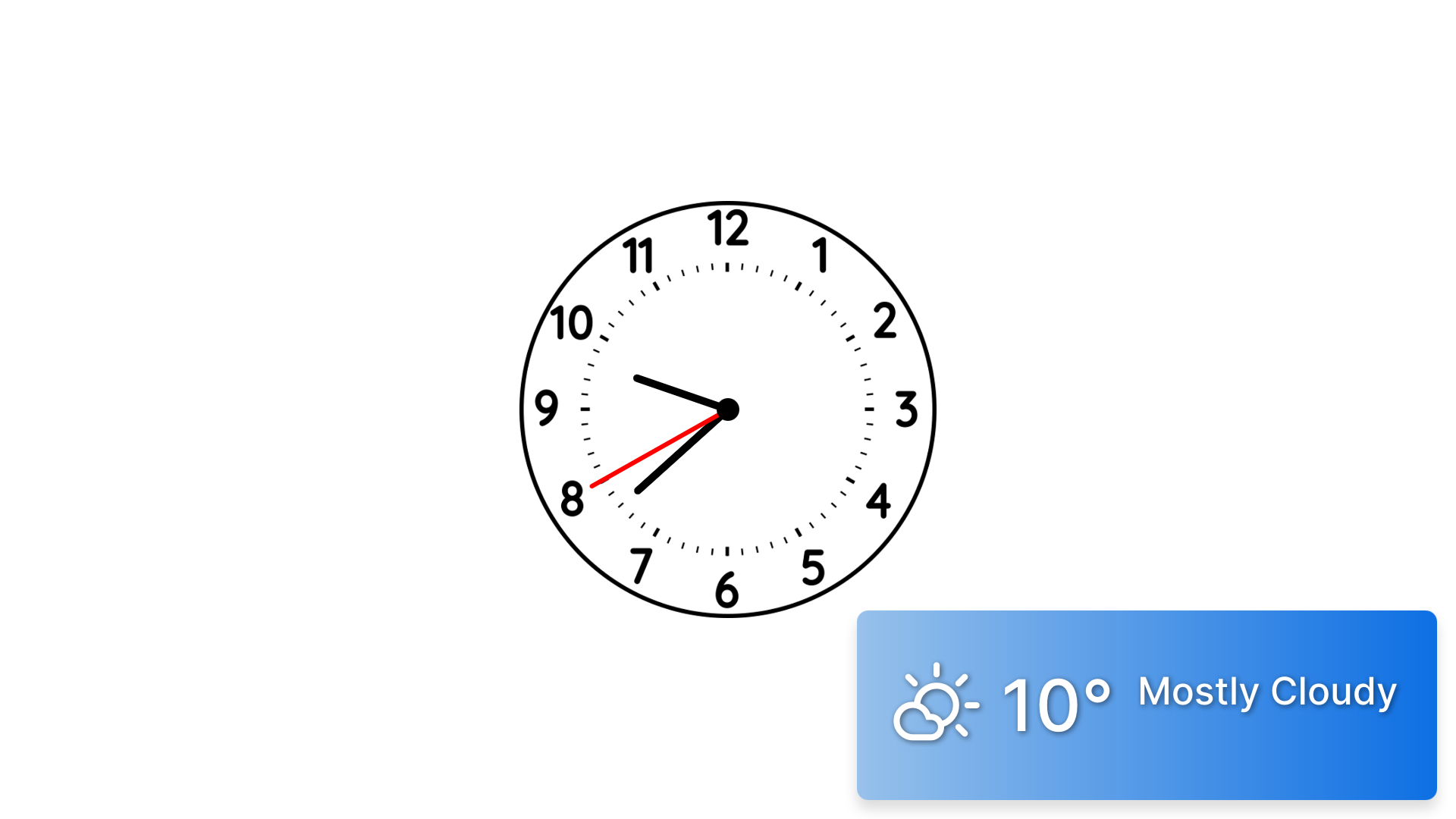
Enabling Weather Widget
You must enable the Weather Widget before using it.
To enable the Weather Widget:
Go to Additional Features → Weather.
Configure Weather Widget:
Weather Widget: Set to Enabled.
Widget Size: Choose a size for the widget window.
Widget Position: Choose the position of the widget.
Widget Shape: Choose an option:
Square: Displays the widget as a rectangle with slightly rounded corners.
The corner radius is 15 px radius for the Small widget size, and 10 px for Medium and Large.
Rounded: Displays the widget as a rectangle with larger rounded corners (60 px radius).
Select Save.
Displaying the Weather Widget on Slides
You can enable the Weather Widget on individual slides to show the current weather information.
Note
To display the Weather Widget, both of the following must be configured under Additional Features → Weather:
Weather Settings
Weather Widget
To display weather information on a slide:
When creating or editing a slide, enable Show Weather.
.png)