Product Overview
The 8300 is designed for centralized Algo endpoint monitoring and supervision. Any Algo SIP endpoint device can be monitored on the network via the 8300 dashboard. Common application environments include education, healthcare, manufacturing, plant/utility, retail, and more.
The 8300 is capable of providing notifications such as audio output or SIP Call, as well as email. Recipients will be alerted when a monitored device is unreachable.
A multicast feature allows the 8300 to broadcast an audio notification tone to multiple Receiver endpoints. Multicasting allows for a scalable and cost-effective means of designing large-scale paging and alerting solutions, with minimal network traffic and as few as one SIP extension for the registered Sender endpoint sending the multicast. Any number and combination of Algo IP speakers, paging adapters and strobe lights can be part of an RTP multicast.
The 8300 is configured by accessing a web interface using browsers such as Google Chrome or Firefox.
Disclaimer
The information contained in this document is believed to be accurate in all respects but is not warranted by Algo. The information is subject to change without notice and should not be construed in any way as a commitment by Algo or any of its affiliates or subsidiaries. Algo and its affiliates and subsidiaries assume no responsibility for any errors or omissions in this document. Revisions of this document or new editions of it may be issued to incorporate such changes. Algo assumes no liability for damages or claims resulting from any use of this manual or such products, software, firmware, and/or hardware.
No part of this document can be reproduced or transmitted in any form or by any means – electronic or mechanical – for any purpose without written permission from Algo.
For additional information or technical assistance in North America, please contact Algo’s support team:
1-604-454-3792
support@algosolutions.com
Installation
Note
Before installing your device, note down its MAC address to simplify locating and configuring it on the network later. The MAC address is printed on the device label.
The 8300 is wall-mountable in a horizontal orientation using the supplied bracket.
 Example installation on ½” drywall:
Use appropriate drywall anchors for #8 screws, and pre-drill per anchor manufacturer’s instructions.
Insert 4 anchors into the wall, and then attach bracket to wall anchors using #8 screws.
Snap the 8300 into the bracket. Connect the 8300 to a PoE network switch.
Wiring Connections
Network Connection
The 8300 provides a RJ45 jack for network connection. A cable run from the switch can be terminated to a modular jack with connection by patch cord, or terminated with a RJ45 plug.
PoE (Power over Ethernet) must be 48V 350 mA IEEE 802.3af compliant whether provided by the network switch or injector.
There are two lights on the Ethernet jack:
Green light: On when Ethernet is working, flickers off to indicate activity on the port.
Amber light: Off when successful 100Mbps link is established. Typically on only briefly at power up.
Under normal conditions, the Amber light will turn on immediately after the Ethernet cable is first connected. This indicates that PoE power has been successfully applied. Once the device connects to the network, it will switch to the Green light instead, which will typically flicker indicating traffic on the network.
Blue LED Indicators
All 4 blue lights will be on during powerup and the boot process.
SIP
Steady light will appear when the SIP extension is registered. The light will blink when the device is engaged in an outbound SIP alert.
MCAST
The Multicast light will appear when 8300 sends multicast messages to Receivers as a Sender.
ALARM
The ALARM light is ‘on’ when the Controller has detected that one or more devices is currently offline.
OUTPUT
The OUTPUT light is on when the analog output is enabled.
Reset Button
A recessed reset button (RESET) next to the Ethernet Jack can only be used to reset the 8300 Controller at time of powerup. To reset, reboot or power cycle the 8300 Controller, wait until the SIP LED flashes and then press and hold the reset button until the SIP LED begins a double flash pattern. Release the reset button and allow the unit to complete its boot process. Do not press the reset button until the SIP LED begins flashing.
A reset will set all configuration options to factory default including the password.
Once booting has completed, pressing the reset button will cause the Controller to announce its IP address over the Aux Out port.
Obtaining the Device IP Address
You will need the device IP address to access its web interface. You can find the device IP address using one of the following methods:
Use the RESET button to let the device announce its IP address.
Use other network discovery methods.
Note
If no DHCP server is found, the device will default to the static IP address 192.168.1.111
To obtain the device IP address using the device RESET button:
Connect the device to a PoE network switch.
Connect a headset to the AUX OUT port.
The blue SIP LED will turn on until boot-up is completed (about 1 minute).
After the SIP LED turns off, locate the sunken RESET button on the front panel. Press the RESET button using a straightened safety pin. Once pressed, you will hear the IP address over the headset.
After you have noted down the IP address, press the RESET button again to stop the repetitive announcement.
Obtaining Device IP Address Using Algo Device Network Locator
You can use the Algo Device Network Locator to locate Algo IP endpoints and view their network information, including IP address, MAC address, hostname, and device details where available.
The application is available for Windows and macOS. It can search the local network automatically and also allows you to enter a specific IP address, subnet, or IP range when looking for devices on a particular network segment.

To obtain the device IP address using Algo Device Network Locator:
Go to Algo Device Network Locator.
Download the application for your computer’s operating system.
The application is downloaded as a .ZIP file to your local computer.
Extract the .ZIP file, and run the .exe file.
Select Find Devices to locate Algo IP devices.
Alternative Methods to Obtain Device IP
Alternatively, use one of the following methods to find devices on your local network and identify their IP and MAC addresses. All Algo devices have a MAC address starting with 00:22:ee. Use this prefix to quickly identify your Algo devices.
Log in to your router or DHCP server and check the DHCP client list.
Use a network scanning tool.
Use a network management software to view DHCP-assigned IPs.
Open a terminal or command prompt and check your ARP table:
Windows:
arp -aLinux/macOS:
arp -aorip neigh
Accessing the Web Interface
You can configure the device through its web interface. All settings, integrations, and file uploads can be accessed via the web interface.
To access the device web interface:
Enter the device IP address into your web browser.
Enter the login password and select Login.
The default login password is algo.
Note
This password can be changed in Advanced Settings → Admin tab after you log in for the first time. It is highly recommended to change the default password if the device is directly connected to a public network.
Getting Started – Quick Install & Test
Note
This guide provides important safety information which should be read thoroughly before permanently installing the device.
Connect another Algo device that you want to monitor to the network. Wait until boot up is completed.
Add the device to the list of monitored devices by going to Dashboard → Devices and selecting the Unmanaged Devices tab. Find the connected device in the list and add it to managed devices.
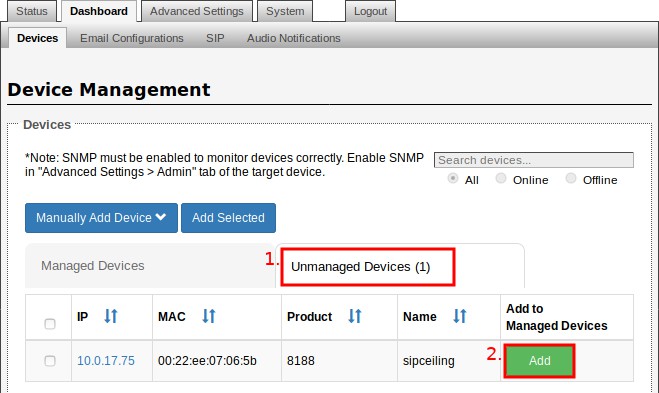
Return to the Managed Devices list and view the device status. If the status displays (Warning) SNMP Disabled, you must enable SNMP support on the monitored device by logging into the device's web interface and enable SNMP under the Advanced Settings → Admin tab.
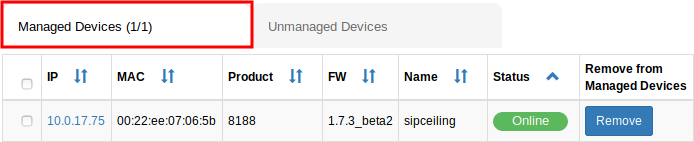
Disconnect the monitored device. The device will show as disconnected in the list. See the full user guide for further details on setting up additional notifications, including email alerts.
Features
Visual Notifications
The Managed Devices on the Dashboard → Devices tab displays the current status of each monitored device. By default the devices are sorted by of status.
Device status:
“Error: Unreachable”: Device is offline.
“Error: Software Failure”: Device is reachable but there is a software error that effect normal operation. A reboot may be necessary to return normal operations.
“Warning: Trying…”: Controller is attempting to reach device.
“Warning: SNMP Disabled”: Device is reachable but SNMP is not enabled.
“Online”: Device is reachable and functioning correctly.
Additionally, when one or more offline devices are detected, an error message will be shown at the top of the Dashboard → Devices page:

Audio Notification
The 8300 Controller can be configured to play audio notifications by setting “Action” to “Play Tone” under the Dashboard → Audio Notification tab. Custom files can be used as the audio notifications by uploading an audio file to the “tones” directory under Advanced Settings → File Manager tab.
Additional Notifications
Multicast Notification
In addition to playing an audio notification locally, the 8300 can multicast the audio notification to multiple Receiver endpoints. Any number and combination of Algo IP speakers, paging adapters, and strobe lights can be a Receiver endpoint.
Call Notification
The 8300 can be configured to dial an extension and play a pre-recorded message.
Email Notification
Email Notifications can be sent when a device goes offline, when a device goes back online, and/or periodic heartbeat messages. When devices go offline/online momentarily, alerts may be missed, Emails can provide a history of the status of devices over large periods of time so that device malfunctions are always detected.
Multicast IP Addresses
Each 8300 Controller has its own IP address, and shares a common multicast IP and port number (multicast zone) for multicast packets. The 8300 transmits to a configurable multicast zone, and the Receiver units listen to all the multicast zones assigned to them.
The network switches and router see the packet and deliver it to all the members of the group. The multicast IP and port number must be the same on all the Sender and Receiver units of one group. The user may define multiple zones by picking different multicast IP addresses and/or port numbers.
Multicast IP addresses range: 224.0.0.0/4 (from 224.0.0.0 to 239.255.255.255)
Port numbers range: 1 to 65535
By default, the 8300 Controller is set to use the multicast IP address 224.0.2.60 and the port numbers 50000-50008
Make sure that the multicast IP address and port number do not conflict with other services and devices on the same network.
Web Interface Login
The web interface requires a password which is "algo" by default. This password can be changed using the Admin tab after logging in the first time.
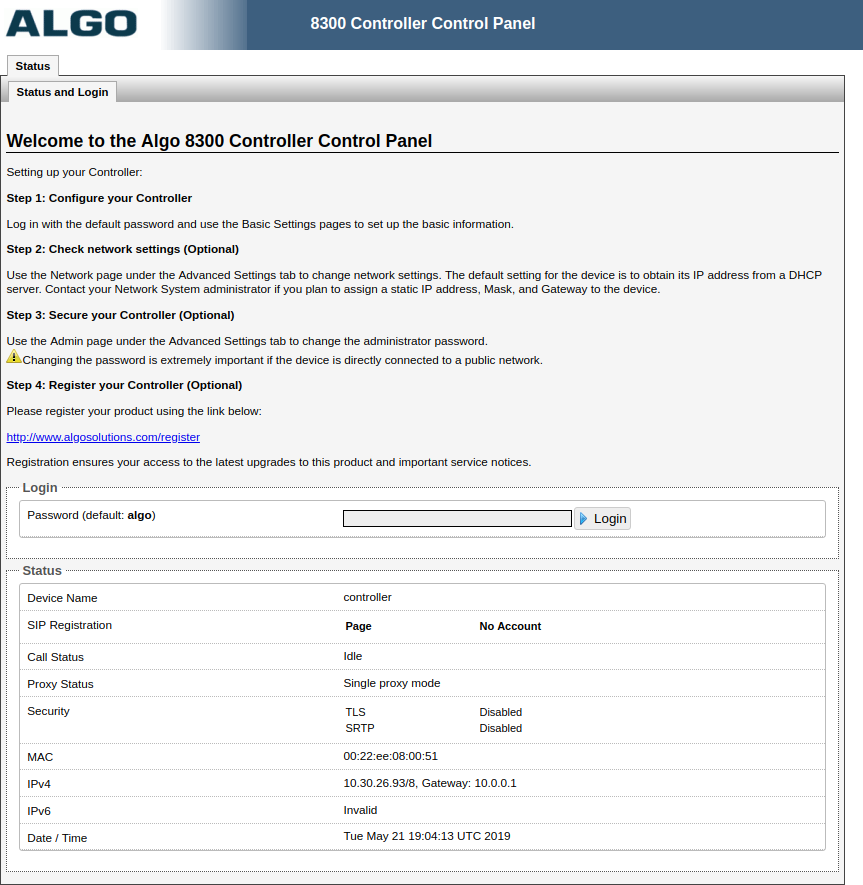
Status
The device’s Status page will be available before and after logon. The section can be used to check 8300’s SIP Registration status of the Page extensions, Call Status, Proxy Status, and general MAC, IP, Netmask, Date/Time, and Timezone information.
Web Interface Dashboard Settings
Dashboard Tab – Devices
Managed Devices Tab
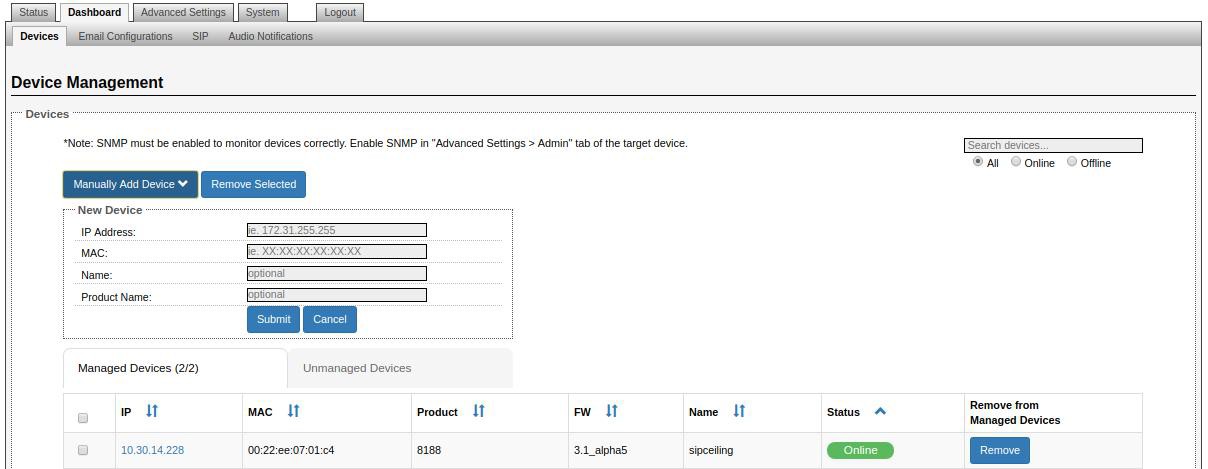
This tab shows the devices that the 8300 is currently monitoring. See Unmanaged Tab to select new devices to monitor.
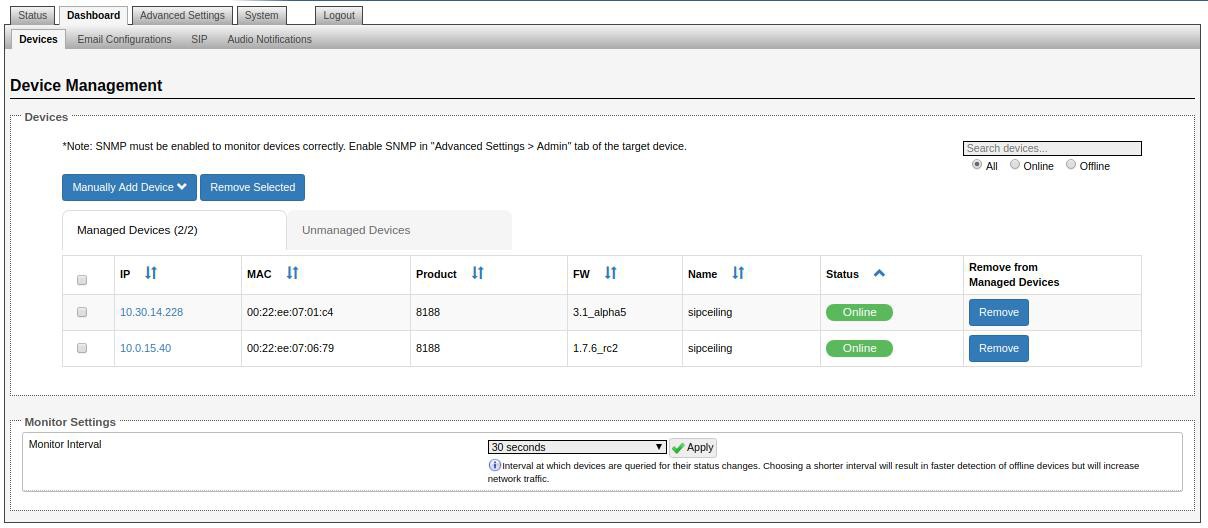
Monitor Interval
Interval at which devices are queried for their status changes. Choosing a shorter interval will result in faster detection of offline devices but will increase network traffic.
Manually Add Devices
Manually add a device to managed devices. IP Address and MAC are required.
Unmanaged Devices Tab
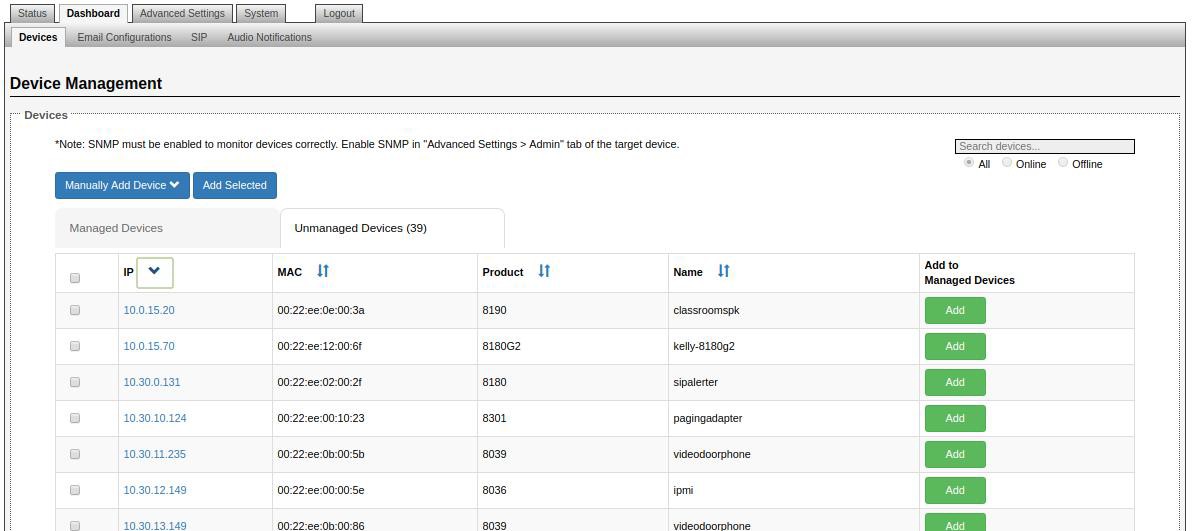
This tab show the Algo devices that can be selected to be monitored.
Filters/Sorting
Devices can be filtered in both the Managed or Unmanaged Devices table by using the search bar in the right corner. Clicking on the icon next to column name will sort the entries by that selected column.
Note
The search filter and sort are persistent between tabs. The filter must be cleared to see all devices.
Dashboard Tab – Email Configurations
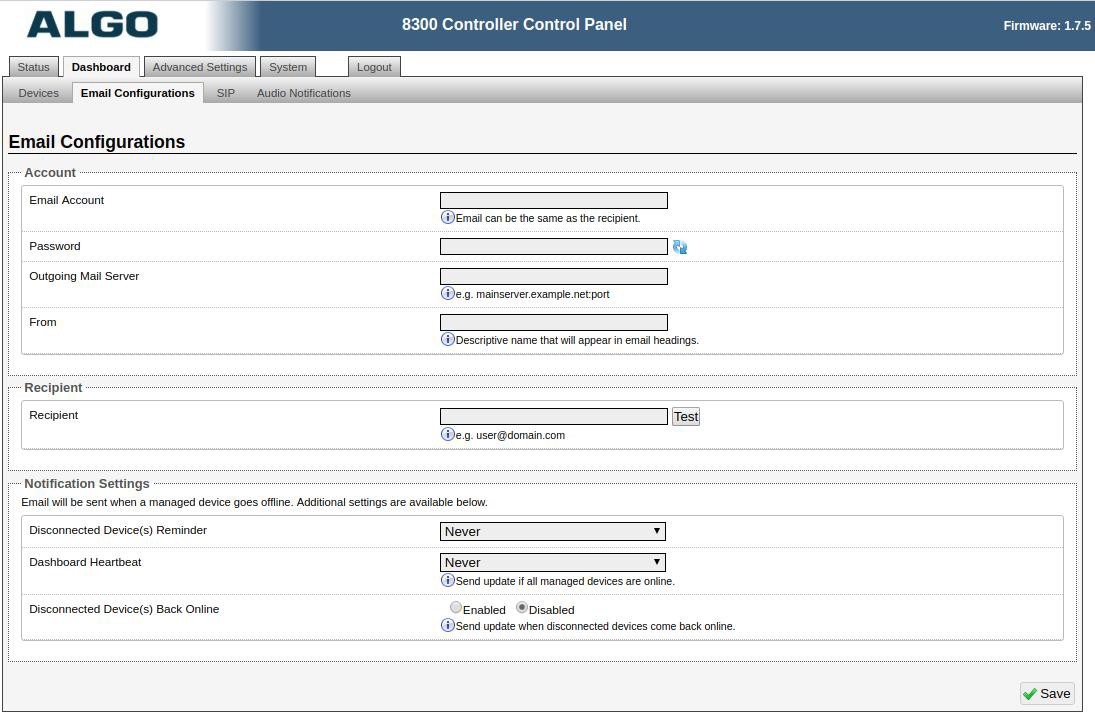
Email Account
Email account that the email will be sent from.
Password
Password to email account.
Outgoing Mail Server
The host name of the outgoing SMTP server, such as smtp.example.com.
From
Descriptive name that will appear in email headings.
Recipient
Notification recipient email address.
Disconnected Device(s) Reminder
Send additional email reminders of disconnected devices for a specific interval.
Dashboard Heartbeat
Send heartbeat emails periodically, even if no devices are offline. Heartbeat emails help to provide confirmation that the 8300 is operating correctly.
Disconnected Device(s) Back Online
Send an email notification when a disconnected device comes back online.
Dashboard Tab – SIP
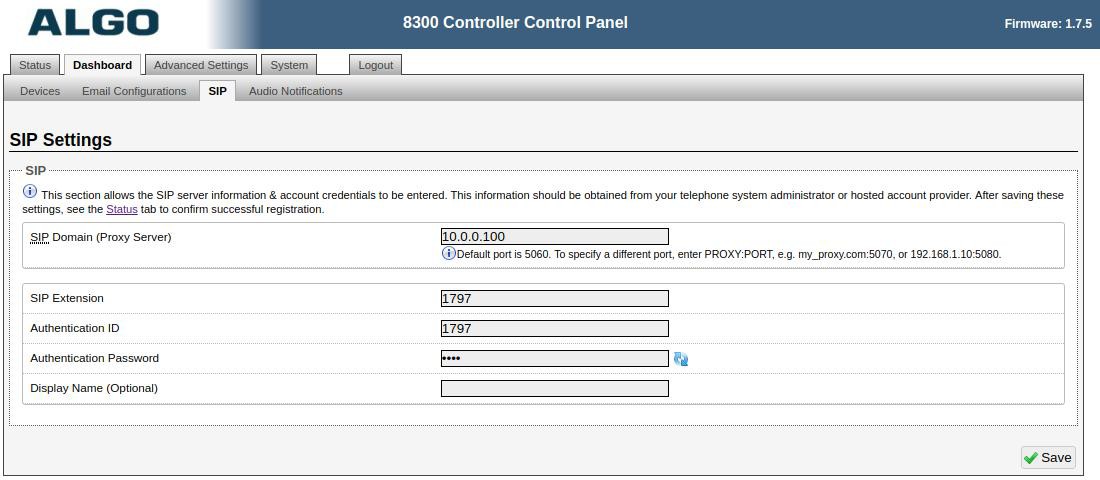
SIP Server information and Credentials should be obtained from your telephone system administrator or hosted account provider. After saving the settings, see the Status tab to confirm the registration was successful.
Note
Any time changes are made to settings in the Web Interface the "Save" key must be clicked to save the changes.
SIP Domain (Proxy Server)
SIP Server Name or IP Address.
Page Extension
This is the SIP extension for the 8300 Controller. The device will reject any inbound call received on this extension.
Authentication ID
It may also be called Username for some SIP servers, and in some cases, it may be the same as the SIP extension.
Authentication Password
SIP password provided by the system administrator for the SIP account.
Dashboard Tab– Audio Notifications
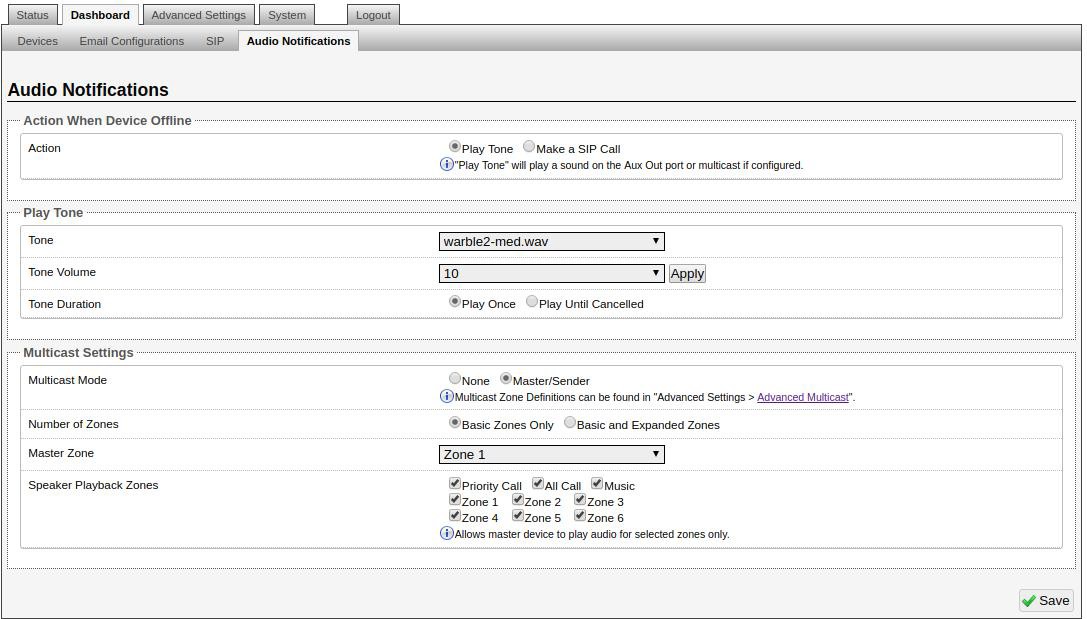
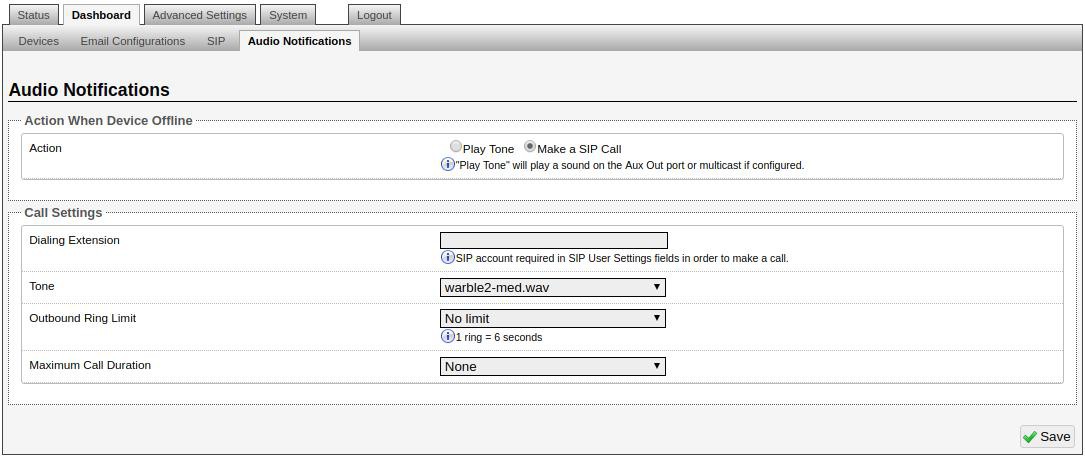
Action
The action to be performed when a device goes offline. If “Play Tone” is selected, the subsections “Play Tone” and “Multicast Settings” will be visible:
If “Make a SIP Call” is selected, the subsection “Call Settings” will be visible:
Play Tone – Tone
Select WAV file to play when an offline device is detected. The WAV file may be played immediately over Aux Out port. During multicast, the device will broadcast an audio stream using this tone.
Play Tone – Volume
Output volume of tone.
Play Tone – Tone Duration
Select the maximum tone duration. The tone will be terminated once the maximum time is reached.
Multicast Settings - Multicast Mode
If Sender mode is enabled, the 8300 Controller will broadcast an IP stream (of the tone selected in the “Play Tone” section) when a device goes offline, in addition to playing the audio over the Aux Out port.
Multicast Settings - Number of Zones
Select “basic” zones if configuring nine or fewer multicast zones or “expanded” to configure up to 50 zones. The expanded zones have the same behavior as the basic Receiver zones, but are hidden by default to simplify the interface.
Multicast Settings - Playback Zones
Allows the Sender device to play audio for selected zones only.
Call Settings - Dialing Extension
Extension to dial when an offline device is detected. Valid SIP Credentials are required in Dashboard → SIP in order to make a call.
Call Settings – Tone
Select a WAV file to play during a call when an offline device is detected.
Call Settings – Outbound Ring Limit
Typically set to ensure that a call will not reach voicemail. This feature is used to set a limit on how long the 8300 will ring before timing out.
Call Settings - Maximum Call Duration
Select the maximum call length. The call will be terminated once the maximum time is reached. In the event that a call inadvertently reaches voicemail or gets accidentally left on hold, this setting ensures that the 8300 returns on-hook. Audio files will play in a loop once the call is answered, until hung up or time limit is reached.
Web Interface Advanced Settings
Advanced Settings Tab - Network
Protocol
DHCP is an IP standard designed to make the administration of IP addresses simpler. When selected, DHCP will automatically configure IP addresses for each 8300 on the network. Alternatively, the 8300 can be set to a static IP address.
VLAN Mode
Enables or Disables VLAN Tagging. VLAN Tagging is the networking standard that supports Virtual LANs (VLANs) on an Ethernet network. The standard defines a system of VLAN tagging for Ethernet frames and the accompanying procedures to be used by bridges and switches in handling such frames. The standard also provides provisions for a quality of service prioritization scheme commonly known as IEEE 802.1p and defines the Generic Attribute Registration Protocol.
VLAN ID
Specifies the VLAN to which the Ethernet frame belongs. A 12-bit field specifying the VLAN to which the Ethernet frame belongs. The hexadecimal values of 0x000 and 0xFFF are reserved. All other values may be used as VLAN identifiers, allowing up to 4094 VLANs.
The reserved value 0x000 indicates that the frame does not belong to any VLAN; in this case, the 802.1Q tag specifies only a priority and is referred to as a priority tag. On bridges, VLAN 1 (the default VLAN ID) is often reserved for a management VLAN; this is vendor-specific.
VLAN Priority
Sets the frame priority level. Otherwise known as Priority Code Point (PCP), VLAN Priority is a 3-bit field which refers to the IEEE 802.1p priority. It indicates the frame priority level. Values are from 0 (lowest) to 7 (highest).
Differentiated Services (6-bit DSCP value)
Provides quality of service if the DSCP protocol is supported on your network. Can be specified independently for SIP control packets versus RTP audio packets.
DNS Caching Mode
In "SIP" mode, only the results of DNS queries for SIP requests will be cached. In "All" mode, the results of all DNS queries will be cached.
Admin
Admin settings allow you to configure device access, security, management, monitoring, and integration features.
From this page, you can change administrator credentials, manage logging and network management settings, enable APIs and external services, and configure device maintenance options.
Note
Available settings may vary depending on your product model and firmware version.
To configure Admin settings:
Go to Advanced Settings → Admin.
Configure the settings.
Refer to the following tables for the setting description.
Admin Password | |
Old Password | Enter the old admin password. The default password when you first get the device is algo. |
Password | Enter a new admin password to log into the device web interface. Make sure the new password is stored safely. If the password is forgotten, you must reset the device entirely to restore the default password. All other settings will be reset to the original default settings as well. To reset the device using the button, see Restoring Factory Default Settings Only. |
Confirmation | Re-enter your new admin password. |
General | |
Device Name (Hostname) | Add a name to identify the device. |
Introduction Section on Status Page | Select On to show the introduction text on the login screen. |
Show Status Section on Status Page when Logged Out | Select On to allow others to view the status page without logging in. Select Off to hide the settings and configurations on the status page unless a user is logged in to ensure only trusted users can view device information. |
Display Switch Port ID on Status Page | Select On to display the Switch Port ID on the Status Page. This option is only possible if the device is connected to a switch that supports LLDP or CDP. |
Web Interface Session Timeout | Set the maximum duration of inactivity to log a user out of the web interface automatically. |
Play Tone at Startup | The device can play a beep tone at startup. This option is available only to Algo IP Speakers, IP Displays, Paging Adapters, and IP Consoles. |
Management | |
Web Interface Protocol | HTTPS is always enabled on the device. HTTP is enabled by default but may be disabled. To do so, select HTTPS Only mode so requests are automatically redirected to HTTPS.
|
Force Strong Password | When Enabled, you can enforce a secure password for the device web interface for additional protection. The password requirements for a strong password are:
|
Allow Secure SIP Passwords | When Enabled, SIP passwords are stored in the configuration file in an encrypted format to prevent viewing and recovery. If enabled, navigate to Basic Settings → SIP and fill out the Realm field. To obtain your SIP Realm information, contact your SIP Server administrator or check the SIP log file for a registration attempt. The Realms may be the same or different for all the extensions used. All the configured Authentication Password(s) must be re-entered here as well as any other locations where SIP extensions have been configured to save the encrypted password(s). If the Realm is changed later, all passwords must be re-entered to save the passwords with the new encryption. |
Simple Network Management Protocol | |
SNMP Support | Disabled by default. The existing setting will respond to a simple status query for automated supervision. |
Send SNMP Traps on Logging Errors | When enabled, the device sends unsolicited SNMP trap notifications when logging errors occur. |
SNMP Community String | Speak to your IT Administrator for more information. |
SNMPv3 Security | Speak to your IT Administrator for more information. |
API Support | |
RESTful API | Disabled by default. Enable a secure API for remote access and device control via HTTP. For more information, see Algo RESTful API Guide. |
Authentication Method | Select an option:
|
RESTful API Password | Authentication requires generating a valid HMAC signature using the provided RESTful API Password. The device verifies this signature before processing your API command. For more information, see the Algo RESTful API Guide or speak to your IT Administrator. |
SCI Support | |
SCI | Disabled by default. Simple Control Interface (SCI) is a separate control interface for certain applications. Its primary purpose is to support phones that may have programmable keys that can only send out HTTP GET requests and allow them to initiate events remotely on an Algo device. |
SCI Password | Enter your SCI password. |
System Integrity | |
System Integrity Checking | Enable this feature to verify that installed system packages have not been tampered with by running a check. Enabling this feature may cause reboots and upgrades to take 30 seconds longer. Verification results can be found on the Status page. |
Microsoft | |
Microsoft Teams Support | Enable to allow the device to register with a Microsoft Teams account. The device reboot will take up to 5 minutes to complete, as the device will communicate several times with the Microsoft server. This feature requires a compatible release from Microsoft. After enabling this setting, please return to the Status page to sign into your Teams accounts. This feature requires a compatible release from Microsoft. For more details, please see the Microsoft Teams Configuration Guide. |
ADMP Cloud Monitoring | |
Enable ADMP Cloud Monitoring | The Algo Device Management Platform (ADMP) simplifies the process of managing, monitoring, and maintaining Algo devices from any location. This feature requires a valid Account ID. To learn more about ADMP and how to purchase a license, visit the ADMP webpage. |
Account ID | Enter the account ID listed on the Settings page of your ADMP account. |
Allow Configuration File Sync | Enable ADMP to query and display settings stored on the device. |
Heartbeat Interval | Select how often ADMP should check the status of your device. |
Enable Panic Button Monitoring | Enable to monitor Panic Button status in ADMP, including:
|
Advanced Settings Tab – Time
Network time is used for logging events into memory for troubleshooting.
Time Zone
Select time zone.
NTP Time Servers 1/2/3/4
The 8300 will attempt to use Timer Server 1 and work down the list if one or more of the time servers become unresponsive.
NTP Time Server Source
When “Use DHCP Option 42” is chosen, if an NTP Server address is provided via the DHCP Option 42, that NTP Server will be used instead of the 4 mentioned above.
Alternatively, “Ignore DHCP Option 42” can be chosen to only use servers mentioned above.
Device Date/Time
This field shows the current time and date as set on the device. If testing the device on a lab network that may not have access to an external NTP server, the “Sync with browser” button can be used to temporarily set the time on the device.
Note
This time value will be lost at power down, or overwritten if NTP is currently active. Time and date are used only for logging purposes and are not typically required.
Using OAuth for Authentication
OAuth (Open Authorization) is an industry-standard protocol that enables secure, delegated access to resources without requiring users to share credentials such as usernames and passwords.
Instead of storing static credentials on a device or application, OAuth allows a trusted third-party service (such as Google, Microsoft, or Slack) to issue time-limited access tokens. These tokens allow an Algo device to interact with the service on behalf of a user or system, without exposing sensitive login information.
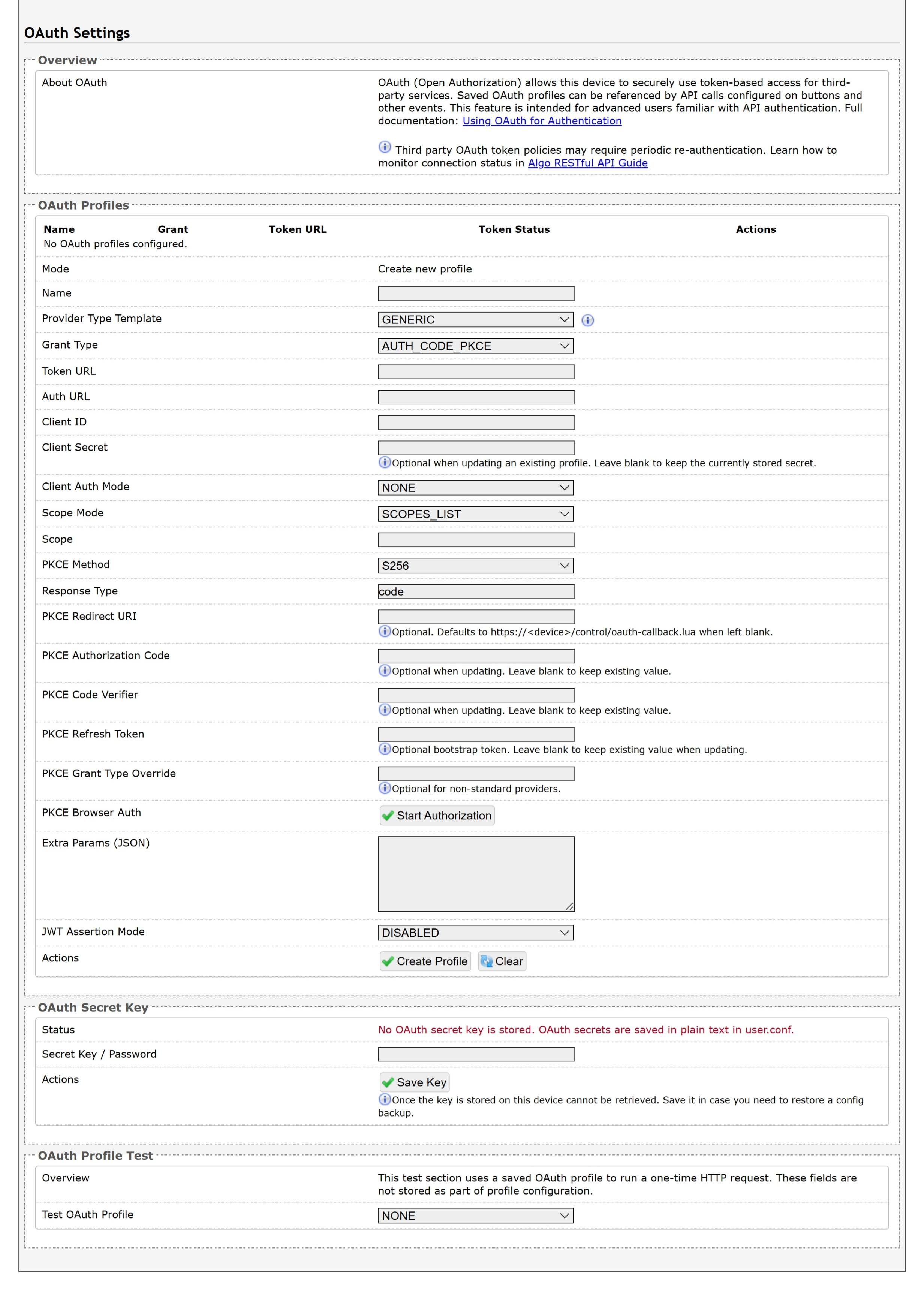
For more information, see Using OAuth for Authentication.
Advanced Settings Tab – File Manager
File Formats
When uploading files to the File Manager, refer to this table for supported file formats and requirements.
Folder | Supported Format | Requirements |
|---|---|---|
License | LIC | |
Tones | 8SVX, AIF, AIFC, AIFF, AIFFC, AL, AMB, AMR-NB, AMR-WB, ANB, AU, AVR, AWB, CAF, CDDA, CDR, CVS, CVSD, CVU, DAT, DVMS, F32, F4, F64, F8, FAP, FLAC, FSSD, GSM, GSRT, HCOM, HTK, IMA, IRCAM, LA, LPC, LPC10, LU, MAT, MAT4, MAT5, MAUD, MP2, MP3, NIST, OGG, PAF, PRC, PVF, RAW, S1, S16, S2, S24, S3, S32, S4, S8, SB, SD2, SDS, SF, SL, SLN, SMP, SND, SNDFILE, SNDR, SNDT, SOU, SOX, SPH, SW, TXW, U1, U16, U2, U24, U3, U32, U4, U8, UB, UL, UW, VMS, VOC, VORBIS, VOX, W64, WAV, WAVPCM, WV, WVE, XA, XI | Audio files must be in the following format:
|
Certs Folder
If you have enabled Validate Server Certificate under Advanced Settings →Advanced SIP or Advanced Settings → Provisioning and want to validate against additional certificates, you can upload them here.
To install a public CA certificate on the Algo device:
Obtain a public certificate from your Certificate Authority (Base64 encoded X.509 .pem, .cer, or .crt).
Open the certs folder in the web interface by going to System → File Manager.
Upload the certificate files into the certs folder by clicking Upload in the top left corner of the file manager and select the certificate.
Reach out to support@algosolutions.com to get the complete list of pre-loaded trusted certificates.
Debug Folder
If you have any challenges with the device and work with the Algo support team to overcome or fix them, the debug folder will be used. The device will generate files containing information about the device and put them in the debug folder. You do not need to use this folder unless directed to by the Algo support team.
License Folder
If you would like to use InformaCast on a device that hasn't been bundled with an InformaCast license, you will need to purchase a license and put it into the license folder in the file manager.
Tones Folder
Custom audio files may be uploaded to play notifications. Audio files should be stored in the tones directory.
Existing files may be modified by downloading the original file, making the desired changes, then uploading the updated file with a different name.
Advanced Settings Tab – Advanced SIP
SIP Transportation
Which transport layer protocol to use for SIP messages. Setting ‘SIP Transportation’ to ‘TLS’, ensures the encryption of SIP traffic.
SIPS Scheme
Only visible when ‘SIP Transportation’ set to ‘TLS’. Enabling SIPS Scheme requires the SIP connection from endpoint to endpoint to be secure.
SDP SRTP Offer
Setting ‘SDP SRTP Offer’ to ‘Optional’, means the SIP call’s RTP data will be left unencrypted if the other party does not support SRTP. Setting ‘SDP SRTP Offer’ to ‘Standard’, encrypts RTP voice data, meaning the normal audio RTP packets will now be secure (SRTP). This means SIP calls will be rejected if other party does not support
SRTP. The ‘Standard’ option secures the audio data between parties, by making sure that it’s not left out in the open for third parties to later reconstruct and listen to.
SIP Outbound Support (RFC 5626)
Enable this option to support best networking practices according to RFC 5626. This option should generally be enabled if the Algo device is being registered with a hosted server or if TLS is being used for SIP Transportation.
Outbound Proxy
IP address for outbound proxy. A proxy (server) stands between a private network and the internet.
Register Period (seconds)
Maximum requested period of time where the 8300 Controller will re-register with the SIP server. Default setting is 3600 seconds (1 hour). Only change if instructed otherwise.
Media NAT
IP address for STUN server if present or IP address/credentials for a TURN server.
Server Redundancy Feature
Two secondary SIP servers may be configured. The 8300 Controller will attempt to register with the primary server but switch to a secondary server when necessary. The configuration allows re-registration to the primary server upon availability or to stay with a server until unresponsive.
If Server Redundancy is selected the web page will expand as shown below.
Backup Server #1
If primary server is unreachable the 8300 Controller will attempt to register with the backup servers. If enabled, the 8300 will always attempt to register with the highest priority server.
Backup Server #2
If backup server #1 is unreachable the 8300 Controller will attempt to register with the 2nd backup server. If enabled, the 8300 will always attempt to register with the highest priority server.
Polling Intervals (seconds)
Time period between sending monitoring packets to each server. Non-active servers are always polled, and active server may optionally be polled (see below).
Poll Active Server
Explicitly poll current server to monitor availability. May also be handled automatically by other regular events, so can be disabled to reduce network traffic.
Automatic Failback
Reconnect with higher priority server once available, even if backup connection is still fine.
Polling Method
SIP message used to poll servers to monitor availability.
Keep-alive Method
If Double CRLF is selected, the 8300 will send a packet every 30 seconds (unless changed) to maintain a connection with the SIP Server if behind NAT.
Keep-alive Interval
Interval in seconds that the CRLF message should be sent.
Use Outgoing TLS port in SIP headers
Use the ephemeral port number from the outgoing SIP TLS connection instead of the listening port number in the SIP Contact and Via headers. This is useful to connect the device to some local SIP servers, like Asterisk or FreeSWITCH.
Do Not Reuse Authorization Headers
When enabled, all SIP authorization information from the last successful request will not be reused in the next request.
Advanced Settings Tab – Advanced Multicast
Sender Output Codec (Sender Mode)
Audio encoding format used by the Sender device when sending output to the Receivers.
Sender Output Packetization Time (Sender Mode)
The size of the audio packets sent by the Sender to the Receivers. The default of 20ms is recommended, unless a different value is specifically required for compatibility with other devices.
Zone Definition
The “Expanded” Receiver or Sender zones can be enabled/disabled in Basic Settings → Multicast. Default IP addresses and ports may be revised for any given zone in the table.
Ensure that the Address and Port settings are the same for all Sender and Receiver devices.
Web Interface System Settings
System Tab – Maintenance
Restore Configuration File
Restore settings from a backup file.
Restore Configuration to Defaults
Resets all 8300 Controller device settings to factory default values.
Reboot the Device
Reboots the device.
Method
Specify whether the firmware files will be downloaded from the local computer or a remote URL.
Firmware Image
Point to the firmware image provided by Algo.
MD5 Checksum
Point to the checksum file provided by Algo.
Upgrade 8300 Controller Firmware
From the top menu, click on System → Maintenance.
In the Upgrade section, click on Choose File and select the 8300 firmware file to upload. Note that both the FW firmware and MD5 checksum files must be loaded.
Click Upgrade.
After the upgrade is complete, confirm that the firmware version has changed (refer to the top right of the Control Panel).
System Tab – System Log
System log files are automatically created and assist with troubleshooting in the event the 8300 Controller does not behave as expected.
FCC Compliance Statement
This equipment has been tested and found to comply with the limits for a Class A digital device, pursuant to Part 15 of the FCC Rules. These limits are designed to provide reasonable protection against harmful interference when the equipment is operated in a commercial environment. This equipment generates, uses, and can radiate radio frequency energy, and if it is not installed and used in accordance with the instruction manual, it may cause harmful interference to radio communications. Operation of this equipment in a residential area is likely to cause harmful interference, in which case the user will be required to correct the interference at their own expense.